ViewSonic VNB106 Manuel utilisateur

- User Guide
- Guía del usuario
- Pyководствопользователя
- Kullanιcιkιlavuzu
- Οδηγόςχρηστών
- 使用手冊 (簡中)
VNB106
ViewBook
ViewSonic®
Model No. : VS13321

ViewSonic VNB106 i
ComplianceInformation
CEConformityforEuropeanCountries
The device complies with the EMC Directive 2004/108/EC and Low Voltage Directive
2006/95/EC.
FollowinginformationisonlyforEU-memberstates:
The mark shown to the right is in compliance with the Waste Electrical and Electronic
Equipment Directive 2002/96/EC (WEEE).
The mark indicates the requirement NOT to dispose the equipment as unsorted
municipal waste, but use the return and collection systems according to local law.
If the batteries, accumulators and button cells included with this equipment, display
the chemical symbol Hg, Cd, or Pb, then it means that the battery has a heavy metal
content of more than 0.0005% Mercury, or more than 0.002% Cadmium, or more than
0.004% Lead.
R&TTEComplianceStatement
This wireless module device complies with the Essential Requirements of the R&TTE Directive
of the European Union (1999/5/EC). This equipment meets the following conformance
standards:
ETSI EN 300 328
EN 301 489-01
EN 301 489-17
EN 62209-2
NotiedCountries:Germany, UK, Netherlands, Belgium, Sweden, Denmark, Finland,
France, Italy, Spain, Austria, Ireland, Portugal, Greece, Luxembourg, Estonia, Latvia,
Lithuania, Czech Republic, Slovakia, Slovenia, Hungary, Poland and Malta.

ViewSonic VNB106 ii
ImportantSafetyInstructions
DO NOT press or touch the LCD Screen. DO NOT place notebook PC with small items,
they may scratch LCD Screen or penetrate the vents of notebook PC.
DO NOT expose notebook PC to dirty or dusty environment. Keep the environment clean
and dry.
DO NOT place notebook PC on uneven or unstable work surface.
DO NOT place or drop objects on the top of notebook PC. DO NOT shove any foreign
objects into notebook PC. DO NOT close with force the LCD Screen lid.
DO NOT expose notebook PC to strong magnetic or electrical elds; DO NOT place oppy
disks near or on notebook PC as this may cause the loss of data on the oppy disks.
DO NOT leave notebook PC facing the sun as it can damage the LCD Screen, especially
when in a car.
SAFE TEMPERATURE: This notebook PC should only be used in environments with
ambient temperatures between 5°C (41°F) and 35°C(95°F).
DO NOT expose notebook PC to or use near liquids, rain, or moisture.
Caution: there is a risk of explosion if the battery is replaced by an incorrect type. Dispose
of used batteries according to the instructions.
DO NOT throw notebook PC in municipal waste. Check local regulations for disposal of
electronic products. Please recycle the Battery Pack, and check with your Local Authority
or retailer for an advice on recycling.
Notebook PC and its power adapter may produce some heat during operation or charging
of its internal battery. DO NOT leave notebook PC on your lap or any part of your body in
order to prevent discomfort or injury from heat exposure.
INPUT RATING: Refer to the rating label on notebook PC and make sure that the Power
Adapter complies with that rating. Only use accessories recommended by ViewSonic.
Check the connections between the main unit and attached devices before turning on your
notebook PC.
DO NOT use notebook PC during eating to avoid dirtying your notebook PC.
DO NOT insert anything into notebook PC that may result in short circuit or can damage
the electronic circuits.
Power off your notebook PC, if you want to install or remove some external devices, which
do not support hot-plugging-in.
Disconnect your notebook PC from the electrical outlet and remove any installed batteries
before cleaning the notebook PC. Keep your notebook PC away from children.
DO NOT disassemble notebook PC. Only a certied service technician should perform
repairs on your computer.
Use only the Battery Packs approved by ViewSonic.
Notebook PC has vents to disperse heat. DO NOT place notebook PC on soft objects
(e.g.: bed, sofa, your lap) as this can block the air ow from those vents and cause system
halt due to overheating.
1.
2.
3.
4.
5.
6.
7.
8.
9.
10.
11.
12.
13.
14.
15.
16.
17.
18.
19.
20.

ViewSonic VNB106 iii
DeclarationofRoHSCompliance
This product has been designed and manufactured in compliance with Directive 2002/95/EC
of the European Parliament and the Council on restriction of the use of certain hazardous
substances in electrical and electronic equipment (RoHS Directive) and is deemed to comply
with the maximum concentration values issued by the European Technical Adaptation
Committee (TAC) as shown below:
Substance
Proposed Maximum
Concentration
ActualConcentration
Lead (Pb) 0,1% < 0,1%
Mercury (Hg) 0,1% < 0,1%
Cadmium (Cd) 0,01% < 0,01%
Hexavalent Chromium (Cr6+) 0,1% < 0,1%
Polybrominated biphenyls (PBB) 0,1% < 0,1%
Polybrominated diphenyl ethers (PBDE) 0,1% < 0,1%
Certain components of products as stated above are exempted under the Annex of the RoHS
Directives as noted below:
Examples of exempted components are:
1. Mercury in compact uorescent lamps not exceeding 5 mg per lamp and in other lamps not
specically mentioned in the Annex of RoHS Directive.
2. Lead in glass of cathode ray tubes, electronic components, uorescent tubes, and
electronic ceramic parts (e.g. piezoelectronic devices).
3. Lead in high temperature type solders (i.e. lead-based alloys containing 85% by weight or
more lead).
4. Lead as an allotting element in steel containing up to 0.35% lead by weight, aluminium
containing up to 0.4% lead by weight and as a cooper alloy containing up to 4% lead by
weight.

ViewSonic VNB106 iv
CopyrightInformation
Copyright © ViewSonic®Corporation, 2010. All rights reserved.
Microsoft®, Windows®, Windows NT®, and the Windows®logo are registered trademarks of
Microsoft®Corporation in the United States and other countries.
ViewSonic®, the three birds logo, OnView®, ViewMatch™, and ViewMeter®are registered
trademarks of ViewSonic®Corporation.
Intel®, Pentium®, and Atom™ are registered trademarks of Intel Corporation.
Disclaimer: ViewSonic®Corporation shall not be liable for technical or editorial errors or
omissions contained herein; nor for incidental or consequential damages resulting from
furnishing this material, or the performance or use of this product.
In the interest of continuing product improvement, ViewSonic®Corporation reserves the right
to change product specications without notice. Information in this document may change
without notice.
No part of this document may be copied, reproduced, or transmitted by any means, for any
purpose without prior written permission from ViewSonic®Corporation.
ProductRegistration
To meet your future needs, and to receive any additional product information as it becomes
available, please register your product on the Internet at: www.viewsonic.com. The
ViewSonic®Wizard CD-ROM also provides an opportunity for you to print the registration form,
which you may mail or fax to ViewSonic®.
ForYourRecords
ProductName:
ModelNumber:
DocumentNumber:
SerialNumber:
PurchaseDate:
VNB106
ViewSonic ViewBook
VS13321
VNB106-1_UG_ENG Rev. 1B 03-18-10
Productdisposalatendofproductlife
ViewSonic®is concerned about the preservation of our environment. Please dispose of this
product properly at the end of its useful life. For the recycling information, please refer to our
website:
1. USA: www.viewsonic.com/company/green/recycle-program/
2. Europe: www.viewsoniceurope.com/uk/support/recycling-information/
3. Taiwan: recycle.epa.gov.tw

ViewSonic VNB106
Contents
Chapter 1: Preparing the netbook for use
Package contents ......................................................................1
Insert the battery........................................................................1
Connect the power adapter .......................................................1
Chapter 2: Turning on the VNB106
Top View with the lid open .........................................................2
Turn on the VNB106 ..................................................................2
The function keys.......................................................................3
Chapter 3: Conguring BIOS, installing an operating system and drivers
Installing an operating system ...................................................4
Other settings of the Setup CMOS Utility ..................................5
Installing the drivers...................................................................8
Chapter 4: Devices and interfaces
Expand the interface devices.....................................................9
Chapter 5: Control Center Functions
Using the Control Center .........................................................10

ViewSonic VNB106 1
User's Guide
Dear customer!
Thank you for choosing ViewSonic’s VNB106 netbook.
Your VNB106 has powerful information processing capabilities and mobile
characteristics. Whether you are in the ofce, at home, or travelling,
VNB106 is your effective assistant that accompanies you all the time.
This manual will help you master the methods and techniques of using
VNB106 to the best.
Chapter1
Preparingthenetbookforuse
NO.1.1 Package contents
First of all, please open the VNB106 box and carefully remove the contents;
check if anything is missing or damaged.
NO.1.2 Insert the battery
Insertingthebattery Removingthebattery
NO.1.3 Connect the power adapter
ViewSonic VNB106 2
Chapter2
TurningontheVNB106
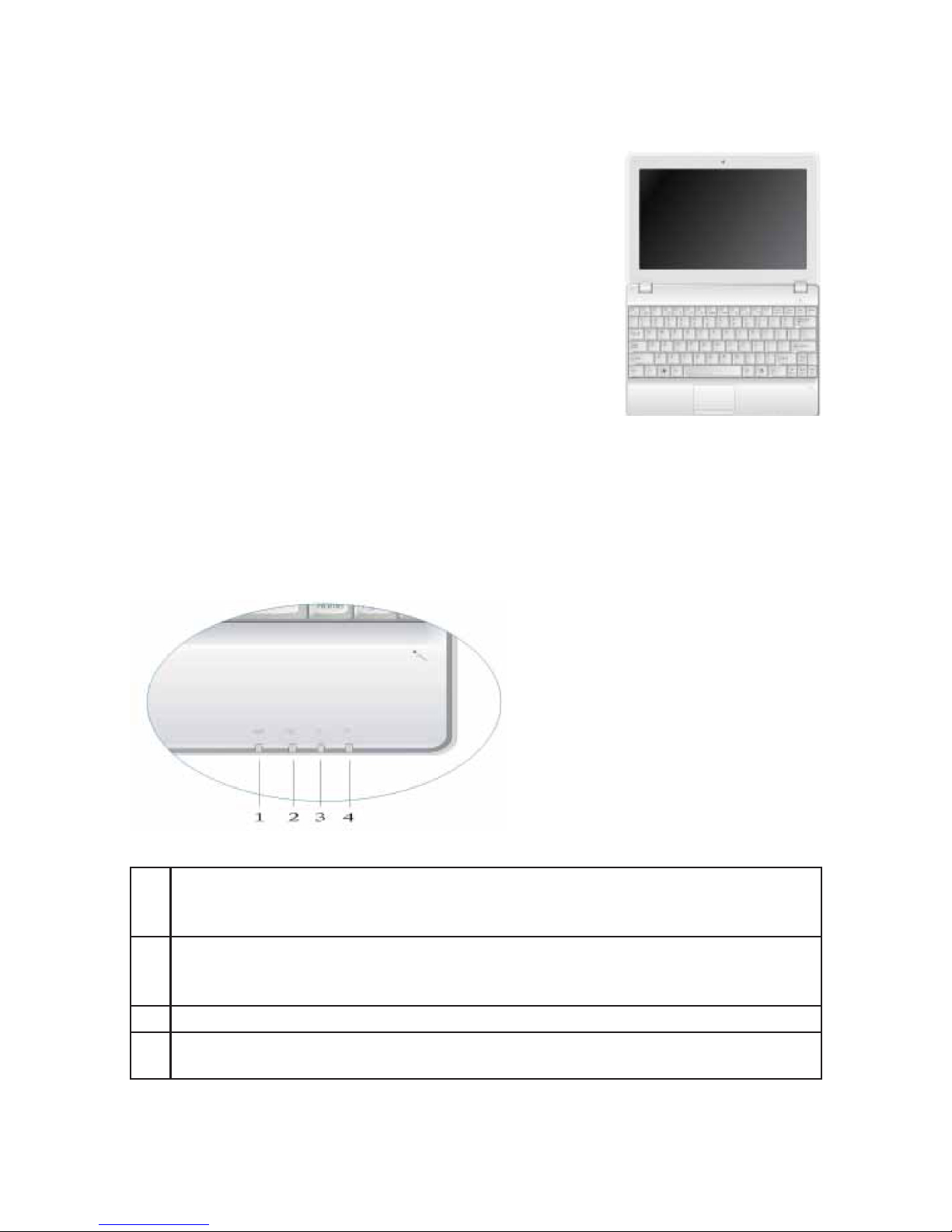
NO.2.1 Top View with the lid open
Open the lid of your VNB106. Please be careful
when opening or closing the lid; do not do it with
excessive force as you can damage the netbook.
NO.2.2 Turn on the VNB106
Make sure both the battery and the power adapter are connected to the
netbook and to wall AC power outlet. Press the Power button for one
second to turn on the netbook.
1
The power indicator: the glowing blue light implies the system is in ON and
is in the normal mode; the pulsating blue light implies the system is in the
standby mode.
2
The battery and charging status indicator: the LED glowing in amber means
the battery is being charged; a pulsating amber light means the battery is low
of power; when the battery is fully charged the LED glows in blue.
3HDD indicator: ashing in blue, this LED shows the HDD activity.
4Wi-Fi indicator: when the netbook is connected to the wireless AP, the LED is
ashing in blue. When the Wi-Fi module is disabled, the LED is not lit.
VNB106
appearance

ViewSonic VNB106 3
NO.2.3 The function keys
Key Description
Fn+Esc Enter suspend state
Fn+F1 Enable or disable the touchpad
Fn+F2 Enable or disable the 3G module
Fn+F3 Enable or disable the Wi-Fi module
Fn+F4 Toggle the sound ON and OFF
Fn+F5 Decrease the brightness of the LCD
Fn+F6 Increase the brightness of the LCD
Fn+F7 Turn ON of OFF the video-out signal for externally connected LCD or
projector
Fn+F8 Turn ON/OFF the internal display
Fn+F9 Customizable; the default setting is to open a web browser
Fn+F10 Customizable; the default setting is to open an email client
Fn+F11 Customizable; the default setting is to open a media player
Fn+ Increase the sound volume
Fn+ Decrease the sound volume

ViewSonic VNB106 4
Chapter3
ConguringBIOS,installingan
operatingsystemanddrivers
NO.3.1 Installing an operating system
Before installing OS, you will need to set up BIOS to allow boot from USB-
CD/DVD drive. To do that, turn on VNB106, and press F2 when prompted
to run BIOS setup.
After you enter BIOS setup application, use the [→] and [←] keys to choose
BOOT section of the main menu, select your USB-CD/DVD drive in the
Boot priority list and use the [ + ] and [ - ] buttons to set the order in which
drives and devices will be checked for a useable OS to boot at the time of
startup.
Ce manuel convient aux modèles suivants
2
Table des matières
Autres manuels ViewSonic Netbook