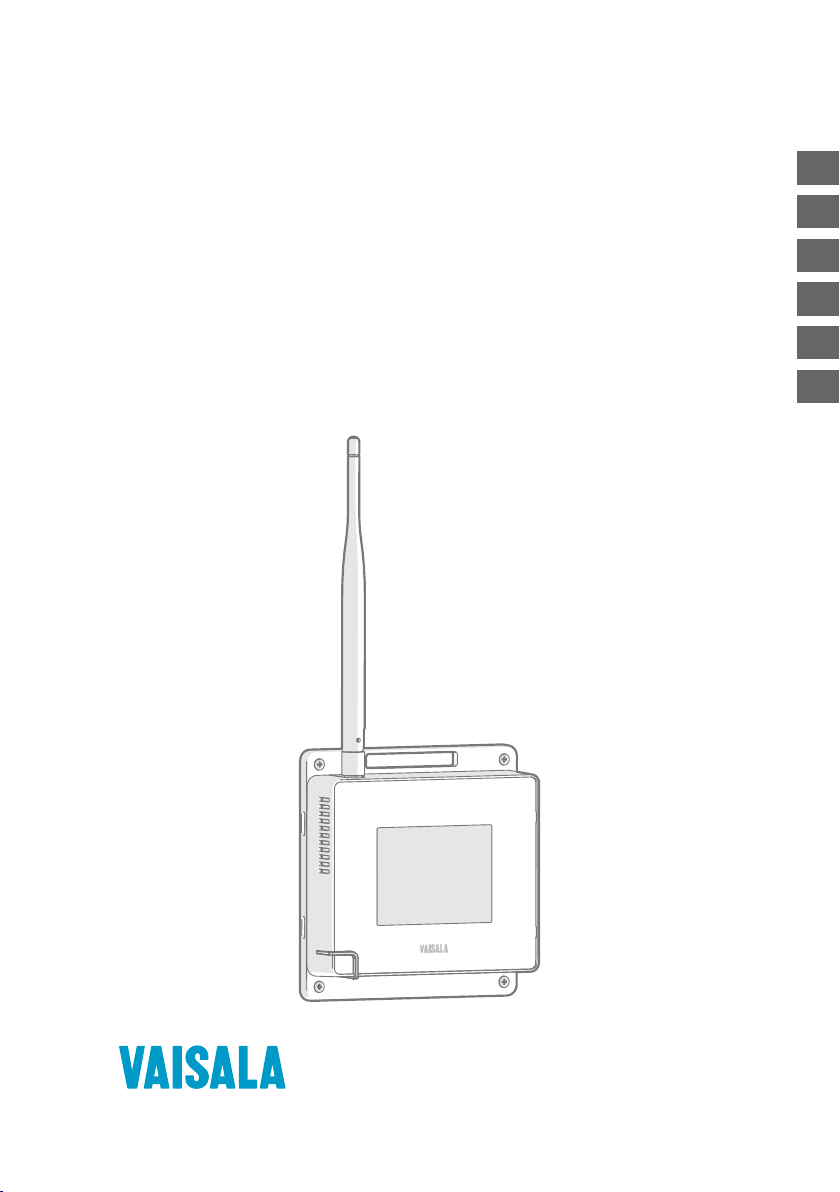
Vaisala VaiNet AP10 Manuel utilisateur

EN
DE
FR
ES
PT
ZH
M211821EN-D
Quick Guide
Vaisala VaiNet Wireless Access Point
AP10

PUBLISHED BY
Vaisala Oyj
Vanha Nurmijärventie 21, FI-01670 Vantaa, Finland
P.O. Box 26, FI-00421 Helsinki, Finland
+358 9 8949 1
Visit our Internet pages at www.vaisala.com.
No part of this document may be
reproduced, published or publicly
displayed in any form or by any
means, electronic or mechanical
(including photocopying), nor
may its contents be modified,
translated, adapted, sold or
disclosed to a third party without
prior written permission of the
copyright holder. Translated
documents and translated
portions of multilingual
documents are based on the
original English versions. In
ambiguous cases, the English
versions are applicable, not the
translations.
The contents of this document are
subject to change without prior
notice.
Local rules and regulations may
vary and they shall take
precedence over the information
contained in this document.
Vaisala makes no representations
on this document’s compliance
with the local rules and
regulations applicable at any
given time, and hereby disclaims
any and all responsibilities related
thereto.
This document does not create
any legally binding obligations for
Vaisala towards customers or end
users. All legally binding
obligations and agreements are
included exclusively in the
applicable supply contract or the
General Conditions of Sale and
General Conditions of Service of
Vaisala.
This product contains software
developed by Vaisala or third
parties. Use of the software is
governed by license terms and
conditions included in the
applicable supply contract or, in
the absence of separate license
terms and conditions, by the
General License Conditions of
Vaisala Group.
This product may contain open
source software (OSS)
components. In the event this
product contains OSS
components, then such OSS is
governed by the terms and
conditions of the applicable OSS
licenses, and you are bound by
the terms and conditions of such
licenses in connection with your
use and distribution of the OSS in
this product. Applicable OSS
licenses are included in the
product itself or provided to you
on any other applicable media,
depending on each individual
product and the product items
delivered to you.

Table of Contents
English.............................................................................................................................................5
Deutsch......................................................................................................................................... 13
Français......................................................................................................................................... 21
Español.........................................................................................................................................29
Português.................................................................................................................................... 37
中文...............................................................................................................................................45
3

4 M211821EN-D

Setting Up AP10
2
3
1
1Touchscreen.
2Ethernet cable. You must use a
shielded cable to meet the rated EMC
performance of the device.
3Cable from DC power supply.
AP10 requires a network connection to your viewLinc Enterprise Server and a
Network Time Protocol (NTP) server. AP10 can also use its default NTP servers if
internet is accessible from the network.
1. Connect the Ethernet cable to Ethernet port of AP10. If possible, connect to the same
network where the viewLinc Enterprise Server is, so that you can verify the connection
when doing the setup.
2. If the Ethernet cable does not provide power, connect the DC power supply:
a. Remove the DC power supply from the AP10 package.
b. The power supply comes with multiple adapters for wall sockets. Connect the adapter
you need to the power supply before attempting to use it.
c. Plug in the power supply to the wall socket.
d. Connect the plug to the power supply connector of AP10. Make sure the plug is
oriented correctly and goes in all the way.
e. Rotate the power plug slightly to lock it to the connector.
5
ENGLISH

3. A setup wizard starts when AP10 is first powered up. Use the touch interface to complete
the wizard:
a. Select a language for the touchscreen display.
b. Configure the network settings so that AP10 can join the network.
c. Configure the Network Time Protocol (NTP) servers that the access point will attempt
to synchronize with. If you have a local NTP server in the network, replace one of the
default NTP server hostnames with its IP address or hostname.
d. Select a VaiNet channel (1 ... 8). Each access point in range of each other must have a
unique channel assigned to it.
e. Enter the IP address or hostname of the viewLinc Enterprise Server. Leave the TCP
port at default 12600 unless you know it has been changed.
f. Enable Installation Mode to start connecting data loggers to your system.
4. After the setup wizard is complete, wait for the display to change to the home screen
where you can see the status of the access point at a glance.
An NTP connection error continues to be shown while AP10 is synchronizing
time with the listed NTP servers. It may take up to 15 minutes for it to
disappear even when the NTP servers are reachable. Wait patiently.
To change the configuration of the access point, touch the symbol to
open the Settings screen.
6 M211821EN-D

Mounting AP10
B
A
Figure 1 AP10 Mounting Methods
AMounting with cable ties (2 pcs).
BMounting with screws (4 pcs).
116 [4.57]
124 [4.88]
Ø3.50
[0.11]
mm
[in]
Figure 2 AP10 Screw Mounting Dimensions
1. Attach AP10 to its mounting location using the most suitable mounting option. Ensure the
unit is securely fixed if you are mounting it higher than 2 m (approx. 6 ft) or in a location
where it would pose a hazard if dropped.
7
ENGLISH

2. Point the antenna up or down for best wireless performance.
3. Connect the Ethernet cable.
4. If the Ethernet cable does not provide power, connect the DC power supply:
a. Connect the plug to the power supply connector of AP10. Make sure the plug is
oriented correctly and goes in all the way.
b. Rotate the power plug slightly to lock it to the connector.
c. Connect the power supply to the wall socket.
5. Secure the power supply so it does not fall or hang on its cable.
6. Wait for the access point to start up. Verify from the touchscreen that the access point has
an IP address, and it is connected to viewLinc.
You may also see an error message about the NTP server connection. It should disappear
within 15 minutes as the access point synchronizes its internal clock with the NTP server.
Accessing the Web Interface
The local touchscreen interface may be hard to access after AP10 has been installed. AP10 also
has a web interface that you can use to remotely view access point status and configure its
settings.
1. Verify the IP address of the access point from the touchscreen interface.
2. Open a web browser.
3. In the address field of the web browser, enter https:// and the IP address of the AP10.
For example: https://192.168.10.47
4. The default user interface language is English. If you want to use another language for this
session, select it from the drop-down menu.
5. Enter the login information:
•User name: apadmin
•Password: ap123456 (default)
6. Select Log in to access the interface.
8 M211821EN-D

Overview of AP10 Access Point
Vaisala VaiNet Access Point AP10 is a wireless access point that collects data from VaiNet
wireless data loggers and transfers it to viewLinc Enterprise Server using a wired Ethernet
connection. AP10 implements Vaisala's proprietary VaiNet protocol. It can connect up to 32
RFL100 Data Loggers to Vaisala viewLinc Monitoring System. The wireless connection
operates on 868 MHz or 915 MHz frequency band depending on the model. For more
information on viewLinc system installation, see viewLinc Setup Guide (M211820EN).
viewLinc
Enterprise Server
AP10
Access Point
RFL100
Data Loggers
VaiNet wireless
>100 m (328 ft) range
NTP Server
Wired
network
Figure 3 AP10 in the viewLinc Monitoring System
AP10 can be powered from the Ethernet connector using Power over Ethernet (PoE) or from
the power supply connector using the included AC/DC adapter. If both power sources are
connected, the AC/DC adapter is utilized to power the device. AP10 is IP22 rated, and is
suitable for indoor industrial applications.
AP10 has two user interfaces:
• Touch interface on the front panel. Use this interface to set up the device during
installation and to locally check the connection status.
• Web interface via the Ethernet connection. This interface provides advanced
configuration features and can be accessed remotely.
AP10 Installation Location and Range
In a typical indoor space, the wireless range of AP10 is at least 100 m (328 ft). In an open space
with line-of-sight and no interfering structures, the range can be over 500 m (1640 ft). Up to 8
access points can be placed within range of each other, even side-by-side, as long as they each
have their own VaiNet channel.
Walls and ceilings are good locations for AP10. Line of sight is not required. If possible, place
AP10 in the same floor as the data loggers. Point the antenna up or down for best wireless
performance.
Avoid placing AP10 close to large metal surfaces, as they may reduce the range of the radio
signal.
9
ENGLISH

Delays in a VaiNet Network
VaiNet protocol and VaiNet devices are designed for power-ecient operation. Some of the
design choices that enable long battery life also create significant delays that the users should
be aware of.
Intermittent Radio Connections
Radio connections between VaiNet access points and data loggers are not continuous. Access
points take turns communicating in a two-minute cycle, and connected data loggers send their
measurement data to their connected access point every four minutes. This introduces various
delays:
• Data loggers that are not currently connected (new devices or ones that have fallen out of
radio contact) have to scan for available access points for a complete cycle before they
can decide what is the optimal access point for them. This means that connection
attempts typically take at least a couple of minutes. Additionally, some joining scenarios
may take multiple attempts. For example, when filling a single access point up to its full
capacity of 32 data loggers, it may take an hour for the last data logger to successfully
connect to the access point.
• Access points request missing data and issue management commands to data loggers
within their communication window. Transferring a full month's worth of measurement
data from 32 data loggers using one access point takes several hours.
Data Logger Scanning Interval
Scanning for available access points consumes power. To prevent repeated scanning from
draining their batteries, RFL100 Data Loggers shut down their radio temporarily if they can
find no access points to join. They will resume scanning after a waiting interval that gets
progressively longer if they keep failing to find an access point. The maximum interval is 8
hours and 30 minutes.
This means that when access points become available after an outage, it may take several
hours for data loggers to discover them. This is why you should always keep your access points
powered up, and why you should start your network installation by installing the viewLinc
Enterprise Server and access points first.
You can manually wake up the radio of an RFL100 Data Logger by pressing its
Refresh button. The button is located next to the service port under the silicone
plug.
More Information
For more information on AP10 Access Point, see AP10 User Guide (M211860EN) available at
www.vaisala.com/ap10.
10 M211821EN-D
Autres manuels pour VaiNet AP10
3
Table des matières
Langues :
Autres manuels Vaisala Point d'accès sans fil
Manuels Point d'accès sans fil populaires d'autres marques

D-Link
D-Link DWL-2100AP - AirPlus Xtreme G Manuel utilisateur

Ubiquiti
Ubiquiti NanoStation NSM2 Manuel utilisateur

Cisco
Cisco Aironet 1550 Series Manuel utilisateur

Aruba
Aruba IAP-335 Manuel utilisateur

Advantek Networks
Advantek Networks AWN-AP-54MR Manuel utilisateur

IP-COM
IP-COM AP355 Manuel utilisateur