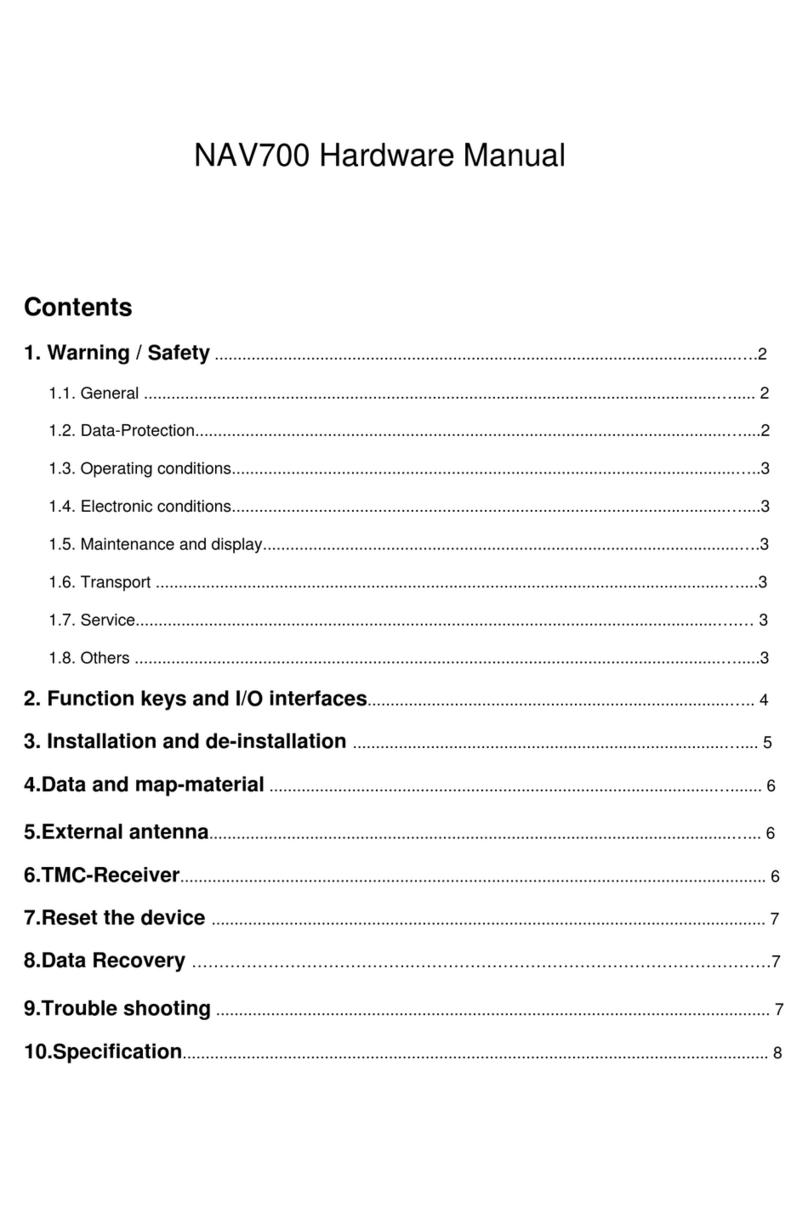
V7 NAV700 Manuel technique

Title: Software and Map Update Instructions Last Updated: 12/28/2007
Model(s): V7 GPS Nav700 and Nav720 Version: 1.1
Created by: V7 Customer Care
1
V7 Nav700 and Nav720
Software and Map Update Instructions
TABLE OF CONTENTS
GENERAL PURPOSE................................................................................................................................................2
BEFORE YOU START...............................................................................................................................................2
Check all your devices..........................................................................................................................................2
Check disk space on PC........................................................................................................................................2
Check internet connection.....................................................................................................................................2
DOWNLOAD FILES..................................................................................................................................................2
Access website for Download ...............................................................................................................................2
Select Region and Model ......................................................................................................................................3
Download Software Files......................................................................................................................................3
Download Map Files ............................................................................................................................................3
RESTORE APPLICATION.......................................................................................................................................4
Unzip (or Extract) Software Files.........................................................................................................................4
Copy contact lists from PND (for Nav720 only – optional)..................................................................................4
Copy custom Points-of-Interest from PND (optional) ..........................................................................................5
Format PND’s memory (TFAT)............................................................................................................................7
Copy Software files to PND’s memory .................................................................................................................8
LOAD MAPS...............................................................................................................................................................9
Copy downloaded map files to PND’s maps folder ..............................................................................................9
Copy downloaded map files to SD card’s maps folder (optional)......................................................................10
DELETE BACKUP ON PC......................................................................................................................................11
Delete Previously created Backup Files on the PC’s Hard Drive......................................................................11

Title: Software and Map Update Instructions Last Updated: 12/28/2007
Model(s): V7 GPS Nav700 and Nav720 Version: 1.1
Created by: V7 Customer Care
2
GENERAL PURPOSE
The purpose of this document is to provide instructions to download the files needed to restore the device
with latest software and map updates.
BEFORE YOU START
Check all your devices
1. Please ensure you have the following:
Personal Computer (PC)
Nav700 or Nav720 Portable Navigation Device (PND)
Mini-USB Cable to connect PND to PC
SD Card and SD Card reader/writer (Optional)
2. Power off the PND via switch on/off the side, then Power on again
3. Wait till the PND starts up completely
4. Connect PND to PC using mini-USB Cable
5. At this point, V7 logo will appear on PND
6. Windows will recognize the PND as Drive labeled TFAT
Check disk space on PC
7. A set of map files can be approximately 1GB to 2GB, please ensure enough disk space is
available on the PC.
Check internet connection
8. Ensure that your PC has connection to broad band or DSL connection to internet.
DOWNLOAD FILES
Access website for Download
1. Open internet browser on your PC and go to: http://v7support.com/V7GPS/Updates/

Title: Software and Map Update Instructions Last Updated: 12/28/2007
Model(s): V7 GPS Nav700 and Nav720 Version: 1.1
Created by: V7 Customer Care
3
Select Region and Model
2. Click on the region you are located in then click on Model you have
Download Software Files
3. If you would like to update to latest Software version, click on Software_Files.zip
This will start the download. Select to save the file on your PC.
After downloading, follow the steps in RESTORE APPLICATION section
Download Map Files
4. If you would like to update to latest Map files, click on Map_Files,
If there are multiple map sets available, click on the map set you would like
Create a temporary “MAPS” folder on PC to download map files
Click on map files (.fbl) to download each individual map files into “MAPS” folder
After downloading, follow the steps in LOAD MAPS section

Title: Software and Map Update Instructions Last Updated: 12/28/2007
Model(s): V7 GPS Nav700 and Nav720 Version: 1.1
Created by: V7 Customer Care
4
RESTORE APPLICATION
Unzip (or Extract) Software Files
1. Unzip Software_Files.zip file that was downloaded.
Depending on software used to unzip, you can double-click on the zip file then Extract
Follow the prompt and choose location on PC to extract the folder.
NOTE: Below example is using WinZip application
2. Unzipped folder “Software Files” would have following directories:
Copy contact lists from PND (for Nav720 only – optional)
3. Right-click on Start >> select Explore

Title: Software and Map Update Instructions Last Updated: 12/28/2007
Model(s): V7 GPS Nav700 and Nav720 Version: 1.1
Created by: V7 Customer Care
5
4. Navigate to your PND drive (TFAT) and select drive
5. Hold ctrl key down and select following folders
\AddressDB
\CycleDB
6. Right-click and select copy
7. Navigate the cursor to Software Files folder and right-click and select Paste
Copy custom Points-of-Interest from PND (optional)
8. Right-click on Start, select Explore

Title: Software and Map Update Instructions Last Updated: 12/28/2007
Model(s): V7 GPS Nav700 and Nav720 Version: 1.1
Created by: V7 Customer Care
6
9. Navigate to your PND drive (TFAT) and select \iGO folder
10. select following file
\iGO.db
11. Right-click and select copy
12. Navigate the cursor Software Files\iGO folder and right-click and select Paste

Title: Software and Map Update Instructions Last Updated: 12/28/2007
Model(s): V7 GPS Nav700 and Nav720 Version: 1.1
Created by: V7 Customer Care
7
Format PND’s memory (TFAT)
13. Right-click on Start >> select Explore
14. Navigate to your PND drive (TFAT) and select drive
15. Right click and select Format
16. Click on Start
17. Click on OK

Title: Software and Map Update Instructions Last Updated: 12/28/2007
Model(s): V7 GPS Nav700 and Nav720 Version: 1.1
Created by: V7 Customer Care
8
18. Click on OK
Copy Software files to PND’s memory
19. Navigate to your Software Files folder and double-click
20. Select ALL the files in the directory, then right-click and copy
21. Navigate to PND (TFAT drive) and double-click
22. Right-click and paste all the copied files
NOTE:This may take up to 10 minutes or more depending on PC
23. Now, all Software files have been restored on PND

Title: Software and Map Update Instructions Last Updated: 12/28/2007
Model(s): V7 GPS Nav700 and Nav720 Version: 1.1
Created by: V7 Customer Care
9
LOAD MAPS
Copy downloaded map files to PND’s maps folder
1. Navigate to the MAPS folder where maps files were downloaded
2. Hold ctrl key down, select the map files (.fbl) files based on available disk space on PND
3. Right-click and select copy
NOTE: Not all maps will fit into PND.
4. Navigate to PND and locate maps folder (TFAT:\iGO\maps)
5. Double-click on maps folder, and right-click inside the folder and select paste
NOTE: This may take up to 2 hours or more depending on your PC

Title: Software and Map Update Instructions Last Updated: 12/28/2007
Model(s): V7 GPS Nav700 and Nav720 Version: 1.1
Created by: V7 Customer Care
10
Copy downloaded map files to SD card’s maps folder (optional)
6. Insert a SD card into a SD card reader / writer slot that is connected to PC
7. Navigate to the SD card’s root directory
8. Right-click on background and select New >> Folder and rename this to “MAPS”
TIP: Alternatively, you can simply copy the entire MAPS folder on PC to SD card’s root directory.
9. Navigate to the MAPS folder where maps files were downloaded on PC
10. Hold ctrl key down, select the map files (.fbl) files based on available disk space on SD Card
11. Right-click and select copy
Autres manuels pour NAV700
2
Ce manuel convient aux modèles suivants
1
Table des matières
Autres manuels V7 GPS