UTStarcom RollingStream Media Console 1088H Manuel utilisateur

RollingStreamTM
Media Console 1088H
User Guide

Copyright © 2006 UTStarcom, Inc. All rights reserved.
No part of this documentation may be reproduced in any form or by any means or used to make
any derivative work (such as translation, transformation, or adaptation) without prior, express and
written permission from UTStarcom, Inc.
UTStarcom, Inc. reserves the right to revise this documentation and to make changes in content
from time to time without obligation on the part of UTStarcom, Inc. to provide notification of such
revision or changes.
UTStarcom, Inc. provides this documentation without warranty of any kind, implied or expressed,
including but not limited to, the implied warranties of merchantability and fitness for a particular
purpose. UTStarcom may make improvements or changes in the product(s) and/or the
program(s) described in this documentation at any time.
UNITED STATES GOVERNMENT LEGENDS:
If you are a United States government agency, then this documentation and the software
described herein are provided to you subject to the following:
United States Government Legend: All technical data and computer software is commercial in
nature and developed solely at private expense. Software is delivered as Commercial Computer
Software as defined in DFARS 252.227-7014 (June 1995) or as a commercial item as defined in
FAR 2.101(a) and as such is provided with only such rights as are provided in UTStarcom's
standard commercial license for the Software. Technical data is provided with limited rights only
as provided in DFAR 252.227-7015 (Nov 1995) or FAR 52.227-14 (June 1987), whichever is
applicable. You agree not to remove or deface any portion of any legend provided on any
licensed program or documentation contained in, or delivered to you in conjunction with, this
User Guide.
UTStarcom, the UTStarcom logo, PAS, mSwitch, Airstar, WACOS, Netman, Total Control, and
CommWorks are registered trademarks of UTStarcom, Inc. and its subsidiaries. The UTStarcom
name, AN-2000, and the CommWorks logo are trademarks of UTStarcom, Inc. and its
subsidiaries.
Other brand and product names may be registered trademarks or trademarks of their respective
holders.
Any rights not expressly granted herein are firmly reserved.

Technical Support
Obtaining Technical Assistance
UTStarcom maintains a strong global presence, operating Technical
Response and Service Centers, in the US, Japan, India, China, Ireland,
Mexico and Brazil. These centers are available for technical telephone
support to entitled customers during normal business hours. After hours
support is available to customers who purchase a premium Service
Agreement.
Support Website
The UTStarcom Support website provides a variety of tools to assist
customers in resolving technical issues on UTStarcom products. The
UTStarcom Support website is available 24 hours per day. Customer
registration is required. Certain premium features require a valid Service
Agreement.
Hot Line: 86-95105550
Fax: 86-571-81928585
E-mail: utservice@utstar.com
Website: http://www.utstar.com.cn/service


31
Contents
Important Safety Instructions ................................................................. 33
1MC1088H Overview............................................................................... 35
Product View....................................................................................... 35
Features.............................................................................................. 35
Network Connection............................................................................ 36
2Device Introduction............................................................................... 37
Front Panel Description....................................................................... 37
Rear Panel Description........................................................................ 38
Remote Control................................................................................... 40
3Hardware Installation............................................................................ 42
Installation Preparation........................................................................ 42
Connecting Audio/Video Cables.......................................................... 43
Composite Video / CVBS (Composite Video Baseband Signal) with Analog
Audio..........................................................................................................43
YPbPr Video with Analog Audio..................................................................44
S-Video and Analog Audio..........................................................................45
Connecting a Network Cable............................................................... 45
Connecting a CATV Cable .................................................................. 46
Optional External IR Sensor................................................................ 46
Connecting Power Adapter.................................................................. 47
4Media Console Initial Setup.................................................................. 48
5Specifications........................................................................................ 50
6Troubleshooting.................................................................................... 51

32
List of Figures
Figure 1 Media Console 1088H..........................................................................35
Figure 2 Media Console 1088H Connected to Network.......................................36
Figure 3 MC1088H Front View ...........................................................................37
Figure 4 MC1088H Front View with Cover Open ................................................37
Figure 5 MC1088H Rear View............................................................................38
Figure 6 MC1088H Remote Control....................................................................40
Figure 7 Composite Video (CVBS) with Analog Audio........................................43
Figure 8 YPbPr and Analog Audio.....................................................................44
Figure 9 S-Video and Analog Audio....................................................................45
Figure 10 Network Connection ...........................................................................45
Figure 11 CATV and Optional IR Sensor Connections........................................46
Figure 12 Power Connection ..............................................................................47

Important Safety Instructions
33
Impor t ant S af et y In stru ct ion s
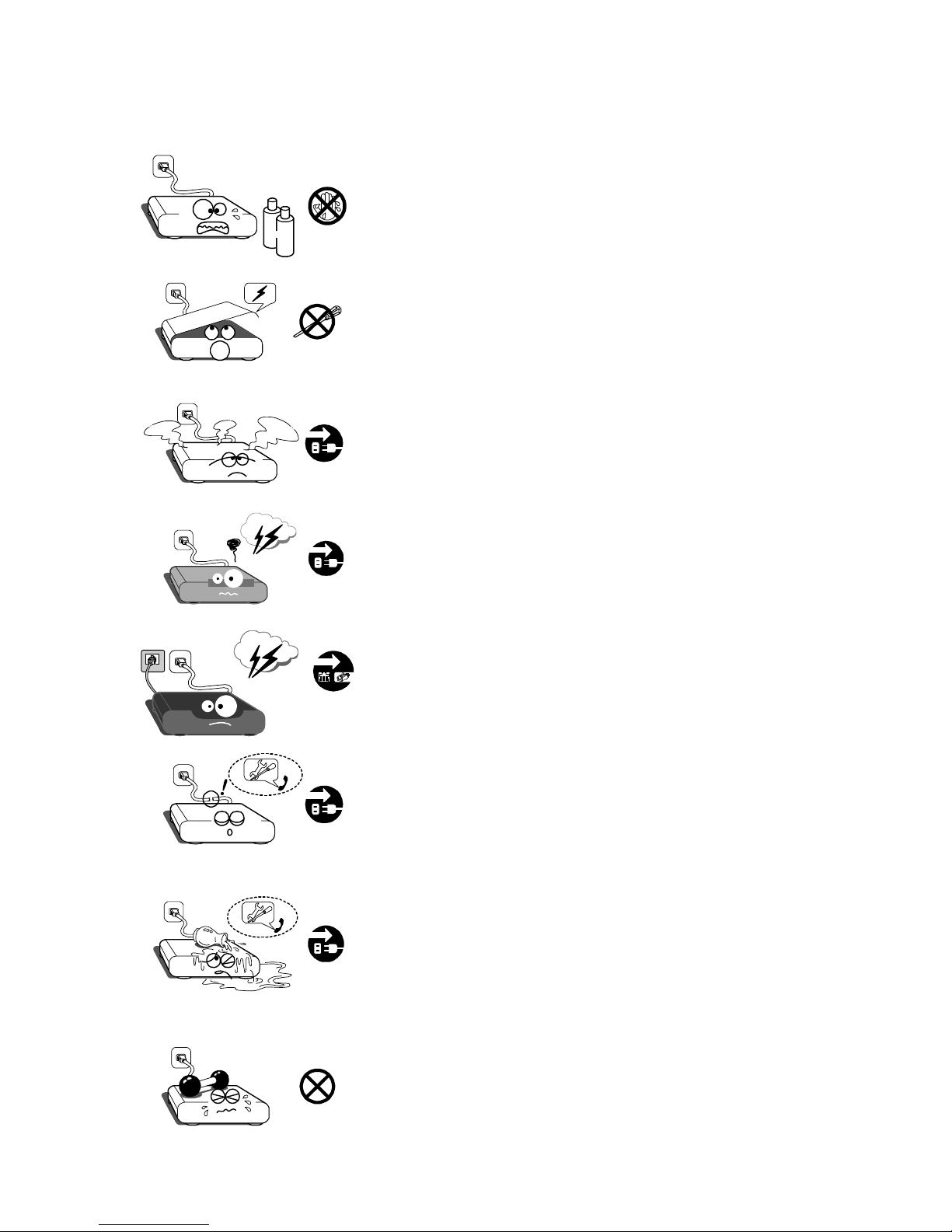
Alcohol
Unplug this device before cleaning. Use a soft cloth
dampened with water or a mild detergent; do not
use cleaners which may contain flammable
substances, like alcohol.
To avoid the risk of electric shock, do not perform
any servicing other than that described in this
manual, unless you are qualified to do so.
If a device malfunction occurs, or if you see smoke,
hear abnormal sounds, or detect a burning smell,
stop using the device immediately, and disconnect
the power cord from the electrical outlet.
Unplug this device when installing audio/video
cords.
Unplug this device during lightning storms.
Unplug the Ethernet cable during lightning storms.
zzUnplug this device when unused for a long period of
time. Do not use if the power cord is damaged.
Contact a trained service technician.
Protect the device from water during storage,
transport, and operation. Do not place objects filled
with liquids, such as vases, on top of the device. If
liquid has been spilled, unplug the device
immediately, and contact a trained service
technician.
Do not place heavy objects on top of the device.

Important Safety Instructions
34
Place the device on a flat, solid surface; leave at
least 2.5cm (1 inch) space around the device to
ensure adequate ventilation. Do not block any
ventilation openings.
Do not install near heat sources, such as radiators,
heat registers, stoves, or other heat producing
devices (including amplifiers). Protect from lightning,
rain, and direct sunlight.
&Keep this device away from strong magnetic and
electrical fields.

1 MC1088H Overview
35
1MC1088HOverview
Thank you for choosing the UTStarcom Media Console 1088H (MC1088H).
Please read this user guide carefully prior to use, and keep it for future
reference.
The MC1088H is a CATV/IPTV dual mode set top box (STB), that provides
cable TV (CATV) and IPTV service, as well as high speed Internet access.
UTStarcom RollingStream IPTV delivers services such as live TV, Time-
Shift-TV, TV on Demand (TVoD), Video on Demand (VOD), and other
value-added services over broadband networks.
Product View
Figure 1 shows the appearance of the MC1088H.
Figure 1 Media Console 1088H
Features
Supports traditional CATV service
Supports the following IPTV services:
-Live TV
-TV on Demand
-Time-Shift-TV
-Video on Demand
Supports value-added services such as interactive messaging
User-friendly Electronic Program Guide (EPG)
IR remote control

1 MC1088H Overview
36
Network Connection
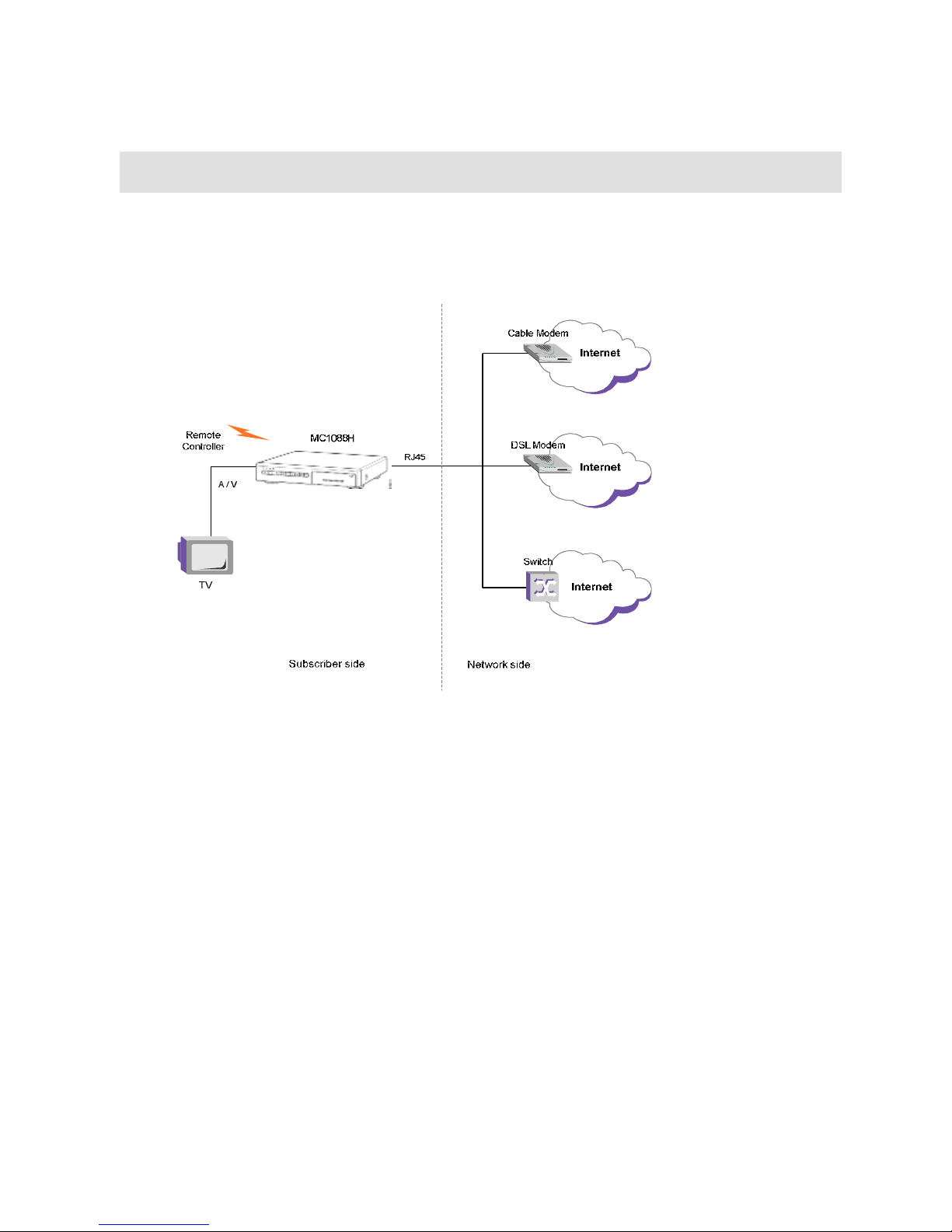
Figure 2 illustrates how the Media Console 1088H connects to the service
provider network.
Figure 2 Media Console 1088H Connected to Network
The MC1088H receives multimedia streaming data from the service
provider network and decodes the data to provide a range of services on
TV.
Ce manuel convient aux modèles suivants
1
Table des matières