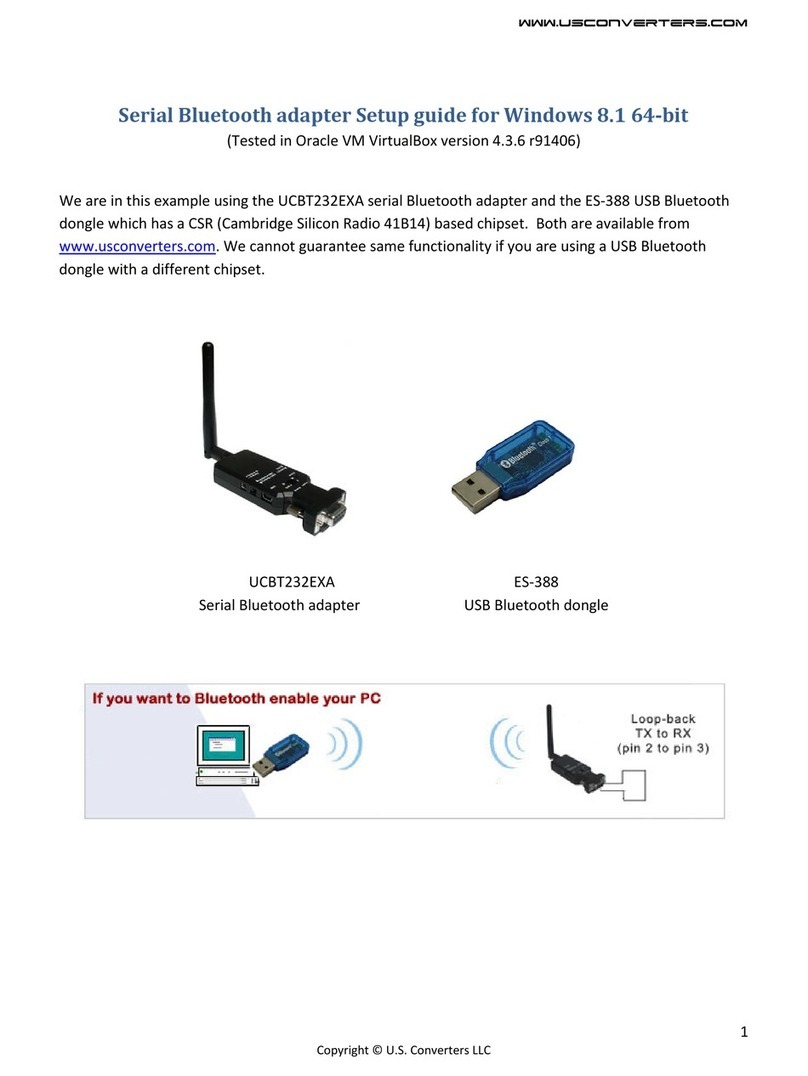
Usconverters USBLE232D Manuel utilisateur

Serial Bluetooth Smart Adapter, Model: USBLE232D Datasheet V1.0 WWW.USCONVERTERS.COM
1
Serial Bluetooth Smart® Adapter - RS232, Low Energy 4.2 BLE
Datasheet and Quick Reference for USBLE232D
Package content:
BLE RS-232 adapter x 1
User manual x 1
Mini USB Cable x 1
DB9 (male)
Mini USB (Power)
▲ + (5~27 VDC)
▼ GND
Reset to Default
LEDs:
Link: Blue
PWR/Data: Red
Radio Frequency area:
Don’t cover any metal
material or painting.

Serial Bluetooth Smart Adapter, Model: USBLE232D Datasheet V1.0 WWW.USCONVERTERS.COM
2
SPECIFICATIONS
Part number USBLE232D
Operating systems
iOS 5 and later, Windows Phone 8.1, Windows 8 and later, Android 4.3 and later, BlackBerry 10,
Linux 3.4 and later through BlueZ 5.0.
Processor Cypress CY8C4128LQI-BL553
Data payload 251 bytes
Interface type RS232
Mode Central or Peripheral (Master or Slave)
Works with iPad/iPod? Yes
Baud Rate 1200, 2400, 4800, 9600, 19200, 38400, 57600, 115200, 230400, 460800, 921600
Parity None, even, odd
Stop bits 1, 1,5, 2
Data bits 7, 8
Flow control None, CTS/RTS
LED lights TX, RX, Bluetooth and Power
DEC/DTE Manual switch
Parameters configurable by
- Over the air by iOS and Android app
- Via COM port by AT commands
- DIP switches
RS232 Signals TX, RX, CTS, RTS, GND
Serial port 1-port male D-sub 9-pin
Bluetooth version V4.2
Programming interfaces GATT / UUID
Frequency range 2.4GHz ISM ( 2.40000 – 2.4835GHz)
TX Power Max. 3 dBm
RX Sensitivity -89 dBm typical
TX current consumption 15.6 mA (radio only, 0 dbm)
Antenna Internal
Antenna Gain max. 2 dB
Power supply Mini USB, screw terminals or DB9 pin 9: 5 - 27VDC
Max comm range Up to 30m in open space, depending on actual environment
Operating temp. -13°F to 158°F (-25°C to 70°C)
Dimensions 87mm x 34mm x 18mm mm
Certifications CE, FCC

Serial Bluetooth Smart Adapter, Model: USBLE232D Datasheet V1.0 WWW.USCONVERTERS.COM
3
Rear Side:
Switch configuration:
Configuration by CTS/RTS Stop Bit Parity Role Baud Rate
9 8 7 6-5 4 3-2-1
0: DIP Switches
1: AT commands
or app.
0: Disable
1: Enable
0: 1
1: 2
00: None
01: Odd
10: Odd
11: Even
0:Slave
1:Master
110:2400
111:4800
000:9600
001:19200
010:38400
011:57600
100:115200
101:230400
Default values are in bold red color.
The GATT service / tablet apps and AT commands will support more functions than the DIP switches.
RS232 Interface (male)
Pin Signal Description
1 N/A
2 RX Received data
3 TX Transmitted data
4 N/A
5 GND Ground
6 N/A
7 RTS Request to send
(Default)
8 CTS Clear to send
9 VCC Power Input
(5~27 VDC)
Power supply:
DIP Switches
▲ DCE
▼ DTE
LED Status Description
Data LED flash Data transmission
Data LED solid on No data
transmission
Link LED solid on BLE Link
Link LED flash No Link
Data & Link LED solid
on
DFU/OTA Mode
Serial Bluetooth Smart Adapter, Model: USBLE232D Datasheet V1.0 WWW.USCONVERTERS.COM
4
Voltage: 5 - 27 VDC, Do NOT exceed 27VDC!
The adapter can be powered by: Mini USB, screw terminals or pin9 in the DB9 connector.
Do NOT power the adapter by more than two sources.
Default values:
Baud rate: 9600 bps
Data bit: 8
Parity: none
Stop bit: 1
Flow control: none
Device Name: USBLE232D
Pin code: 123456
Reset button:
Press the reset button for about 5 seconds and the adapter will reset to factory settings. A power cycle is
recommended after reset.
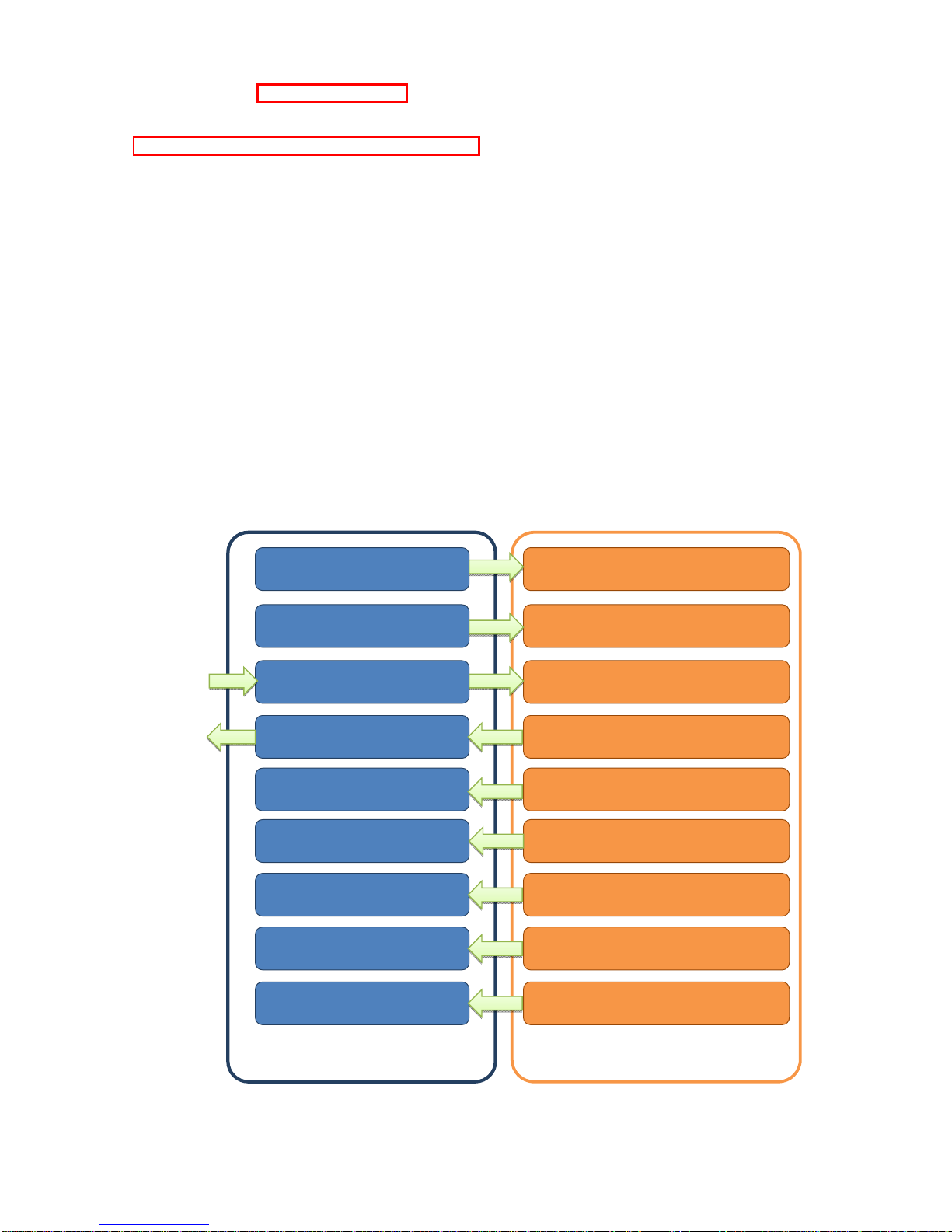
GATT Service.
Programming Interfaces:
Device Information
Firmware Revision String
NOTIFY
RxData
BLE_CONF
MacID
DeviceName
DeviceName
PinID_Setting
Serial BLE Service
SetCharacteristicNotification(Char)
SetCharacteristicNotification (Char)
SetCharacteristicNotification(Char)
writeCharacteristic(Char)
writeCharacteristic(Char)
writeCharacteristic(Char)
writeCharacteristic(Char)
writeCharacteristic(Char)
writeCharacteristic(Char)
Mobile APP
SERIAL

Serial Bluetooth Smart Adapter, Model: USBLE232D Datasheet V1.0 WWW.USCONVERTERS.COM
5
GATT UUID
UUID_Device Information 0000180A-0000-1000-8000-00805F9B34FB
UUID_Firmware Revision String 00002A26-0000-1000-8000-00805F9B34FB
UUID_NOTIFY (~20 bytes) 00031234-0000-1000-8000-00805F9B0130
UUID_RxData (~20 bytes) 00031234-0000-1000-8000-00805F9B0131
UUID_MacID (6 bytes) 00031234-0000-1000-8000-00805F9B0133
UUID_DeviceName (15 bytes) 00031234-0000-1000-8000-00805F9B0134
UUID_Reboot (1 bytes) 00031234-0000-1000-8000-00805F9B0135
UUID_PinID_Setting (6 bytes) 00031234-0000-1000-8000-00805F9B0136
UUID_BLE_CONF (7 bytes) 00031234-0000-1000-8000-00805F9B0132
Byte0 Byte1 Byte2 Byte3
Data bit Hwfc Stop Bit Parity Bit
7,8 0x01:on
0x00:off
2:1
3:1.5
4:2
0x02 : No Parity
0x01 : Odd Parity
0x00 : Even Parity
Byte4 Byte5 Byte6
Baud Rate Device Mode Reset To Default
00:9600
01:19200
02:38400
03:57600
04:115200
05:230400
06:2400
07:4800
08:1200
09:460800
10:921600
0x01:on
0x00:off
0x01: Reset
Command set via COM port:
Command
V
alue Description
AT Check the connection status between control terminal and the RS-232 adapter.
Response: “OK” when the connection is ok. Response: “ERROR” when the
connection is not ok.
AUTO= This command is used to enable/disable auto-connection feature. It is available
only when the adaptor is in the Central (master) role.
Y
The Central role adapter will connect the neighboring BLE peripheral adapter

Serial Bluetooth Smart Adapter, Model: USBLE232D Datasheet V1.0 WWW.USCONVERTERS.COM
6
automatically.
(Default) N The command will disable the auto link function.
?
Inquire the current setting.
BAUD= This command is used to specify the baud rate of COM port.
The command will need 200 ms delay.
1200 1200 bps
2400 2400 bps
4800 4800 bps
(Default) 9600 9600 bps
19200 19200 bps
38400 38400 bps
57600 57600 bps
115200 115200 bps
230400 230400 bps
460800 460800 bps
921600 921600 bps
? Inquire the current baud rate.
BIT=
7 7 data bit
8 8 data bit
? Inquire the current data bit
DEFAULT= This command is used to restore the default settings and originate a warm start.
Y Restore the default settings.
The command will re-start the system for 1 second.
DFU= Device Firmware Upgrade via PC software. OTA (Over the air) is available to
upgrade the firmware by APP
Y
ECHO= This command is used to specify whether the adaptor echoes characters
received from the UART back to the DTE/DCE.
N Command characters received from the UART are not echoed back to the
DTE/DCE.
(Default) Y Command characters received from the UART are echoed back to the
DTE/DCE.
? Inquire the current setting.
FLOW= This command enable or disable flow control signals (CTS/RTS) of the UART
port. Note, the setting is not affected by DEFAULT.
The command will need 1 second delay.
(Default) N Disable flow control.
Y Enable flow control.
? Inquire the current setting
NAME= This command is used to specify a device name for the adaptor.
You can specify a friendly name using 0 to 9, A to Z, a to z, space and –, which
are all valid characters. Note that “first space or -, last space or – isn’t
permitted”.
(Default) USBLE232D Default device name

Serial Bluetooth Smart Adapter, Model: USBLE232D Datasheet V1.0 WWW.USCONVERTERS.COM
7
xx….xx “xx….xx” is a character string with the length from 2 to 30.
R Restore the default name
? Inquire the name of the local adaptor.
PARITY= This command is used to specify parity bit setting of COM port.
The command will need 200 ms delay.
(Default) N None parity bit
O Odd parity
E Even parity
? Inquire the current setting.
PIN= This command is used to specify a PIN code. Paired adaptors should have the
same PIN.
(Default) 123456
xx….xx “xx….xx” is a 4~16 digit string or English character (in capital or lower case)
N Disable authentication by PIN.
R Restore the default pin code
? Inquire the current PIN.
PROMPT= The command is used to decide whether result messages are prompted when
Setup commands are executed. The result messages are: OK/ERROR for
command execution.
(Default) Y Prompt result messages.
N Not prompt result messages.
? Inquire the current setting.
ROLE= This command is used to specify whether the adaptor is in the central or
peripheral role. If the device role is changed, the adaptor will reboot and all
paired addresses will be cleared.
C Set the adaptor to the central role.
(Default) P Set the adaptor to the peripheral role.
? Inquire the current role of the adaptor.
STATUS= Inquire all the current setting of the adapter.
T Inquire the inner temperature of the IC in centigrade
? Display the current setting of the adapter
STOP= This command is used to specify one or two stop bits of COM port.
The command will need 200ms delay.
(Default) 1 One stop bit.
2 Two stop bits.
? Inquire the current setting.
VERSION= This command is used to inquiry the firmware version.
? Inquire the version codes.
Configuring Central and Peripheral: (Similar to Master and Slave roles)
By DIP switches: The central will pair the slave automatically.
Switch DIP-9 to 0 (Switch)
Switch DIP-4 to 1 (Master)
The central will link with the neighboring peripheral automatically. The blue LED will be solid on. The
central will link with the paired peripheral next time when powered on.

Serial Bluetooth Smart Adapter, Model: USBLE232D Datasheet V1.0 WWW.USCONVERTERS.COM
8
Please reset to default and follow above procedure if you want to link with other BLE devices.
By AT command:
Set “role=c” or “ROLE=C” in one adapter.
Set “auto=y” or “AUTO=Y” to enable the auto link
The central will link with the neighboring peripheral automatically. The blue LED will be solid on. The
central will link with the paired peripheral next time when powered on.
Please reset to default and follow above procedure if you want to link with other BLE devices.
By APP setup: (apps can be downloaded from www.usconverters.com, Google Play or Apple Store):
The APP will search the BLE and select one as the central.
Then select the other one as the peripheral and link.
The central will link with the neighboring peripheral automatically. The blue LED will be solid on. The
central will link with the paired peripheral on next time when power on.
Please reset to the default and follow the above procedures if you want to link with other BLE devices.
The APP is used for configuring the parameters and can also be used for data transmission tests.
Android: The Android app can be downloaded from the Google Play Store:
https://play.google.com/store/apps/details?id=tw.com.uconnect.ble232
or www.usconverters.com.
Scan and select one. Connect and configure Data transmission test.
iOS: The same configuration procedures as Android version. The app for iOS can be downloaded from the Apple Play
Store: https://itunes.apple.com/us/app/ble-to-serial-terminal/id1238004134?l=zh&ls=1&mt=8 or www.usconverters.com.
App download QR codes, Android and iOS:
Disconnect
TX area
RX area
Data mode
Clear data
and log
Device list
Select one
Scan BLE
Setu
p
Setup mode
Table des matières
Autres manuels Usconverters Adaptateur

Usconverters
Usconverters WF5000B Manuel utilisateur

Usconverters
Usconverters UCW4842 Manuel utilisateur

Usconverters
Usconverters WF5000B Manuel utilisateur

Usconverters
Usconverters WA232E Manuel utilisateur

Usconverters
Usconverters UCBT232EXA Manuel utilisateur

Usconverters
Usconverters WA-232B Manuel utilisateur

Usconverters
Usconverters Blutronium B-TRON 5000 Manuel utilisateur

Usconverters
Usconverters WA232E Manuel

Usconverters
Usconverters S2B2232FIV2 Manuel utilisateur

Usconverters
Usconverters UCW232/WA-232B Manuel utilisateur