
URC TKP-5500 Manuel utilisateur

Owner’s Manual
TKP-5500

TKP-5500 Installation Manual ©2016 Universal Remote Control, Inc.
The information in this Owner’s Manual is copyright protected. No part of this manual may be
copied or reproduced in any form without prior written consent from Universal Remote Control,
Inc.
UNIVERSAL REMOTE CONTROL, INC. SHALL NOT BE LIABLE FOR OPERATIONAL, TECHNICAL OR
EDITORIAL ERRORS/OMISSIONS MADE IN
THIS MANUAL.
The information in this Owner’s Manual may be subject to change without prior notice.
Total Control is a registered trademark of Universal Remote Control, Inc.
URC Control the Experience is a registered trademark of Universal Remote Control, Inc.
All other brand or product names are trademarks or registered trademarks of their respective
companies or organizations.

Table of Contents
Introducing the TKP-5500 Network Keypad_________________________________________________________1
Features and Benefits____________________________________________________________________________________1
Parts ________________________________________________________________________________________________________1
Installing the TKP-5500__________________________________________________________________________________2
Anatomy of the TKP-5500_______________________________________________________________________________3
Title Bar____________________________________________________________________________________________________3
Time & Weather___________________________________________________________________________________________4
Photo Viewer______________________________________________________________________________________________5
Rooms Menu_______________________________________________________________________________________________7
Linking Rooms_____________________________________________________________________________________________8
Now Playing________________________________________________________________________________________________9
Core Buttons_______________________________________________________________________________________________9
Shortcut Pop-Up Menu__________________________________________________________________________________10
Adding Shortcuts________________________________________________________________________________________11
Status Bar_________________________________________________________________________________________________12
Adjusting User Settings_________________________________________________________________________________13
Frequently Asked Questions___________________________________________________________________________21
Specifications____________________________________________________________________________________________21
Limited Warranty_______________________________________________________________________________________22
End User Agreement____________________________________________________________________________________24
FCC Interference Statement___________________________________________________________________________24
Regulatory Information________________________________________________________________________________25
Declaration of Conformity_____________________________________________________________________________26

TKP-5500
Introducing the TKP-5500
Thanks for purchasing URC’s unique synthesis of hardware and software engineering, the Total Control
TKP-5500. The TKP-5500 achieves a magnificent combination of power and flexibility by simplifying and
automating the operation of even the most complex systems.
A Total Control system is REQUIRED for the TKP-5500 to operate and MUST be programmed by a URC
certified professional installer.
The TKP-5500 has the ability to control audio/video components, energy management devices, multi-zone
matrixes, and whole house URC LED Lightning. It communicates over the Local Area Network (LAN) to the
MRX Advanced System Controller.
Features and Benefits
Two-Way Control of Devices
With the URC two-way database users can control (with feedback) compatible receivers, lighting systems,
alarms, and thermostats. Users can also take advantage of URC’s growing list of Z-Wave compatible
devices. Not only does the system look great from day one, but has the potential to grow.
Two-Way Control of Media for URC Streaming Player (SNP)
The high speed of LAN enables the TKP-5500 to display lists of artists, albums, or songs. It also displays the
cover art (if available) of a selected album on the Now Playing screen of the remote control. This provides
an intuitive interface that gives the user information about the source they are currently using.
Plan for Any Weather
The TKP-5500 uses a time and weather module to provide location-based updates, automatically adjusts
for daylight savings, and display a weather forecast. Weather information is determined by the location
programmed into the Total Control system. Be prepared for any weather at the touch of the keypad.
Pictures with Google+
Uses a Google+ account to stream images and has the ability to use those photos as a screen saver. This
gives the keypad a personalized feel and users can stream images of their loved ones for all to see.
Versatile Mounting Options
The TKP-5500 has a programmable 5” color LCD screen which can be initiated at the touch of its capacitive
display and can be installed in portrait or landscape mode. This gives the keypad the flexibility to be
mounted to almost any location.
Parts
The TKP-5500 Network Keypad Includes:
1 - TKP-5500 Network Keypad
1 - Mounting Ring
2 - Mounting Screws
1 - Security Screw
1 - Wrench
1 - Warranty Card
Page 1

TKP-5500
Installing the TKP-5500
The TKP-5500 is a wall-mountable keypad that easily fits into a single-gang opening. This keypad is
viewable in both portrait and landscape modes (based on programming and how the user wants the
keypad displayed). Prior to installation, make sure power is available at the preferred location.
Power can be supplied to the TKP-5500 in any of the following ways:
●An Ethernet cable connected to a PoE (power over ethernet) switch
●An Ethernet Cable connected to a PoE injector.
Power over Ethernet or PoE technology describes a system to pass electrical power safely, along with data, on
Ethernet cabling. The IEEE standard for PoE requires a Category 5 cable or higher for high power levels.
Follow the diagram below for installation:
1. Make a cut out in the wall in either landscape or portrait mode (dependent on how the user wants the
device to be displayed)
●Note: Changing screen orientation must be done through the Accelerator software
2. Secure the any standard single-gang box into the wall
3. Mount the keypad bracket onto the single-gang box using the two supplied screws.
4. Slide the TKP-5500 onto the bracket and push it down (the keypad is held in place by magnets)
5. For additional security, use the security screw that goes underneath the keypad
Page 2

Page 3
Anatomy of the TKP-5500
The network keypad is comprised of various parts some of which is designed by the custom installer
programming the Total Control system. Navigation is accomplished by swiping (Up/Down, Left/Right) and
pressing a button for selection. The screen automatically illuminates at the touch of the screen and is ready
for navigation after being programmed.
Main Menu/Submenu
The Main Menu contains the Category/Device Ribbon which is dependant on the programming from the
custom installer. On this Ribbon various different activities can be located. Each activity opens a Device
List that allows the user to select a specific device and control it for that room (device list determined by
custom installer).
Title Bar
The Title Bar displays vital information of the Total Control system. It allows users to easily keep track of
“what’s going on” in all rooms. At the left the “Current Room” the keypad is controlling is displayed,
underneath that the “Time & Date Module” can be found, and at the right it shows “Now Playing”.
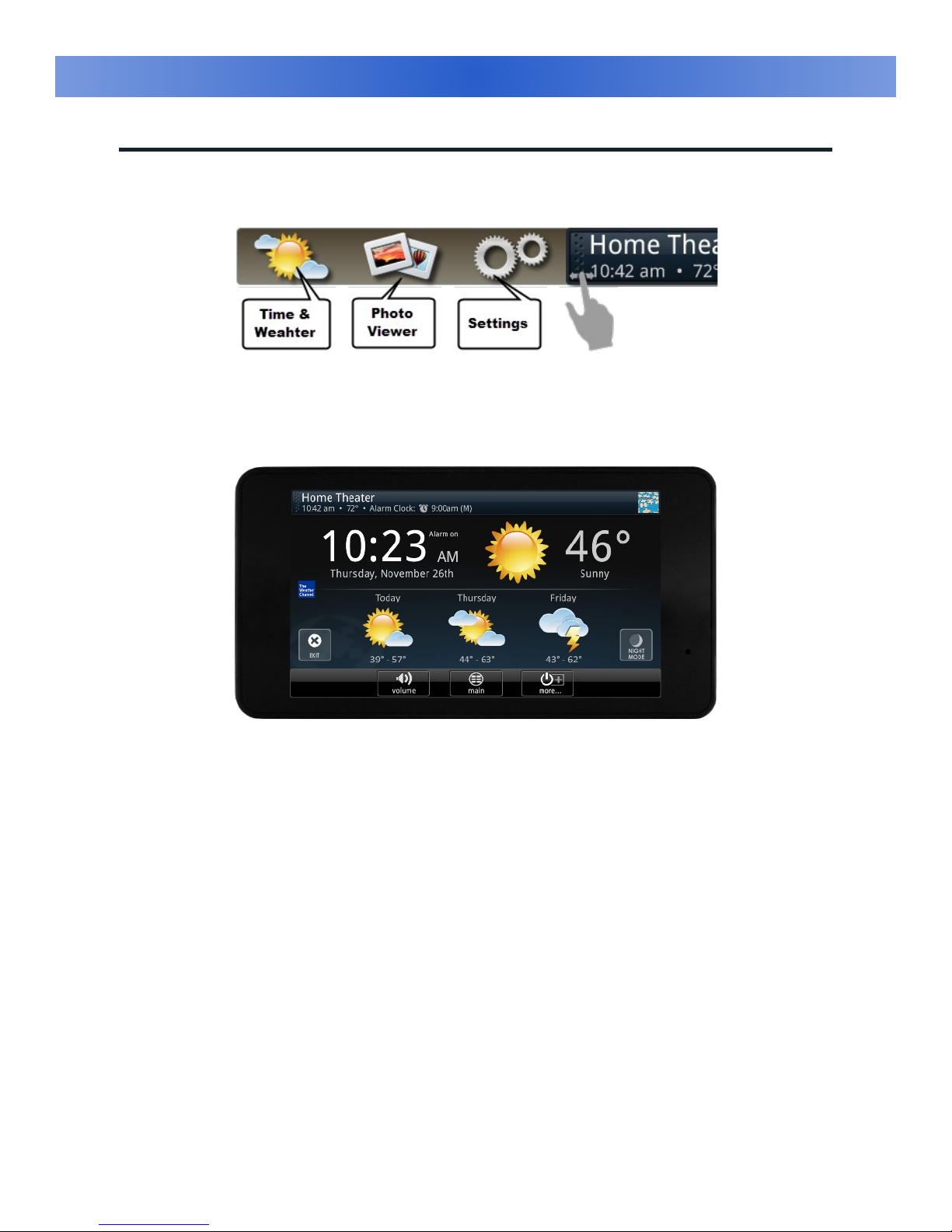
Scrolling the Title Bar to the right revels three separate icons that gives access to the Time & Weather
Module, the Photo Viewer, and the TKP-5500’s Settings menu.
TKP-5500
Page 4
Time & Weather
Swiping the Title Bar to the right (see image below) reveals three different options. The option to the far
left is the Time & Weather Module followed by the Photo Viewer and the Settings.
When selected, the module opens into full screen display providing up-to-date information about the time,
date, current weather (local), and provides a three day forecast:
Time and Weather Module
●Select Exit to return to the previous screen.
●Selecting Night Mode places the TKP-5500 into a low light mode to prevent it
from overpowering a dark room. This mode disables the photo slideshow and
prevents the screen from timing out. The keypad remains in this mode until
the screen is touched again reverting it back into normal mode.
TKP-5500

Page 5
Photo Viewer
The TKP-5500 has the capability to display photos from a user’s Google+ account and display them either
portrait or landscape. This is accomplished by selecting the Photo Viewer icon and selecting “Settings
(Photo Viewer).”
Setting up the Photo Viewer is accomplished by selecting the Settings (Photo Viewer) option on the
keypad. To complete the setup process follow these steps:
1. Select “<Online Service>”
2. Click on “Allow Access”
3. On a PC log into: https://www.google.com/device and log into your account
4. Next enter Access Code provided by the keypad and select “Allow” on web page
5. Select Continue
6. Select Go Back, the account is now linked with the Keypad.
TKP-5500

Page 6
Photo Viewer Cont.
Selecting A Screen Saver Folder
After logging into the Google+ account, additional features can be configured from Settings
(Photo Viewer) menu. To select which folders to display in the slideshow select “Screen
Saver Folder”.
After selecting the desired albums, press save. This returns to the Settings (Photo Viewer)
menu where the user can select the Playback Speed and Play Back Order in which they
want the pictures to appear in the slideshow.
Slideshow Playback Speed: determines the amount of time the keypad is to
display a photo
Slideshow Playback Order: determines what order line up in which to display the
images
Rooms Menu
This menu is used to:
TKP-5500

Page 7
●Temporarily Link rooms in a Total Control DMS Audio system. This feature allows all the linked
rooms to share the same audio source and joins the volume commands into a single interface.
●Monitor the status of the other rooms in the Total Control project.
●Control any other room in the Total Control system as if this keypad were in that room. This feature is
dependent on the programming performed by the custom integrator.
Current Room
The Current Room portion of the Title Bar shows the room that the TKP-5500 is currently controlling.
Remember, in a Total Control system each room’s keypad defaults to control the room in which it is placed;
however, using the Rooms Menu allows it to control any other room in the system. To access the Rooms
Menu, simply press on Current Room in the title bar.
Rooms List
●Each room listed has an associated box and action buttons (see image above).
✔Link button: only applies when using DMS audio
✔Options button: allows user to select Power Off which initiates the “room off” macro for that
room or to choose Lights Off which turns off the lights (only for URC Lightning by Lutron).
●The Exit button returns the user to the last screen used.
●Selecting a room allows the TKP-5550 to control that room.
TKP-5500
Autres manuels pour TKP-5500
1
Table des matières
Autres manuels URC Panneau de contrôle


