
Uniden GPS 301 Manuel utilisateur
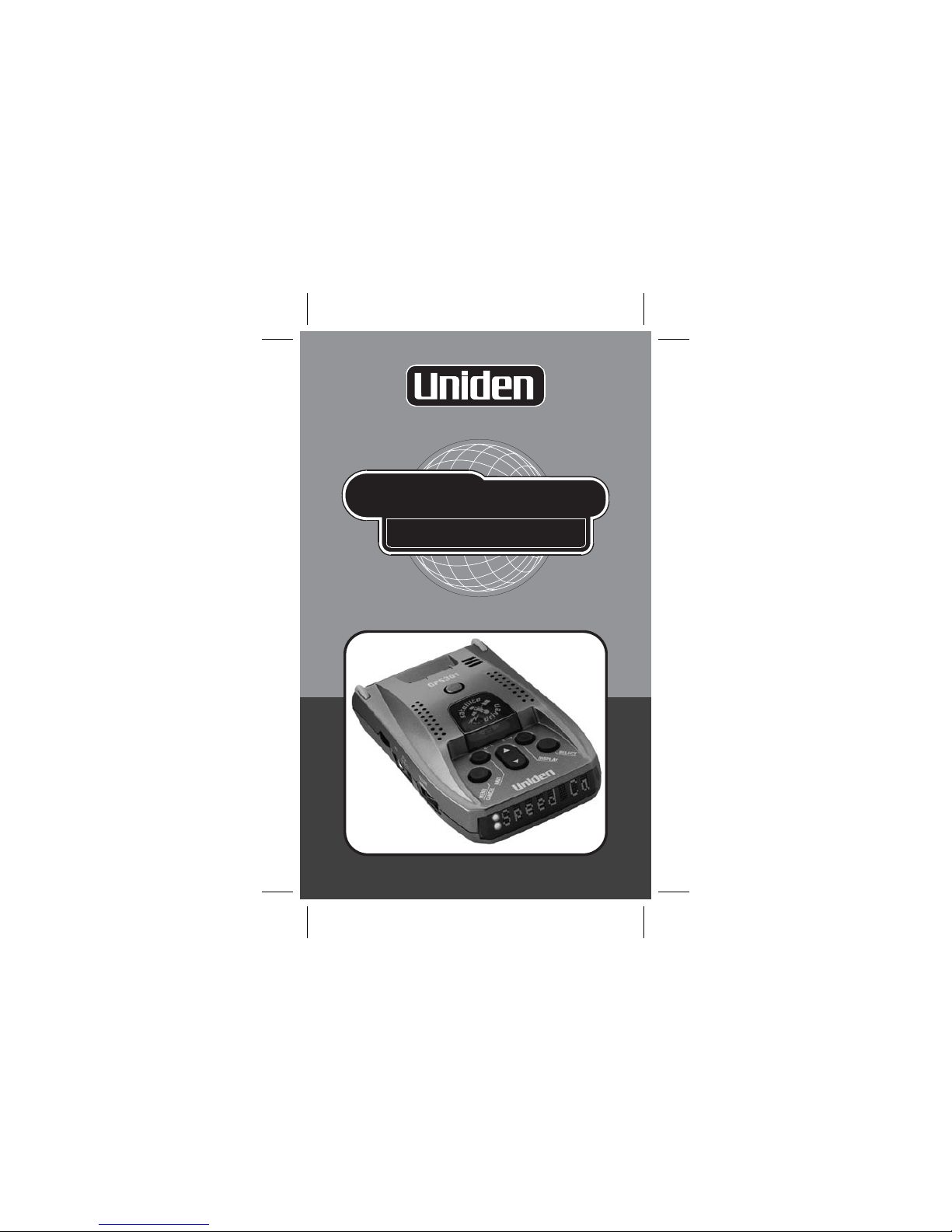
GPS 301
GLOBAL POSITIONING SYSTEM

i
WARNINGS & NOTIFICATIONS
THE GPS301 IS A GPS
RECEIVER ONLY & HAS
NO RADAR DETECTION
CAPABILITIES
IT IS LEGAL TO USE THIS
UNIT IN ANY AUSTRALIAN
STATEORNZ
OPERATION NOTICE OF GPS
GPS signal reception can be affected by the location of satellites, tall
buildings, tunnels, bridges, etc. If the GPS301 is not receiving a signal, you
will need to change your location until a signal is received.
The latitude, longitude, and altitude indications on the display are based on
WGS-84 Datum, and the altitude indication may not appear depending on
the signal conditions from GPS satellites.
• For safety reasons it is not recommended that the driver change any
settings while in motion. Please come to a complete stop or have a
passenger make changes if necessary.
• The Global Positioning System is operated and maintained by the US
Government. The US Government is completely responsible for the
accuracy of the Global Positioning System.
• The US Government reserves the right to make changes to the Global
Positioning System in accordance with the Department of Defence civil GPS
user policy and the Federal Radio navigation plan. These changes along
with poor satellite geometry could cause inaccurate readings.
GPS Warnings

ii
INSTALLATION
a.
Avoid any position which may obstruct the deployment of any air bags
or obstruct the drivers view.
Place your GPS301 in a position where it has a good view of the sky
above.
Generally, the best location is in the centre bottom of the windscreen,
which allows easy access to controls & view of the display.
!
!
!
Guide
Quick Start

INSTALLATION
b. i) Find the main unit and mounting bracket (with suction
cups) in the main box/package.
ii) The metal portion of the bracket locks into the top plastic
portion of main unit. Press the release button and slide the
bracket into place
iii) Bend the angled portion of the windshield mounting
bracket so that the GPS301 is parallel to the road surface.
c. i) Find the 12VDC cigarette lighter adapter and insert the
small plug into the 12VDC power input on the side of the
main unit.
ii) Insert the other end
into the cigarette
lighter socket
of your vehicle.
TURNING THE GPS301 ON
Use the Volume / On /Off switch to turn your GPS301 on.
Increase
Vo l u m e Off
iii

INITIAL POWER ON DISPLAY
GPS SPEED ACCURACY
when the power is turned on for the first time only, the unit may
take up to 5 minutes to establish a satellite lock.
During this period the unit must remain on.
Future Power On should only take a few moments.
Generally the GPS Speed Display is more accurate than a car
speedometer although reacts slower. The Car Speedometer
often reads faster due to some of the following factors:
Conservatively calibrated speedometer by manufacturer, worn
tyres, low profile tyres, different sized wheels and the number of
available satellites.
The GPS LED will turn (from RED to GREEN) once satellite
information has been retrieved.
The start display shows the compass heading on the left of
the LED window and the current Speed (km)on the right.
The headings are;
N (North)
NE (North East)
NW (North West)
E (East)
SE (South East)
S (South)
SW (South West)
W (West)
START DISPLAY
RED GPS301
RED Welcome
iv
4
GREEN NE 56
The start display shows
the current speed.
5

1
CONTENTS
Warnings & Notifications...........................................................................i
Quick Start Guide.....................................................................................ii
Contents..................................................................................................1
Feature Highlights....................................................................................2
Included with your GPS301......................................................................2
Controls and Functions ............................................................................3
3 Stage Safety Alerts..................................................................................4
Main Menu...............................................................................................5
Mark Location..........................................................................................6
Quick Access Location........................................................................6
User Locations with Name Tag ............................................................7
Alert Point..........................................................................................9
Edit Name........................................................................................10
Delete: User Points...........................................................................10
Delete: Alert Points...........................................................................11
Navigation..............................................................................................12
Navigate to a Quick Access Location..................................................12
Navigate to City or Suburb.................................................................13
Navigate to Point of Interest (POI).....................................................14
Speeds...................................................................................................15
Position .................................................................................................15
Options..................................................................................................16
Speed Alert.......................................................................................17
Dimmer...........................................................................................18
Baud Rate........................................................................................18
Units................................................................................................19
Downloads.......................................................................................20
Download Procedure.......................................................................20
PC Download...................................................................................21
GPS Reset.........................................................................................23
NMEA ..............................................................................................23
Troubleshooting.....................................................................................24
One Year Limited Warranty......................................................................25
Operation
Alert Volumes...................................................................................17

2
FEATURE HIGHLIGHTS
EARLY WARNING SAFETY
SYSTEM - NATIONWIDE
COVERAGE
GLOBAL POSITIONING
SYSTEM (GPS) TECHNOLOGY
TRIP COMPUTER
!
!
!
!
!
!
!
!
!
!
!
!
!
!
!
!
!
3 Stage visual and audible
warning system to maximise
safety
Speed Camera warning
Red Light Camera warning
Black Spot warning
Over speed alert
Audible warning
Distance to warning location
Direction to warning location
User up datable warning
locations
Individual Alert Volumes /
Tones
GPS direction, time and
distance to more than 5000
pre-programmed Australian
and New Zealand cities and
suburbs
Mark and delete up to 500 of
your own locations and speed
camera, red-light camera or
black spot locations
Flash memory for city,
warning, points of interest and
updates via the internet
Current Speed
Average Speed
Maximum Speed
Electronic Compass and GPS
co-ordinates
INCLUDED WITH YOUR GPS301
If any of these items are missing or damaged, contact your dealer
immediately.
Owner’s Guide
Windshield
Mounting Clip AC Adapter
Serial Cable
Coiled Cigarette Lighter
Hard Wire Lead
GPS 301
GLOBALPOSITIONING SYSTEM
GPS 301
GLOBALPOSITIONING SYSTEM

3
CONTROLS AND FUNCTIONS
LEFT SIDE VIEW
FRONT VIEW
TOP VIEW
(Example Display Shown)
1 Serial Port
2 12 volt Power Socket
3 ON / OFF Volume
Control
4 Speaker
5 Satellite Status LED
6 Alert Status LED
7 8 Character LED
Display
8 Windshield Clip Socket
9 Windshield Clip release
10 button
11 button
12 button
13 button
(Name tag - Left)
14 / Cancel
DISPLAY
SELECT
SCROLL
NAVIGATE
MENU
(Name tag - Right)
NE 56
4
2
3
1
5
67
8
13
14
9
10
11
12

4
3 STAGE SAFETY ALERTS
Your GPS301 has a pre-programmed memory that will alert you to any
speed camera, red light camera or black spot you are approaching.
Example
Level 1 Alert @ approx 800m Green Alert LED
or
scrolls on display
No audible alert.
Level 2 Alert @ approx 400m Yellow Alert LED
Scrolling text
Distance to Camera
Direction to Camera
Audible Alert
Level 3 Alert @ approx 160m Red Alert LED
Distance to Camera
Direction to Camera
Audible Alert
During Level2&3Alerts the display alternates
your current speed and the distance &
direction to the alert point.
Distance to camera is distinguished by the
full first character
Speed Camera, Red Light
Camera Black Spot
800m
160m
400m Camera
Level 1
Level 2 Level 3
GREEN
GREEN
Red Ligh
GREEN
YELLOW 400m
160m
GREEN
RED

5
OPERATION - MAIN MENU
Key Layout For General Operation
Example:
Speed Display;
(Compass heading,
speed)
Display Key - From any Menu you may return to the start display by
pressing or press to return to the previous menu.
LR
MENU
/CANCEL
SELECT
NAVI DISPLAY
SCROLL
Mark Loc
Speeds
NE 0
Navigate
Position
Options
MENU
PRESS
SELECT
PRESS Mark Location
(Page 6)
SELECT
PRESS Navigation
(Page 12)
SELECT
PRESS Speeds
(Page 15)
SELECT
PRESS Position
(Page 15)
SELECT
PRESS Options
(Page 16)
PRESS
PRESS
PRESS
PRESS
PRESS
R
DISPLAY MENU
/CANCEL
Autres manuels pour GPS 301
1
Table des matières
Autres manuels Uniden GPS

Uniden
Uniden GPS402 - Maptrax - Automotive GPS Receiver Manuel de service

Uniden
Uniden TRAX350 Manuel utilisateur

Uniden
Uniden GPS402 - Maptrax - Automotive GPS Receiver Manuel utilisateur

Uniden
Uniden TRAX430 Manuel utilisateur

Uniden
Uniden TRAX325 Manuel utilisateur
Uniden
Uniden TRAX436 Manuel utilisateur

Uniden
Uniden GPS 501 Manuel utilisateur

Uniden
Uniden GPS205 Manuel utilisateur

Uniden
Uniden GPS 301 Manuel utilisateur

Uniden
Uniden TRAX436 Manuel utilisateur


