
Trio Stealth G2 Manuel utilisateur

Model G2
Instruction Manual
Congratulations on purchasing your Trio
Personal Media Player! To get the most out of your purchase, please take
the time to carefully read through this manual.
Foreword
If any problems occur during while using your Trio, please feel free to contact
Mach Speed technical support at 80-272-003 , or sending an email to
Thank you for your support and cooperation!
Mach Speed Technologies bears no responsibility for any damage or loss of
personal data due to misuse of software and/or hardware, damage to the
player caused by human factors, replacement of battery, or other unforeseen

circumstances. To prevent loss of your data, please backup your data
regularly.
Information in the manual is subject to change without notice and is subject to
copyright protection. Copying or otherwise reproducing this material without
prior written consent is prohibited.
Due to Firmware changes, some of the pictures and functions described in
this manual may not be the same as are included with your player.
Note:
● The playback times listed refer to the maximum playback times possible, using the best
power savings. The actual playback time may differ as adjustments to screen brightness,
power savings modes, volume, etc are made.
● As parameters such as formats, bitrate, codecs, framerates, and resolutions differ, the
player will not be compatible with all files of the listed types. If you are experiencing
issues playing your files on this player, we recommend using a supported conversion tool
to reconvert your file to the specifications of the device.
Caution
Modifications not approved by the party responsible for compliance could void the user’s
authority to operate the equipment.
NOTE- This equipment has been tested and found to comply with the limits for Class B
Digital device, pursuant to part 1 of the FCC rules. These limits are designed to provide
reasonable protection against harmful interference in a residential installation. This
equipment generate, uses and can radiate radio frequency energy and, if not installed
and used in accordance with the instructions, may cause harmful interference to radio or
telephone reception, which can be determined by turning the equipment off and on, the
user in encouraged to try to correct the interference by one or more of the following
measures:
Reorient or relocate the receiving antenna.
Increase the separation between the equipment and the receiver
Connect the equipment to an outlet on a circuit different from that to which the receiver is
connected.
Consult the dealer or an experienced radio/TV technician for help.
2/18

Caution
•Do not use the player in exceptionally cold or hot, dusty, damp or dry
environments.
•Do not drop, strike, or throw your player. Physical damage to your player will void
ALL warranties.
•Please charge your battery when
oBattery power icon shows an empty icon;
oThe system automatically shuts down and the power is soon off when you
switch on the unit once again;
oThere is no response if you operate on any key
•Please always follow the correct disconnect procedures for your operating
system. Do not disconnect power abruptly when the player is being formatted or
in the process of uploading or downloading files. Otherwise it may lead to file
corruption, firmware failure, and even hardware damage.
•We are not liable for any loss of data stored on this device.
•Please do not dismantle this player. Any disassembly not done by an authorized
technician will void ALL warranties
•This product and manual are change without subject to notice.
Features
2.0” full color TFT screen (resolution:220x176)
Supports the following audio formats: MP3, WMA, OGG, APE, FLAC, WAV and AAC
Supports the following image formats: JPEG, BMP, GIF, TIF and PNG;
Supports the following video formats: AVI, WMV (non encrypted), FLV, RM, RMVB
and 3GP;
1.3MP digital camera and video recorder
Built in microphone for voice recordings
Supports eBook files in .txt format
High Speed USB 2.0 interface
3/18

Appearance
Key Function
Mode: press this button one briefly to return to the last screen, or press and hold to
return to the main menu.
Pre ious: in a menu, use this button to navigate to the previous item in the menu. In
music or video mode, briefly press this button to skip to the previous file, or press and
hold this button to rewind the current file.
Next: in a menu, use this button to navigate to the next item in the menu. In music or
video mode, briefly press this button to skip to the next file, or press and hold this button
to fast forward the current file.
OK/Volume: in most menus, you will press this button to make a selection. While playing
music or a video, pressing this button will bring up a volume controller.
PLAY: when playing a video or audio file, briefly press this button to pause or resume
playback of the file. At any time, press and hold this button to power the player off.
Notes:
1. If no description says otherwise, in most modes, you will use the next or previous
buttons to navigate items, the OK/volume key to select an item, and the Mode button to
return to the previous screen..
2. When playing a video or audio file, briefly press the OK/Volume key to enter the
volume interface, or press and hold this button to enter the audio or video submenu.
4/18

Power On/Off
To power the player on, set the power switch to the ON position, and press
and hold the PLAY button for seconds, or until you see the loading and Trio
screens. To power the player off, press and hold the PLAY button for
seconds, or until the device powers off, then set the power switch to the OFF
position.
Charging
To charge your player, set the power switch to the ON position, and connect
the player to a powered USB port on your computer, or to a USB wall adapter.
It will take approximately 6 hours to completely charge a fully drained battery.
Note- if using a wall adapter, please ensure that the adapter is V, and
between 400 and 600mA.
File Storage
Files of different types should be in the appropriate folders on the player. For
example, Music and audio file should be stored in the Music folder on the
player. Video files should be stored in the Video folder; eBook files stored in
the TXT folder, and pictures files stored in the PICTURES folder. If your files
are not stored in the correct folders, then the player will not be able to access
them.
Connecting to PC
Loading files
Using Windows Media Player
(Note: you must use Windows Media Player 10 or later to use this feature.)
(Note: this player does not support DRM encrypted audio or ideo files, such
as those downloaded from the Windows Media Player “O erdri e” download
ser ice.)
5/18

1. Open Windows Media Player and connect the player to a working USB
port. Windows Media player will prompt you with a setup screen asking
you to name the MP3 player.
2. Once you have named your MP3 player, select Finish, and your
Windows Media Player will open to the Sync tab.
3. Drag your music to the sync list (on the right of the screen) from the list
on the left. Once you have selected the music you wish to add to the
player, press Sync.
6/18
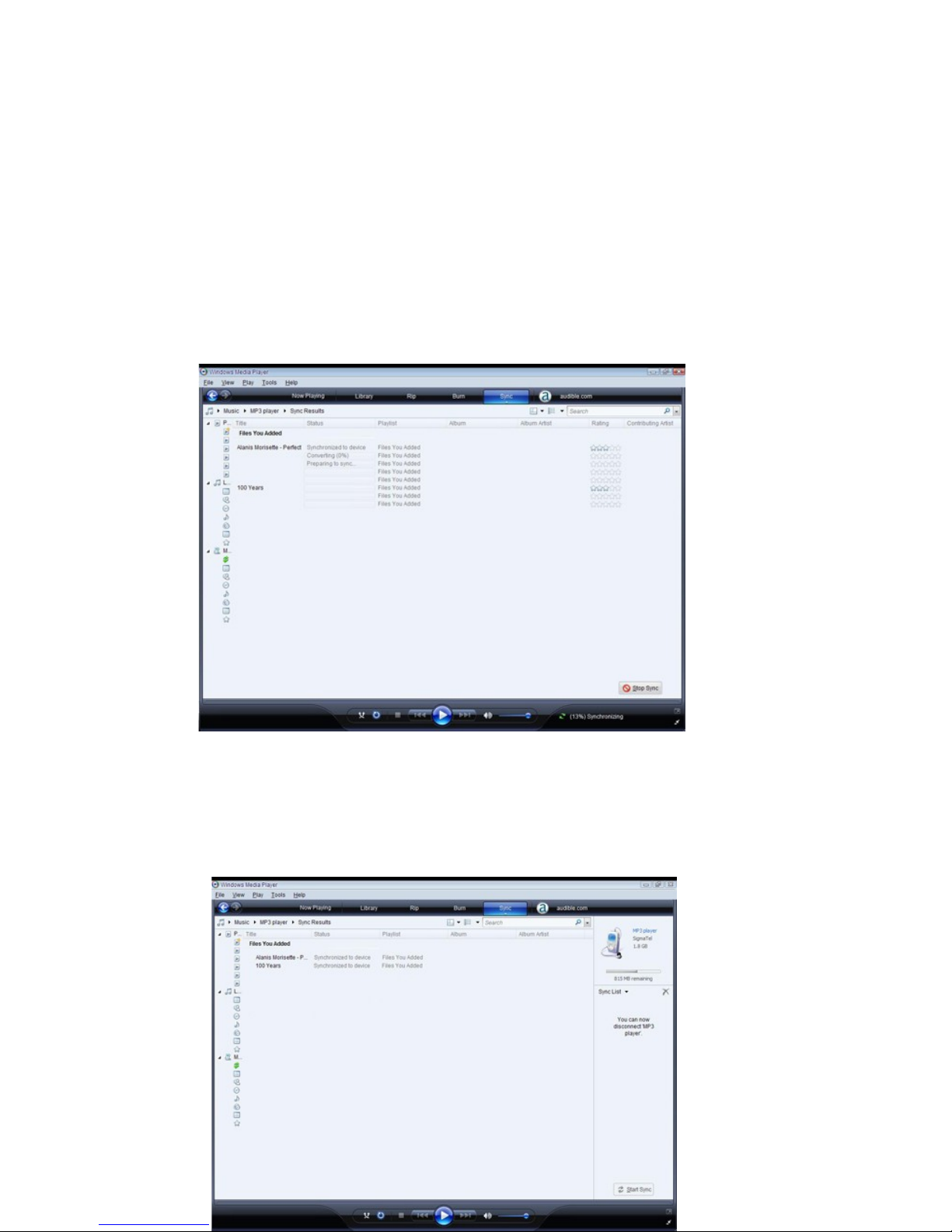
4. Windows Media player will load the songs on to your player.
. Once all the songs you have added are synced to the unit, and
Windows Media Player says that is safe to disconnect your MP3
player, disconnect the device.
7/18
COPY AND PASTE
Note- This alternate method is used to load videos, pictures, and ebook files
as well as audio files
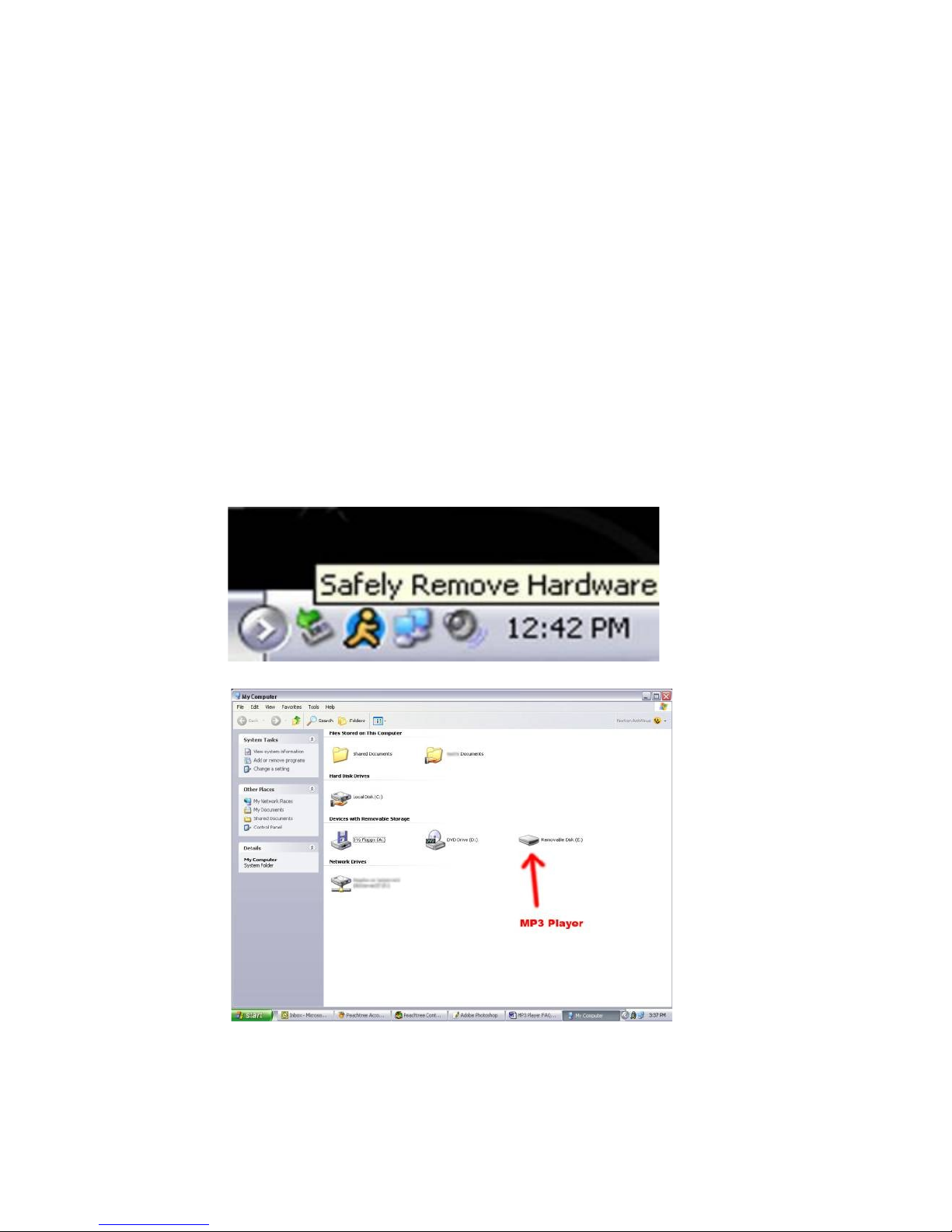
1. Connect the MP3 player to a working USB port.
2. When the unit is connected to your computer, it will create a gray and
green icon in the system tray (lower right hand corner of your desktop). The
icon will be called safely remove hardware.
3. Go to the “My Computer” section of your computer. In there you will
find a section called “devices with removable storage”
4. Locate the drive created by the unit, generally just called Removable
Disk, with a letter in Parenthesis. Drive letters vary depending on your
system configuration.
. Open the drive by either double left clicking on the drive itself, or by
right clicking to open the option menu then left click on the desired drive.
8/18

6. Locate the music stored on your computer. Generally this is stored in
the “My Music” folder of your computer.
NOTE: if you are unable to locate the music on your computer, click on start,
search, files and folders, then search for “*.MP3, *.WMA”.
7. Once you have located the song files, you can right click on the song
itself, and select “copy”. Open the removable disk drive, right click on in the
empty space, and select Paste. This will transfer the song on to your player.
9/18
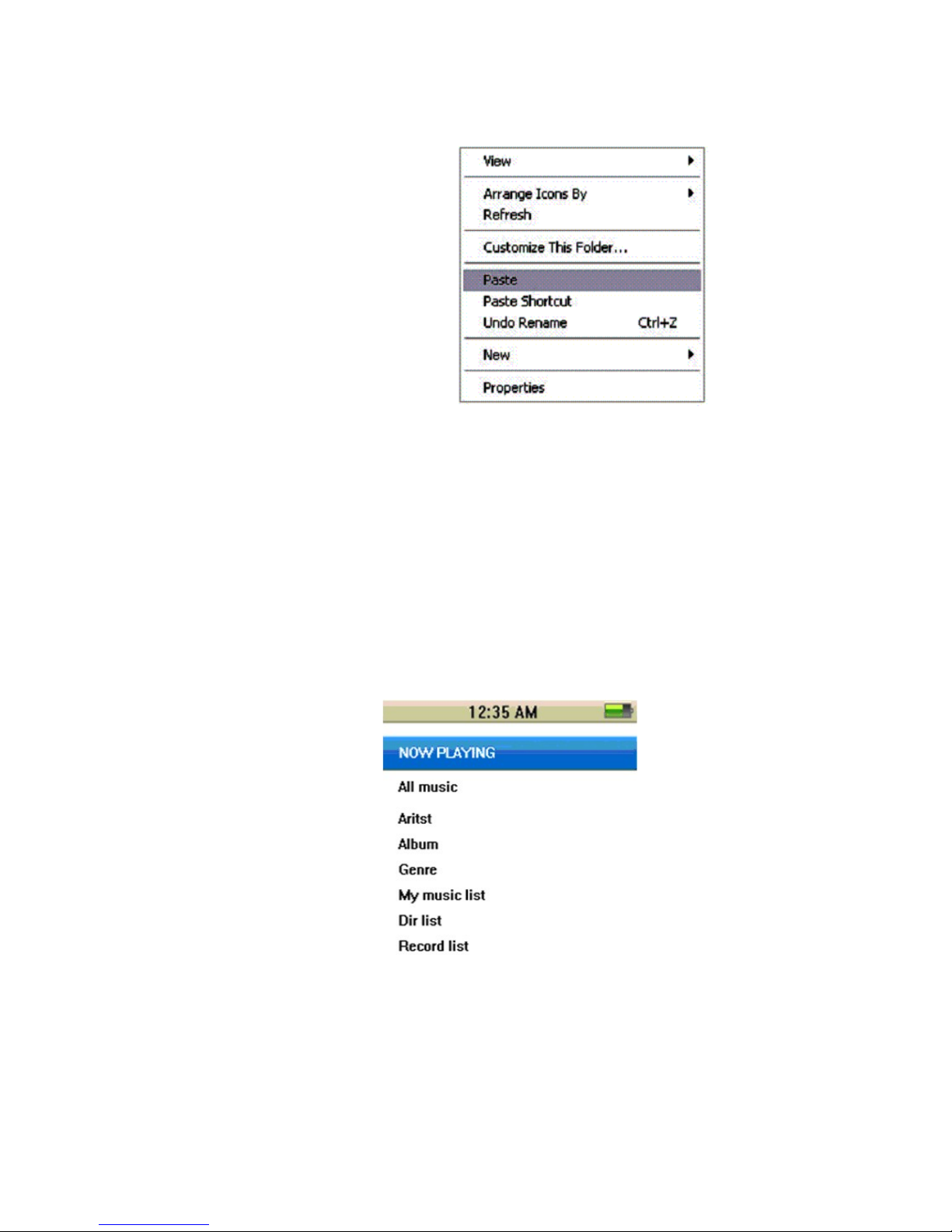
8. Repeat step 7 for as many songs as you want to copy on to the unit.
NOTE: MAC Computers
When connected to your MAC computer, the device will act as a removable
drive. Simply drag your files to the device.
Music
On the main menu, highlight “Music” and briefly press the OK button to enter
the music playback mode. Please note that this player plays audio files in non
encrypted MP3, WMA, OGG, APE, FLAC, WAV and AAC formats only.
->Main Interface
Now Playing: return to the file you were playing previously (this option may
not always be available
All Music: list all the music files loaded in the Music directory on the player.
Artist: Displays a list of Artists, when you select an artist, a list of their music
will be displayed.
10/18
Autres manuels pour Stealth G2
1
Table des matières


