
TrickleStar TS2602 Manuel utilisateur

User Manual
TS2602 Advanced Keyboard

2
Table of Contents
1 Welcome! 3
2 Overview 4
- How it works 4
- What's in the box 5
- System Requirements 5
3 Using the Advanced Keyboard 6
- Advanced Keyboard User Interfaces 6
- Applying Sticker Label to the Advanced Keyboard (Mac user only) 13
4 TechnicalSpecications 15
5 Troubleshooting 16
6 Cleaning the Keyboard 18
7 Regulatory Information 19
8 Warranty 22

3
Welcome!
Thank you for choosing the TrickleStar®Advanced Keyboard. The Advanced Keyboard is an energy
saving computer keyboard with integrated radar sensor which uses a highly-accurate radar-sensing
technology and a selectable countdown timer to detect when a user has stepped away (or is
absent) from their computer. It puts your workstation or personal computer to sleep automatically
according to your countdown timer setting and absence of movement detection. If you have any
inquiries about TrickleStar products or need technical support, visit our website for tutorials, videos
and Frequently Asked Questions (FAQ). You can also contact us by email or phone.
Website: www.tricklestar.com
Email: customer.service@tricklestar.com
Toll Free: 1-888-700-1098

4
Overview
How it works
Simply plug and play! The TrickleStar Advanced Keyboard does not require any software installation
or conguration. It also does not interfere with existing power management software installed on
your computer. It is designed to work independently or with other power management tools to ensure
energy savings are optimized.

5
What’s in the box?
Advanced Keyboard
Sticker Label for Additional Mac Functions
USB Type-C to USB Type-A
Adapter
System Requirements
• Computerwith1USBport
• MicrosoftWindows®XPandabove
• Mac®OS10.2andhigher
6
Advanced Keyboard User Interfaces
Explore the advanced features your new keyboard offers.
1. Operating Systems
The Advanced Keyboard works with PC (Windows®/Linux®) and Mac®(macOS®) operating systems.
2. Radar Sensor
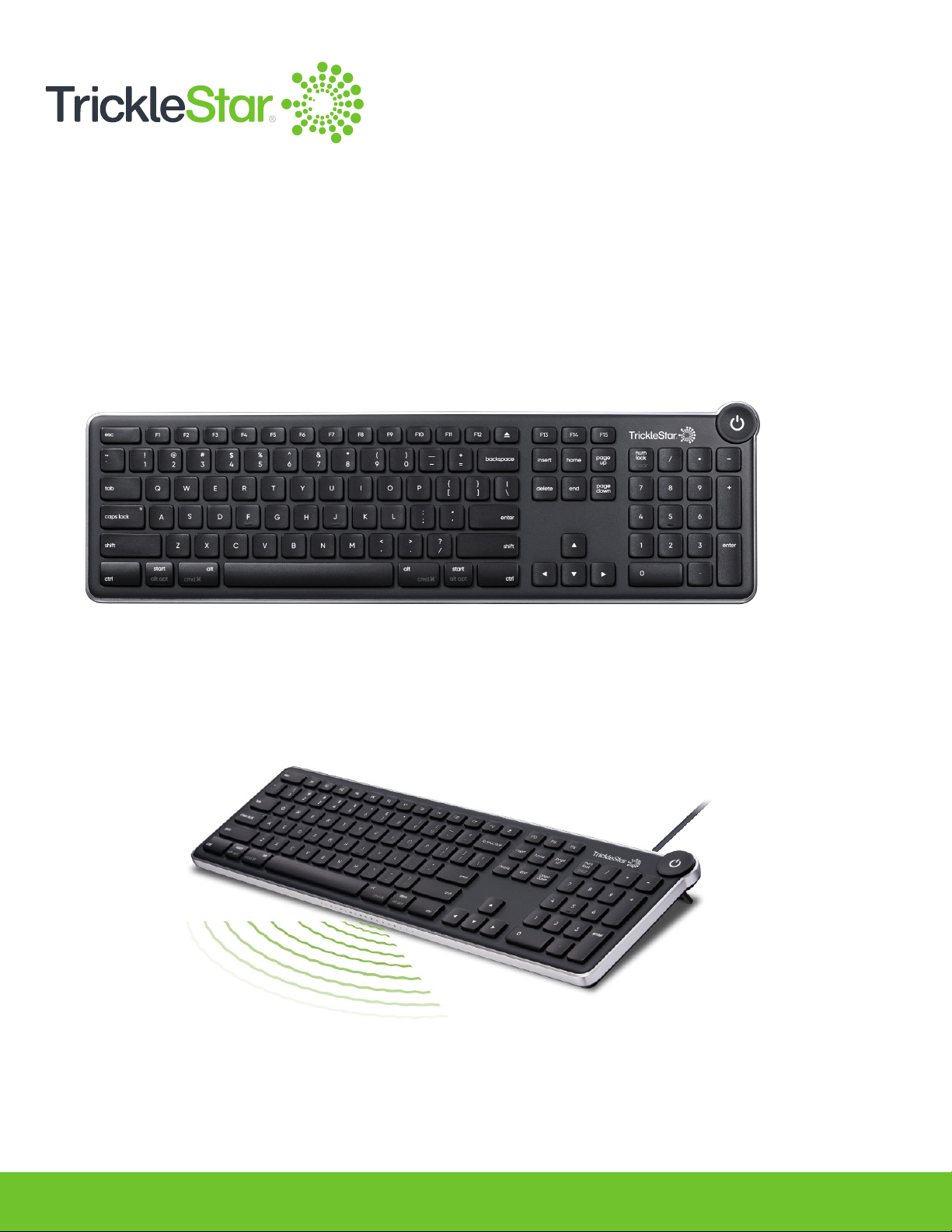
At the front of the Advanced Keyboard is a built-in, highly sensitive, motion detection radar sensor to
detect user presence in the horizontal plane (80 degrees) and vertical plane (40 degrees) within a
Using the Advanced Keyboard

7
Note:
• Do not place any objects in front of the keyboard. Doing so may block the radar sensor from
properly detecting the absence of movements.
• Users are not recommended to use a wrist rest with the keyboard as it may interfere with radar’s
detection; alternatively, if users absolutely have to use one, choose foam-type wrist rests, but this
may sacrice some detection range.
• The TrickleStar Advanced Keyboard uses an ultra-low-power pulsed coherent radar detector to
determine if a user is present in front of the keyboard. It poses no health risks to users, complying
with the output limits for unlicensed transmitting devices in all major international markets.
• The TrickleStar Advanced Keyboard’s radar sensor is also not compromised by any natural source
of interference such as noise, dust or light.
distance of 1.25 meters. It automatically puts a computer into standby/sleep state when the user
moves away from the computer for a dened duration. The duration is dened by the Countdown
Timer.
HorizontalMotionDetectionRange
3.93in.-49.21in.
(0.10m-1.25m)
VerticalMotionDetectionRange
3.93in.-49.21in.
(0.10m-1.25m)
MotionDetectionAngle
Horizontal:80°(+/-40°)
MotionDetectionAngle
Vertical:40°(+/-20°)

8
3. Cover Plate
4. Countdown Timer Switch
The selectable switches compartment is covered
with a removable cover plate. Remove the cover
plate to access settings of Countdown Timer
Switch and Operating System Switch. Slide the
cover plate back on the compartment after the
settings are congured.
A selectable countdown timer switch is located at
the back of the Advanced Keyboard with three
selectable positions available:-
1 - 30 seconds,
2 - 3 minutes, or
3 - 6 minutes
This is the countdown timer duration for radar
sensor to detect movements.
If no additional movements are detected within
this duration, the Advanced Keyboard will signal
the computer to enter standby/sleep state.
CoverPlate
CountdownTimerSwitch
Note:
It is recommended to set the sleep time in the computer’s power settings to be longer than the
Countdown Timer Switch setting on the Advanced Keyboard for uninterrupted operation.

9
5. Operating System Switch
A selectable operating system switch is located
at the back of the Advanced Keyboard. It toggles
compatibility with PC (Windows®/Linux®) and
Mac®(macOS®) operating systems. Please
ensure the selection here matches with the
operating system of the connected computer.
OperatingSystemSwitch
6. Power Button
The Power Button is located at the upper right
corner of the Advanced Keyboard. Press this
button to manually put the computer into standby
/sleep state.
To wake up the computer when it is in standby/
sleep state, you may press the Power Button
again. Alternatively, pressing any keys on the
keyboard or clicking the mouse will also wake up
the computer.
PowerButton

10
7. Sleep LED Indicator
The Sleep LED Indicator is mounted under the
Power Button. The LED will ash green during
the last 5 seconds of the countdown
timer to notify you that the computer will enter
into standby/sleep state.
In standby/sleep state, the Sleep LED Indicator
will remain off.
When the computer is active, the Sleep LED
Indicator will light up in green.
SleepLEDIndicator
8. USB Type-C to USB Type-A Adapter
The Advanced Keyboard also comes with a
USB Type-C to USB Type-A Adapter to connect
to a USB Type-A port. If your computer does not
have a USB Type-C port, please use the supplied
adapter.
OR
USBType-C
toType-A
Adapter
USBType-Cport USBType-Aport
USBType-C
connector
Autres manuels pour TS2602
1
Table des matières
Autres manuels TrickleStar Clavier


