
TrickleStar TS2301 Manuel utilisateur

User Manual
TS2301 Wi-Fi Electric Water Heater Controller

2
Table of Contents
1 Welcome! 3
2 Overview 4
- What's in the System? 4
- Water Heater Controller User Interfaces 5
3 Using the Water Heater Controller 6
- Understanding the LED Indicators and Power Button 7
4 Using the App 8
- Adding a New Device 9
- Transferring Ownership after Setup 15
- Controlling the Device 18
- Scheduling the Device 19
- Checking the Device Info 20
- Miscellaneous Tabs 21
5 Using the Portal 22
- Understanding the Icons 23
- Using the Icons on the Left Column 24
- On the Dashboard Page (Home Page) 25
- On the Devices Page 26
- Adding a new Water Heater Controller 27
- On the Control Page 35
- On the Energy Usage Page 37
- On the Schedules Page 38
- On the Settings Page 39
- On the Sensors Page 41
- On the Services Page 42
- On the Vacation Page 43
- On the 3rd Party Integration Page 44
- Taking Ownership of a Water Heater Controller Registered to a Different User 45
6 Maintenance 54
7 Feature List 59

3
Welcome!
Thank you for choosing the
TrickleStar®TS2301 Wi-Fi Electric Water Heater Controller.
We
are your smart partner in maximizing savings for your electric water heater. You can now remotely
control your water heating timing and duration from anywhere.
You can also monitor the energy usage
from a summarized report found in your
TrickleStar Portal account.
If you have any inquiries about
TrickleStar products or need technical support, visit our website for
tutorials, videos and Frequently
Asked Questions (FAQ). You can also contact us by email or phone.
Instruction V
ideos
If you want to see the Installation Instructions
as videos, visit our
YouTube channel:
https://www
.youtube.com/user/TrickleStarUS/
Website: www.tricklestar.com
Email: customer.service@tricklestar.com
Toll Free: 1-888-700-1098
4
Overview
What's in the System?
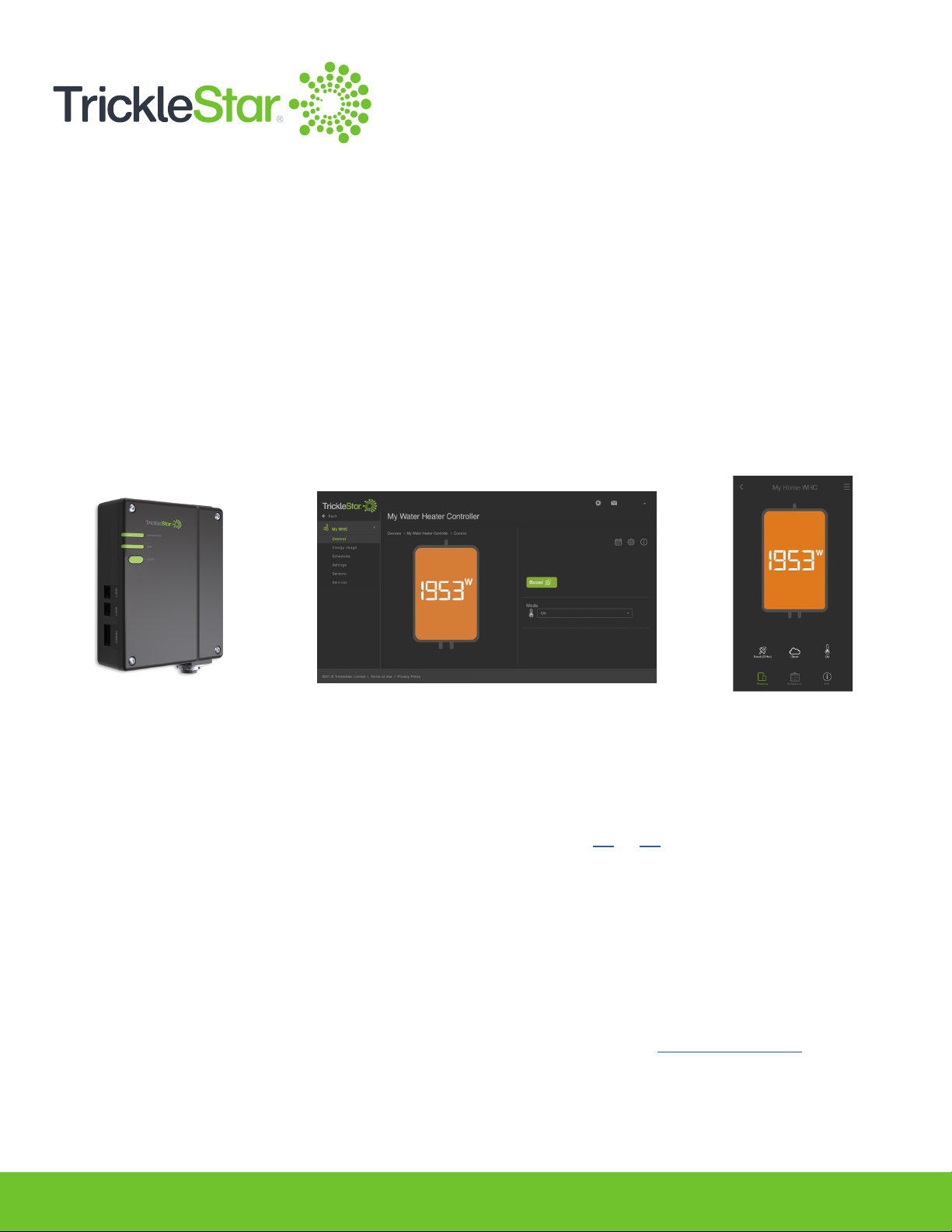
Congratulations on the purchase of your new TrickleStar Wi-Fi Electric Water Heater Controller.
This Water Heater Controller offers a wide range of options to monitor and control your water
heater, via:
- the Water Heater Controller
- the TrickleStar Portal (Portal), which is also mobile browser friendly
- the TrickleStar App (App) on your smartphone.
This User Manual will guide you through the Water Heater Controller features using the Water
Heater Controller, Portal and App. You can check the list of features and the location from which
to perform the features by referring to “Feature List” from pages 59 to 62.
Water Heater
Controller
Portal / Portal Mobile App
John
Note: If you have not installed your Water Heater Controller, refer to the Installation Guide.

5
Water Heater Controller User Interfaces
sensor 1sensor 2CTA-2045-B
connectivity
load
power
connectivity
indicator
load
indicator
power button
sensor 1 port
sensor 2 port
CTA-2045-B port
Fig 5-A

6
Using the Water Heater Controller
The Water Heater Controller comes with a minimalist design. It only has two LED indicators and a
power button on the front panel, with two sensor ports and a CTA-2045-B port on the side panel. As
such, you need to use the TrickleStar Portal or TrickleStar App to perform the features. You can check
the list of features which the Water Heater Controller can perform by referring to “Feature List” from
pages 59 to 62.
However, you can check the LED indicators to obtain information on the Water Heater Controller. You
can also use the power button to manually turn on or off your water heater.
This device contains the following modules:
FCC ID: VPYLB1LD
IC: 772C-LB1LD
This device complies with part 15 of FCC Rules and Industry Canada’s license-exempt RSSs.
Operation is subject to the following two conditions: (1) this device may not cause harmful
interference, and (2) this device must accept any interference received, including interference that
may cause undesired operation.
Le présent appareil est conforme à la partie 15 des règles de la FCC et aux normes des CNR
d'Industrie Canada applicables aux appareils radio exempts de licence. L'exploitation est autorisée
aux deux conditions suivantes : (1) l'appareil ne doit pas produire de brouillage, et (2) l'appareil
doit accepter tout brouillage subi, même si le brouillage est susceptible d'en compromettre le
fonctionnement.
FCC CAUTION
Changes or modifications not expressly approved by TrickleStar could void the user’s authority to
operate the equipment.
This transmitter must not be co-located or operated in conjunction with any other antenna or
transmitter.

7
If you do not have access to the Portal or App but you want to turn on your water heater:
Press the power button to turn on or off the water heater manually.
power
connectivity
load
connectivity indicator
load indicator
power button
Understanding the LED Indicators and Power Button
The LED indicators provide the following information:
Indicators Status Information
connectivity Does not light up There is no power to the Water Heater Controller.
Lights up in green The Water Heater Controller is connected to Wi-Fi but
there is no demand response activity.
Lights up in blue The Water Heater Controller is connected to Wi-Fi and
there is demand response activity.
Flashes in green The Water Heater Controller has not been connected to
Wi-Fi via the Portal or there is a connectivity error.
load Does not light up The load is off; there is no power to your water heater.
Lights up in red The load is on; power is supplied to your water heater.
Flashes in red An error has been detected, and the load is off as a
protective measure.
Fig 7-A

8
Using the App
The TrickleStar App is a one-stop App platform allowing contractors and homeowners to easily
register, congure and control the Connected Products (Smart Thermostat and Wi-Fi Electric
Water Heater Controller).
This section explains the process of registering and controlling your Water Heater Controller using
the TrickleStar App.
Download the TrickleStar App to your mobile device from the Apple App Store or Google Play Store.
You can also scan the following QR codes:
Note: To use the App, you need to have a Portal account. If you have not created a Portal
account, create one at: portal.tricklestar.com
Fig 8-A

9
Adding a New Device
To add a new device in the TrickleStar App, please follow the steps below:
1. Launch the TrickleStar App, you should
see the following screen if you do not have
any devices added to your TrickleStar
account.
Fig 9-A
2. Tap on the Menu icon and tap on “Add
New” to add a new device.
Fig 9-B

10
3. Select “Wi-Fi Electric Water Heater
Controller”.
Fig 10-A
4. Create a new site for the device.
For example, you can name your site as
“Home”.
Fig 10-B
Autres manuels pour TS2301
2
Table des matières
Autres manuels TrickleStar Contrôleurs


