TR‐SeriesQuickConfigurationGuide 8
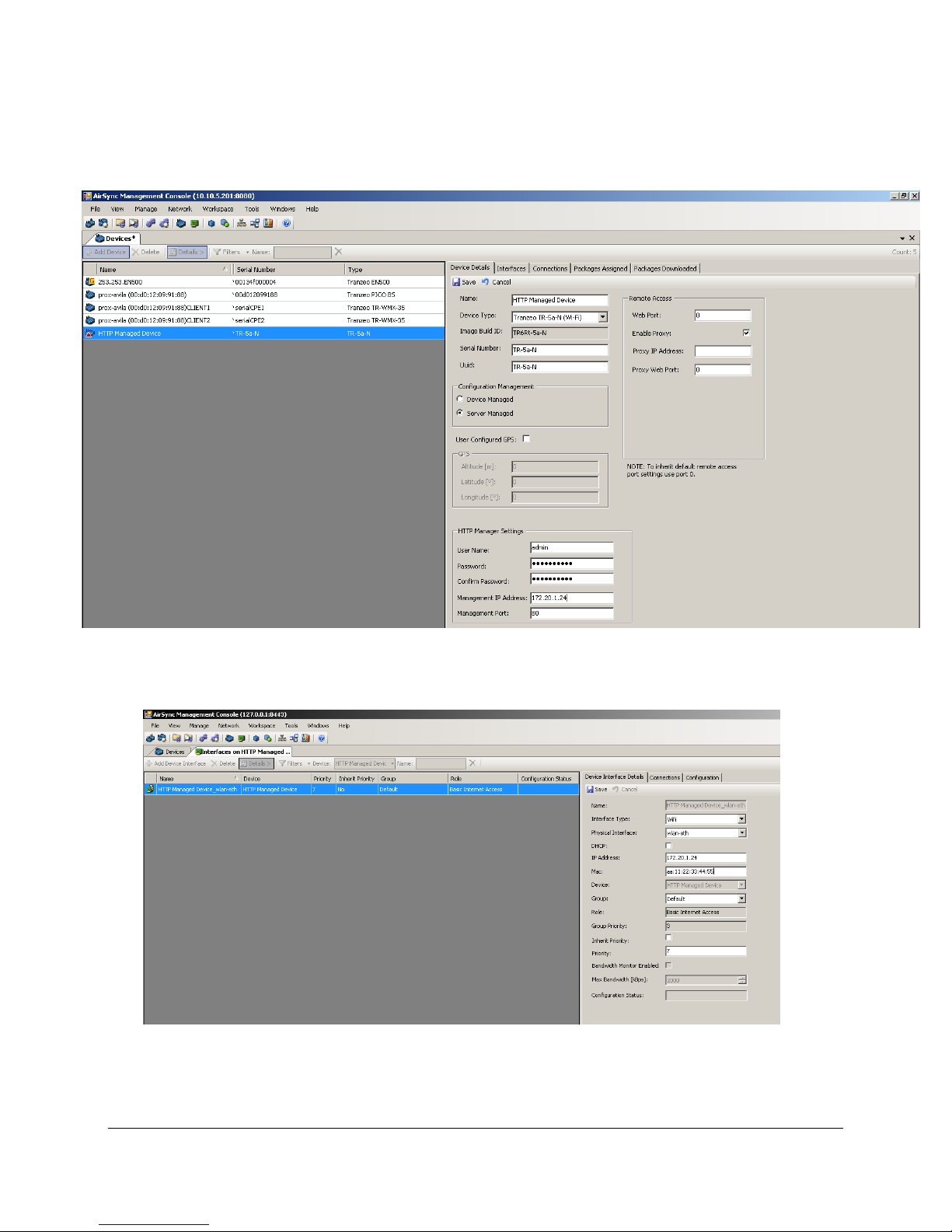
Set proper values in the Device Interface page (especially IP Address) and click the
Save button. If everything was set properly, the TR Series Device will be added to
the list and its status will be shown in AirConsole, as illustrated in the following
figure.
Figure 7. Device Tab, details view.
Figure7illustrates how AirConsole’s details view shows the status of each device. This
view is accessible using the Details button in AirConsole. The details view provides
basic information about each device such as the device: Name, Image Build ID, Uuid
etc. Within this view you can edit and change device specific information. To do this,
use the Edit button on Device details tab. You can change such field as Name,
Remote Access IP Address, HTTP management option and GPS parameters. After any
changes, you must save (use the Save button). You can always cancel any changes
and leave edit mode using the Cancel button.
2.3Configuration manager and interface detail view
To change interface parameters first we need to open the interface tab. There are a
few different ways to do this and one of them is to choose Device interface from the
manage tabs ribbon (for details see Figure 4. The Manage ribbon tab.).
Ourregistereddevicewith
proper(green)status.
HTTPManagersettings.
Editbutton.
Detailsbutton.