Trantec S5 Manuel utilisateur

T
T
Tr
r
ra
a
an
n
nt
t
te
e
ec
c
c
S
S
S5
5
5
W
W
Wi
i
ir
r
re
e
el
l
le
e
es
s
ss
s
s
M
M
Mi
i
ic
c
cr
r
ro
o
op
p
ph
h
ho
o
on
n
ne
e
e
S
S
Se
e
er
r
ri
i
ie
e
es
s
s
Installation Guide

Page 1of 33 – S5 Wireless Microphone Installation Guide Rev 1.2
Contents
2. Introduction, System Overview
3, 4. Safety - Important Instructions
5 - 6. Getting Started, Receiver Set-Up
7 - 10. Receiver Frequency Selection
11 - 14. Miscellaneous Settings
15, 16. Handheld Transmitter Set-Up
17, 18. Beltpack Transmitter Set-Up
19. Operating Hints
20. Troubleshooting Guide
21, 22. S5 System Part Numbers
23, 24. Rack Mount Kit
25. Multi-Channel Configuration with ADU
26. Antenna Head Amplifiers
27, 28. Mini-XLR Wiring Connections
29, 30. Technical Specifications
31. Warranty
32. CE Declaration of Conformity, WEEE Statement

Page 2of 33 – S5 Wireless Microphone Installation Guide Rev 1.2
Introduction
The Trantec S5 series represents our commitment to our customers by
providing high-quality, reliable Wireless audio links using our considerable
design expertise gained over many years as a leading edge manufacturer.
We would like to thank you for purchasing this product and would like you to
study this guide, especially the safety instructions before installing and using
this equipment.
S5 Series System Overview
The S5 series is a professional UHF wireless microphone system with
features including:
•24 channel simultaneous operation (S5.3 12 channel)
•10 preset banks including 1 custom user (S5.3 9 Banks)
•True “dual receiver” diversity – to minimise drop-outs
•Intuitive LCD and operating system on both receiver and transmitter
•Infra-red programming for fast system set-up
•Software transmitter function locks
•Headphone monitoring as standard
•XLR (switchable mic and line) and ¼ “jack AF outputs
•AF processing menu (S5.5 only)
•Over 1400 customer selectable channels
•Fully integrated PC software monitoring facility via USB port
•All metal construction of receiver and transmitters
•Rack kit and front mounting antenna adaptors included (S5.5 only)

Page 3of 33 – S5 Wireless Microphone Installation Guide Rev 1.2
Safety
Our aim is to supply you with a product that provides you with countless
hours of trouble-free use. In order to achieve this goal we recommend the
following:
•Keep the system away from direct sources of heat, e.g. Central heating
radiators, heaters and direct sunlight.
•Do not expose the unit to an environment where it could be splashed
with liquids as this may result in fire or electric shocks.
•Should the transmitters remain unused for an extended period of time
we recommend that the batteries are removed to avoid any potential
leakage.
•Keep the system clean by using a slightly damp cloth. Never use
household cleaning agents or solvents.
•Avoid using or storing the system in damp conditions.
•Always use the AC power adaptor supplied with the receiver and
always disconnect from the AC outlet when not in use. Never remove
the external covers of the equipment, exposing the electronics, or
modify the unit in any way.
•Do not handle the mains lead with wet hands
•Never pull the cord of the AC adaptor, always grasp the main body of
the unit when connecting/disconnecting to an AC power outlet.
•Route the AC power lead in such a way that it is not likely to be
stepped on or tripped over.
•Do not use if the AC power lead becomes damaged. A damaged AC
lead may cause fire or give you an electric shock.
•Never touch any part of the system during a thunderstorm as this may
result in severe electric shock.
•Dispose of batteries responsibly. Do not break open or incinerate, and
do not place in household waste. Consult your local waste authority for
advice on disposal.
Should the covers be removed or there is any other breach of the above
instructions, the warranty becomes null and void, in addition to personal
risk from burns and/or electric shock.
If any of the following conditions occur when using the unit, switch off and
remove the AC adaptor from the AC outlet immediately and contact your
nearest dealer.
•Smoke or unusual smell
•Water or foreign metallic object inside unit
•Physically damaged housings

Page 4of 33 – S5 Wireless Microphone Installation Guide Rev 1.2

Page 5of 33 – S5 Wireless Microphone Installation Guide Rev 1.2
Getting Started
The S5 series is a high quality, fully featured wireless microphone system with
many features, including an intuitive operating system. To enable you to get
started we recommend you initially set up the system as outlined in the next
few pages.
Receiver Set-Up

Page 6of 33 – S5 Wireless Microphone Installation Guide Rev 1.2
1. Attach the 2 supplied antennae to
the rear panel TNC antenna
connectors as shown left.
2. Connect the AC/DC adaptor into
the DC inlet as marked on the rear
panel, feeding the cable through the attached strain relief. Observe that the
front panel on-off switch surround is illuminated red.
3. Connect the rear panel audio output from either the ¼” jack or XLR to your
mixing console or amplifier. Note: the XLR balanced output can be switched
for either mic or line. The system can be also monitored from the headphone
socket, using the “Jog-Wheel” to adjust the volume level.
4. Switch the On/Off switch to the “On” position. The switch surround will now
be illuminated green and the receiver will default to its initial setting (BK1.01).
The system is now ready for use.

Page 7of 33 – S5 Wireless Microphone Installation Guide Rev 1.2
Receiver Frequency Selection
Frequency Selection Options
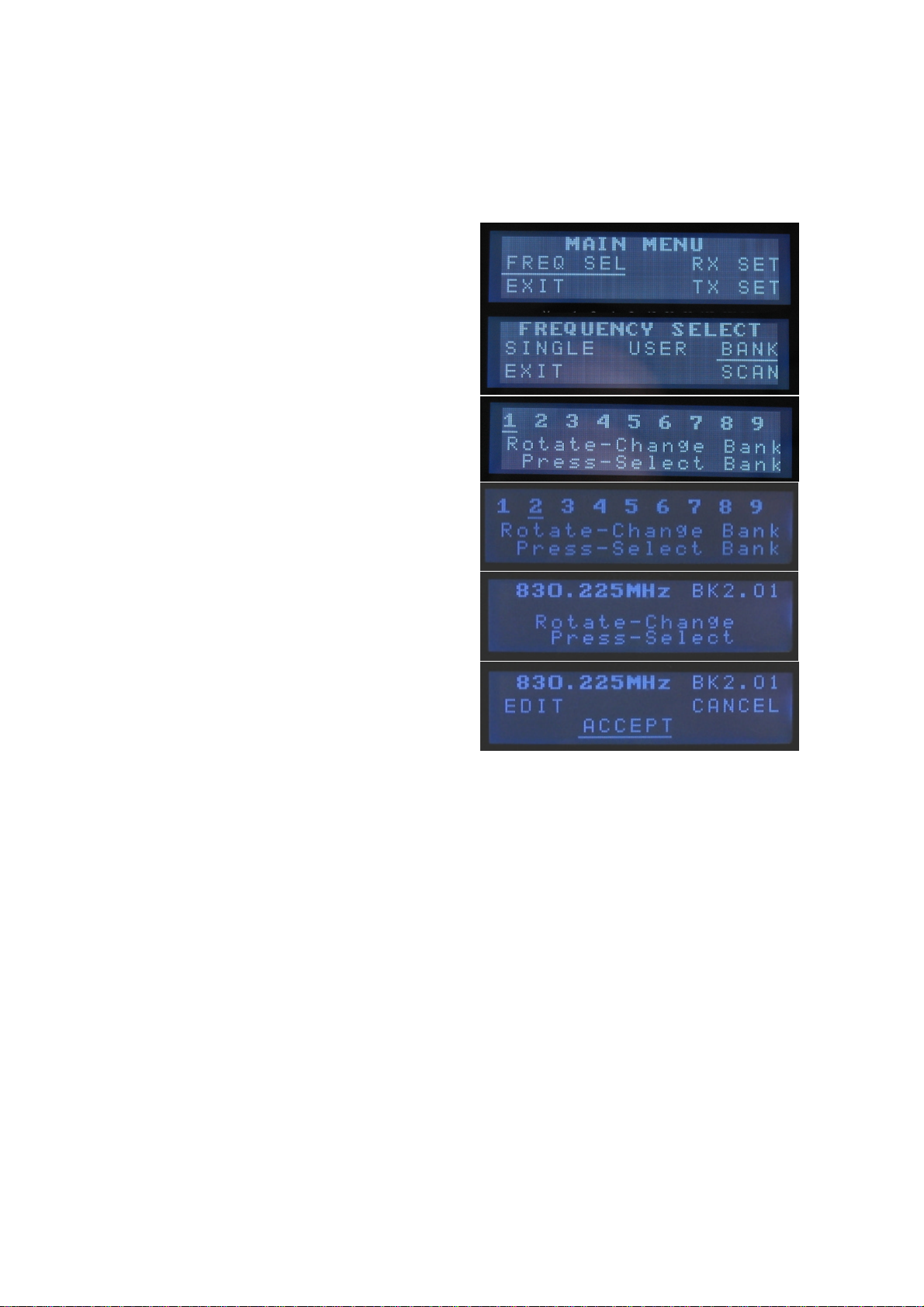
1. To change the selected channel in BANK1
Press and hold the “Jog-wheel” for
approximately 3 seconds if the
receiver is not in mute to enter the
MAIN MENU. You will enter the
MAIN MENU immediately if the
receiver is in mute.
With FREQ SELECT underlined
press the “Jog Wheel”.
Rotate the “Jog Wheel” till BANK is
underlined and press.
Press to select BANK1.
Rotate the “Jog-wheel” to change
the channel.
Finally, press to select the new
frequency. (See the attached
frequency table).

Page 8of 33 – S5 Wireless Microphone Installation Guide Rev 1.2
2. To change the selected Bank
Press and hold the “Jog-wheel” for approximately 3 seconds if the receiver is
not in `34as to enter the MAIN MENU. You will enter the MAIN MENU
immediately if the receiver is in mute.
With FREQ SELECT underlined press
the “Jog Wheel”. This will give you the
next menu.
Rotate the “Jog Wheel” until BANK is
underlined and press to give you the
Bank selection screen below right.
Rotate the “Jog Wheel” to underline a
new bank, then press to select.
Press to select the frequency shown or
rotate to change to another frequency
within this bank.
Press again with ACCEPT underlined
to accept the new bank. (See the
attached frequency table).
Go to step 4 to program the transmitter
via the receiver infra-red port.

Page 9of 33 – S5 Wireless Microphone Installation Guide Rev 1.2
3. To change the selected channel to a Custom single frequency
This option allows the customer to select 1 of over 1400 available channels.
Press and hold the “Jog-wheel” for approximately 3 seconds if the receiver is
not in mute to enter the MAIN MENU. You will enter the MAIN MENU
immediately if the receiver is in mute.
With FREQ SELECT underlined,
press the “Jog-wheel”. With SINGLE
underlined press the “Jog-wheel”.
With EDIT underlined press the “Jog-
wheel”. The first part of the frequency
will be flashing. Rotate the “Jog-
Wheel” to select this section of a new
frequency and press to accept. The
second part of the frequency will now
start flashing. Change the second part
of the new frequency as above. You
can then change each letter of the
user name in the same way. All ASCII characters are available for the user
name.
If you wish to exit this menu at any time, press and hold the “Jog-Wheel”.
Press the “Jog-Wheel” for 1 second to exit then rotate till ACCEPT is
underlined and press to select the new custom frequency and user name. Go
to the next step to program a transmitter via the receiver infra-red port.
Please note:
For S5.3 product the single user frequency will be added to the transmitter
with receiver Bank1. The S5.3 does not have USER bank.
In the case of the S5.5 it will be added to the Custom USER bank. You can
download USER banks via the Trantec software. Please refer to the software
manual on this CD for more information.
Units for the Japanese market do not have USER or SINGLE options in the
FREQUENCY SELECT menu.
Autres manuels pour S5
2
Table des matières
Autres manuels Trantec Microphone