Transonic TC1883DV Manuel utilisateur

2.0 Channel
DVD/CD/MP3 Player
Instruction Manual
Model TC1883DV
Please read these instructions carefully and retain for future reference.
For assistance during normal working hours 9am-5pm, Mon-Fri) call Oriental Pacific International Ltd.
NZ call: 0800 89 85 80 or email: service@opn .com

1
When using any electrical apparatus always observe safety regulations and use
basic safety precautions to reduce the risk of fire, electric shock and personal
injury, including the following
Read, Keep and Follow these instructions, heeding all Warnings.
CAUTION! This is a class 1 laser product. However this player uses a visible laser beam which
could cause hazardous radiation exposure if directed. Be sure to operate the equipment as
directed. Do not place eyes close to any openings when connected to the mains supply.
WARNING! Do not remove any cover.
WARNING! No objects filled with liquid, such as vases, shall be placed on this equipment or in any
position where liquid may fall into this equipment or any other electrical apparatus.
WARNING! Do not insert any objects into any openings of this equipment or any other electrical
apparatus.
WARNING! Do not use this apparatus near water. To avoid the risk of fire or electric shock, do not
expose this apparatus to rain or moisture. The apparatus shall not be exposed to dripping or
splashes and is strictly for indoor use only. WARNING! Not for use in Tropical humid climates.
WARNING! Do not immerse in any liquid whilst in use or cleaning. Clean only with a damp cloth,
dry with a dry towel. Do not use harsh abrasives as these may damage the plastic parts.
WARNING! DO NOT block any ventilation openings. Keep away from curtains, newspapers and
restricted areas. Install in accordance with any specific manufacturer’s instructions. Always allow a
sufficient gap around the apparatus to avoid overheating.
WARNING! Do not install near any heat sources such as radiators, gas heaters, stoves or other
apparatus including amplifiers) that produce heat. Do not leave in direct sunlight.
WARNING! Do not place any naked flame source, such as lighted candles on any electrical
apparatus.
WARNING! Connect to a suitable 230-240 ~ 50 Hz power supply only. This equipment must be
connected to a mains socket with a protective earth connection suitable for class 1 equipment.
WARNING! Keep out of reach of young children. This apparatus is not suitable for use by young
children or infirm persons without supervision. Young children must be supervised to ensure that
they do not play with the apparatus. Ensure young children have enough knowledge to operate the
equipment safely if they do have access to this equipment.
WARNING! Do not abuse or damage a power cord. If any power cord is damaged, it must be
replaced by the manufacturer, its service agent or a similarly qualified person in order to avoid a
hazard. A replaceable cord must be replaced with an authorised replacement from an authorised
service agent only.
WARNING! Only use attachments/accessories specified by the manufacturer.
WARNING! Unplug completely from the power source this apparatus during lightening storms or
when unused for long periods of time.
WARNING! Attention is drawn to the environmental aspects of disposing of any battery.
WARNING! Refer all servicing to qualified personnel. Servicing is required when the apparatus
has been damaged in any way, such as when the power supply cord or plug is damaged, liquid
has been spilled or objects have fallen into the apparatus, the apparatus has been exposed to rain
or moisture, does not operate normally, or has been dropped.
WARNING! For household use only, this apparatus is not intended for commercial use.
1.0
Important Safety Instructions

2
WARNING! If this apparatus is to be used by a third party, please supply these instructions with it.
WARNING! No liability will be accepted for any personal injury or damage caused by failure
to follow these instructions.
This product incorporates copyright protection technology that is protected by U S patent
rights. Use of this copyright protection technology must be authorised by the Macrovision,
and is intended for home and other limited viewing use only unless otherwise authorised by
Macrovision. Reverse engineering or disassembly is prohibited.
Manufactured under licence from Dolby Laboratories. Dolby and the double-D symbol are
trademarks of Dolby Laboratories.
Confidential Unpublished Works, 1992-1997 Dolby Laboratories. Inc. All rights reserved.
Content Guide Page
1.0 Important safety information 1
2.0 Quick start guide 3
2.1 Basic Connection 3
2.2 Playing a DVD 4
2.3 Frequently Used Remote Buttons 4
3.0 Remote Control 5
3.1 Remote Control Buttons 5
3.2 Remote Button Descriptions 6
4.0 Front & Rear Buttons 7
4.1 Front Panel 7
4.2 Rear Panel 7
5.0 Connection Options 8
5.1 Component & Composite Video System Connections 8
5.2 S-Video System Connections 9
6.0 Setup Menu 10
6.1 Menu Operation & Navigation 10
6.2 Language Setup Page 10
6.3 Screen Setup Page 10
6.4 Audio Setup Page 11
6.5 Custom Setup Page 11
7.0 Trouble Shooting 12
8.0 Specifications 13
Warranty Card 14
1.0
Important Safety Instructions (Continued)
Contents

3
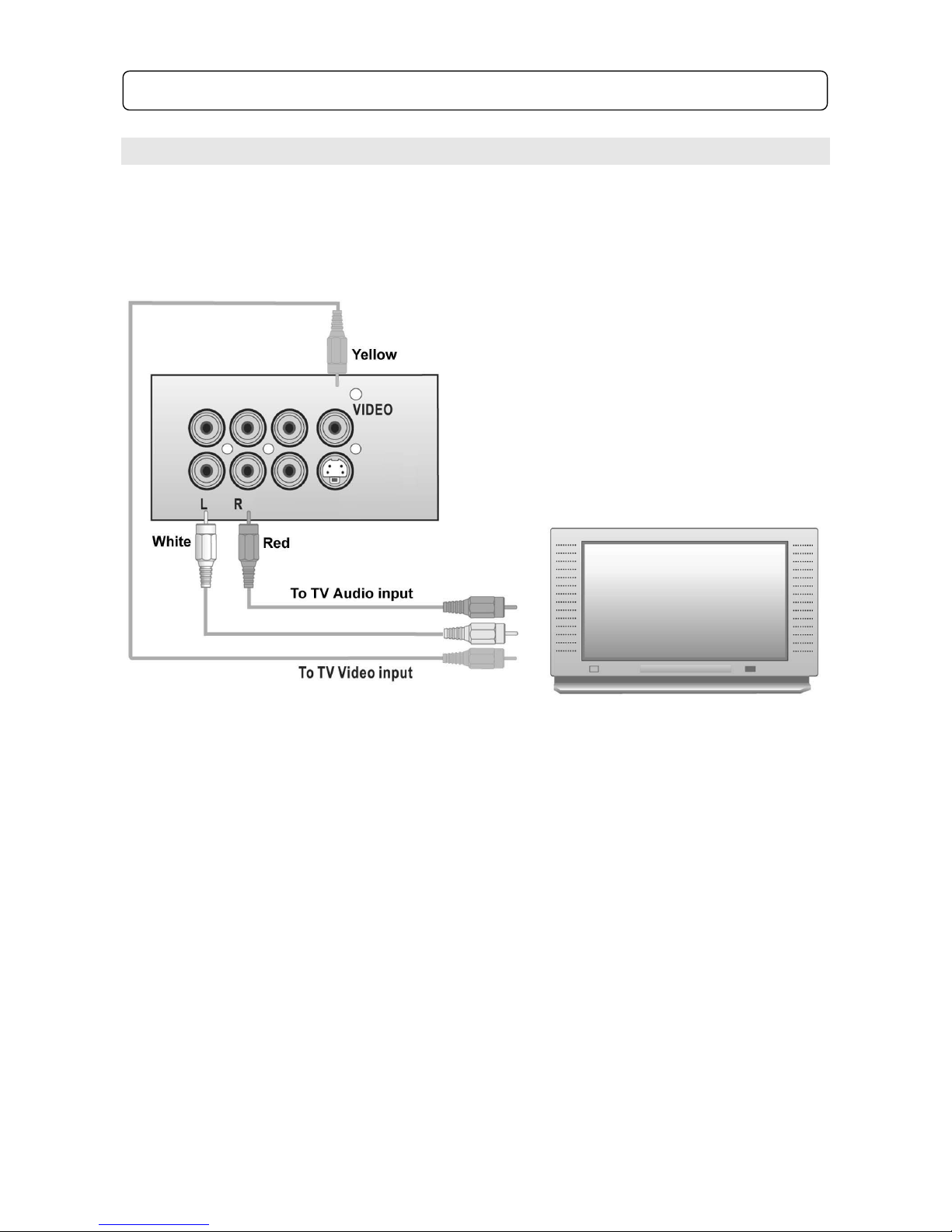
2.1 Basic Connection
Unpacking: You should have 1 DVD – 1 Remote – 1 Set Batteries – 1 set AV Connection Leads.
Basic Connection: Using AV cables Yellow, Red & White plugged cables)
DVD Connections: Connect the Yellow plug to the Yellow Video output jack
Connect the Red plug to the Red R Audio Right) output jack
Connect the White plug to the White L Audio Left) output jack
TV Connections: Connect the Yellow plug to the Video IN jack on your TV
Connect the Red plug to the Audio IN Right) jack
Connect the White plug to the Audio IN Left) jack
Power Connections: Connect the supply plug into a suitable power outlet socket. This equipment
must be plugged into a standard 3 pin earthed outlet suitable for class 1
equipment.
You now have basic AV connection. Turn on your TV & DVD Player and switch the TV channel to
AV to view the DVD screen. You should see the start-up Transonic logo.
2.0
Q
uick Start Guide

4
2.2 Playing a DVD
Turn on the TV & DVD player. Switch the TV to the AV channel. You should see the Transonic
start-up logo.
1. Press the OPEN/CLOSE button on the DVD Remote or on the unit itself)
2. Insert a disc label side up
3. Press the OPEN/CLOSE button once more
The DVD player will start loading the disc.
Once at the main menu, follow the on screen instructions to start playing the movie.
Use the directional keys to select the appropriate items and press the Enter key to confirm
highlighted items on the menu screen.
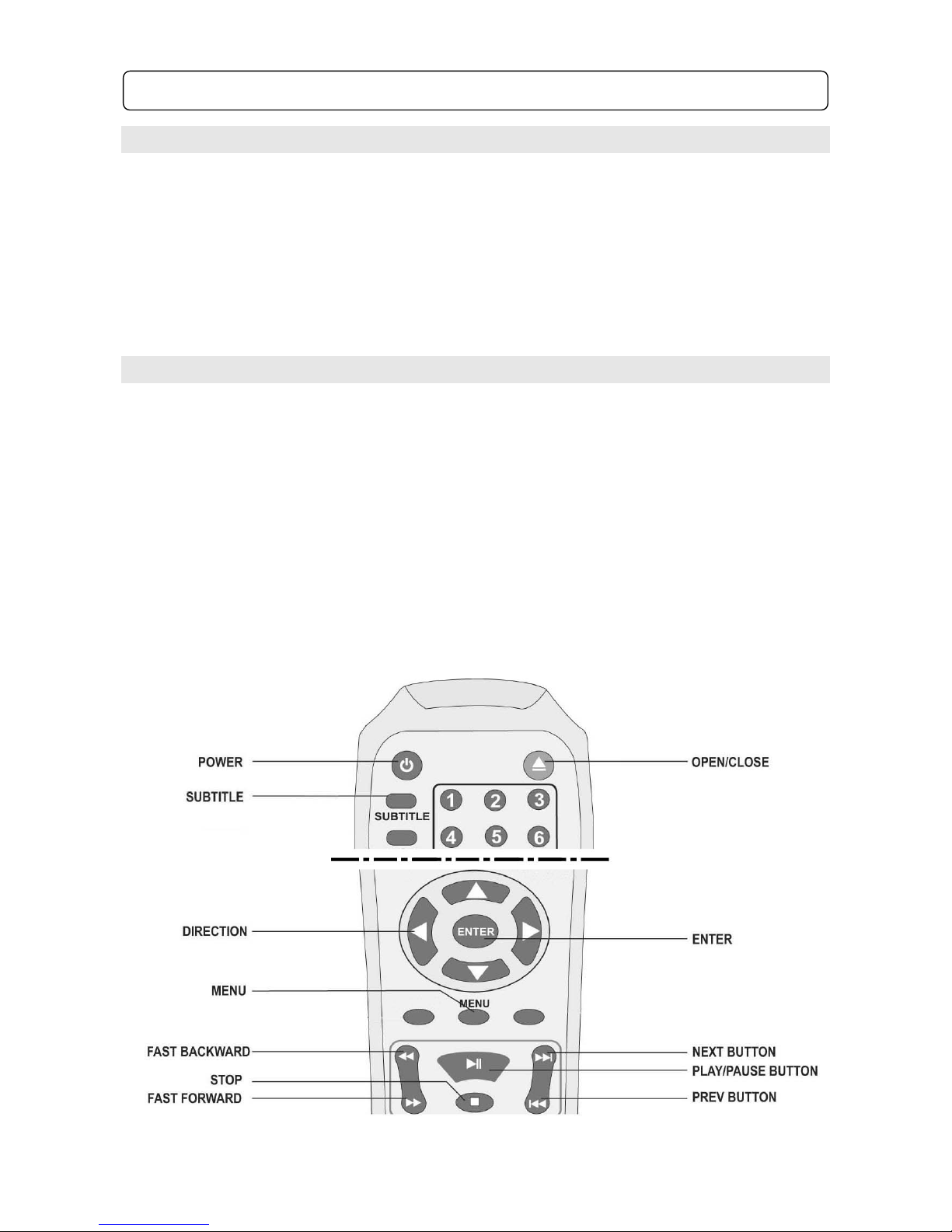
2.3 Frequently Used Remote Buttons
POWER: Press to turn ON and press again to turn the DVD player to standby mode
OPEN/CLOSE: Press to open / close the disc tray
SUBTITLE: Press to turn ON / OFF subtitles and change subtitle language if available)
MENU: Press to return to the DVD main menu
DIRECTIONAL BUTTONS: Press to navigate through menus on screen when in menu screens
ENTER: Press to select highlighted items in on screen menus, i.e. to play movie
PLAY / PAUSE: Press once to play a track or DVD, press again to pause, press once more to
resume normal play
FAST BACKWARD: Press to rewind the track or movie
STOP: Press to stop play
FAST FORWARD: Press to fast-forward a track or movie
PREVIOUS: Press to skip to the previous track or the previous chapter on a DVD
NEXT: Press to skip to the next track or the next chapter on a DVD note: some DVD discs will not
allow you to skip chapters forwards or backwards)
2.0
Quick Start Guide (continued)

5
3.1 Remote Control Buttons
3.
0
Remote Control

6
3.2 Common Remote Key Descriptions
OSD
Used to show On Screen Display. Press repeatedly to cycle through
the on screen display options
Program
To program the order in which the tracks on a CD or Chapters on a
DVD play note: Many DVD’s will not allow this function)
Setup
Press this button to enter the setup menu see Setup menu pg.10)
Menu
Press this to return to the DVD menu
Title
Press this to return to the main screen DVD menu
Subtitle
Press this to turn subtitles On/Off and select the language you
require note: not all DVD’s will have subtitles)
Angle
Press this to view the scene from another camera angle note: Not all
DVD scenes will have this option)
Enter
Used to confirm selections
PBC
Used to turn On or Off the PBC function
Zoom
Press to Zoom in on the picture. Press repeatedly to cycle through
the different zoom options
Audio
Used to change the Audio language note: not all discs will have this
function)
L/R
Used to switch between Left mono, Right mono or Mono mix
A-B
Used to repeat a selected passage
Press A-B at a point you wish to start repeating
Press A-B once more at the point that you want to stop repeating
The selected passage will continuously repeat until the A-B button is
pressed once more to cancel.
Repeat
Used to repeat a DVD chapter/title or a CD Track or entire CD
PS/IS
Used to change the DVD player from Progressive Scan back to
Interlace Mode
3.0
Remote Control (continued)

7
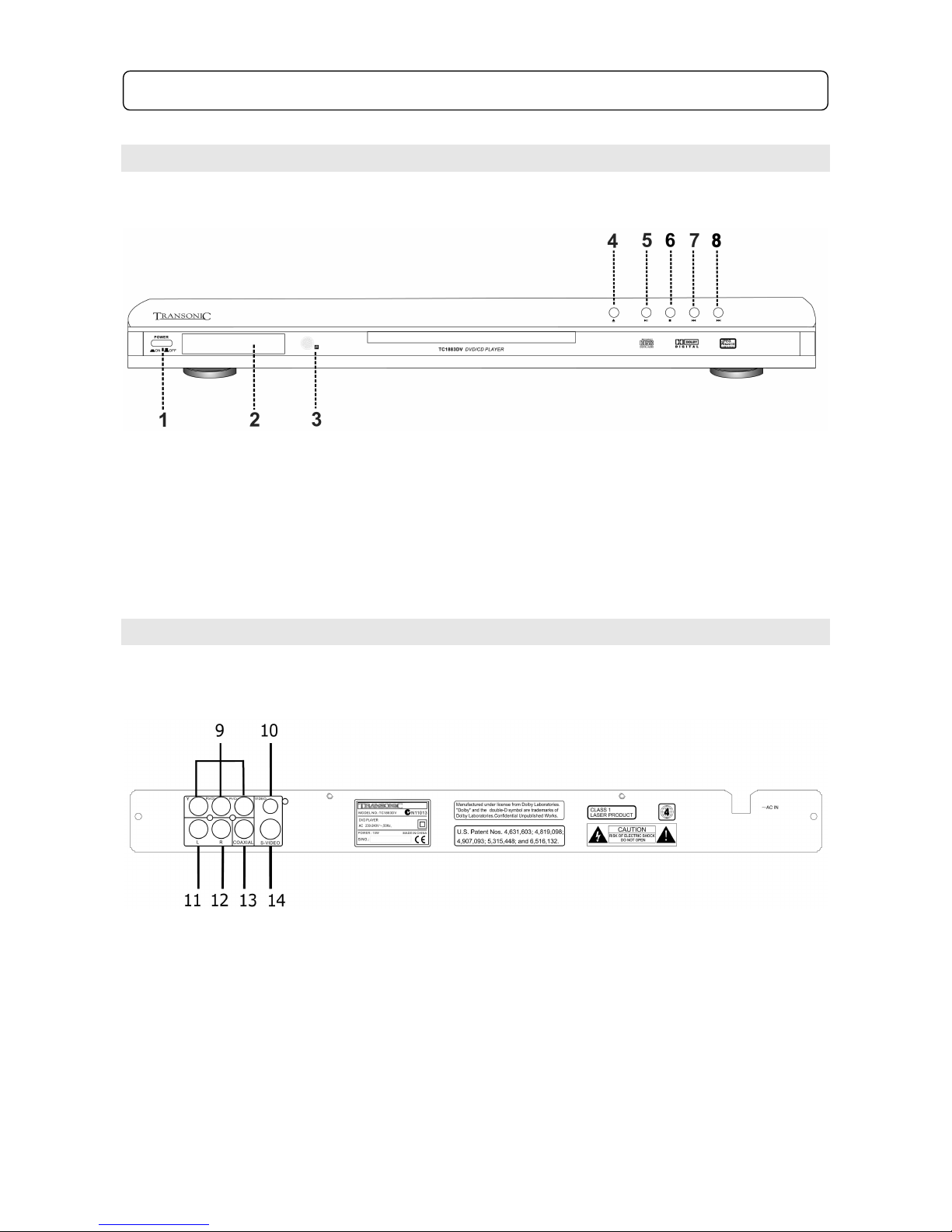
4.1 Front Panel
1. Power Button 4. Open / Close Button 7. Skip Backwards Button
2. LED Display 5. Play / Pause Button 8. Skip Forwards Button
3. Remote Sensor 6. Stop Button
4.2 Rear Panel
9. Component Video Out 11. Audio Left 13. Coaxial Digital Audio Out
10. Composite Video Out 12. Audio Right 14. S-Video Out
4.0
Front & Rear Panels

8
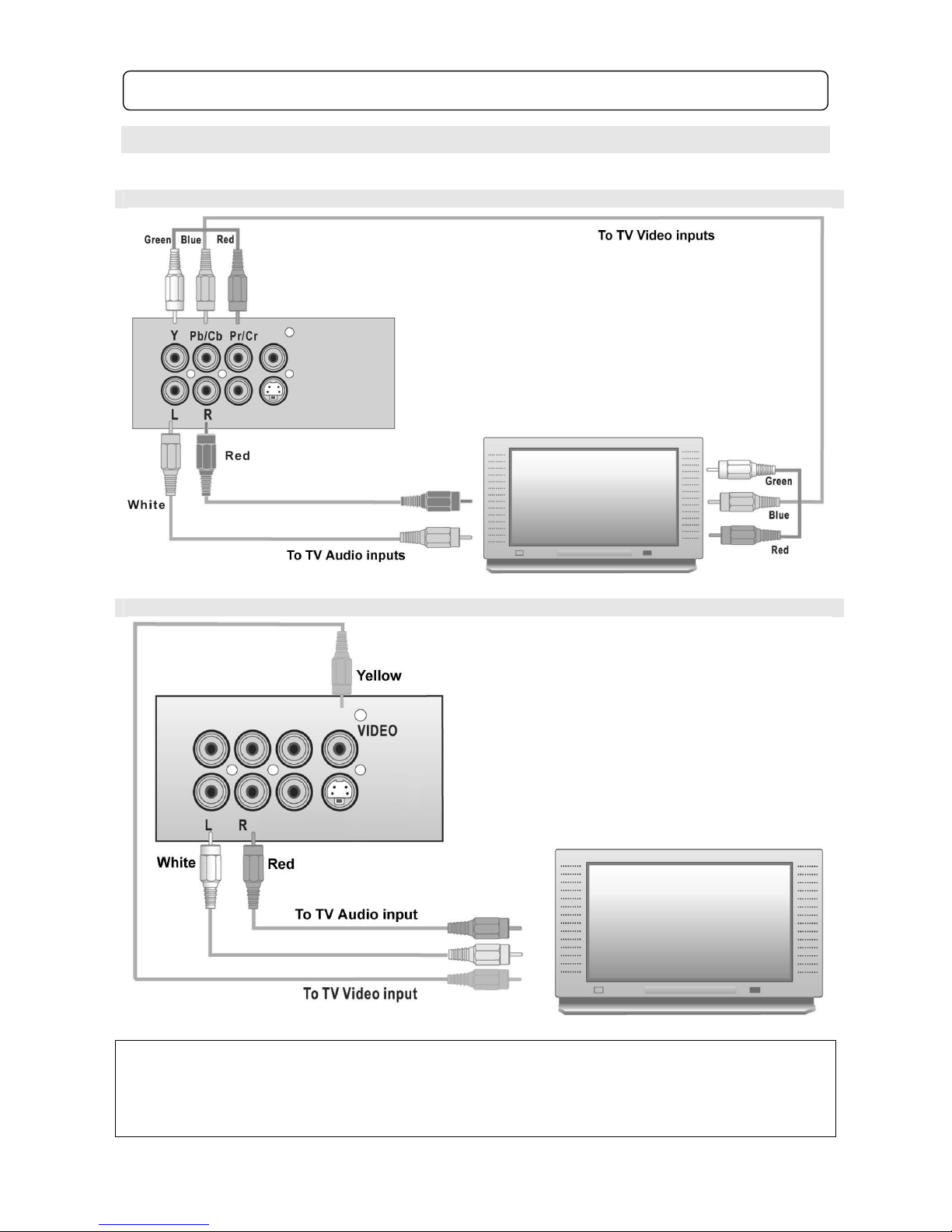
5.1 Component & Composite Video System Connections
Component Connection
Composite Video Connection
! NOTE: if you change the Video Output setting to YUV P-SCAN and you do not have a
progressive scan supported TV you will lose picture. Press the PS/IS button on the remote to
change back to Interlace mode and picture will return.
5.0
Connection Options

9
5.2 S-Video & Home Theatre System Connections
S-Video Connection *
* ! NOTE: S-VIDEO: To use S-Video connections you must first hook up another connection i.e.
Composite) and enter the SETUP menu then the SCREEN menu. Next scroll down to VIDEO
OUTPUT and change this setting to CVBS+S-Video factory default is CVBS+YUV.
You can now hook up your S-Video connection properly.
5.0
Connection Options (continued)
Table des matières
Autres manuels Transonic Lecteur DVD