TopXGun T1-A Manuel utilisateur

Copyright © Shanghai TopXGun robotics Co., Ltd. 1
T1-A User Manual V1.2
2016.07.20 Revision
For Firmware Version V4.10 or above
& Assistant Software Version V1.20 or above
Please strictly follow these steps to mount and use this product, as well as to install the Assistant Software on
your computer or phone.
Thank you for purchasing TopXGun product. There are web pages of T1 at our website www.topxgun.com, which
is updated regularly. You can obtain product information, technical updates and manual corrections. TopXGun
recommends you to download and use the newest user manual. The information contained in this manual is
subject to change without notice.
This manual is only for basic assembly and configuration; you can obtain more details and advanced instructions
when using the assistant software, if you find the information on software and user manual are not consistent,
the assistant software shall prevail.

Copyright © Shanghai TopXGun robotics Co., Ltd. 2
Index
INTRODUCTION .......................................................................................................................................................... 4
PRODUCT INTRODUCTION ..................................................................................................................................................... 4
IN THE BOX ........................................................................................................................................................................ 4
SYMBOL DESCRIPTION .......................................................................................................................................................... 4
1ASSEMBLY & CONFIGURATION............................................................................................................................ 5
1.1 HARDWARE INSTALLMENT......................................................................................................................................... 5
1.2 INSTALLATION &TEST .............................................................................................................................................. 7
1.3 UNLOCK AND LOCK ............................................................................................................................................... 15
1.4 ESC AND COMPASS CALIBRATION ............................................................................................................................ 16
1.5 HORIZONTAL CALIBRATION...................................................................................................................................... 17
2FLY TEST .............................................................................................................................................................18
2.1 FLIGHT MODE AND CORRESPONDING RESPONDING..................................................................................................... 18
2.2 LED INDICATOR DESCRIPTIONS ................................................................................................................................ 18
2.3 FIRMWARE UPDATE ............................................................................................................................................... 20
2.4 FIRST TEST FLIGHT................................................................................................................................................. 23
3ADVANCED FUNCTIONS .....................................................................................................................................25
3.1 INTELLIGENT MODE............................................................................................................................................... 25
3.2 MANUAL OPERATION ............................................................................................................................................. 26
3.3 CONTINUE TO SPRAY AT THE BREAKPOINT ................................................................................................................. 26
3.4 ONE-KEY GO HOME .............................................................................................................................................. 27
3.5 FAIL SAFE AND GO HOME....................................................................................................................................... 27
3.6 LOW VOLTAGE PROTECTION .................................................................................................................................... 27

Copyright © Shanghai TopXGun robotics Co., Ltd. 3
Introduction
Disclaimer & Warning
Please read this disclaimer carefully before using the product. By using this product, you hereby agree to
this disclaimer and signify that you have read them fully.
THIS PRODUCT IS NOT SUITABLE FOR PEOPLE UNDER THEAGE OF 18.
This product is an autopilot system designed for serious multi-rotor aircraft. It can provider user with
fabulous flight experience when the system is powered normally and the connection is correct. When
setting parameters or updating firmware, we strongly recommend users to remove all propellers, and
make sure all connections are good. Keep the aircraft away from people, dangerous objects and fragile
objects. TopXGun accepts no liability for damage or injuries incurred directly or indirectly from the use of
this product in the following conditions:
1. Failure to follow the guidance of the manual to assemble or operate.
2. Damage or injuries incurred when users are drunk, taking drugs, fatigue and any other conditions no
matter physically or mentally that could impair your ability.
3. Damage or injuries caused by subjective intentional operations.
4. Malfunctions caused by refit or replacement with non-TopXGun accessories and parts.
5. Damage or injuries caused by mis-operation or subjective mis-judgment.
6. Damage or injuries caused by mechanical failures due to erosion, aging.
7. Damage or injuries caused by knowingly flying the aircraft in abnormal condition.
8. Damage or injuries caused by using in bad weather, such as typhoon, hail, fog etc.
9. Damage or injuries cause by flying in the following situations such as the aircraft in magnetic
interference area, radio interference area, government regulated no-fly zones.
10. Damage or injuries caused by operating aircraft in condition of low visibility or blocked eyesight.
11. Damage or injuries caused by infringement such as any data, audio or video material recorded by
the use of aircraft.
12. Other losses that are not covered by the scope of TopXGun liability.
Trademark
TopXGun and T1-A are registered trademarks of Shanghai TopXGun robotics Co., Ltd. Names of
product, brand, etc., appearing in this manual are trademarks or registered trademarks of their
respective owner companies. This product and manual are copyrighted by TopXGun with all rights
reserved. No part of this product or manual shall be reproduced in any form without the prior written
consent or authorization of TopXGun. No patent liability is assumed with respect to the use of the
product or information contained herein.
Certifications
This product is approved with quality standards such as FCC, CE and RoHS.

Copyright © Shanghai TopXGun robotics Co., Ltd. 4
Introduction
Product Introduction
TopXGun T1-A is a professional flight controller combining main functions of agricultural UAV in current
market, it can be installed on a variety of model structures, it has the functions as follows:
Intelligent mode
Dose detection
Resume spray function
Precision spraying
Support 10 types of multi-rotor platform
Low Voltage Protection
Fail safe and Go Home
Protection for motor failure or broken airscrew blade (apply to hex-rotors drone or above)
In The Box
Warranty card×1, Main controller×1,PMU×1, GPS/Compass×1, LIU×1, DCU×1, GPS Bracket×1, Servo
Cable×8, Micro-USB×1, AV cable×1, 3M Adhesive Tape.
Symbol Description
Universal Symbol
Symbol
Significance
Description
Attention
This mark represents potential risk, if ignore it, may result in equipment
damage, loss of data or other unpredictable consequences.
Intruction
Starting with this mark is the additional information of the body and the
emphasis and supplement on the body.
LED Symbol
Symbol
Description
(N)
It means yellow LED indicator flashes N times;
{ }(N)
It means yellow and purple LED indicator flash N times;
(∞)
It means yellow LED indicator continuously flashes;
(N)
It means yellow LED indicator is continuously on for N seconds.

Copyright © Shanghai TopXGun robotics Co., Ltd. 5
1 Assembly & Configuration
1.1Hardware Installment
Step1. Confirm multi-rotor type, forward direction and rotation direction of the motor/propeller.
Figure 1-1 Confirm multi-rotor type
Step2. Install the controller unit, connect every part.

Copyright © Shanghai TopXGun robotics Co., Ltd. 6
0
Receiver
Battery
Motors ESC
Liquid level
sensor
Pump signal
Figure 1-2 Hardware connection diagram
Installation Specification
Main controller module installation
Installation position requirements
The TopXGun logo should be facing the sky, with the orientation arrow pointing directly to the nose
direction, please mount it on a central place in board center of aircraft.
Port connection
Connection of ESC: Connect M1~M8 to ESC, T1-A supports up to eight motors at most (ESC
signal wire is down and earth wire is up )
If use ESC which owns the function of BEC output, the red power output line in the middle of
the BEC should be cut off.
Connection of receiver: SBus and PPM receiver can be connected directly to C1. PWM
receiver should be connected to C1~C8 on flight controller. The receiver should have at least
six channels for realizing built-in advanced functions of flight controller.(Recommended to use
servo cable of flight controller includes to connect flight controller and the receiver.)
If you have matched DTU (data transmission unit), please connect it to COM port on MC, it is
recommended that you complete fixation after wiring.
PMU module installation

Copyright © Shanghai TopXGun robotics Co., Ltd. 7
Please do not mount it on any other electronic device, choose a ventilated place for cooling. Make sure
the three CAN ports are convenient for connecting during installation.
Three ports of PMU module have same defination
GPS/COMPASS module installation
When installing the top side should be facing up, with the orientation arrow pointing directly to the nose
direction, mount it on the bracket horizontally. Connect it to any one of the CAN ports of PMU. It is
recommended to use bracket included in package, otherwise, please make sure it is nonmagnetic.
The module built-in magnetic compass as magnetic sensitive equipment,please pay attention
to keep it away from the motor, ESC, power battery and etc when install and use.
LIU module installation
Mount in a good place to make sure the LIU is visible during flying, don't cover the USB port, connect it
to any one of the CAN ports of PMU with the enclosed 3M adhesive tape.
DCU module installation
Installation position requirements
Choose the appropriate position on aricraft board and connect it to any one of the CAN ports of PMU.
Port connection
X1 port is connected to liquid level sensor, X2~X6 port is connected to pump output, the instruction as
below:
When access to ESC of water pump, if use ESC which owns the function of BEC output, the
red power output line in the middle of the BEC should be cut off.
GND
+5V
Signal input
X1X2X3X4X5X6
Figure 1-3 DCU Installation Instruction
1.2Installation & Test
Preparation before installation and debugging
T1-Aflight controller supports PC, Mobile phone to adjust prameters
If you do the configuration on phone, you only have to install phone app and buy bluetooth
module,no need to install any driver.
If you do the configuration on PC, it must meet below demends:

Copyright © Shanghai TopXGun robotics Co., Ltd. 8
support windows system Windows XP/7/8/10
PC has connectted to Internet.
Install latest software uesd to adjust prameters (It may need to install drive program)
Install and test steps
Here follows the instruction of parameter setting steps, taking the adjustable parameter software settings
asexample. You can see details of setting method according to the inner specification of adjustable
parameter software.
Step1. Use USB cable to connect flight controller and PC.
PC will automatically detect flight control and connection.
When using a USB to connect flight controller and PC, it must be given flight control power.
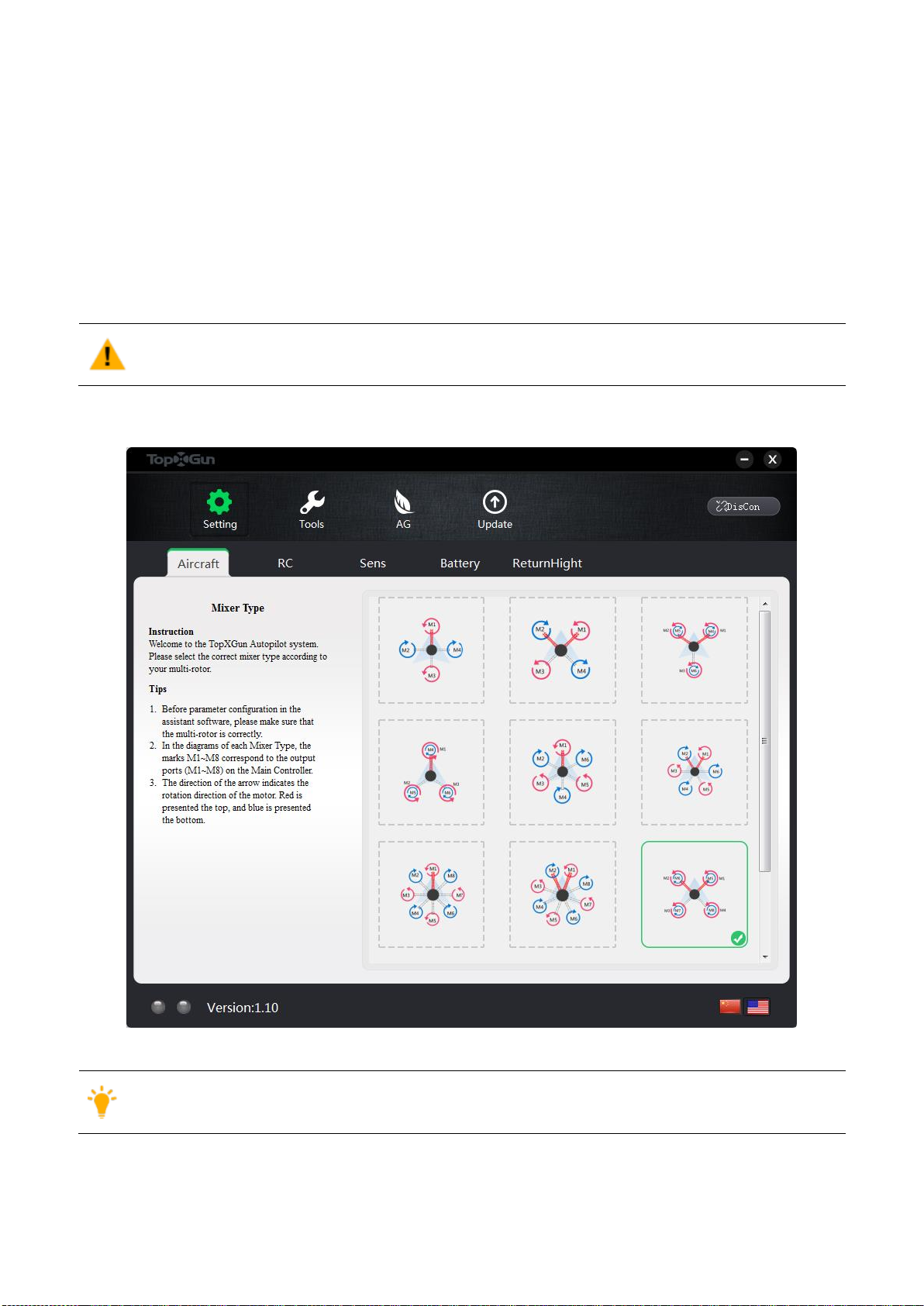
Step2. Choose the type of aircraft.
Figure 1-4 choose the type of aircraft
(1) The direction of the red arrow indicates rotating clockwise (view from the top).
(2) The direction of the blue arrow indicates rotating anticlockwise (view from the top).
(3) To coaxial propellers: red propeller is at Top; blue propeller is at Bottom.
Step3. Choose the type of receiver and calibrate it.

Copyright © Shanghai TopXGun robotics Co., Ltd. 9
1. Choose the type of receiver that you have installed, reboot MC after selection.
2. Setup a new fixed wing model on transmitter, choose a three position switch for CH5, choose a
two position or three position switch for CH6.
3. Click the”START CALIBRATION”button, and move all of the sticks throughout their complete
range several times, then click the “FINISH CALIBRATION”button.
Remote control only unlock after the correct calibration, please check the channel direction is
correct or not:
turn the aileron stick to right, the roll cursor slides to right;
turn the rudder to right, the yaw cursor slides to right;
pull the elevator stick, the pitch cursor slides to right;
push the throttle stick, the throttle cursor slides to right;
4. Flip the CH5,CH6 stick,check if the position on software matches with the control mode.
If the receiver type is not SBus, you need to do as follow:
1. Set the end point of CH5 to 30%~70%
2. Set the rudder angle in the range of normal mode.
you can verify the Fail-Safe setting by shutting down the transmitter, the control mode will
automatically jump to red „Fail-Safe‟area.

Copyright © Shanghai TopXGun robotics Co., Ltd. 10
Figure 1-5 remote control/receiver channel Settings
Step4. Gain setting.
1. Choose the axle base of aircraft which you are using,for your better flying experience,some
parameters have been set automatically according to the axle base of aircraft.
2. You can adjust flying gain in “Gain Adjustment”.
3. You can setup the gain manually until you confirm the best flying gain.
Figure 1-6 Gain setting
Step5. Low-voltage protection setting.
If you do not want to use this function, you can turn it off, then the aircraft will only alarm
with LED blinking when the battery is low.The first level protection has yellow LED
blinking, the second level protection has red LED blinking.
If the low-voltage protection is turned on, the aircraft will return automatically during first
level protection, during second level protection the aircraft will land automatically.
No matter the auto-return or land in stand point, you can switch CH5 mode twice to
terminate low-voltage protection at any time .
If the low-voltage protection is triggered, you are unable to switch to any kind of flight
mode except for attitude mode and returning mode and landing mode.
Table des matières
Autres manuels TopXGun Contrôleurs