TomTec ATF3417 Manuel utilisateur

User Manual
10” Tablet
ATF3417

ATF3417
2
Note:We have pasted transparent protector on the screen, it's
up to the user whether to keep it or remove it when they get
the device
Our Company spares no efforts to improve the product
quality. Therefore, if there is any difference between the
delivered product and the contents of the User’s Guide
because of the upgrading of the software, the former shall
prevail. Thank you for your understanding in this respect!
Table of Contents
Table of Contents ........................................................................... 2
1 Outlook Description .................................................................... 4
2 Power Button Usage.................................................................... 4
3 Touch-Screen Navigation .......................................................... 5
4 Transfer Box.................................................................................. 5
5 Using microSD Card .................................................................... 6
6 Getting Started ............................................................................ 7
Charge the device .............................................................. 7
Turn the device on ............................................................... 7
Wi-Fi Network Setup............................................................. 7
7 DESKTOP ....................................................................................... 8
8 Screen Lock ................................................................................. 8
9 Pre-loaded Applications ............................................................ 9
10 Desktop Function Menu ......................................................... 10
11 Application Management ..................................................... 12
Install Android Applications.............................................. 12
Download Android Applications direct from a Website 13
Uninstalling Android Applications.................................... 13
12 WmtWeather ............................................................................ 14
13 CLOCK ...................................................................................... 14
Alarm ................................................................................... 14
14 APP MARKET ............................................................................. 16
Download Applications..................................................... 16
App Market Function Menu Error! Bookmark not defined.
15 BROWSER .................................................................................. 17

ATF3417
3
16 CALENDAR................................................................................ 17
Add Event............................................................................ 17
17 CAMERA ................................................................................... 18
Function Menu.................................................................... 18
18 CALCULATOR ........................................................................... 18
19 EMAIL ........................................................................................ 19
Add Email accounts .......................................................... 19
Email Inbox ......................................................................... 19
Edit Email Account............................................................. 21
Delete Email Accounts ...................................................... 21
20 FILE BROWSER........................................................................... 22
Copy Media between Computer and Tablet ................. 23
Delete files .......................................................................... 24
21 MY MUSIC................................................................................. 24
Play Music........................................................................... 24
The Operation with Music and Playlist............................. 24
22 MY VIDEO ................................................................................. 25
Play Video........................................................................... 25
The Operation with Video and Playlist............................. 26
23 MY PHOTO................................................................................ 26
Doodle................................................................................. 27
24 CONTACTS................................................................................ 27
Add New Contacts ............................................................ 27
Add Contact to Favorites.................................................. 27
Edit Contacts ...................................................................... 28
Delete Contacts ................................................................. 28
25 PICTURE CAPTURE .................................................................... 28
26 PK MANAGER ........................................................................... 29
Stopping Applications ....................................................... 29
Uninstall Applications ........................................................ 29
27 YouTube ................................................................................... 30
28 SETTINGS ................................................................................... 30
Frequently Asked Questions ....................................................... 34
Battery Management .................................................................. 34
Important Safety Precautions ..................................................... 35


ATF3417
4
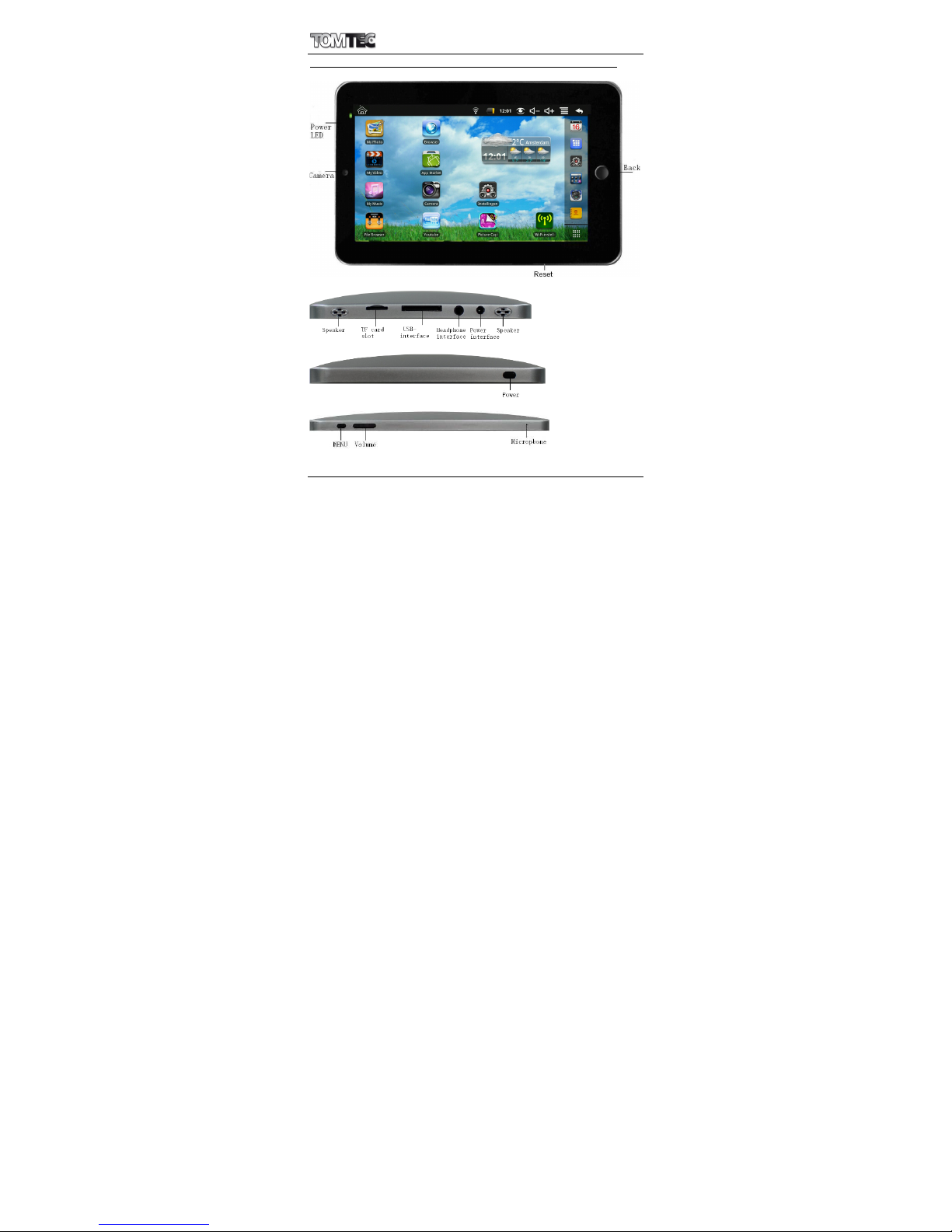
1 Outlook Description
Front:
Right side:
Left side:
Top:
2 Power Button Usage
Turn On: Press the power button and hold for 2 seconds.
Turn Off: Press the power button and hold for 2 seconds, →tap
Power off.
Sleep Mode On/Off: Press & release the power button quickly

ATF3417
5
to turn sleep mode on and off.
Force Off: If device does not respond, press and hold the
power button for 8 seconds.
Note: If it is necessary, we don’t suggest use Force Off. You
should follow the steps to perform the shutdown.
Reset Button: Press the reset button to reset the device. Reset
will erase all data on the device, please caution this feature.
(Note: Current the reset function can not be restart, so after
reset you need to press the power button to re-boot.)
3 Touch-Screen Navigation
The touch-screen allows for quick, easy and convenient
navigation for all applications.
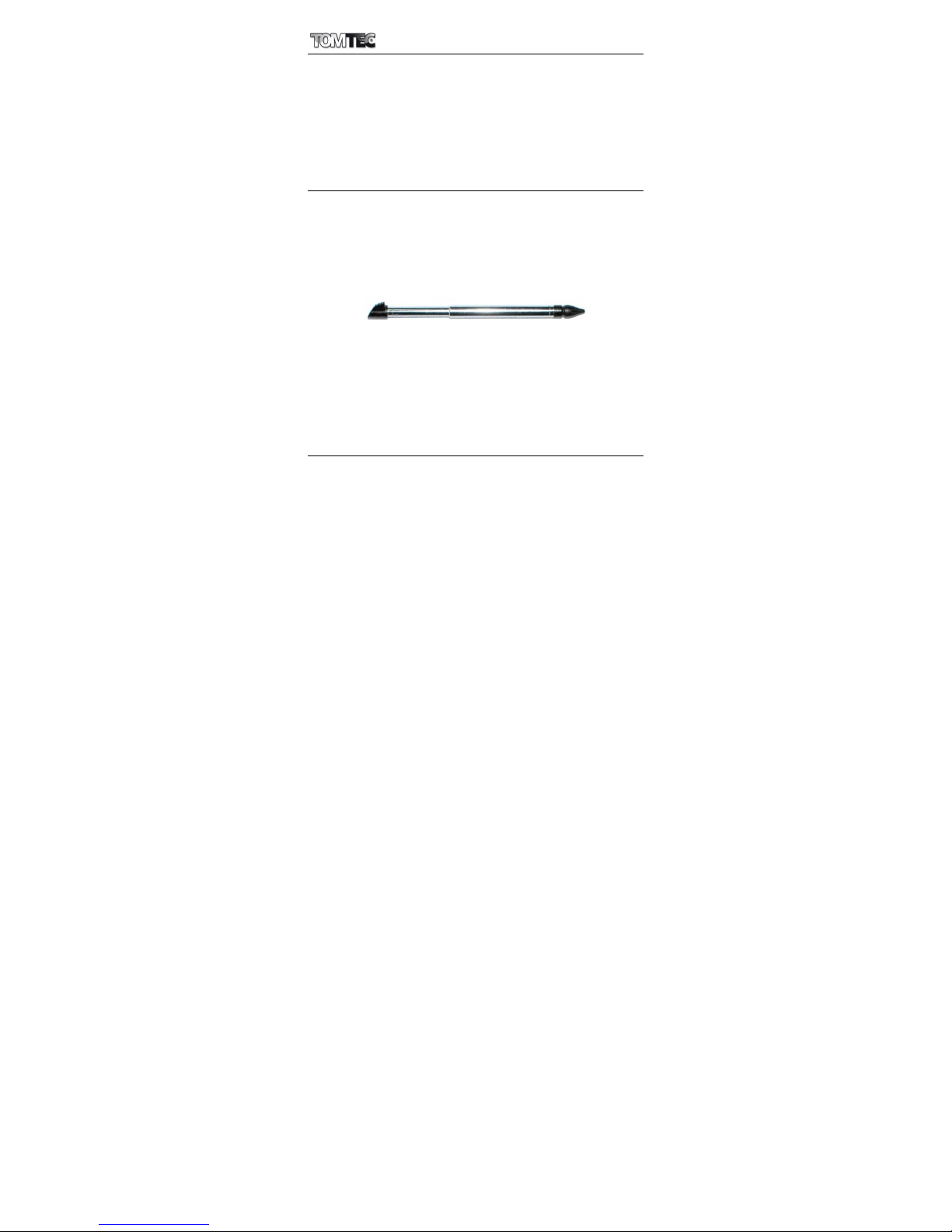
☆The smaller the point that comes in contact with the
screen, the more precise object selection can be. If
you do not have long enough fingers nails to be used
for precise tapping, we recommend using the stylus
or non-sharp pointed instrument to increase the
precision of navigation.
Throughout the User Guide, you are instructed to use the
following tap or touch navigation methods:
Tap: Quick tap & release on an item on the screen.
Finger slide: Touch & slide your finger across the screen
and then release.
Touch & hold: Touch and hold in place approx 2 seconds,
and then release to display an options window.
☆To avoid scratching or crushing, do not place objects
on the touch screen surface.
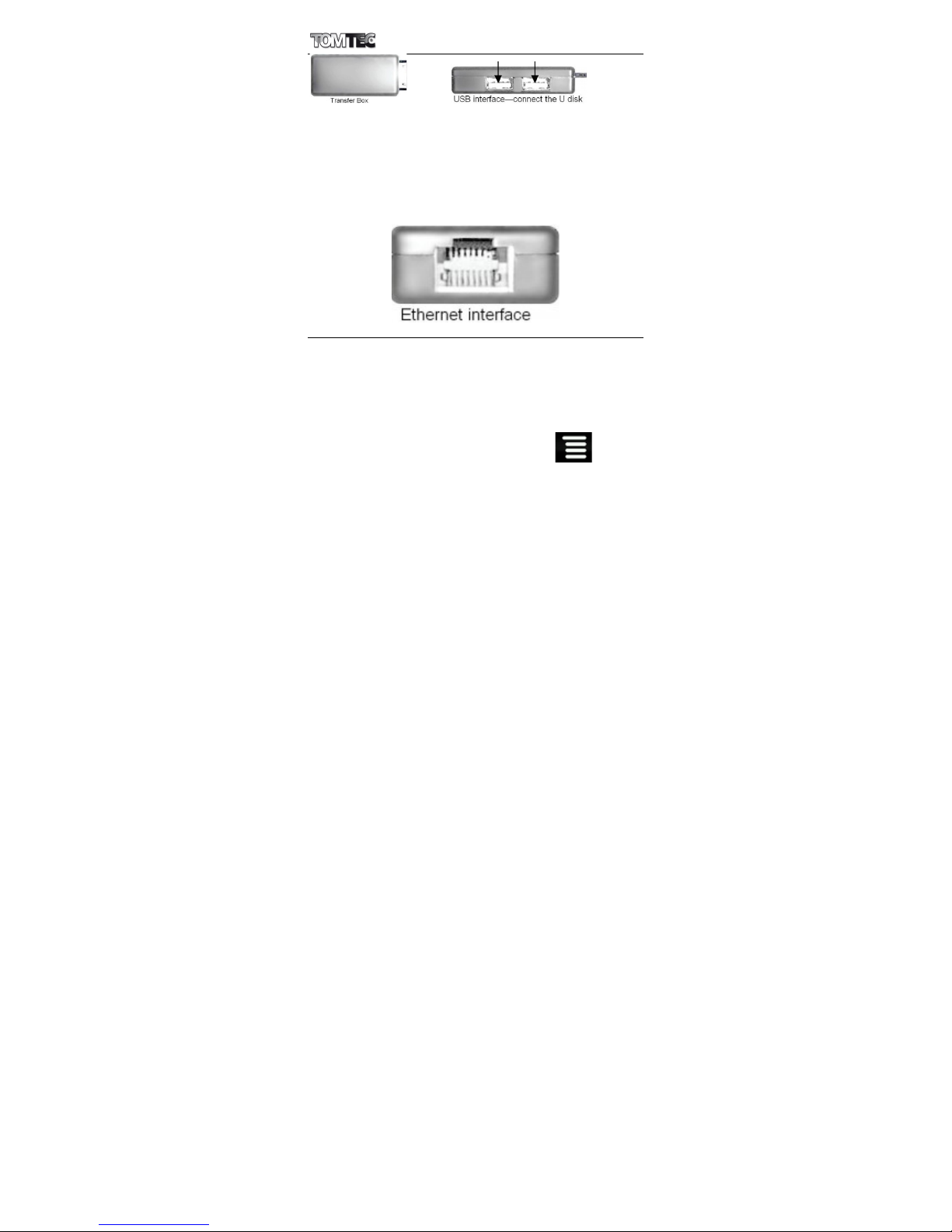
4 Transfer Box
You must use the transfer box if you want to use a USB
storage device (U-disk) for accessing/storing your photos,
musics or video files.

ATF3417
6
U-Disk
Insert your U-disk to the transfer box, →insert the
transfer box into the Tablet. When ready for use, it’s
OK.
☆Don’t insert and remove the U-disk repeatedly in
a short time, as this may cause damage to the
U-disk.
The transfer box is also used for Ethernet network
connections.
5 Using microSD Card
☆The device supports a maximum 32GB microSD card.
Insert your card into the microSD slot until it clicks into
place. it’s OK
Remove microSD Card
Use one of the following methods for moving the
microSD card.
Close all applications or documents which have
been opened on the card. Tap →
Settings →SD card & device storage →
Unmount SD card. Press the card lightly; it is
partially ejected allowing you to pull the card
out.
☆Don’t insert and remove the U-disk repeatedly

ATF3417
7
in a short time, as this may cause damage to
the card.
☆We recommend using major brands of memory
cards to avoid incompatibility.
6 Getting Started
Charge the device
☆You cannot charge the battery using the USB
cable.
☆You can use the device while the battery is
charging, although the charging time is longer
when operating and charging at the same
time.
Plug the power adapter into an electrical wall outlet,
and then connect to the device to fully charge the
battery before use.
While charging, the battery indicator light is red. When
fully charged, the battery indicator light is green.
Turn the device on
Press the power button and hold for 2 seconds.
Wi-Fi Network Setup
Since many features require a Wi-Fi connection,
we recommend you set up your Wi-Fi network now.
1. Tap , →Settings, →Wireless & network.
2. Select Wi-Fi to turn on.
The device automatically scans and lists all local
Wi-Fi Network found. A indicates secure
networks that require login name/password to
connect.
3. Tap the desired network to which you want to
connect, →enter the Network Password if
applicable, →tap Connect.

ATF3417
8
4. Tap to return to the Desktop screen.
☆If your Wi-Fi network is set as hidden, it won’t be
found by the auto scan. Tap Add Wi-Fi network
and follow the prompts to add your network.
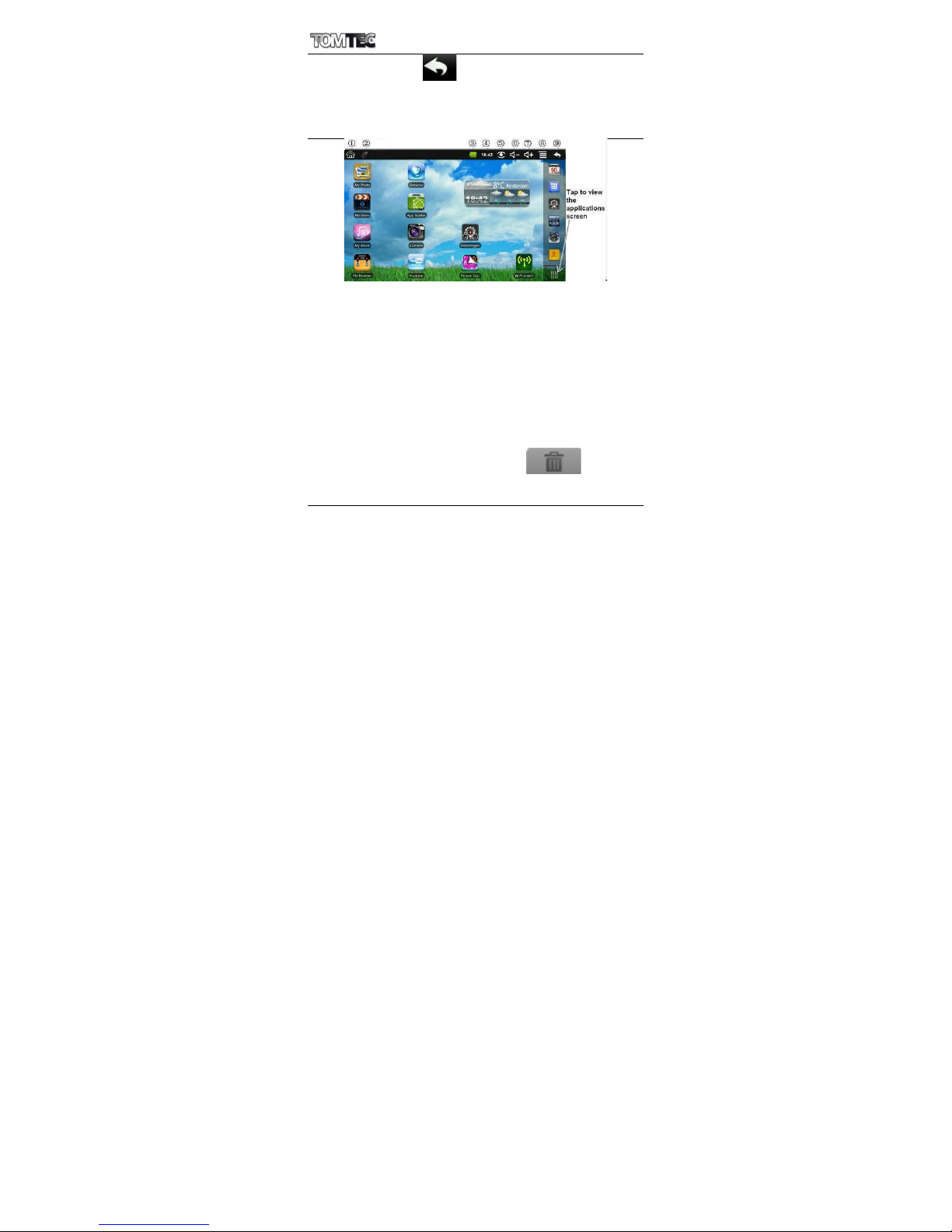
7 DESKTOP
①Return to Desktop from other apps
②SD card or U-disk is inserted and ready for use
③Battery charge status
④Current Time
⑤Picture capture icon
⑥Volume reduction icon
⑦Volume increase icon
⑧Function Menu icon
⑨Back icon
☆Tap on any application icon to launch it.
☆Touch, hold and then slide icons to reposition then on
the screen.
☆Touch, hold and slide icons onto to remove
them from the Desktop screen.
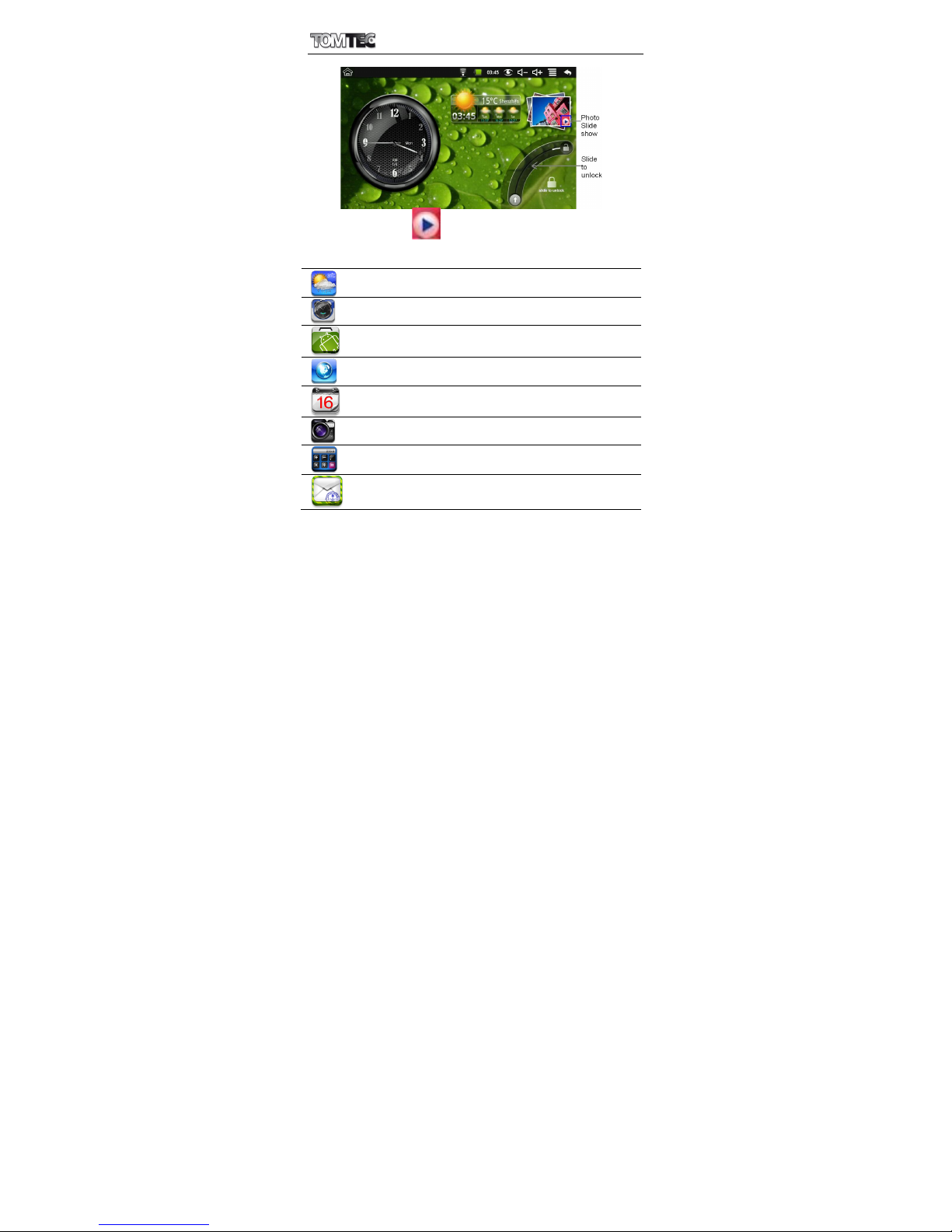
8 Screen Lock
Can be set to automatically lock screen or quickly press
the power button to manually lock screen. Lock screen

ATF3417
9
displays the following:
Tap the icon to enter My Photo to do slide show.
And slide the track like the picture to unlock.
9 Pre-loaded Applications
Wmtweather
Display the weather.
Clock
Use as alarm clock with scheduled
alarms.
App
Market
Downloaded applications quickly
& easily.
Browser
Access the Internet and “surf the
web” whenever desired.
Calendar
Calendar with ability to set events.
Camera
Take photos and save to internal
memory or your memory device.
Calculator
Do calculation.
Email
Send/Receive email using your
existing email addresses.

ATF3417
10
File
Browser
File manager application for
viewing and managing files and
apps. Use to install Android apps,
and to backup files to your SD
card.
My
Music
Play and manage audio files.
My
Video
Play and manage video files.
My
Photo
View and manage photo files.
Contacts
Create a list of personal contacts,
which can also be linked with your
email.
Picture
Capture
Capture image of the screen.
PK
Manager
Application manager for
managing processes.
YouTube
Quick launch to YouTube.com
videos.
Settings
Multiple settings for personalizing
and enhancing your Device.
☆To move an icon to the Desktop screen, touch & hold on the
icon, and then release it when it appears on the Desktop
screen.
☆Touch, hold and then slide icons to reposition then on the
screen.
☆Touch, hold and slide icons onto to remove them
from the Desktop screen.
10 Desktop Function Menu
On the Desktop screen, you can tap to display
Table des matières
Autres manuels TomTec Comprimé