TKH trafficptz ultimo Manuel utilisateur

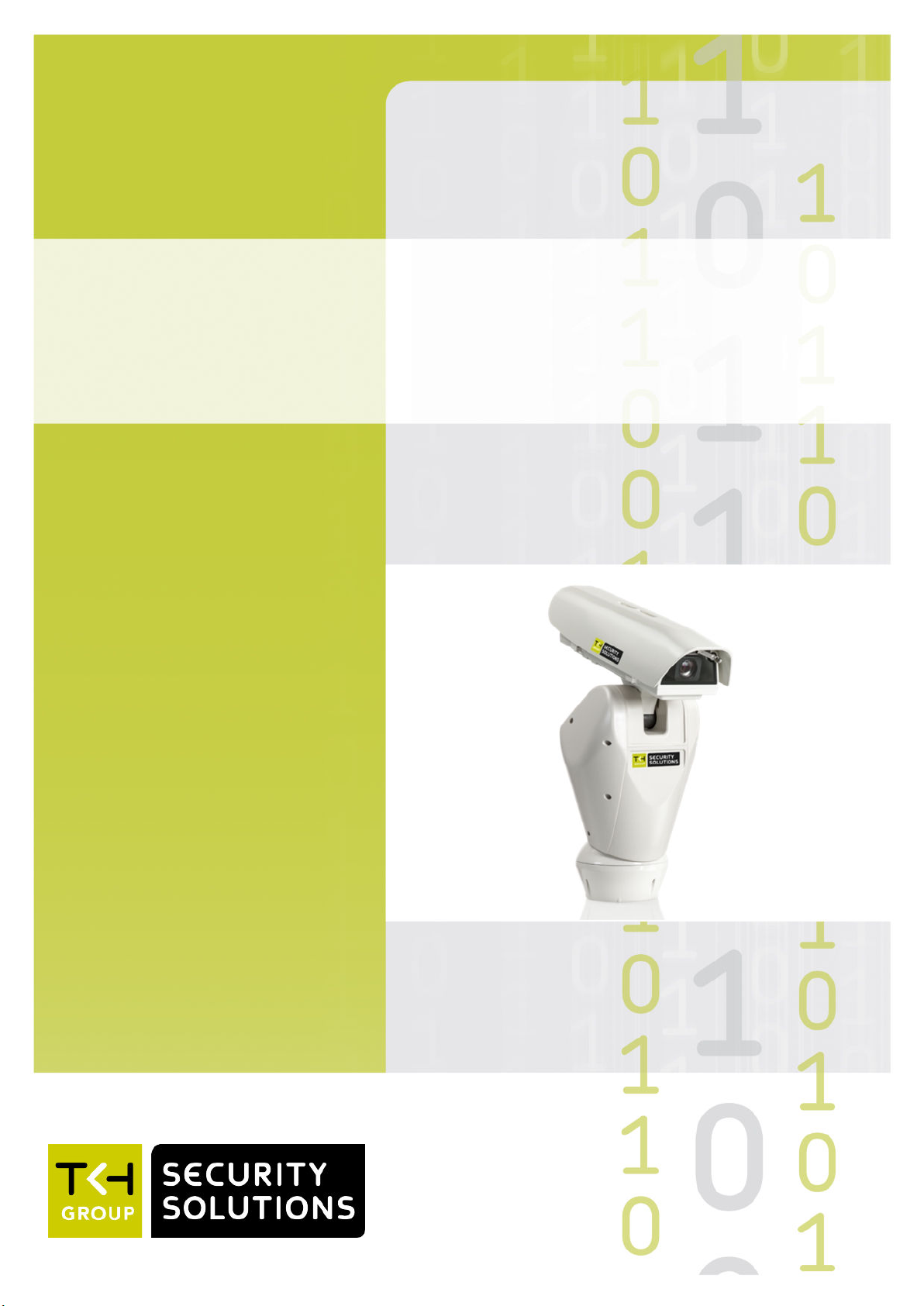
TrafficPTZ Ultimo
Firmware version 2.1
Full HD PTZ IP camera
User Manual

Note: To ensure proper operation, please read this manual thoroughly before using the
product and retain the information for future reference.
Copyright © 2017 Siqura B.V.
All rights reserved.
TrafficPTZ Ultimo 2.1
User Manual v4 (162504-4)
AIT55
Nothing from this publication may be copied, translated, reproduced, and/or published by
means of printing, photocopying, or by any other means without the prior written permission
of Siqura.
Siqura reserves the right to modify specifications stated in this manual.
Brand names
Any brand names mentioned in this manual are registered trademarks of their respective
owners.
Liability
Siqura accepts no liability for claims from third parties arising from improper use other than
that stated in this manual.
Although considerable care has been taken to ensure a correct and suitably comprehensive
description of all relevant product components, this manual may nonetheless contain errors
and inaccuracies. We invite you to offer your suggestions and comments by email via
[email protected]. Your feedback will help us to further improve our documentation.
How to contact us
If you have any comments or queries concerning any aspect related to the product, do not
hesitate to contact:
Siqura B.V.
Zuidelijk Halfrond 4
2801 DD Gouda
The Netherlands
General : +31 182 592 333
Fax : +31 182 592 123
E-mail : [email protected]
WWW : http://www.tkhsecurity.com
2

Contents
1 About this manual ..................................................................................... 5
2 Overview ................................................................................................... 6
2.1 Features ............................................................................................. 6
2.2 Description ......................................................................................... 7
3 Get access to the unit ................................................................................ 8
3.1 Get access via web browser .................................................................. 8
3.2 Get access via Device Manager .............................................................. 8
3.3 Get access via UPnP ............................................................................. 9
3.4 Log on to the unit ................................................................................ 9
4 Use the web interface ............................................................................... 10
5 Live Stream ............................................................................................... 11
6 Camera ..................................................................................................... 14
6.1 Management ....................................................................................... 14
6.2 Image Settings .................................................................................... 15
6.2.1 Exposure ........................................................................................ 16
6.2.2 Focus ............................................................................................. 18
6.2.3 White Balance ................................................................................. 18
6.2.4 Day/Night ....................................................................................... 19
6.2.5 Appearance ..................................................................................... 20
6.2.6 Enhancement .................................................................................. 20
6.3 Overlays ............................................................................................. 21
6.3.1 Overlay management ....................................................................... 21
6.3.2 Font management ............................................................................ 23
6.3.3 Image management ......................................................................... 24
6.4 Streaming Profiles ............................................................................... 24
6.5 PTZ ................................................................................................... 26
7 Event ......................................................................................................... 27
7.1 Management ....................................................................................... 27
7.2 Connection Monitor .............................................................................. 27
7.3 Digital I/O .......................................................................................... 28
7.4 FTP Push ............................................................................................ 29
7.4.1 Servers .......................................................................................... 29
7.4.2 Camera-# ....................................................................................... 29
8 Recording .................................................................................................. 30
9 Device ....................................................................................................... 32
9.1 Management ....................................................................................... 32
9.2 Network ............................................................................................. 33
9.2.1 Network ......................................................................................... 34
9.2.2 Services ......................................................................................... 35
9.3 Date & Time ........................................................................................ 36
9.4 Security ............................................................................................. 37
9.5 User Management ................................................................................ 39
9.6 SNMP ................................................................................................. 40
3

10 Diagnostics ............................................................................................... 42
10.1 Logging .............................................................................................. 42
11 Analytics ................................................................................................... 43
11.1 Tampering .......................................................................................... 43
11.2 Quality Monitor .................................................................................... 44
12 Advanced .................................................................................................. 45
12.1 Direct Streaming ................................................................................. 45
13 Troubleshooting ........................................................................................ 47
13.1 Date & Time issues .............................................................................. 47
13.2 FTP issues .......................................................................................... 47
13.3 Logon issues ....................................................................................... 47
13.4 Network issues .................................................................................... 48
13.5 Upgrade issues .................................................................................... 48
13.6 Video issues ........................................................................................ 49
13.7 Webpage issues ................................................................................... 49
Acknowledgements ................................................................................... 50
Index ...................................................................................................... 51
Contents
4

1 About this manual
What's in this manual
This is version 4 of the user assistance for the TrafficPTZ Ultimo. It is made up of the Help
topics that you can open from the web interface of the unit. The topics describe:
● How to get access to the unit
● How to communicate with the unit
● How to operate the unit
● How to configure the settings of the unit
Where to find more information
You can find the manuals, the datasheet, the EU Declaration of Conformity and firmware
updates for your product at www.tkhsecurity.com/support-files. Make sure that you have the
latest version of this manual.
Who this manual is for
These instructions are for all professionals who will configure and operate this product.
What you need to know
You will have a better understanding of how this product works if you are familiar with:
● Camera technologies
● CCTV systems and components
● Ethernet network technologies and Internet Protocol (IP)
● Windows environments
● Video, audio, data, and contact closure transmissions
● Video compression methods
Why specifications may change
At TKH Security, we are committed to delivering high-quality products and services. The
information given in this manual was current when published. As we continuously seek to
improve our products and user experience, all features and specifications are subject to
change without notice.
We like to hear from you!
Customer satisfaction is our first priority. We welcome and value your opinion about our
products and services. Should you detect errors or inaccuracies in this manual, we would be
grateful if you would inform us. We invite you to offer your suggestions and comments via
[email protected]. Your feedback helps us to further improve our documentation.
Acknowledgement
This product uses the open-source Free Type font-rendering library. The Open Source
Libraries and Licenses document, available at www.tkhsecurity.com/support-files, gives a
complete overview of open source libraries used by TKH Security video encoders and IP
cameras.
5

2 Overview
In This Chapter
2.1 Features................................................................................................................6
2.2 Description............................................................................................................ 7
2.1 Features
TrafficPTZ Ultimo
● 1/2.8’’ Exmor CMOS sensor
● Full HD (2.38 MP) resolution
● H.264/MJPEG compression
● 30x Optical zoom
● Temperature-hardened
● Day/Night with IR-cut filter
● Variable speeds 0.02-100°/s pan, 0.02-40°/s tilt
● Horizontal continuous rotation, vertical -90° / +40°
● Wind load ≤160 km/h operational, ≤200 km/h stationary
● Compliant to ONVIF Profile S, NTCIP 1205, NEMA TS2
● Wiper standard, washer options
6

2.2 Description
The TrafficPTZ Ultimo is a high-precision full-featured network PTZ camera providing high-
quality, high-definition images. The tightly integrated 30x optical zoom, autofocus lens makes
for the easiest installation and remote adjustment.
Construction
The accurate top-mount construction ensures vision beyond the horizon and continuous
rotation on the horizontal axis, thereby combining high speed and absolute tracking accuracy,
both in manual and in patrol mode. The TrafficPTZ Ultimo is temperature-hardened for
demanding applications in cold or hot environments.
Multistream high definition
The TrafficPTZ Ultimo cameras have multiple stream capability for simultaneous streaming of
one or more H.264 streams, combined with MJPEG. Two independent H.264/MJPEG encoders
can generate full-HD 1080p video streams at full frame rate. Optionally, a third encoder can
be configured for MPEG-4 or MPEG-2, to guarantee backwards compatibility with many legacy
control systems Multiple combinations of resolution and frame rate can be configured to
satisfy different live viewing and recording scenarios.
Open standards
The careful assembly and compliance to open standards of the TrafficPTZ Ultimo ensure that
the camera integrates with the most common VMSes out of the box. Being ONVIF Profile S
compliant, the camera is supported even if your software does not have a dedicated driver. If
you wish to incorporate the camera’s special features in your dedicated client software, TKH
Security's SPI offers an easy HTTP API for guaranteed interoperability. This makes these
cameras outstanding candidates for projects which require customisation.
Day/Night, backlight compensation, and wide dynamic range
The TrafficPTZ Ultimo provides automatic day/night functionality for use in low light situations.
Backlight compensation enhances image visibility in difficult lighting situations. This ensures
quality pictures at all times. Wide dynamic range solves the problem of overlit images by
taking the better of two pictures with different light references.
Overview
7

3 Get access to the unit
From a standard browser on your PC, you can connect to the web interface of the unit. Use
the webpages to view live video over the network, remotely operate the PTZ functions, and
configure the settings of the unit. This chapter explains how to open the web interface in your
browser.
In This Chapter
3.1 Get access via web browser..................................................................................... 8
3.2 Get access via Device Manager................................................................................. 8
3.3 Get access via UPnP................................................................................................9
3.4 Log on to the unit................................................................................................... 9
3.1 Get access via web browser
Connect to the unit from your web browser
1 Open your web browser.
2 Type the IP address of the unit in the address bar.
The factory-set IP address of the unit is in the 10.x.x.x range.
3 Press ENTER.
The Live Stream page is opened.
- or -
If user accounts exist on the unit, you are directed to the login page (see "Log on to the
unit" on page 9).
3.2 Get access via Device Manager
Device Manager is a Windows-based software tool that you can use to manage and configure
our cameras and video encoders. The tool automatically locates these devices on the network
and offers you an intuitive interface to set and manage network settings, configure devices,
show device status, and perform firmware upgrade.
Install Device Manager
1 Download the latest version of Device Manager at www.tkhsecurity.com/support-files.
Note that Device Manager is 64-bit as of version 1.8.x.
2 Double-click the setup file.
3 Follow the installation steps to install the software.
Connect to the unit via Device Manager
1 Start Device Manager
The network is scanned.
Detected devices appear in the List View pane.
2 If multiple network adapters exist, select the appropriate adapter to scan the network
that you wish to connect to.
8

3 To perform a manual search, click the Rescan button.
4 Use the tabs in the Tree View pane to define the scope of your search.
5 Click the column headings in the List View pane to sort devices by type, IP address, or
name.
6 To connect to the webpages of the unit, double-click its entry in the device list,
The Live Stream page is opened.
- or -
If user accounts exist on the unit, you are directed to the login page (see "Log on to the
unit" on page 9).
3.3 Get access via UPnP
Universal Plug and Play (UPnP) support is enabled by default on the unit. With the UPnP
service enabled in Windows, you can get access to the unit from Windows Explorer.
Connect to the unit via UPnP
1 In Windows Explorer, open the Network folder.
Detected devices in the same subnet as the computer are displayed, including codecs
and cameras with UPnP support.
2 Double-click the unit that you want to connect to.
The Live Stream page is opened.
- or -
If user accounts exist on the unit, you are directed to the login page (see "Log on to the
unit" on page 9).
3.4 Log on to the unit
By default, users can freely open the web interface of the camera. They are not required to
log on.
User authentication
If user accounts have been created and user authentication is activated, you encounter an
authentication box when you connect. You are prompted to supply your user name and
password. Only users with a valid account can log on.
Log on to the unit
1 In User Name, type your user name.
User name and password are case sensitive.
2 In Password, type your password.
3 Click Log In.
Get access to the unit
9

4 Use the web interface
The built-in web interface makes it easy to operate and configure the unit over the network.
Home page
The Live Stream page is the home page of the unit. It is displayed when the web interface is
opened.
Menu
Use the vertical menu on the left to navigate the webpages of the unit. Clicking a menu entry
opens a page or a submenu.
Nice to know
To find a specific webpage quickly, type its name in the search-as-you-type box
above the menu.
Layout
Webpages have a single-page layout or content is organised across multiple tabs. A tab
contains related commands and settings. The title of the active tab is highlighted and
underlined.
Camera previews
Pages such as Live Stream, Image Settings, Overlays, and Tampering include a camera
preview. You use it to view live video or determine the effect of your settings when you make
changes.
Revert button
The Revert button appears when you adjust specific settings. It lets you undo your changes.
The button is available until you leave the webpage.
Restore the setting to its original state (at the time of opening the webpage).
10
Table des matières
Autres manuels TKH Caméra de sécurité

TKH
TKH TKID45F2S Manuel utilisateur

TKH
TKH PD1103Z2-EI Manuel utilisateur

TKH
TKH SiQURA PD1022v2 Manuel utilisateur

TKH
TKH TKIZ48E12S Manuel utilisateur

TKH
TKH FD1001V1-EI/T Manuel utilisateur

TKH
TKH 1004 Series Manuel utilisateur

TKH
TKH EX PTZ Series Manuel utilisateur

TKH
TKH Siqura FD810V1IR Manuel utilisateur

TKH
TKH TKIB41M1S Manuel utilisateur

TKH
TKH SIQURA FD002F2-EI Manuel utilisateur