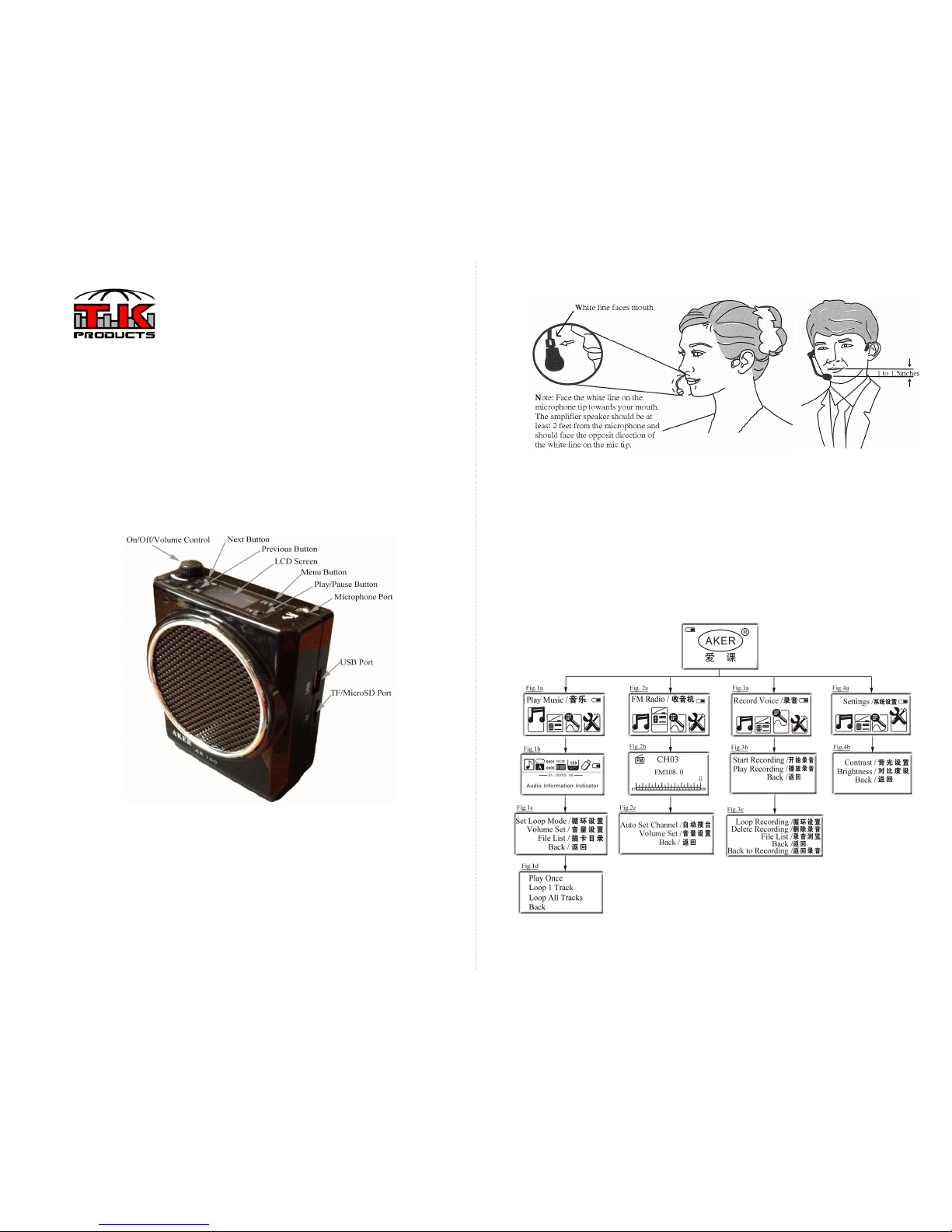
The LCD Menu.
Note: The LCD menus will appear in Chinese. An English translation is provided in this manual but there no
way to change the language on the amplifier. Aker is working on an English version.
Using a USB Drive or MicroSD Card or to play MP3 Music:
1. Insert a SD card or USB drive into one of the ports on the
amplifier. Note, the Amplifier will only play MP3 formatted files.
The files must not be in a folder and there must only be mp3 files
on the card/drive or it will not play the files.
2. Turn on the voice amplifier and then press and hold the MENU
button until you see the screen in Figure 1a. Adjust the
NEXT/PREV buttons until the music icon is selected.
3. Press the PLAY/PAUSE button. Music will begin to play. Use the
NEXT or PREVIOUS button to cycle through the MP3 files.
Once the music begins to play the audio information screen will
show (Figure 1b).
To Loop Music
1. Select the MENU button. The screen in Figure 1c will appear.
The first line is the “Set Loop Mode”. Adjust the NEXT/PREV
buttons and then press the PLAY/PAUSE button when on the first
line.
2. The screen in Figure 1d will appear. Use the NEXT/PREV
buttons and then press the PLAY/PAUSE button on the loop
method desired.
View File List
1. Select the MENU button. The screen in Figure 1c will appear. The
third line is the “File List”. Adjust the NEXT/PREV buttons and
then press the PLAY/PAUSE button when on the third line.
2. The File List will appear. Adjust the NEXT/PREV buttons and
then press the PLAY/PAUSE button when on the desired file.
1. Plug in the included Audio cable into the Microphone Port. The
cable will act as antenna.
2. Turn on the voice amplifier and then press and hold the MENU
button until you see the screen in Figure 2a. Adjust the
NEXT/PREV buttons until the music icon is selected.
3. Press the PLAY/PAUSE button. The FM radio will begin to play
and the FM screen will show (Figure 2b). Use the NEXT or
PREVIOUS button to cycle through FM stations. A short press
large changes in frequency. Hold the NEXT/PREV for small
changes in frequency. show (Figure 1b).
To Program FM Channels
1. To auto program the channels press the MENU button briefly. The
screen shown in Figure 2c will appear. The first line is the “Auto
Set Channel”. Adjust the NEXT/PREV buttons and then press the
PLAY/PAUSE button when on the first line.
2. The Amplifier will then cycle through and find local stations then
program them. Once the cycle stops you may use the Forward and
Back button to change programmed channels.
1. Insert a SD card or USB drive into one of the ports on the
amplifier. There must be a card or drive present to accept the
recording.
2. Turn on the voice amplifier and then press and hold the MENU
button until you see the screen in Figure 3a. Adjust the
NEXT/PREV buttons until the music icon is selected.
3. Press the PLAY/PAUSE button and the screen in Figure 3b will
appear. The first line is the “Start Recording” mode. Adjust the
NEXT/PREV buttons and then press the PLAY/PAUSE button
when on the first line.
4. A recording screen will then appear (not shown) which will
show the time recording. Use the PLAY/PAUSE button to
pause and restart the recording.
To Play the Recording.
1. Hit the MENU button. The screen in Figure 3b will appear. The second line is the “Play
Recording” mode. Adjust the NEXT/PREV buttons and then press the PLAY/PAUSE button
when on the second line.
2. A play screen will then appear (not shown) and the recording will start playing. Use the
PLAY/PAUSE button to start and stop the playback.
3. Use the NEXT/PREV buttons to cycle through other recorded files.
To Loop, Delete, or access File List
While in the Play Recording screen, hit the MENU button. The screen in Figure 3c will appear.
Adjust the NEXT/PREV buttons and then press the PLAY/PAUSE button when on the desired
feature.
•First Line = Loop Current Recording.
•Second Line = Delete Current Recording.
•Third Line = Access File List and select desired file.
•Fifth Line = Back to play recording screen.
•Sixth Line = Back to Recording screen.
FAQ:
Question: Why does the voice amplifier produce feedback or screeching and how do I reduce it?
Answer: You can reduce feedback or screeching by reducing the volume or moving the speake
further from the microphone. Make sure the white line on the microphone tip is facing your mouth.
Question: How long does the battery take to charge?
Answer: the typical battery charge time is 4-6 hours.
Question: My voice amplifier will not work or produce sound?
Answer: Check that your microphone is plugged into the correct port, your battery is charged, and
the voice amplifier is turned on to an audible volume. If you continue to have problems please
contact TK Products, LLC for help.
For Further information please visit www.TKProductsLLC.net.
For
Questions,
Comments,
Suggestions,
Technical
Support,
and
Sales:
[email protected] TK Products, LLC - Cleburne, Texas -Rev062012
www.TKProductsLLC.net