
TicWatch Sport 2 Manuel utilisateur

4NBSUXBUDI8(8(
4NBSUXBUDI6TFS(VJEF
4&
TicWatch S2/E2
Manual
www.tic-benelux.nl
Tic-Benelux is part of TJM Imports B.V. ©2019

8FMDPNFUP5JD8BUDI
%FWFMPQFECZUIF.PCWPJBOEQPXFSFECZ8FBS04
CZ(PPHMF!"UIF5JD8BUDIMJOFPGTNBSUXBSUDIFTBSF
BQFSGFDUCMFOEPGCPUITPGUXBSFBOEIBSEXBSF
.PCWPJJTBOBSUJGJDJBMJOUFMMJHFODFDPNQBOZXIJDI
TQFDJBMJ[FTJOOVNFSPVTBSFBTPGUFDIOPMPHZTVDIBT
WPJDFSFDPHOJUJPOTFNBOUJDBOBMZTJTTQFFDI
TZOUIFTJTWFSUJDBMTFBSDIBOETNBSUOPUJGJDBUJPOTBSF
KVTUUPOBNFBGFX5JMMEBUFJUIBTDPNQMFUFETJY
SPVOETPGGVOEJOHXJUIBUPUBMJOWFTUNFOUBNPVOUPG
NJMMJPO64EPMMBST&YJTUJOHJOWFTUPSTJODMVEF
4FRVPJB$BQJUBM;IFO'VOE4*(TVTRVFIBOOB
(PFSUFL"DPVTUJDT(PPHMF!7PMLTXBHFO$IJOB
BOETPPO
- S2/E2
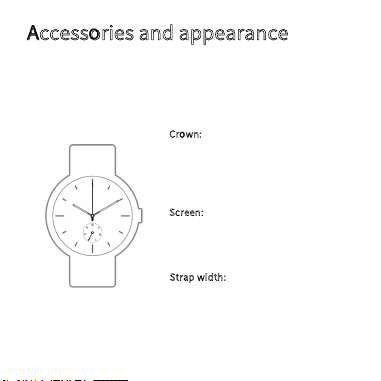
"DDFTTPSJFTBOEBQQFBSBODF
*ODMVEFEJOUIFCPYBSFUIF5JD8BUDITNBSUXBUDIB
NBHOFUJDDPOUBDUDIBSHFSBOEBQSPEVDUNBOVBM
$SPXO
-POHQSFTTXIJMFQPXFSFEPGGQPXFSPO
-POHQSFTTXIJMFQPXFSFEPOBDUJWBUF5IF
(PPHMF"TTJTUBOU
DMJDLXIJMFQPXFSFEPODMJDLBQQNFOV
4DSFFO
JODIGVMMSPVOEEJBM
3FTPMVUJPO
YQJYFMT
4USBQXJEUI
NN
- S2/E2

"DDFTTPSJFTBOEBQQFBSBODF
$IBSHJOHQPSU
.JDSPQIPOF
.BHOFUJDDPOUBDUDIBSHFS
%ZOBNJD
PQUJDBMIFBSU
SBUFTFOTPS
- S2/E2

Getting started with the TicWatch S2/E2
1. Pairing with the Wear OS by Google App
• Download and install the Wear OS by Google app from the
Google PlaystoreTM or Apple App Store.
• Pair your smartphone with the Wear OS by Google app by
following these steps:
1. Press crown on the smartwatch to turn it on.
2. Select your language.
3. Turn on the Bluetooth through your smartphone and open
the Wear OS by Google app. Follow the instructions within
this app to pair your smartphone with your smartwatch.
2. Pair with the Mobvoi app
• By linking the Mobvoi app to your phone, you can synchronize
data with your phone and access other functions.How to pair:
1. Pair your Ticwatch with the Wear OS by Google.

Getting started with the TicWatch S2/E2
2. Download the Ticwatch app from the Google Playstore or the
Apple App store.
3. Start the pair process.
iPhone
When your smartwatch is successfully paired with the Wear OS by
Google app, you need to pair with the Ticwatch app again to
synchronize the data from your smartphone.
• Instructions:
1. Pair your smartwath with the Wear Os by Google app and go
to the Ticwatch app. Log in or create a new Mobvoi account
and click on start.
2. Select your smartwatch name on your phone and let the pair
process begin. (You can find the smartwatch name under
Settings> System> About)
3. Click “ok” when the devices are paired.

Getting started with the TicWatch S2/E2
Android
When your smartwatch is paired with the Wear OS by Google app,
you download the Ticwatch App and log in with an existing
account or create a new one. The app should immediately report
that the devices are paired. You do not need to pair again.
Important: You must first pair your smartwatch and smartphone
with the Wear OS by Google app. When this is successful you pair
with the Ticwatch app. The other way around does not work. It is
also important that you do not follow these steps via the Bluetooth
interface.
Your smartphone must use Android 4.4 or higher and / or iOS 9.0
or higher. When your smartphone and smartwatch are connected
successfully, it will display “connected”.

Getting started with the TicWatch S2/E2
If you can not successfully pair, the smartwatch can not be used.
Reset the smartwatch and restart it. Restart your smartphone and
turn the Bluetooth on again and restart the pair process.
Pair more smartwatches to your phone
If you like, you can pair multiple smartwatches to your smartphone.
Note: You can’t do this with an iPhone. But you can only pair your
watch with one phone at a time.
If you have more than one phone that you want to pair with your
smartwatch, or you own multiple smartwatches, keep in mind:
One smartwatch and multiple phones
You can’t pair one watch with multiple phones at the same time.
You can switch which phone your watch is paired with, but you

Getting started with the TicWatch S2/E2
need to reset your watch to factory settings first. Then you can pair
your watch to the new phone.
Multiple smartwatches and one phone
Note: You can’t do this with an iPhone.
You can pair multiple smartwatches to a single phone. Simply
repeat the pairing steps for each smartwatch. Below the
smartwatch you’ll see if it’s connected or disconnected. Your
smartwatch will be disconnected if it can’t communicate with your
phone or if you’ve chosen to disconnect it from the settings.
Trouble pairing existing watch to a new phone
You can pair an existing smartwatch with a new phone, but you
need to reset your watch to factory settings first. Then you can pair
your smartwatch.

Getting started with the TicWatch S2/E2
Connect to Wi-Fi
Your watch can automatically connect to saved Wi-Fi networks
when it loses the Bluetooth connection with your phone.
1. If your screen is dim, tap it to wake up the smartwatch.
2. Swipe down from the top of the screen.
3. Tap Settings. If you don’t see it right away, swipe left and tap Settings.
4. Turn on Wi-Fi. Scroll down and tap Connectivity. If Wi-Fi is set to
off, tap Wi-Fi to switch it to Automatic.
Add or change your watch’s Wi-Fi network
1. If your screen is dim, tap it to wake up the watch.
2. Swipe down from the top of the screen.
3. Tap Settings. If you don’t see it right away, swipe left and tap Settings.
4.Set up the new network. Scroll down and tap Connectivity and then
Ce manuel convient aux modèles suivants
3
Table des matières
Autres manuels TicWatch Montre


