
THOMSON GPS 281 Manuel utilisateur

GPS 280 / GPS 281
ENGLISH
ITALIANO
ESPAÑOL
Edition 2006

Manual for Personal
Navigation Devices
GPS 280 / GPS 281
Edition 2006

EN
2
CONTENTS
TYPOGRAPHIC CONVENTIONS ..........................................3
ICONS .........................................................................................4
Key features .....................................................................................................................5
STARTING THE APPLICATION ..............................................6
DETAILED DESCRIPTION .......................................................7
Using the map ..................................................................................................................7
Tracking mode and selection mode
Choosing and finding locations ...................................................................................9
Choosing a location on the map
Search for an address
Searching for and choosing POIs
Browse or search a guide
Favourites
Navigating ...................................................................................................................... 19
Navigation screen
Options during navigation
Planning a route ........................................................................................................... 22
Settings ........................................................................................................................... 24
Route options
Language
Map settings
Map
OPTIONAL FEATURES ..........................................................28
Guides ............................................................................................................................ 28
Traffic Message Channel (TMC) ............................................................................... 28
Route Recording .......................................................................................................... 29
Speed Camera Alert .................................................................................................... 29
SMART2GO™ SETUP ASSISTANT .......................................30
FREQUENTLY ASKED QUESTIONS ....................................32
INDEX .......................................................................................33
COPYRIGHT AND LICENSE NOTES ...................................35
Contents
Edition 2006

EN
3
TYPOGRAPHIC CONVENTIONS
Bold
Items you must select, such as menu options, command buttons, or items in a list.
••••
• Bullet
Step-by-step procedures. You can follow these instructions to complete a specific task.
••••
Comment
Especially important or remarkable information.
••••
Monospace
Information that you must type, or information like folders and filenames.
••••
CAPITALS
Names of keys on the keyboard. For example, SHIFT, CTRL, or ALT.
Typographic conventions
Edition 2006

EN
4
ICONS
The following icons and symbols are used throughout the application:
Icon Name Function
Menu icon Opens a menu with various options.
Back icon Go back to the previous screen.
Navigation icon Start navigation.
Search icon Opens a search screen.
Confirmation icon Apply settings. Select/deselect all.
Exit icon
Exit the application. Only visible in the
tracking mode (see “Tracking mode and
selection mode” on page 7).
GPS icon
Press this icon to move map back to your
GPS position. Only visible in the selection
mode (see “Tracking mode and selection
mode” on page 7.
Icons
Edition 2006

EN
5
INTRODUCTION
You have chosen a cutting-edge navigation system. Congratulations! Please enjoy using it.
This navigation system leads you straight to your destination, whether you are travelling
by car or on foot. You may navigate and plan your route with an easy to use and intuitive
interface, just by using your finger. You may also use this application to plan your trip to suit
your personal preferences and interests and to save interesting destinations before you set
off on your trip. This manual leads you through the main features of the system.
Key features
• Cross-border navigation in Europe through 1 GB map of Europe (optional
feature)
• Dynamic Traffic Information, TMC (optional feature)
• Real pedestrian mode
• Look-ahead search function
• State-of-the art polygon view of individual houses for selected European cities
(optional feature)
• Earth browsing
• Unique night mode
• Improved guidance engine
• Premium content through branded guides (optional feature)
Introduction
Edition 2006
EN
6
STARTING THE APPLICATION
Charge your device and place it in a position with an unobstructed view to the sky to
create your first satellite connection. In the car this will usually be on the dashboard. It may
take a few minutes to establish the first connection.
• Switch on the unit and tap on NAVI or NAVIGATION in the first screen.
• If more than one language is available on your device, you are prompted to
choose your language.
After the application loads, a screen with safety precautions will be shown. Please read
them carefully. Afterwards, you can choose to hide these notes for future start-ups.
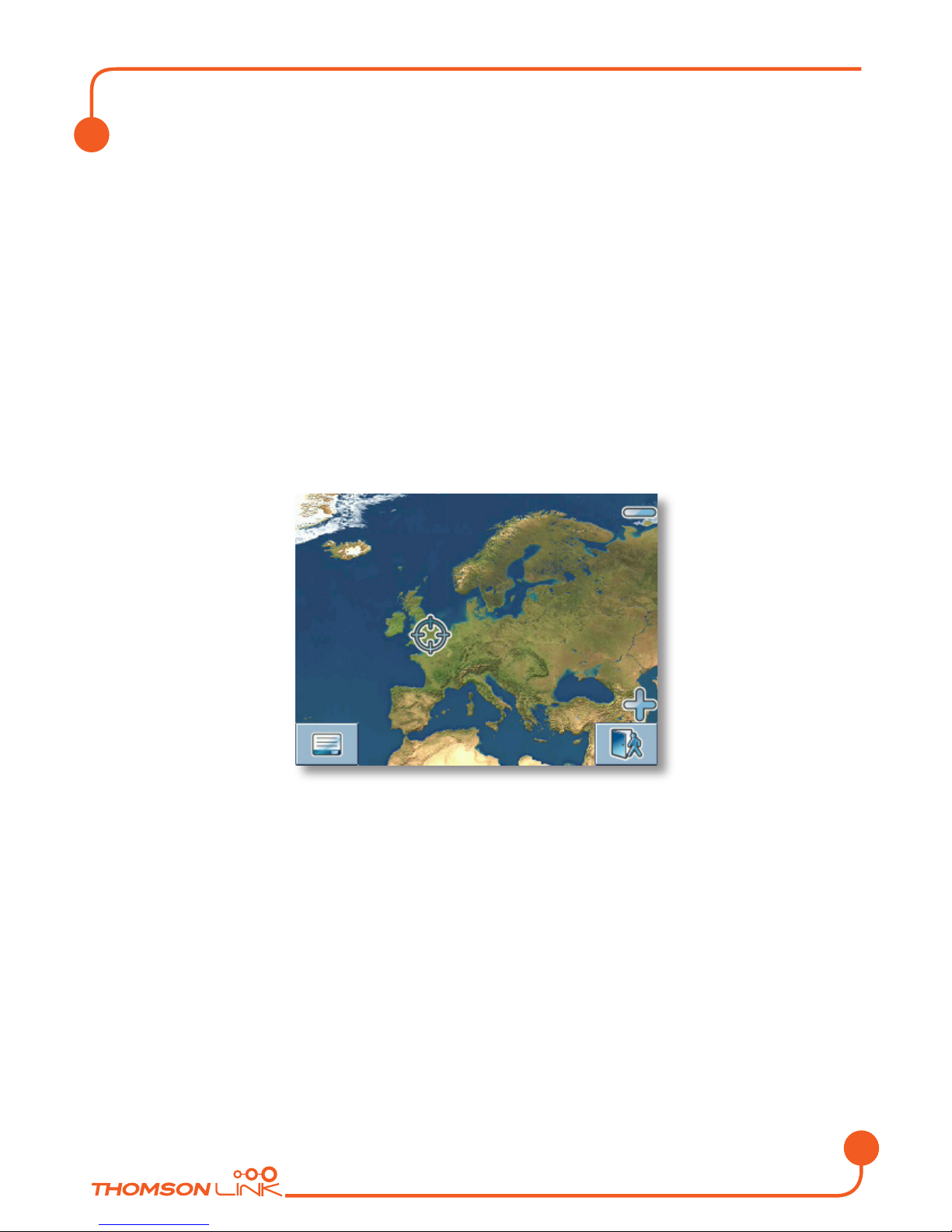
You will be presented an earth view of your country. Please enjoy while you fly over your
country and “touch down” on your current location. (You can also choose to skip this intro
by tapping on the screen.)
At the end of your journey, the map will be shown.
Starting the application
Edition 2006

EN
7
DETAILED DESCRIPTION
This chapter describes the functions of your Personal Navigation Device in detail. On the
following pages you will learn how to
- Use the map (see page 7)
- Find and choose locations (see page 9)
- Navigate to your destination (see page 19)
- Use the route planner (see page 22)
- Configure the application (see page 24)
Using the map
The map is the core component of your Personal Navigation Device. It will be centred on
your current location by default, provided you have a GPS connection. You can browse the
map, display information about the different locations shown on it and e.g. choose them for
routing and navigating.
Tracking mode and selection mode
The map knows two basic states, the tracking and the selection mode.
In the tracking mode, the map follows your actual position (GPS position), displaying
information about your geographic position, your speed, etc:
Speed
Geographic
coordinates
Time
Elevation above
meain sea level
GPS status
Compass rose
Menu
Zoom out
GPS position
Zoom in
Exit applicationInfo box
Detailed description
Edition 2006

EN
8
As soon as you browse the map, you enter the selection mode:
Compass rose
Menu icon Info box Tracking icon
Zoom out
Current (GPS)
position
Zoom in
Cursor
• Use a pen or your finger to browse the map. The actual position will be identified
by a cursor.
Clicking on an icon on the map opens an overlay window with information about the
selected item.
• To zoom in or out, press the + or - icons. As soon as you press one of the icons,
the zoom slider will be shown, which can be used for smooth zooming.
• With the compass icon (in the bottom left hand corner) you may adjust the
orientation.
• If you want to return to the tracking mode, press the tracking icon. To exit the
application, press this button again.
Detailed description
Edition 2006

EN
9
Choosing and finding locations
This section describes the different ways of finding and choosing locations. You may choose
locations on the map, search for an address, choose a favourite (like home and work
address, your bookmarks and recently visited locations), and browse POI directories and
guides.
Choosing a location on the map
• Point the cursor at any place on the map. The name of a selected location/street
will be shown in the info box.
• Press that info box to open a screen with details:
By pressing the menu icon you can access to further options:
• Press Navigate to navigate to the location (see “Navigating” on page 19).
• Press Via to use the location for routing (see “Planning a route” on page 22).
• Press Save to save the location as a bookmark (see “Favourites” on page 16).
Detailed description
Edition 2006
Ce manuel convient aux modèles suivants
2
Table des matières
Langues :
Autres manuels THOMSON GPS


