
Thinklite AIR TL FLAIR Manuel utilisateur

TL FLAIR
IAQ MONITOR
INSTALLATION AND
COMMISSIONING GUIDE

Contents of Package
1. Magnec Monitor Cover
2. ThinkLite Flair Monitor
3. Wall Mount
4. Sensor Modules (x2)
5. Outlet Adaptors (including internaonal)
6. Instrucon Guide
7. Ethernet Cable
8. Monitor Power Cord
9. Mounng Screws
10. Wall Plug
1. 2. 3. 4.
5. 6. 7.
8.
9. 10.

Installaon
STEP 1. Powering on the Flair
• To power your Flair, connect the charging cord to Micro-USB port on the bottom of
your Flair.
• The TL Flair monitor has an 8-hour battery life for backup power, in case there is any
power outage in your facility, you will be able to monitor for an additional 8 hours
before the monitor turns off.
• Next, connect the USB end of chord to wall plug in and select type of adapter plug
for your country. Included in your kit are adapters for domestic/international outlet.
STEP 2. Sensor Set-Up
• The TL Flair utilizes a proprietary capsule technology that enables precise calibration
and easy replacement of modular sensors.
• Slide the sensor module into the bottom of the monitor with logo on the sensor
facing upwards towards you.
• Push the sensor in gently till it clicks. The LED indicator on the sensor should flash
green briefly
• After the sensors are inserted, turn on the monitor by holding down the button on
the top right side of the monitor for 5-10 seconds to wake the screen up.

STEP 3. Turning On Your Flair
• When you first turn on your Flair, you should see the ThinkLite logo appear on your
screen.
• Next, you will see your devices main page open. There will be a number in the
middle of your screen with your AQI, or your “Air Quality Index”. The numbers on
the side of the screen will be the metrics you are measuring and will most likely say
“Warm Up” underneath their name. This means that the sensors are warming up and
beginning data collection.
• Connecting to Wi-Fi: On first use, a Wi-Fi network can be selected for the device to
use. Internet connection allows the TL Flair to store data in the cloud for monitoring,
analysis and altering purposes. Make sure you select a secure connection with a
password. You should NOT use a temporary “guest” Wi-Fi connection, or a Wi-Fi
with a username and password. The best option is a secure, permanent network
with only a password.
• PIN Code: To prevent unauthorized use, the TL Flair can be locked using a pin code.
his is completely oponal, but some users like having their informaon locked. On
first setup, the PIN code can be enabled or disabled. If enabled, users may select
ither the “Always” or “Only sengs” mode.
• By enabling a PIN code for “Always”, the device will not display any informaon
when powered on, and a PIN code must be entered before any interacon may take
place.
• To create a PIN code, you must first hit 0 four mes, and then you will be able to
create your customizable PIN code.
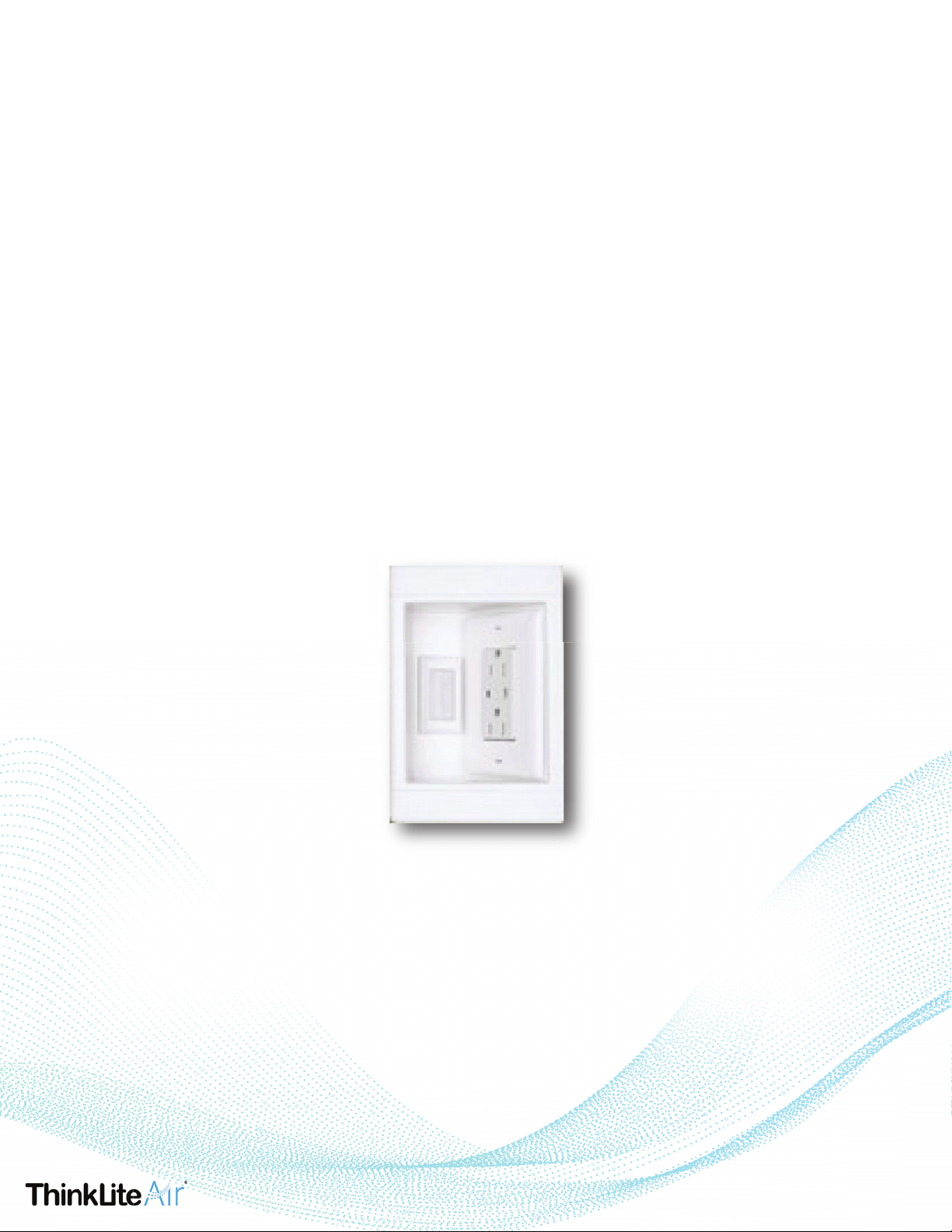
STEP 4: Mounng The Flair
• We strongly recommend mounng flair on a wall to ensure opmal performance.
• For installing your TL Flair, there are 2 different ways to mount your monitor.
• 1 way is to mount your TL Flair on your own and have the wire on the outside of the
wall plugged into an outlet.
• The 2nd way is to snake the wire behind your wall, which may require an electrician.
STEP 5: What an Electrician Should Bring
• One low voltage mounng bracket - we recommend the Legrand TV1LVKITWCC2
which can be found here:
• One standard wall plate (recommended to cover the cord penetraon)
• At least 4 drywall screws
hps://www.homedepot.com/p/Legrand-Pass-Seymour-1-Gang-Re-
cessed-TV-Media-Box-with-Low-Voltage-Brush-Insert-White-TV1LVKITWCC2/2027026
64?source=shoppingads&locale=en-US
STEP 6: Self Installaon with Cord Visible
• Install the backplate to a wall using the 4 drywall screws.
• Mount the device by inserng the upper side first and then the lower side.
• Use the small screw, item 9, to secure the boom of flair to the backplate.

STEP 7: Account Set-Up
• Our ThinkLite Air team will use the email associated with your order to make your
new ThinkLite Air account. You will be receiving an email from "ThinkLite Air"
inving you to your monitor's dashboard.
• Click the link and you will be invited to create an account.
• Aer you create an account, you can view your dashboard.
• The URL for your account is dashboard.thinkliteair.com. Do not type www. in front
of the URL, this is not a public domain so you will not be able to access your das
board if you include a www. In the URL.
• Aer you are set up on the ThinkLite Air Dashboard, download the ThinkLite Air app
to your smart device: IOS or Google
• We recommend seng your account up on the browser to bring with, and aer that
is completed to download the app and log into your accounng using the same login
credenals.
• Once you are logged into both the browser and the app, you are ready to start
monitoring!
Ce manuel convient aux modèles suivants
1
Table des matières


