
Tesla Smart Camera 360 4G Battery Manuel utilisateur

1
USER MANUAL
TESLA
SMART CAMERA 360
4G BATTERY
EN
CZ
SK
PL
HU
SL
DE

2
WHAT‘S IN THE BOX
• TESLA Smart Camera 360 4G Battery
• Screw package
• SIM ejection pin
• User manual
• USB-C power cable
Microphone
Lens
SIM/SD tray
ejection button
SIM/SD Slot
Speaker
ON/OFF Button
USB-C Port
RESET Button
Status light
PIR Sensor
Charging port DC 5 V / 1 A
ON/OFF Button Press the button for 5 seconds to turn on/off the
camera.
Status light • The camera is connection to the 4G network:
Flashing red (500 ms).
• Pairing with app: After successfully loading the SIM
and connection to the 4G network, status light flashes
blue (500 ms) and camera is ready for pairing with app.
• Camera error: Status light is flashing red/blue.
• FW updating: Flashing blue (250 ms).
SD Card slot Support local SD Card storage (Max.128 GB)
Reset button Press and hold on for 5 seconds to reset the camera.
Battery 9600mAh rechargeable Li battery

3
INSTALLATION
CAMERA INSTALLATION
1) Mark screws position with bracket
2) Drill screw holes with a power drill
3) Install expansion screws (with a hammer)
4) Use screws to fix the bracket on the wall
30~40MM
6MM
Before installation, please check that the installa-
tion positions will not affect the connection and
usage, especially to ensure that the solar panel
can be fully illuminated, and the camera is in good
coverage of mobile data signal.

4
SIM/SD CARD INSTALLATION
1. Insert the SIM card first to the SD card slot, so that the
camera can connect to 4G Internet.
2. Then insert SD card for data storage.
SD card
SIM card
5
CONNECTION
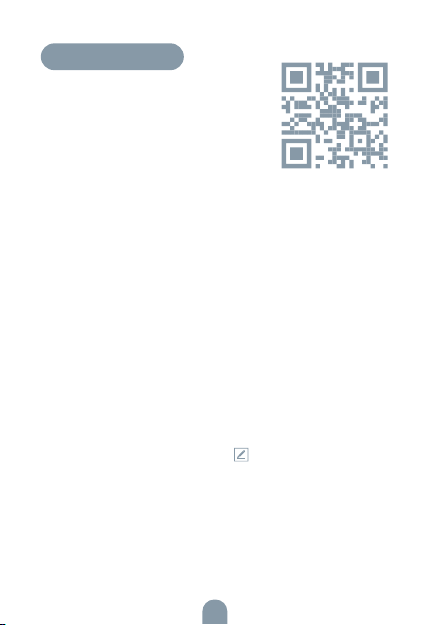
Download
Tesla Smart is available for both iOS and
Android OS. Search the name ‚Tesla
Smart‘ in App Store or Android Market, or
scan the QR-Code to download the App.
REGISTRATION PROCESS
Step 1 Open the Tesla Smart App, click „Register“, read the
„Privacy Policy“ and click „Agree“ .
Step 2 Input a legal and valid Mobile number or Email address
and click „Continue“. Input Verification Code, then log in the
app.
QR CODE CONFIGURATION
1. Open the Tesla Smart App, click „Create family“, and you can
customize the Family name and related settings.
2. Continue to click „+“ >> „Scan QR Code“.
3. Make sure the LED is blinking blue (500 ms) and scan the QR
code, fount on the top of the camera. The connection usually
takes a few seconds.
SETTINGS
In „Smart Camera“ interface,click „ “, you can set the camera
common functions.

6
FREQUENTLY ASKED QUESTIONS
Q: Why isn‘t the camera displaying correctly?
A: Check whether the network is connected. Place the camera
close to the router, and if it’s still not working, it is recommended
to reset the device and add it again.
Q: Why is it still in the list of devices after resetting?
A: Device resetting can only reset the network settings but can-
not change the camera settings on the App. If you need to delete
the camera, you must delete it in the App.
Q: Why doesn‘t the device identify the TF (Micro SD) card?
A: It is recommended to insert TF (Micro SD) card with device
powered off. Confirm whether the TF (Micro SD) card is normally
available and the format is FAT32.
Q: Why cannot the device recognize Sim card?
A: Check if the SIM card functions properly. Check if the SIM is
active and has a data plan available. Check if it is inserted proper-
ly, if it is not damaged and if the cellular coverage is good.
Q: Why I can‘t get the notifications through the App?
A: Please confirm that the App has been running on the phone,
and the relevant reminder function has been configured. To
turn on notifications in the App, click the Settings icon and tap
the Notification button to turn on. You will also need to turn on
notifications in your phone settings.

7
Product name Tesla Smart Camera 360 4G Battery
Resolution 2304 x 1296
Power 5V/1A, 9600 mAh Lithium battery
Image Sensor 1/2.8" 3 Mpx
Night Vision Up to 10 m
Lens [email protected]
Dimensions 158 × 103 × 200 mm
Storage MicroSD Card (max. 128GB), Cloud storage
(optional)
Operating temperature -20° to 50°
App Tesla Smart for Android and iOS
Connectivity 4G LTE/3G GSM
Model TSL-CAM-19TG
TECHNICAL SPECIFICATION

8
EU DECLARATION OF CONFORMITY
Hereby, Tesla Global Limited declares that the radio equipment typeTSL-
-CAM-19TG is in compliance with Directive 2014/53/EU. The full text of the
EU declaration of conformity is available at the following internet address:
tsl.sh/doc
Connectivity: GSM - 4G/LTE
Frequency band: 890 - 2500 MHz
Max. radio-frequency power (EIRP): < 20 dBm
Manufacturer
Tesla Global Limited
Far East Consortium Building
121 Des Voeux Road Central
Hong Kong
www.teslasmart.com
This product is marked with the symbol for separate collection. The product
must be disposed of in accordance with the regulations for disposal of
electrical and electronic equipment (Directive 2012/19/EU on waste electrical
and electronic equipment). Disposal together with regular municipal waste
is prohibited. Dispose of all electrical and electronic products in accordance
with all local and European regulations at the designated collection points
which hold the appropriate authorization and certification in line with the local
and legislative regulations. Correct disposal and recycling help to minimize
impacts on the environment and human health. Further information regarding
disposal can be obtained from the vendor, authorized service center or local
authorities.
INFORMATION ABOUT DISPOSAL AND RECYCLING

BENUTZERHANDBUCH
EN
CZ
SK
PL
HU
SL
DE
TESLA
SMART CAMERA 360
4G BATTERY

10
WAS IST IN DER SCHACHTEL ZU FINDEN
• TESLA Smart Camera 360 4G Battery
• Schraubensatz
• SIM-Karten-Auswurfstift
• Benutzerhandbuch
• USB-C-Netzkabel
Mikrofon
Objektiv
SIM/SD
-Auswurftaste
SIM/SD-Steckplatz
Lautsprecher
Ein/Aus-Taste
USB-C-Anschluss
Reset-Taste
Statusleuchte
PIR-Sensor
Anschluss zum Laden DC 5 V / 1 A
Ein/Aus-Taste Halten Sie die Taste 5 Sekunden lang gedrückt, um das Gerät ein-/
auszuschalten.
Statusanzeigeleuchte • Die Kamera ist mit einem 4G-Netzwerk verbunden: Rotes Blinken
(500 ms).
• App-Kopplung: Nachdem die SIM-Karte erfolgreich eingelegt und
mit dem 4G-Netzwerk verbunden wurde, blinkt die Statusanzeige
blau (500 ms), dann ist die Kamera bereit für die Kopplung mit
der App.
• Kamerafehler: Die Statusanzeige blinkt rot/blau.
• Software-Update: Blau blinkend (250 ms).
SD-Kartensteckplatz Unterstützt lokale SD-Karten (max. 128 GB)
Reset-Taste Halten Sie die Taste 5 Sekunden lang gedrückt, um das Gerät neu
zu starten.
Batterie Lithiumbatterie 9600 mAh
Ce manuel convient aux modèles suivants
1
Table des matières
Langues :
Autres manuels Tesla Caméra de sécurité


