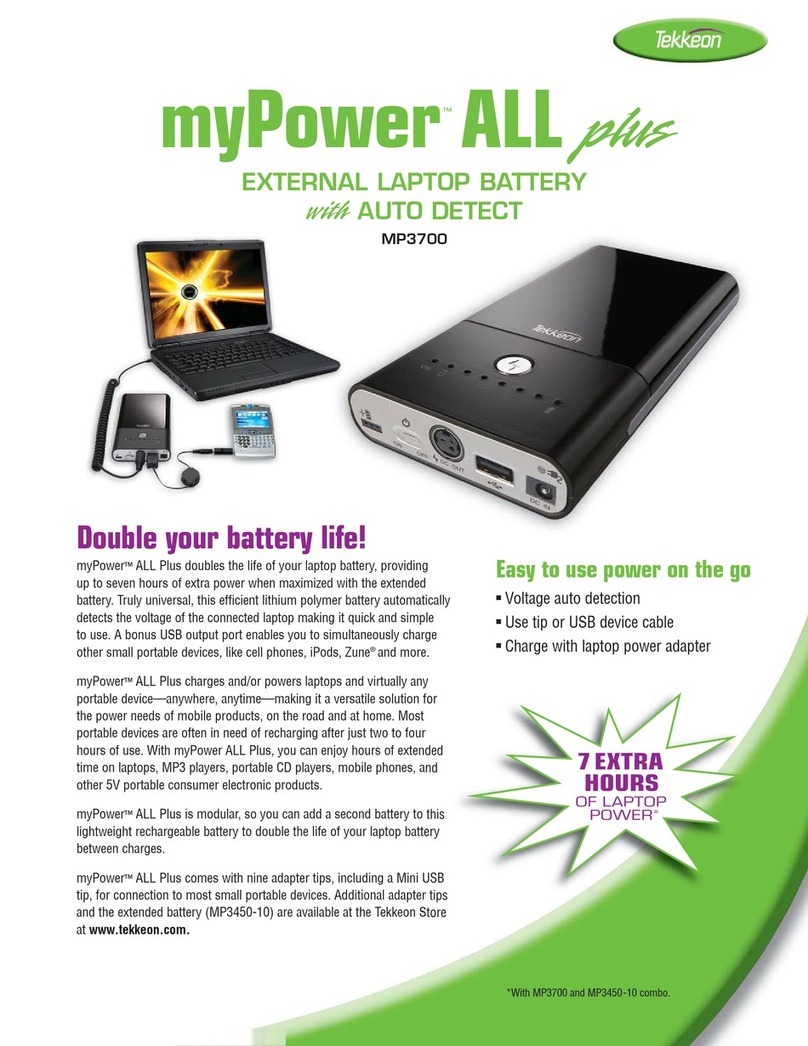
Tekkeon MP3450 Manuel utilisateur

MP3450 User Guide


USER GUIDE
Contents
Overview ................................................................................................................................... 2
Getting Started .......................................................................................................................... 2
Unpacking myPower ALL Plus............................................................................................... 2
Getting to Know myPower ALL Plus ...................................................................................... 3
Storing myPower ALL Plus.................................................................................................... 3
Prolonging Battery Life.......................................................................................................... 4
Charging myPower ALL Plus ................................................................................................. 4
Charging with a Third Party Power Supply ............................................................................ 5
Charging with a Solar Panel.................................................................................................. 6
Charging through the 6-Pin Input Port................................................................................... 6
Using myPower ALL Plus ........................................................................................................... 7
Select/Connect the Adapter Plug........................................................................................... 8
Connect the Power Output Cord............................................................................................ 9
Adjust the Voltage Level........................................................................................................ 9
Connect the Portable Device ............................................................................................... 11
Connect the 5V Device........................................................................................................ 11
View myPower ALL Plus Battery Capacity ........................................................................... 12
Adapters.................................................................................................................................. 13
Recording Device Information ............................................................................................. 14
Using Multiple Batteries........................................................................................................... 15
Adding the Extended Battery............................................................................................... 15
Adding Another Battery ....................................................................................................... 15
Accessories ............................................................................................................................. 16
Troubleshooting....................................................................................................................... 17
Limited Warranty ..................................................................................................................... 18
Warning................................................................................................................................... 19
Customer Support.................................................................................................................... 20

2
Overview
You can use myPower™ALL—the universal rechargeable battery—to power just about any portable
device. Simply connect myPower ALL Plus to your laptop computer, portable DVD player, tablet, iPad®
,
iPhone®4, iPhone®4S, smart/mobile phone, portable media player, or other portable device to extend
the battery life. As an added bonus, myPower ALL Plus will charge the internal battery on some devices,
while also powering the device.
myPower ALL Plus MP3450 can be used alone, with the optional extended battery (MP3450-10) to
double the capacity, or with other myPower ALL Plus batteries to significantly extend the capacity.
The extended battery with mounting brackets is sold separately.
Getting Started
Unpacking myPower ALL Plus
Your myPower ALL Plus package includes the following:
User guide (not shown)
Adapter plug kit with drawstring bag
(8 adapter tips)
Power output cable
Power adapter Device At-A-Glance
Card
myPower ALL Plus
lithium ion
rechargeable battery
Retractable
USB cable
Mini USB tip
Soft cover

3
USER GUIDE
Getting to Know myPower ALL Plus
Storing myPower ALL Plus
Lithium ion batteries must be used consistently for maximum performance. Therefore, if you do not use the
battery often, once a month you should discharge and recharge the battery to 40% (if it will be transported)
or 70% (for long term storage), and store it in a cool and dry environment at a temperature between 50°
and 86° F (10° and 30°C). You may permanently damage your battery’s capacity by storing the battery
without any capacity in the cell. It is important that you do not leave the battery in the interior of a vehicle
parked in the sun, or exposed to direct sunlight for extended periods of time.
Capacity Level Indicators
ON/OFF
Switch
DC OUT
for connection
to device
DC IN for connection to
power adapter
Charging/Indicator
MP3450 MP3450-10
USB Port for connection
to 5V device
6-Pin Input Port
for connection to a solar panel or a second battery
Capacity Level
Button
Sunbooster Solar
Charging Port
Sunbooster Solar
Charging Port

4
Prolonging Battery Life
Extreme heat and cold will affect your battery’s performance. At temperatures above 80°F (27°C), the
battery will discharge more quickly, and in colder temperatures, the battery won’t charge well. Therefore,
it is recommended that the battery is used at room temperature, or between 68°F to 77°F (20°C to 25°C).
The battery must be used at temperatures between 32°F to 104°F (0°C to 40°C).
It is not recommended that the battery is charged in temperatures above 104°F (40°C), and the battery
capacity may be permanently damaged if you use your battery in temperatures higher than 140°F (60°C).
You may damage the battery even more if you charge the device in these temperatures. You may find that
using the battery in a very cold environment decreases the battery capacity. Unlike the effects of a hot
environment, this is a temporary condition. Once warmed, the battery will return to its previous capacity.
Charging myPower ALL Plus
myPower ALL Plus will charge in four hours when completely empty. The green Charge indicator will turn on
after the battery is 80% charged. Therefore, you should view the actual battery capacity before disconnecting the
power adapter to stop charging. (Before using myPower ALL Plus for the first time,
you must charge the device for four hours.)
1. Plug the power adapter into the DC IN jack on the end of myPower ALL Plus.
2. Plug the power adapter into a wall outlet. The red Charge indicator will turn on to indicate the battery is
charging and is less than 80% charged.
3. When the green Charge indicator turns on, and with the Power switch set to OFF, or with the Power switch
set to ON and the device connected, press the voltage selector to view the battery capacity. If the capacity
does not indicate full (all blue LEDs on), continue to charge the battery until the battery capacity indicates full.
(For additional information, see “View myPower ALL Plus Battery Capacity”. )
NOTE: myPower ALL Plus will automatically shut down the power input when fully charged, so you can charge
it overnight.

5
USER GUIDE
Charging with a Third Party Power Supply
You can use a third party power supply to charge myPower ALL Plus as long as it has DC output voltage range
from 12V to 20V, with a minimum 1.5A output current. myPower ALL Plus will not charge its internal battery if
the input current is lower than 1.5A. To fit the DC jack, the DC plug must have an outside diameter of 5.5mm
and an inside diameter of 2.1mm (5.5 x 2.1mm).
If you would like to use one power supply for both your laptop and myPower ALL Plus, use the power supply
with the highest output current (Amps). For example, if the output of your laptop’s power supply is 19V 4.0A,
while the output of the myPower ALL Plus power supply is 20V 3.0A, use your laptop charger to charge both
myPower ALL Plus and your laptop.
If your laptop power supply plug does not fit into the myPower ALL Plus DC IN port, you can use an optional input
adapter tip, available at the Tekkeon online store.

6
Charging with a Solar Panel
myPower ALL Plus can be charged using a compatible solar panel. You can charge the device using the DC IN port
(5.5 x 2.1mm), or the 6-Pin Input Port.
The DC IN port is designed for use with a DC power adapter with constant current input. Charging myPower ALL
Plus requires a minimum of 1.5A current output from the solar panel. In general, a 25W or higher solar panel should
provide sufficient power to charge myPower ALL Plus.
The 6-Pin Input Port is designed to allow charging by smaller solar panels (lower than 25W), and requires an
optional Smart 6-Pin Adapter (Sunbooster) available from Tekkeon (see Accessories). To use the solar panel with
this port, the solar panel must have a minimum open circuit voltage of 12V. However, there is no minimum output
current requirement from the solar panel.
1. Connect the solar panel output cable into the DC IN port on myPower ALL Plus.
2. Verify that the red charging indicator turns on to indicate the battery is charging and is less than 80% charged.
3. After approximately four hours, press the Capacity Display button to view the battery capacity. If the capacity
does not indicate full (all blue LEDs on), continue to charge the battery until the battery capacity indicates full.
4. When the battery capacity indicates full, unplug the connected charging cable.
Charging through the 6-Pin Input Port
1. Connect the 6-Pin end of the Smart 6-Pin Adapter into the
6-Pin Input Port on myPower ALL Plus (shown) and the other
end into the solar panel output port.
2. Verify that the charging indicator next to the input jack
on the Smart 6-Pin Adapter (shown) turns on to indicate
the battery is charging.
6-Pin Port

7
USER GUIDE
3. After approximately four hours, press the Capacity Display button to view the battery capacity. If the capacity
does not indicate full (all blue LEDs on), continue to charge the battery until the battery capacity indicates full.
4. When the battery capacity indicates full, unplug the connected charging cable.
Using myPower ALL Plus
myPower ALL Plus can be used to power and/or charge up to two portable devices simultaneously.
With devices that require higher voltage levels, like laptop computers and portable DVD players,
we recommend that you use myPower ALL Plus only to power the device. You will find that powering without
charging your higher voltage device will maximize the battery life of myPower ALL Plus, thus letting you use your
portable device even longer.
To use myPower ALL Plus to power and/or charge your device, take these steps which are described in detail in
the following sections.
•Selectanadapterplugforyourmaindeviceandconnecttheplugtotheoutputcord.
•ConnectthepoweroutputcordtomyPowerALLPlus.
•SlidethePowerswitchtoon.
•Adjustthevoltageleveltomatchthatofyourmaindevice.
•Connecttheadapterplug/outputcordtoyourmaindevice.
•Connectasecond5Vdevice

8
Select/Connect the Adapter Plug
1. Select the adapter plug that fits securely into the power jack on your portable device.
2. Locate the polarity symbol on your device in the area around the power connector jack:
WARNING: myPower ALL Plus supports Center Positive polarity only. If your device has a Center Negative
for assistance.
3. Connect the adapter plug to the power output
cord (but not the device).
If you are using a UA-xxx adapter (rather than
PA-xxx), you must insert the PA-L34 (“Z”)
adapter that came with your myPower ALL Plus
between the adapter cord and UA-xxx adapter
as shown.
NOTE: If you change the adapter plug while the
power adapter cord is connected to myPower ALL
Plus, the voltage setting will reset to the
lowest voltage, which is the default voltage
setting.
Center Negative
Center Positive
PA-L34 (“Z”)
Adapter for
myPower ALL Plus
Autres manuels pour MP3450
5
Ce manuel convient aux modèles suivants
2
Table des matières
Autres manuels Tekkeon Accessoires pour ordinateur portable