
Tecno 1D2D TECNOACCESSORI TC-BC2D-12W Manuel utilisateur

Manuale Lettore Barcode Laser
1D2D TECNOACCESSORI®
TC-BC2D-12W

Contents
Enter Setting...............................................................................................................................................1
Version .......................................................................................................................................................1
Shut down ..................................................................................................................................................1
Power display.............................................................................................................................................2
Symbologies...............................................................................................................................................2
Paring Steps ...............................................................................................................................................3
Force 2.4G Wireless Pairing......................................................................................................................3
Force Bluetooth HID Pairing.....................................................................................................................4
Android, IOS system keyboard settings (Bluetooth function)...................................................................5
Communication mode switching ...............................................................................................................5
Wireless transmission mode.......................................................................................................................7
Transmission Speed Setting.......................................................................................................................9
Set Bluetooth Name.................................................................................................................................10
Sound setting............................................................................................................................................12
Sleep time setting.....................................................................................................................................13
Language Settings....................................................................................................................................14
Suffix setting............................................................................................................................................16
Add prefix and suffix settings..................................................................................................................17
Hidden Character Settings .......................................................................................................................18
Appendix - Character List.......................................................................................................20

1
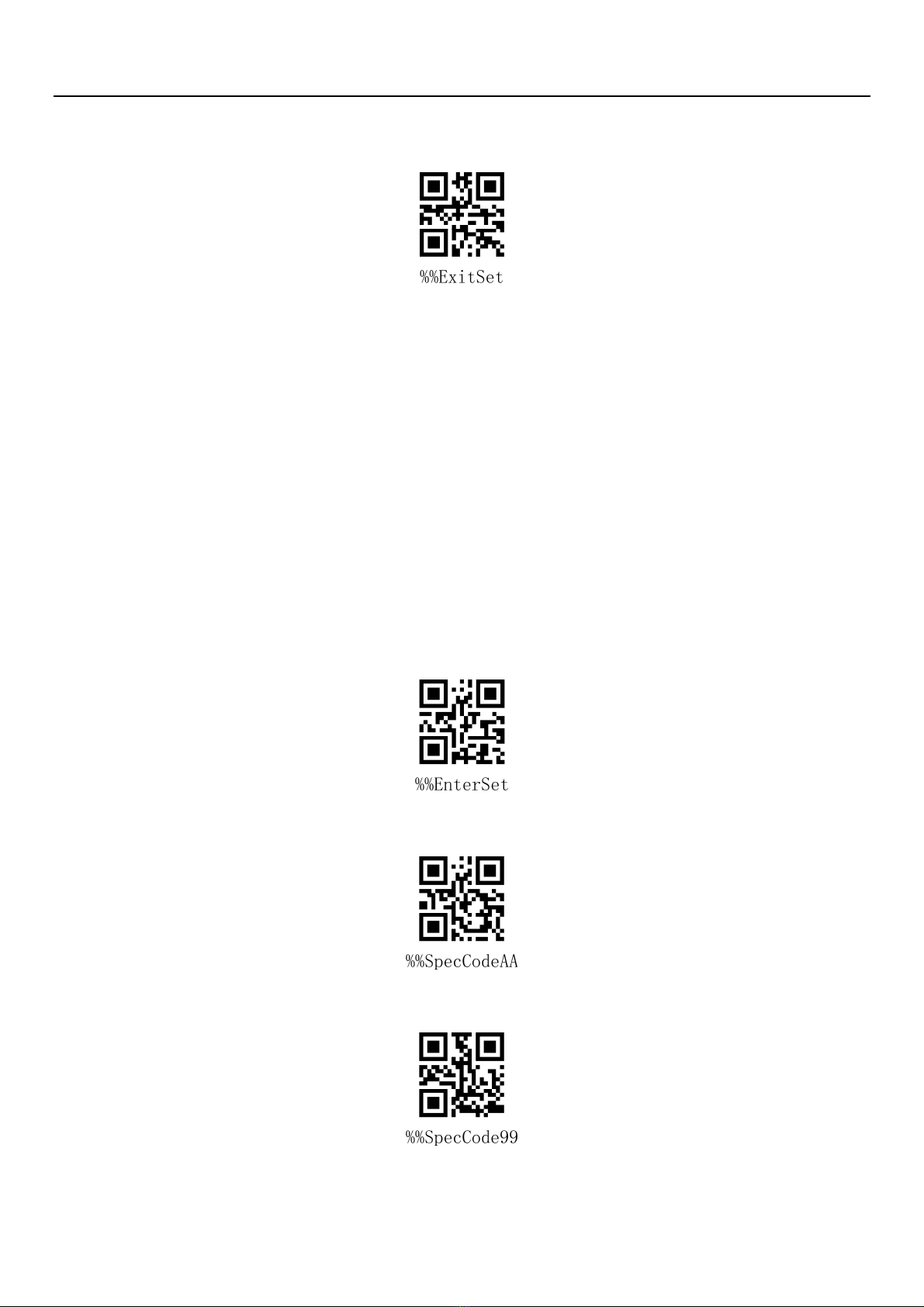
Enter Setting
Enter Setup Mode
Exit Setup Mode
Note: Wireless Version 1.18D later supports setting without entering or exiting settings.
Restore Wireless Parameters
If in use of the process, accidentally scan to other function settings code, which led to the scanning function
can not be used normally, through the scan initialization barcode to restore to the initialization state.
Restore Wireless Parameters
Instructions:
This bar code is most likely to be used in the following situations:
1. Error in scanner setting.
2. You forget what settings you made for scanners before, and you don't want to use the previous settings.
3. Set up the scanner to use some unusual functions, and use after completion.
Version
Display version information
Shut down
Users can set bar codes by referring to "automatic sleep time". When users do not need the scanner to be in
working state, they first scan the "Enter Setting Mode" bar code, and then scan the "Shutdown Instruction"
to set bar codes. When the settings are completed, the scanner will be shut down immediately.

2
Shut down
Power display
When users need to view the current scanner power, they can directly scan the "power display" set bar code,
and view the current scanner power.
Power display
Symbologies
Enable/disable all symbologies
Enable all barcode might slow down scanner
decode speed. We suggest enable the barcode you need based on your scene. Enable
all barcode is default
Enable all symbologies
Disable all symbologies
Inverse code option
(
((
(Only 1D/DataMatrix/Aztec)
))
)
Only decode normal code(default)

3
Only decode inverse code
Decode both normal code and inverse code
Paring Steps
Scanner is well-paired before factory. Default mode is 2.4Ghz wireless. If you want to switch to Bluetooth
mode, please go to “Communication mode switching”to set.
“Force 2.4G Wireless Pairing” and “Force Bluetooth HID Pairing” is used when you use a different
dongle instead of the original one.
Force 2.4G Wireless Pairing
For 2.4G matching steps, support XP, Win7, Win8, Win10, etc.
A: Start the scanner, scan “Enter Setup Mode” barcode
Enter Setup Mode
B: Scan“2.4G Mode”barcode
2.4G Mode
C: Scan the "Match with Receiver" bar code and enter the pairing state. The blue light on the left flashes
quickly.
Note: At this time, the scanner is in a paired state, and the scanner does not glow when pressing the key.
Match with Receiver
4
D: Insert Dongle (receiver) and hear a "drop" sound, indicating the success of the connection pairing. The
blue indicator on the right is always on.
E: Scan the "Exit Setup Mode" bar code to complete the matching process.
Exit Setup Mode
Force Bluetooth HID Pairing
Using Bluetooth mode, support Android, IOS system or PC terminal with Bluetooth function.
Method 1:
A: Press the button to activate the scanner, press the button for 8 seconds, and enter the Bluetooth HID
paring mode. The blue light starts to flash.
B: Turn Bluetooth on the device and search for "Barcode Scanner HID".
C: Click on the "Barcode Scanner HID" Bluetooth device to enter the pairing state.
d: Match success "Di" sound, the right blue light is always bright
Method 2:
a: Start the scanner, scan “Enter Setup Mode” barcode
Enter Setup Mode
b: Scan the “Bluetooth HID mode” barcode
Bluetooth HID Mode
c: Scan the “Pair With Dongle” , enter the pairing mode. The blue light starts to flash.
Pair With Dongle
d: Open Bluetooth in the device and search and click the “Barcode scanner HID”

5
e: When you hear a long beep "Di", the blue light stopss flashing and is always on
f: Scan “Exit Setup Mode” barcode
Exit Setup Mode
Android, IOS system keyboard settings (Bluetooth function)
IOS keyboard out or hide(HID Mode)
Out Or Hide
Double click for out IOS keyboard(Only HID Mode)
Double click for out IOS keyboard
Double click for close IOS keyboard(Only HID Mode)
Double Click For Close IOS keyboard
For keyboard display of Android system, please contact the supplier for Bluetooth input method APP
(because of Android system, some mobile phone manufacturers can display virtual keyboard when
connecting Bluetooth scanner)
Communication mode switching
a: Start the scanner and scan the "Enter Setup Mode" bar code

6
Enter Setup Mode
b: Scanning a Bar Code for a Communication Mode Based on Requirements
2.4G Mode
Bluetooth HID Mode
Bluetooth SPP Mode
Bluetooth BLE Mode
c: Scan the "Exit Setup Mode" bar code and set up the communication mode to complete.
Exit Setup Mode

7
Wireless transmission mode
The barcode scanner has two operating modes: Synchronous Mode and storage mode, through a different set
code to operate the mode switch:
a: First scan “Enter setup mode ”barcode
b: Scan the required operating mode barcode
c: Scan “Exit Set mode”barcode to switch the desired mode of operation
Real-time upload mode
Real-time upload mode*
Storage mode
Scan "storage mode" sets bar code to store data and upload later.
Data upload
Scanning "data upload" to upload data to computers or mobile devices.
Data upload
Storage mode

8
Total data
Scanning "Total Data" to show the total amount of stored data
Total data
Clear all data
Clear data
Table des matières
Manuels Lecteur de codes-barres populaires d'autres marques

POSMicro
POSMicro Datalogic PowerScan D7100 Manuel utilisateur

Marson
Marson MT780 Guide de configuration rapide

NCR
NCR RealPOS Manuel utilisateur

Motorola
Motorola SE3300 Guide de configuration rapide

Element
Element P130BT Manuel utilisateur

Motorola
Motorola Symbol LS3008 Manuel d'installation et d'exploitation


