Tecmobile R30 Manuel utilisateur

R30 User Manual
C
M
Y
CM
MY
CY
CMY
K
R30 User Manual Booklet 18-05-2012.pdf 1 01/06/2012 13:26

Getting started
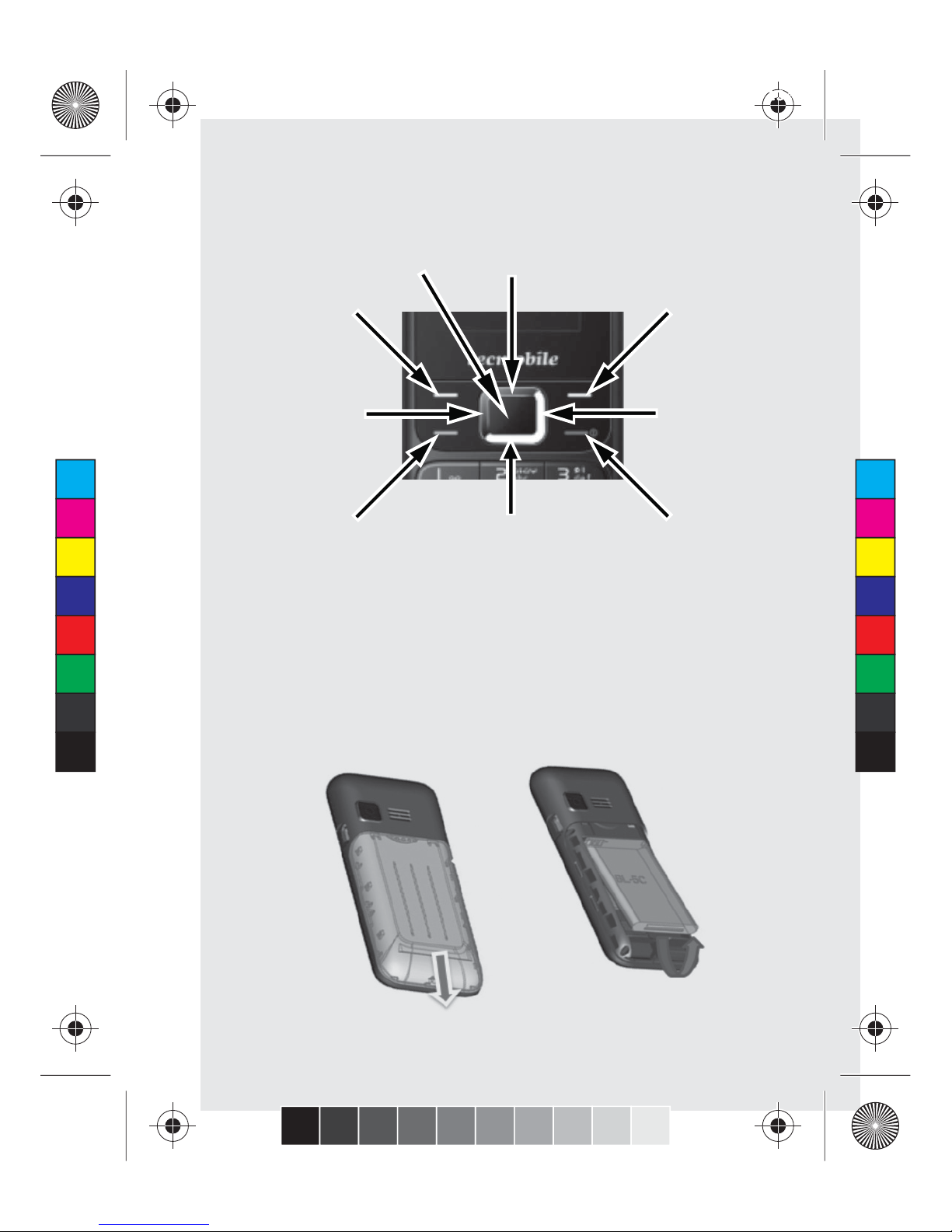
Getting to know your phone
Status icons
Installing the SIM card and battery.
(1) Press and Hold the【End Key】for three seconds to
switch OFF the phone.
(2) To Remove the battery cover: Slide it downwards.
(3) Lift and Remove the battery.
UP Key
Right Key
Right Soft KeyLeft Soft Key
OK Key
End KeySend Key
Left Key
Down Key
C
M
Y
CM
MY
CY
CMY
K
R30 User Manual Booklet 18-05-2012.pdf 2 01/06/2012 13:26

(4) Slot the SIM card into place. Always ensure that the SIM
card is inserted correctly before replacing the battery.
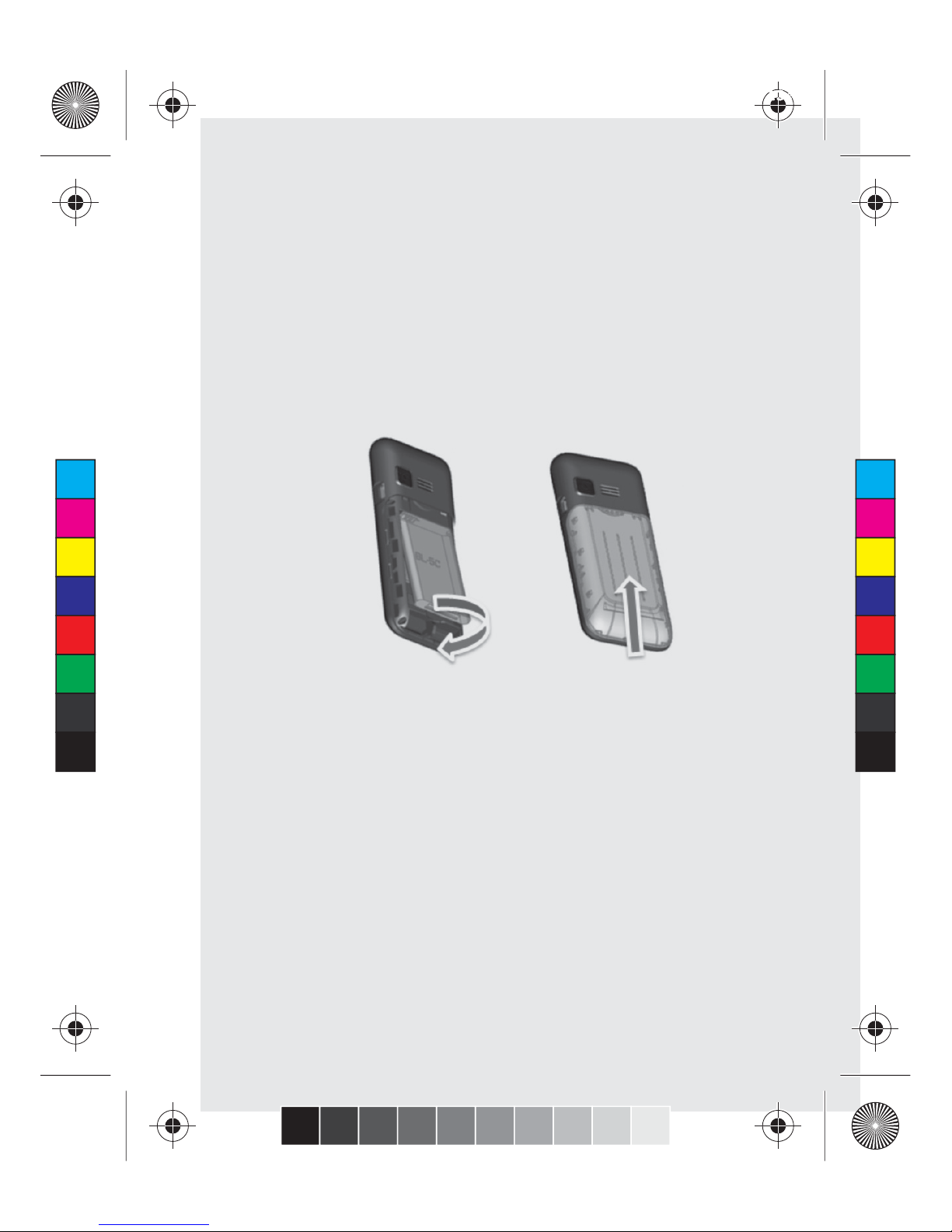
(5) Replace the battery into position.
(6) Slide the back cover Back to close.
C
M
Y
CM
MY
CY
CMY
K
R30 User Manual Booklet 18-05-2012.pdf 3 01/06/2012 13:26

Installing the (Micro SD) Memory card. (Optional)
Ensure that the phone is switched OFF before proceeding.
(1) To Remove the battery cover: Slide it downwards.
(2) Lift and Remove the battery.
(3) Slide Open the Micro SD slot cover and Place the
Memory card into the slot. The gold contacts on Memory
card must be facing downwards.
(4) Once Memory Card is inserted correctly, Close and Slide
to LOCK the Micro SD slot cover.
(5) Replace the battery into position.
(6) Slide the back cover Back to close.
Charging the Battery (Two methods)
Method 1:
Charging using the (supplied) Mains plug and data cable
(1) Install the battery correctly into the phone.
(2) Insert one end of the (supplied) lead into the power adaptor
and the other end into the charger Connector socket of the
phone.
(3) Connect the power adaptor to a standard power socket.
(4) When charging is complete, Unplug the charger from the
standard power socket first, and then disconnect from the
phone.
Method 2:
You can also charge the phone by connecting it to a computer or
USB port, using the (supplied) USB data cable.
Note: Do not receive or make calls when charging.
C
M
Y
CM
MY
CY
CMY
K
R30 User Manual Booklet 18-05-2012.pdf 4 01/06/2012 13:26

Power ON/OFF
Press and Hold the【End Key】for three seconds to switch the
phone ON/OFF.
N.B. Ensure that the SIM card and Battery have been inserted
correctly before switching the phone ON.
Voice Call
Making a call
On the Home Screen, enter the phone number and Press the
【Send key】to Call.
Making a call using Contacts
Enter Contacts to choose contact. Press the【Send key】to Call.
Answering or Rejecting a call
Press the【Send Key】to Answer incoming calls.
Press the【End Key】to End the call.
Press the【End Key】to Reject the call.
Adjusting Speaker Volume during a call
Press the【Up/Down Key】to Adjust the Speaker Volume during a
call.
SMS Setting
【Left Soft Key】to Enter the
Main Menu.
SMS settings.
Messages.
SIM card or the Phone first.
C
M
Y
CM
MY
CY
CMY
K
R30 User Manual Booklet 18-05-2012.pdf 5 01/06/2012 13:26

MMS Settings
【Left Soft Key】to Enter the
Main Menu
location for pictures, music or video files received via MMS.
【Left Soft Key】
to
recipient has Received and Downloaded the MMS.
Full Messages Capacity
appear on the top of the screen.
Input Method
This handset provides multiple input methods, including English,
upper case, lower case and numeric.
Press the # key to Switch Between the different input methods.
Press and Hold the * key for 3 seconds to Enter the Select Symbol
screen.
Contacts
To Add a new entry
You can use both the SIM card and the handset to Store Contacts.
The handset can store up to 500 phone numbers. More can be
saved onto the SIM card.
On the Contacts list select <Add New Contact>
can also Set a Ringtone for the contact entry.
Phone Memory depending on which storage location you
have selected.
To View a Contact
Enter the Contacts: The phone is set to a default setting which will
display all the entries in Contacts. Press
【Up Key/Down Key】to Scroll Between the contacts.
C
M
Y
CM
MY
CY
CMY
K
R30 User Manual Booklet 18-05-2012.pdf 6 01/06/2012 13:26

Internet
On the Home screen, press the【Left Soft Key】and select
Caution: Your network service provider may not support some
functions. In order to ensure the browser works normally, please
confirm that your SIM card supports and has the Internet
function activated. You may incur extra charges from your
network provider.
Bookmark
Enables you to Edit the Bookmarks as you please.
Recent Pages
Records the websites you have visited in the recent past.
Settings
In order to avoid congestion and improve the web browsing
speed, please clear the cache regularly.
Caution: Do not arbitrarily change the settings, or you may not
be able to visit the website.
MULTIMEDIA
Camera
【OK Key】to Take a Photo.
Video Recording
the【OK Key】to Start Recording.
Audio Playing
Audio Player.
N.B. MP3 files must be stored on the memory card in the folder
called “My Music” in order to be available to play on the audio
player
Adjusting the Speaker Volume, Press the【Up/ Down Key 】on
the Phone Keypad.
C
M
Y
CM
MY
CY
CMY
K
R30 User Manual Booklet 18-05-2012.pdf 7 01/06/2012 13:26

Sound Recording
Select <Pause> to place the Recording on hold or Select <Stop>
to Stop the Recording. Once the recording has been stopped the
file will b
Recordings>.
FM Radio
On Standby Mode, plug in headset, Press the
【Left Soft Key】Multimedia
【OK Key】to Deactivate the Radio
【Left/Right Key】to Adjust the Radio Frequency.
【Up/ Down Key】to Adjust the Volume.
N.B. Headset must be connected to listen to the FM Radio
Dual SIM setting:
Bluetooth
Bluetooth Settings
Bluetooth function ON or OFF.
If you select to “HIDE” the phone, other devices will not be able
to detect your Bluetooth device even if your Bluetooth feature is
turned ON.
Bluetooth enabled devices and connect.
devices search for your phone via Bluetooth (the Bluetooth
function needs to be activated), the corresponding name
represents your phone (Tecmobile R30).
allows you to Set the Storage Location for files received via
Bluetooth.
C
M
Y
CM
MY
CY
CMY
K
R30 User Manual Booklet 18-05-2012.pdf 8 01/06/2012 13:26

Call Settings
On the Home screen, press the【Left Soft Key】
Call Divert
Based on the Divert Settings, Incoming calls will be forwarded to
voicemail or another number.
the Preset Phone Number if you are on another call.
Diverted to your Voicemail or the Preset Phone Number.
Coverage Area, or switched OFF, this feature allows calls
to be Diverted to the Preset Phone or your Voicemail.
Voicemail or the Preset Phone Number.
Cancelled.
Call Barring
This feature enables the user to Block Incoming and Outgoing calls.
Call Waiting (This requires Network Support)
when there is an Incoming Call.
If you are speaking on the phone, you can Answer the New
call whilst putting your Current call automatically On Hold.
Alternatively, you can Reject the Incoming Call.
feature will NOT allow your Network to send Incoming Calls
whilst you are currently connected to a call.
C
M
Y
CM
MY
CY
CMY
K
R30 User Manual Booklet 18-05-2012.pdf 9 01/06/2012 13:26

Line Switching
Switch to Line 1 or Line 2: By default, Line 1 is selected.
Note: If you choose Line 2, dialling may fail. This depends on the
implementation of the Network Operator.
Security Settings
On the Home screen, press the【Left Soft Key】and select
security settings. In order to Secure the information, you can Set
PIN code (Personal Identification Number) is for the SIM card.
The original password, set by the network operator, is normally
1234 or 0000. If PIN code is Activated, the PIN password must
be input each time you switch the phone ON. You can modify the
PIN code to prevent your SIM card being used by others.
Caution:If you input your PIN code incorrectly three times (in
succession), the SIM card will be locked automatically, and prompt
you to enter a PUK code to unlock it. Consequently, you must
remember the PIN code, if you modify it.
PUK code (PUK1) is made up of 8 digits. If the PIN code is
entered incorrectly more than three times (in succession), The SIM
will be locked and will require a PUK code to unlock it. You must
enter the correct PUK code to unlock the phone. If you incorrectly
input the PUK code ten times, the SIM card will deactivate.
Normally, you will need to contact you network provider to obtain
the PUK code. Some PUK codes are provided with the SIM card.
Do not enter the PUK code if you do not know it, as this will
permanently destroy the SIM card. Your network provider should
be able to provide you with the PUK code.
Caution:If you do not know the PUK code, please consult your
network provider. If you incorrectly input the PUK code ten times
the SIM card will be destroyed.
C
M
Y
CM
MY
CY
CMY
K
R30 User Manual Booklet 18-05-2012.pdf 10 01/06/2012 13:26
Autres manuels pour R30
1
Autres manuels Tecmobile Téléphone portable

Tecmobile
Tecmobile Titan 550 Manuel utilisateur

Tecmobile
Tecmobile You 40 Manuel utilisateur

Tecmobile
Tecmobile R30 Manuel utilisateur

Tecmobile
Tecmobile Titan 150 Manuel utilisateur

Tecmobile
Tecmobile MXC-545 Manuel utilisateur

Tecmobile
Tecmobile TITAN 600 Manuel utilisateur

Tecmobile
Tecmobile Titan 550 Manuel utilisateur

Tecmobile
Tecmobile R50 Manuel utilisateur

Tecmobile
Tecmobile Q50 Manuel utilisateur

Tecmobile
Tecmobile 25 Manuel utilisateur