Technologic Systems TS-7100 Series Manuel utilisateur

2/11/2020 TS-7100 - Technologic Systems Manuals
https://wiki.embeddedarm.com/w/index.php?title=TS-7100&printable=yes 1/44
TS-7100-Z
Product Page
(http://www.embeddedarm.com/products/board-
detail.php?product=TS-7100)
Documentation
Schematic
(https://www.embeddedarm.com/documentation/ts-
7100-schematic.pdf)
Mechanical Drawing
(https://www.embeddedarm.com/documentation/ts-
7100-mechanical.pdf)
FTP Path (http://ftp.embeddedarm.com/ftp/ts-arm-
sbc/ts-7100-linux/)
Processor
NXP i.MX6UL
528MHz or 696MHz
i.MX6UL Product Page
(http://www.nxp.com/products/microcontrollers-
and-processors/arm-processors/i.mx-applications-
processors/i.mx-6-processors/i.mx6qp/i.mx-
6ultralite-processor-low-power-secure-arm-cortex-
a7-core:i.MX6UL?)
CPU Documentation
(http://www.nxp.com/products/microcontrollers-
and-processors/arm-processors/i.mx-applications-
processors/i.mx-6-processors/i.mx6qp/i.mx-
6ultralite-processor-low-power-secure-arm-cortex-
a7-core:i.MX6UL?
fpsp=1&tab=Documentation_Tab#)
TS-7100
From Technologic Systems Manuals
Note: This manual is incomplete at this time and is subject to change without
warning while the TS-7100 is in Engineering Sampling phase.
Contents
1 About This Manual
2 Overview
3 Getting Started
3.1 Connect USB Console
3.2 Powering Up
3.3 First Linux Boot
4 U-Boot
5 Debian Stretch(9)
5.1 Getting Started
5.2 Debian Networking
5.2.1 Debian Wi-Fi Client
5.2.2 Debian Wi-Fi Access Point
5.2.3 Cellular Data Network
5.2.3.1 NimbeLink Skywire
modem
5.3 Debian Application Development
5.3.1 Debian Stretch Cross
Compiling
5.4 Debian Installing New Software
5.5 Debian Setting up SSH
5.6 Debian Starting Automatically
6 Buildroot Configuration
6.1 Installing Buildroot
6.2 Building Buildroot
6.3 Configuring the Network
6.4 Installing New Software
6.5 Setting up SSH
6.6 Starting Automatically
7 Backup / Restore
7.1 Creating A Backup / Production Image
7.2 Restoring Stock / Backup / Production
Image
7.2.1 Booted from USB / NFS
8 Compile the Kernel
9 Production Mechanism
10 Features
10.1 ADC
10.1.1 0-50 V
10.1.2 0-12 V

2/11/2020 TS-7100 - Technologic Systems Manuals
https://wiki.embeddedarm.com/w/index.php?title=TS-7100&printable=yes 2/44
10.1.3 4-20 mA
10.2 Battery Backed RTC
10.3 Bluetooth
10.4 CAN
10.5 CPU
10.6 GPIO
10.6.1 Digital Inputs
10.6.2 Digital Outputs
10.6.2.1 Digital Output Over-
Current Breaker
10.7 eMMC Interface
10.8 Ethernet
10.9 FPGA
10.9.1 FPGA Registers
10.9.1.1 FPGA 16550
10.9.1.2 FPGA SPI
10.9.1.3 FPGA Syscon
10.9.1.4 FPGA IRQs
10.10 FRAM
10.11 I2C
10.12 Interrupts
10.13 LCD
10.13.1 Splash Screen
10.14 LEDs
10.15 Relays
10.16 Sleep
10.16.1 Suspend-to-RAM
10.17 SPI
10.18 TS-SILO Supercapacitors
10.19 UARTs
10.19.1 RS-485
10.20 USB Controller
10.21 Watchdog
10.22 WiFi
11 Specifications
11.1 Power Specifications
11.2 Power Consumption
11.2.1 TS-SILO SuperCaps
12 External Interfaces
12.1 CN32 Terminal Block
12.2 Ethernet Ports
12.3 CN16 XBee Socket
12.4 Power Terminal Block
12.5 USB Ports
13 Revisions and Changes
13.1 FPGA Changelog
13.2 Microcontroller Changelog
13.3 PCB Revisions
13.4 Software Images
13.4.1 Debian Changelog

2/11/2020 TS-7100 - Technologic Systems Manuals
https://wiki.embeddedarm.com/w/index.php?title=TS-7100&printable=yes 3/44
13.5 U-Boot
14 Product Notes
14.1 FCC Advisory
14.2 Limited Warranty
1 About This Manual
The TS-7100 series of products all incorporate two PCBs connected by a high density connector. One of these
PCBs contains the CPU and some basic peripherals. The second PCB is considered to be the "I/O board" which
breaks out GPIO, networking, as well as other peripherals that can vary from product to product. Every product in
the TS-7100 series uses the same CPU board and offers the same base features. All of the TS-7100 series products
will have a full product number, for example "TS-7100-Z" is the first product in this line. This manual and all TS-
7100 series product manuals will both use "TS-7100" as well as the full product number.
When the "TS-7100" name is used, this indicates that this feature is common to all products in the series. For
example, soldered down eMMC flash is soldered to the CPU board. When the full product number is used, it is
used to indicate that the feature or peripheral being discussed is available on that product, but not necessarily every
product in the TS-7100 series.
As always, if there are any questions or concerns, please reach out to Technologic Systems' support team
(https://www.embeddedarm.com/support/) .
2 Overview
The TS-7100 is a small embedded CPU module with an NXP i.MX6UL 696 MHz CPU with 512 MB DDR3 RAM.
The CPU module provides soldered down eMMC flash, non-volatile FRAM for 2 KiB of storage, dual Ethernet
PHYs, support for a 16-bit 240x360 LCD display with resistive touch, and many more.
Configuration flexibility can be achieved in the TS-7100's mated I/O board. The I/O board provides additional
peripherals, industrial rated I/O and connectors, Ethernet, CAN, UARTs, WiFi and Bluetooth, etc. to expand
functionality and interact with the real world.
The TS-7100-Z is the TS-7100 mated with the TS-7100-Z I/O board. The TS-7100-Z offers a DIN rail mountable
enclosure with LCD and touch screen display, as well as wireless connectivity and industrial I/O. Peripherals
available on the TS-7100-Z board include: soldered down WiFi with built in Bluetooth, our TS-SILO
supercapacitor technology for safe shutdown upon power loss, dual 10/100 Ethernet ports, two relays, dual USB
host ports, 30 VDC high-current low-side switch outputs or digital inputs, dedicated 30 VDC digital inputs,
dedicated high-side switch output, 0-12 V or 4-20 mA ADC inputs, with all I/O protected by a hardware over-
voltage or over-current breaker system, and a 8 V to 48 V DC input range.
3 Getting Started

2/11/2020 TS-7100 - Technologic Systems Manuals
https://wiki.embeddedarm.com/w/index.php?title=TS-7100&printable=yes 4/44
A Linux PC is recommended for development, and will be assumed for this documentation. For users in Windows
or OSX we recommend virtualizing a Linux PC. Most of our platforms run Debian and if there is no personal
distribution preference this is what we recommend for ease of use.
Debian.org (https://www.debian.org/)
Virtualization
Virtualbox (Windows or OSX hosts) (https://www.virtualbox.org/wiki/Downloads)
VMware Player (https://www.vmware.com/products/player)
Parallels (OSX) (http://www.parallels.com/)
Suggested Linux Distributions
Debian (https://www.debian.org/distrib/)
Ubuntu (http://www.ubuntu.com/desktop)
It may be possible to develop using a Windows or OSX system, but this is not supported. Development will include
accessing drives formatted for Linux and often Linux based tools.
3.1 Connect USB Console
The TS-7100 includes a USB Micro B device port; this uses a 8051 based microcontroller to create a
debug/console serial interface on a host PC. The serial console is provided through this port at 115200 baud, 8n1,
with no flow control. The USB serial device is a CP210x Virtual COM Port. Most operating systems have built-in
support for this device. If not however, drivers are available for the device here
(https://www.silabs.com/products/development-tools/software/usb-to-uart-bridge-vcp-drivers) .
Console from Linux
There are many serial terminal applications for Linux, three common used applications are 'picocom', 'screen', and
'minicom'. These examples demonstrate all three applications and assume that the serial device is "/dev/ttyUSB0"
which is common for USB adapters. Be sure to replace the serial device string with that of the device on your
workstation.
'picocom' is a very small and simple client.
picocom -b 115200 /dev/ttyUSB0
'screen' is a terminal multiplexer which happens to have serial support.
screen /dev/ttyUSB0 115200
Or a very commonly used client is 'minicom' which is quite powerful but requires some setup:
minicom -s

2/11/2020 TS-7100 - Technologic Systems Manuals
https://wiki.embeddedarm.com/w/index.php?title=TS-7100&printable=yes 5/44
Navigate to 'serial port setup'
Type "a" and change location of serial device to '/dev/ttyUSB0' then hit "enter"
If needed, modify the settings to match this and hit "esc" when done:
E - Bps/Par/Bits : 115200 8N1
F - Hardware Flow Control: No
G - Software Flow Control: No
Navigate to 'Save setup as dfl', hit "enter", and then "esc"
Console from Windows
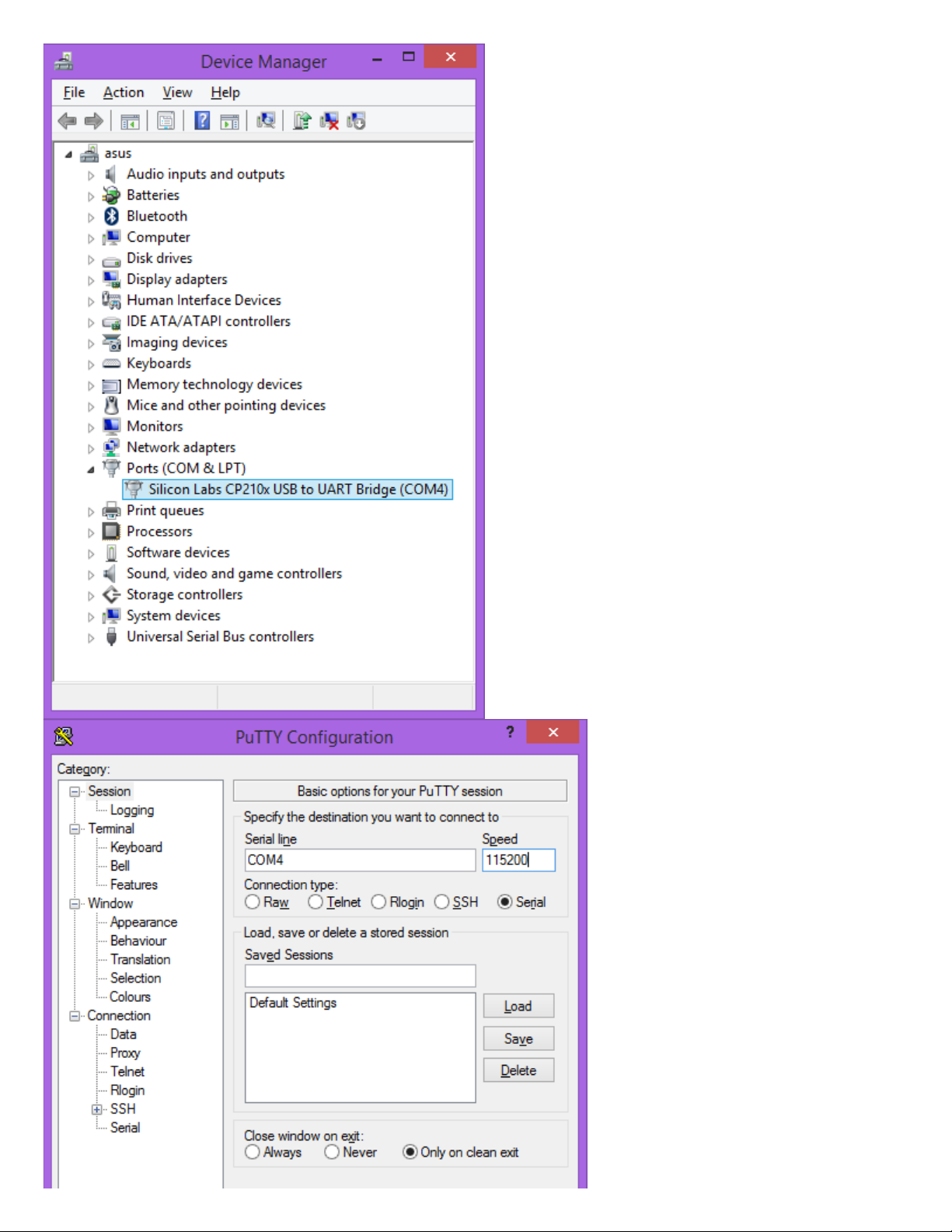
Putty is a small simple client available for download here (http://www.chiark.greenend.org.uk/~sgtatham/putty/) .
Open up Device Manager to determine your console port. See the putty configuration image for more details.

2/11/2020 TS-7100 - Technologic Systems Manuals
https://wiki.embeddedarm.com/w/index.php?title=TS-7100&printable=yes 7/44
3.2 Powering Up
WARNING:
Be sure to take appropriate Electrostatic Discharge (ESD)
precautions. Disconnect the power source before moving,
cabling, or performing any set up procedures. Inappropriate
handling may cause damage to the board.
Power input to the TS-7100 is supplied via the power input connector, refer to that section for information on
voltage ranges for this device.
Once power is applied to the whole device, there will be output on the debug console port. The following section of
the manual provides information on getting the serial console connected.
U-Boot 2016.03-00408-gd450758c91 (Oct 10 2019 - 11:59:08 -0700)
CPU: Freescale i.MX6UL rev1.2 at 396 MHz
Reset cause: POR
I2C: ready
DRAM: 512 MiB
MMC: FSL_SDHC: 0
Net: FEC0 [PRIME]
Warning: FEC0 (eth0) using random MAC address - 72:12:64:ca:3e:4a
Press Ctrl+C to abort autoboot in 1 second(s)
starting USB...
USB0: Port not available.
USB1: USB EHCI 1.00
scanning bus 1 for devices... 1 USB Device(s) found
scanning usb for storage devices... 0 Storage Device(s) found
No storage devices, perhaps not 'usb start'ed..?
Booting from the eMMC ...
** File not found /boot/boot.ub **
31526 bytes read in 103 ms (298.8 KiB/s)
5253608 bytes read in 354 ms (14.2 MiB/s)
NO CHRG jumper is set, not waiting
Kernel image @ 0x80800000 [ 0x000000 - 0x500220 ]
## Flattened Device Tree blob at 83000000
Booting using the fdt blob at 0x83000000
Using Device Tree in place at 83000000, end 8300a909
Starting kernel ...
Note:
The "*** Warning - bad CRC, using default environment" message can
be safely ignored when the unit is first booted. This means that no
environment variables have been saved to disk, and U-Boot is falling
back to the default. If "env save" is run, this will save the environment to
disk, and this message will go away unless there is a further issue.
The default U-Boot boot process will check for USB updates before attempting to boot from on-board eMMC.
Details about the bootup process, features, and other U-Boot information can be found in the U-Boot sections.

2/11/2020 TS-7100 - Technologic Systems Manuals
https://wiki.embeddedarm.com/w/index.php?title=TS-7100&printable=yes 8/44
3.3 First Linux Boot
When booting with the default settings, a shipped board will boot to the eMMC. The eMMC by default is pre-
programmed with our default Debian 9 Stretch image. After Debian boots it will ask the user to log in with a
username and password. This uses "root" as the username with no password. This can be changed after logging in
with the command 'passwd' to set an account password. Note that this login will only work over the serial console.
Debian SSH defaults to not only disallowing password-less logins, but root logins altogether are denied.
From the Linux prompt, the hardware can be tested out or application development can be begin.
4 U-Boot
TS-7100 U-Boot Sections
5 Debian Stretch(9)
5.1 Getting Started
By default, the TS-7100 ships with a Debian image installed and ready to boot. It is not necessary to download and
install the latest image below for operating the device. However please check the image changelog to verify the
running image.
The stock image uses a Debian Stretch distribution and Linux kernel version 4.9. The latest image can be
downloaded below.
ts7100-linux4.9-latest.tar.xz (http://ftp.embeddedarm.com/ftp/ts-arm-sbc/ts-7100-linux/distributions/ts7100-
linux4.9-latest.tar.xz) (md5 (http://ftp.embeddedarm.com/ftp/ts-arm-sbc/ts-7100-linux/distributions/ts7100-
linux4.9-latest.tar.bz2) )
This image can then be written to the on-board eMMC flash in order to be booted on the TS-7100.
5.2 Debian Networking
Note: The first physical port on the TS-7100, socket T1, is given the name
"eth1", while the second port, socket T2, is "eth0".
By default, Debian Stretch does not configure any interfaces to be brought up or configured.
Debian can automatically set up the networking based on the contents of "/etc/network/interfaces.d/" files. For
example, to enable DHCP for "eth0" by default on startup:

2/11/2020 TS-7100 - Technologic Systems Manuals
https://wiki.embeddedarm.com/w/index.php?title=TS-7100&printable=yes 9/44
echo "auto eth0
iface eth0 inet dhcp" > /etc/network/interfaces.d/eth0
To set up a static IP:
echo "auto eth0
iface eth0 inet static
address 192.168.0.50
netmask 255.255.255.0
gateway 192.168.0.1" > /etc/network/interfaces.d/eth0
echo "nameserver 1.1.1.1" > /etc/resolv.conf
To make this take effect immediately:
service networking restart
To configure other interfaces, replace "eth0" with the other network device name. Some interfaces may use
predictable interface names
(https://www.freedesktop.org/wiki/Software/systemd/PredictableNetworkInterfaceNames/) . For example, the
traditional name for an ethernet port might be "eth1", but some devices may use "enp1s0" for PCIe, or
"enx00D069C0FFEE" (the MAC address appended) for USB ethernet interfaces. Run 'ifconfig -a' or 'ip a' to get a
complete list of interfaces, including the ones that are not configured.
5.2.1 Debian Wi-Fi Client
Wireless interfaces are also managed with configuration files in "/etc/network/interfaces.d/". For example, to
connect as a client to a WPA network with DHCP.
Install wpa_supplicant:
apt-get update && apt-get install wpasupplicant -y
Run:
wpa_passphrase youressid yourpassword
This command will output information similar to:
network={
ssid="youressid"
#psk="yourpassword"
psk=151790fab3bf3a1751a269618491b54984e192aa19319fc667397d45ec8dee5b
}
Use the hashed PSK in the specific network interfaces file for added security:
echo "auto wlan0
iface wlan0 inet dhcp
wpa-ssid youressid
wpa-psk 151790fab3bf3a1751a269618491b54984e192aa19319fc667397d45ec8dee5b" > /etc/network/interfaces.d/wlan0

2/11/2020 TS-7100 - Technologic Systems Manuals
https://wiki.embeddedarm.com/w/index.php?title=TS-7100&printable=yes 10/44
To have this take effect immediately:
service networking restart
For more information on configuring Wi-Fi, see Debian's guide here
(https://wiki.debian.org/WiFi/HowToUse#wpa_supplicant) .
5.2.2 Debian Wi-Fi Access Point
This section will discuss setting up the WiFi device as an access point that is bridged to an ethernet port. That is,
clients can connect to the AP and will be connected to the ethernet network through this network bridge. The
ethernet network must provide a DHCP server; this will be passed through the bridge to WiFi client devices as they
connect.
The 'hostapd' utility is used to manage the access point of the device. This is usually installed by default, but can be
installed with:
apt-get update && apt-get install hostapd -y
Note: The install process may start an unconfigured 'hostapd' process. This
process must be killed before moving forward.
Modify the file "/etc/hostapd/hostapd.conf" to have the following lines:
ssid=YourWiFiName
wpa_passphrase=Somepassphrase
interface=wlan0
bridge=br0
auth_algs=3
channel=7
driver=nl80211
hw_mode=g
logger_stdout=-1
logger_stdout_level=2
max_num_sta=5
rsn_pairwise=CCMP
wpa=2
wpa_key_mgmt=WPA-PSK
wpa_pairwise=TKIP CCMP
Note:
Refer to the kernel's hostapd documentation
(http://wireless.kernel.org/en/users/Documentation/hostapd) for more
wireless configuration options.
The access point can be started and tested by hand:
hostapd /etc/hostapd/hostapd.conf
Ce manuel convient aux modèles suivants
1
Table des matières
Autres manuels Technologic Systems Ordinateur de bureau