
TCL 3189 Manuel utilisateur

For more information on how to use the phone, please go to tcl.com and download the complete user manual.
The website will also provide you with answers to frequently asked questions.

1 2
1 Table of Contents
1 Your mobile....................................................... 5
1.1 Keys and connectors ................................ 5
1.2 Getting started........................................... 8
1.3 Home screen........................................... 12
1.4 App list .................................................... 13
2 Call logs .......................................................... 15
2.1 Making a call ........................................... 15
2.2 Answer or decline a call.......................... 16
2.3 Accessing voicemail ............................... 16
3 Contacts .......................................................... 17
3.1 Consult your Contacts............................. 17
3.2 Adding a contact ..................................... 18
3.3 Editing your contacts............................... 18
3.4 Deleting a contact ................................... 19
3.5 Available options ..................................... 19
4 Calendar .......................................................... 20
4.1 Multimode view ....................................... 20
4.2 Add a new event ..................................... 21
4.3 Event reminder........................................ 22
5 Tools ................................................................ 22
5.1 Alarm....................................................... 22
Note:
This is a user manual for TCL 3189D
There may be certain differences between the user manual description
and the phone’s operation, depending on the software release of your
phone or specific operator services.
Help
Refer to the following resources to get more FAQ, software, and service
information.
Consulting FAQ
Go to www.tcl.com/global/en/service-support-mobile/faq.html
Finding your serial number or IMEI
You can find your serial number or International Mobile Equipment
Identity (IMEI) on the packaging materials. Or, on the phone, press
*#06#. or Settings > Regulatory & safety > IMEI.
Obtaining warranty service
First follow the advice in this guide or go to www.tcl.com/global/en/
service-support-mobile.html. Then check hotlines and repair centre
information through www.tcl.com/global/en/service-support-mobile/
hotline&service-center.html
Viewing legal information
On the phone, go to Settings > About > Privacy and User Terms

3 4
5.2 Calculator ................................................ 22
5.3 Bluetooth ................................................. 22
5.4 Converter ................................................ 22
5.5 Fake call.................................................. 23
5.6 Voice alarm ............................................. 23
5.7 World clock.............................................. 23
5.8 SIM Toolkit............................................... 23
5.9 Call Filter................................................. 23
5.10 Torch ....................................................... 24
5.11 Browser ................................................... 24
6 Message .......................................................... 25
6.1 Write messages ...................................... 25
6.2 Send a multimedia message .................. 26
6.3 How to type a message .......................... 26
6.4 Settings ................................................... 27
7 Multimedia....................................................... 29
7.1 Image ...................................................... 29
7.2 Video gallery ........................................... 32
7.3 Recorder ................................................. 32
8 Files ................................................................. 32
9 Camera ............................................................ 33
9.1 Camera ................................................... 33
9.2 Video ....................................................... 33
10 Settings ........................................................... 34
10.1 Phone settings ........................................ 34
10.2 Call settings............................................. 35
10.3 Profiles .................................................... 36
10.4 Network selection.................................... 37
10.5 Connections ............................................ 37
10.6 Security ................................................... 38
10.7 Assistance (SOS).................................... 39
10.8 Update..................................................... 40
10.9 Regulatory & Safety ................................ 40
10.10Restore factory settings .......................... 40
10.11 About....................................................... 40
11 Troubleshooting ............................................. 41
12 Specifications ................................................. 47
13 Accessories .................................................... 49
14 Licences .......................................................... 49

5 6
1
4
2
8
5
6
7
9
3
1. OK key
• Confirm an option (press the middle of the key)
• Press: access to the app list (Home screen)
2. Left soft key
3. Call key
• Pick up/send a call
• Press: enter call log (from Idle screen)
4. Right soft key
5. End key
• Return to the previous screen, or close a dialog
box.
1 Your mobile........................
1.1 Keys and connectors
5
1
23
4
6
1. Torch
2. Volume key
3. Camera
4. Assistant (SOS) key
5. Headset connector
6 USB port

7 8
• Press: end a call
6. Navigation key
• Move to top, bottom, left or right menus.
• Press (from Idle screen):
• Up: to access Profiles
• Down: to access Alarm
• Right: to access Camera
• Left: to access Messages
7. “5” key
• In idle screen:
• Press: Input "5"
• Long press: switch on/off the torch
8. “*” key
• In idle screen
• Press: Input “*”
• Long press: lock screen
• In Edit mode:
• Press: insert symbols
9. “#” key
• Idle screen
• Press: Input "#"
• Long press: Vibrate mode on/off
• In edit mode
• Press: change the input method
1.2 Getting started
1.2.1 Set up
Removing the back cover and installing the battery
1 2
34
5
*6
*6

9 10
Removing and installing the frame deco
*4
*4
1 2
34
Inserting or removing the SIM/micro SD card
Place the SIM card with the chip facing downwards and
slide it into its housing. Make sure that it is correctly
inserted. To remove the card, press it and slide it out.
Power off your phone before inserting or removing the
SIM/micro SD card.
Charging the battery
Connect the battery charger to your phone and plug
into the socket.
• Be careful not to force the plug into the socket.
• Make sure the battery is correctly inserted before
connecting the charger.
• The mains socket must be near to the phone and
easily accessible (avoid electric extension cables).

11 12
To reduce power consumption and energy waste,
disconnect your charger when the battery is fully
charged; switch off Bluetooth. In Settings you
can also lower the brightness of the screen, and
shorten the length of time before the screen goes
to sleep.
IMPORTANT: IP68 means this phone is “dust-resistant”
and can be “immersed in 1.5 meters of freshwater
for up to 30 minutes. However it is emphasized to
end users to tighten the screws on the battery cover
and properly fit the rubber protections for USB port
and headphone jack close to keep your phone from
dust and water damage as this may cause the IP68
protection is not guaranteed.
1.2.2 Power on your phone
To turn your phone on, hold down the End key until the
phone powers on. It will take a few seconds before the
screen lights up. Press Left soft key to unlock your
phone.
Set up your phone for the first time
The first time you power on the phone, you should set
the following options:
• Select the phone's language, then press the Right
soft key to continue.
Even if no SIM card is installed, your phone will still
power on and you will be able to use some of the
phone's features.
1.2.3 Power off your phone
To turn your phone off, hold down the End key.
1.3 Home screen
1
1Status bar
• Status/Notifications

13 14
1.4 App list
Press the Left soft key or OK key from the Home
screen to access the App list.
1.4.1 Status bar (1)
The Status bar appears at the top of your Home
screen. Icons indicate your phone’s status and new
notification alerts appear in the Status bar.
New message
or multimedia
message
No SIM card
installed
Silent mode Alarm is set
SD card installed Bluetooth is on
Level of network
reception
Headset
connected
Flight mode New voicemail
1.4.2 Change Home screen wallpaper
• From the Home screen, press the OK key,
select the Settings icon , and then press the
Navigation key to select Phone settings > Display
>Wallpaper settings > Static wallpaper or More
pictures.
(1) The icons and illustrations in this guide are provided for
information purposes only.

15 16
• Select a new image and press the Left soft key to
save. Exit and the new image will then be displayed
on your Home screen.
2 Call logs .......................
2.1 Making a call
Dial the desired number, press the Call key to place
the call, or press the Right soft key to select a
contact from Contacts. Use the up or down action of
the Navigation key to select the desired contact and
press the Call key. If you make a mistake, you can
delete the incorrect digits by pressing the Left soft
key. To hang up the call, press the End key.
International call
To dial an international call, press twice to enter
“+”, then enter the international country prefix followed
by the full phone number and finally press the Call key.
Emergency call
If your phone has network coverage, dial the emergency
number and press
the Call key
to make an emergency
call.
2.2 Answer or decline a call
When you receive a call:
• Press the Left soft key or
Call key
to answer.
• Press the Right soft key or End key to decline.
2.3 Accessing voicemail (1)
• Press and hold to call voicemail.
(1) Contact your network operator to check service
availability.
17 18
3.2 Adding a contact
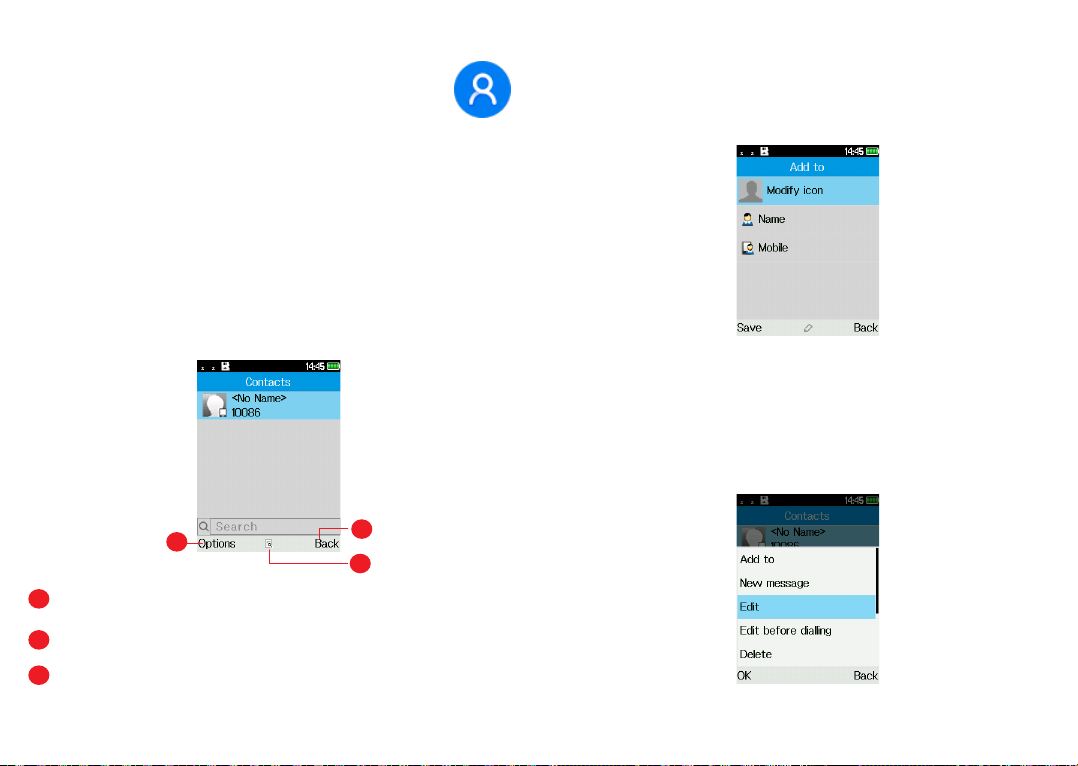
In your contacts list screen, select Add contacts, or
press the Left soft key to select Options > New to
add new contacts with detailed information.
When finished, press the Left soft key to save.
3.3 Editing your contacts
Select a contact, press the OK key to access Details,
select Options > Edit, and press the OK key to edit.
• Follow the prompts to set up your voicemail account.
3 Contacts .......................
3.1 Consult your Contacts
Contacts enables quick and easy access to the
contact you want to reach.
You can access this function by:
• pressing the OK key from the Home screen and
select Contacts.
• pressing the Right soft key from the Home screen.
2
3
1
1Press the Left soft key to access more options.
2Press the OK key to enter contact details.
3Press the Right soft key to return to the Home
screen.
Ce manuel convient aux modèles suivants
1
Table des matières
Autres manuels TCL Téléphone


