
Talento 472 Manuel utilisateur

1. Contents 2
1. Contents Page
2. Assembly, putting into operation, connection 3
3. Control elements 4
4. Display 4
5. Factory setting 5
6. Changing settings 6
6.1 Time and day of the week 6
6.2 Calendar month and day 7
6.2.1 AU = Automatic changeover 7
6.2.2 cHA = Weekday-related time change 8 - 9
6.2.3 no = no changeover 10
7. Standard switching commands 11
8. Weekday block formation 12 - 13
9. Impulse switching commands 14 - 15
10. Cycle switching commands 16 - 18
11. Read – change – delete – reset 19 - 20
12. Hand switch 21
13. DCF77 radio operation 21
14. Technical data 22
2. Assembly, putting into operation, connection 3
GB
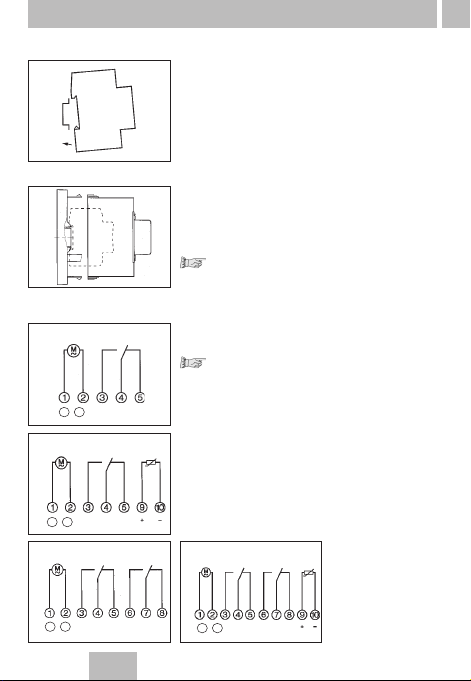
3.1 Assembly
Fit the time switch
• on a DIN rail
•
optional wall surface-mounting
Surface-mounting set for 2 and 3 module
spacings Article No. 03.53.0083.2
3.2 Putting into operation
The time and date are set at the factory.
The time switch is in Energy-saving mode.
Only the colon flashes.
Press any key:
• The time switch is activated
• It displays the time (day of the week)
3.3 Connection
See information on the unit!
Press any key to activated the timeswitch
• The time and day is displayed
Note:
If no key is pressed the time switch is auto-
matically activated after approx. 1 - 2 minutes.
Safety instruction:
•
When operating the clock safety low voltage,
only safety low voltage may be connected.
•
When operating the clock with function low
voltage, mains voltage (230 ~) or function low
voltage may be connected. The connection of
safety low voltage is not admissible in this case.
AC
DC
+–
AC
DC
+–
AC
DC
+–
AC
DC
+–
CH 1
CH 1
CH 1 CH 2
CH 1 CH 2

3. Control elements 4
Start program input
Set time,
end program input
Select day(s)
of the week
Delete switching time
Set hours, day, year
Hand switch
Enter pulse/
cycle
Reset
Set minutes, month, year
Summer time/winter time switchover
4. Display
Date
Summer time
display
AM/PM
display
DCF 77
reception
Channel 1
Channel 2
Switching state
Automatic mode
1234567 =
days of the week
1 = Monday
Hours - current time
Calendar day
- current date
- start/end
summer time
Minutes - current time
Month - current date
- start/end
summer time
Year - day/month
Pulse/cycle
Continuous operation
Manual operation

GB
5
5. Factory setting
The selections correspond to Central European Time. The time
switch offers 3 Operating modes. The date and time, and also
the Operating mode AU are set.
Operating modes:
•AU Automatic summer time controller switchover
see 6.2.1
The switchover occurs on the dates defined by
the legislator.
•cHA Weekday-related summer time controller
switchover, see 6.2.2
You enter the start and end dates of summer time
which applies to your location/country.
e. g. The first Sunday in April of the current year
(start of summer time)
The last Sunday in October of the year
(end of summer time)
In the following years, changeover always occurs
on the right day of the week in the correct calendar
week.
•no No changeover, see 6.2.3
AM/PM switch-over
Switch clock is in current operating mode
1. Press h and keep pressed
2. – Press Res once
– all segments are displayed
–
after approx. 1 second the following appears:
AM, 12.00 and 3 (Wednesday)
Operating mode AU is active = works setting
3. Release h
4.
Select operating mode as required, see 6.2.1 or 6.2.2 or 6.2.3
5. Set the current time of day and weekday, see 6.1

6
6. Changing settings
Press the key once.
Set the time:
With the h key – hours
With the m key – minutes
Note:
If the Operating mode
no = no change
- see 6.2.3
was selected, the day of the
week must now be set.
With the Day
1 - Monday
key select: 2 - Tuesday
3-
Wednesday
:
7 - Sunday
Press the key once.
The input is ended.
6.1 Time and day of the week
Note:
You can exit/conclude any adjustments, changes you make
at any time with the key .

GB
7
6.2
Calendar month and day – Select the Operating mode
6.2.1
AU = Automatic changeover
Press the key once
Press the + 1h key once,
AU appears
Press the Prog key once
Set the current year:
With the m key or the h key
Confirm with the Prog key
Set the current month and day:
With the m key – calendar month
With the h key – calendar day
Note:
With the Prog key (press once or
twice), read the date for the start
e.g. 29.03. and end e.g. 25.10.
of summer time.
Press the key once.
The input is ended.
6.2.1 AU or 6.2.2 cHA or 6.2.3 no

8
6.2.2 cHA = Weekday – related time change
Press the key once
Press the + 1h key as often as
necessary until cHA appears
Press the Prog key once
Set the current year:
With the m key or the h key
Confirm with the Prog key
Set the current month
and day:
With the m key – calendar month
With the h key – calendar day

GB
9
Confirm with the Prog key
The start of summer time is
displayed.
Set the individual
summer time start:
With the m key – month
With the h key – day
Confirm with the Prog key
Set individual
summer time end:
With the m key – month
With the h key – day
Press the key once.
The input is ended.

6.2.3 no = no changeover
Press the key once
Press the + 1h as often as
necessary until no appears.
The time switch operators
without a date!
Press the key once.
The input is ended.
Note:
Select day of the week
see 6.1
10

GB
Select free memory location:
Press the Prog key as often as
necessary until – –:-– – appears.
Set the switching times:
With the m key – minutes
With the h key – hours
For weekday adjustment, see:
Block formation of weekdays, Point 8
You determine the switching times and the switching state for the relevant
switching output (channel.)
Symbol:
CH1: (ON) = Channel 1
CH2: (OFF) = Channel 2
These assignments are possible:
• Switching commands only for channel 1
• Switching commands only for channel 2
• The same switching commands for channel 1 and channel 2
(the switching time and switching state are identical)
• The same switching time for channel 1 and channel 2 but with
a different switching state.
11
7. Standard switching commands
Set the switching state:
With the key
(ON) or (OFF)
Note:
The switching state for CH1 or
CH2 can be deactivated.
No symbol – no switching.
Press the Prog key once. The input has
ended.
A free memory location is
displayed – for other settings or
Press the key once. The input
is ended.
The display shows the current time.
Table des matières


