Synapse AT&T SB67080 Manuel utilisateur

User Guide
AT&T SB67080 Expansion Module


Expansion Module Overview . . . . . . . . . . . . . . . . 4
Monitoring Call Status . . . . . . . . . . . . . . . . . . . 5
Dialing Using Quick Dial . . . . . . . . . . . . . . . . . . 6
Dialing Other Extensions. . . . . . . . . . . . . . . . . . 7
Answering Remote Incoming Calls. . . . . . . . . . . . . 8
Expansion Module Settings . . . . . . . . . . . . . . . . 9
Using the Display Settings Menu. . . . . . . . . . . . . 10
Troubleshooting . . . . . . . . . . . . . . . . . . . . . 11
Important Safety Instructions . . . . . . . . . . . . . . 13
Maintenance . . . . . . . . . . . . . . . . . . . . . . . 15
For complete installation and configuration instructions,
see the SB67080 Expansion Module Installation and
Configuration Guide, available at
www.telephones.att.com/synapseguides.
Contents

4
4
Expansion Module Overview
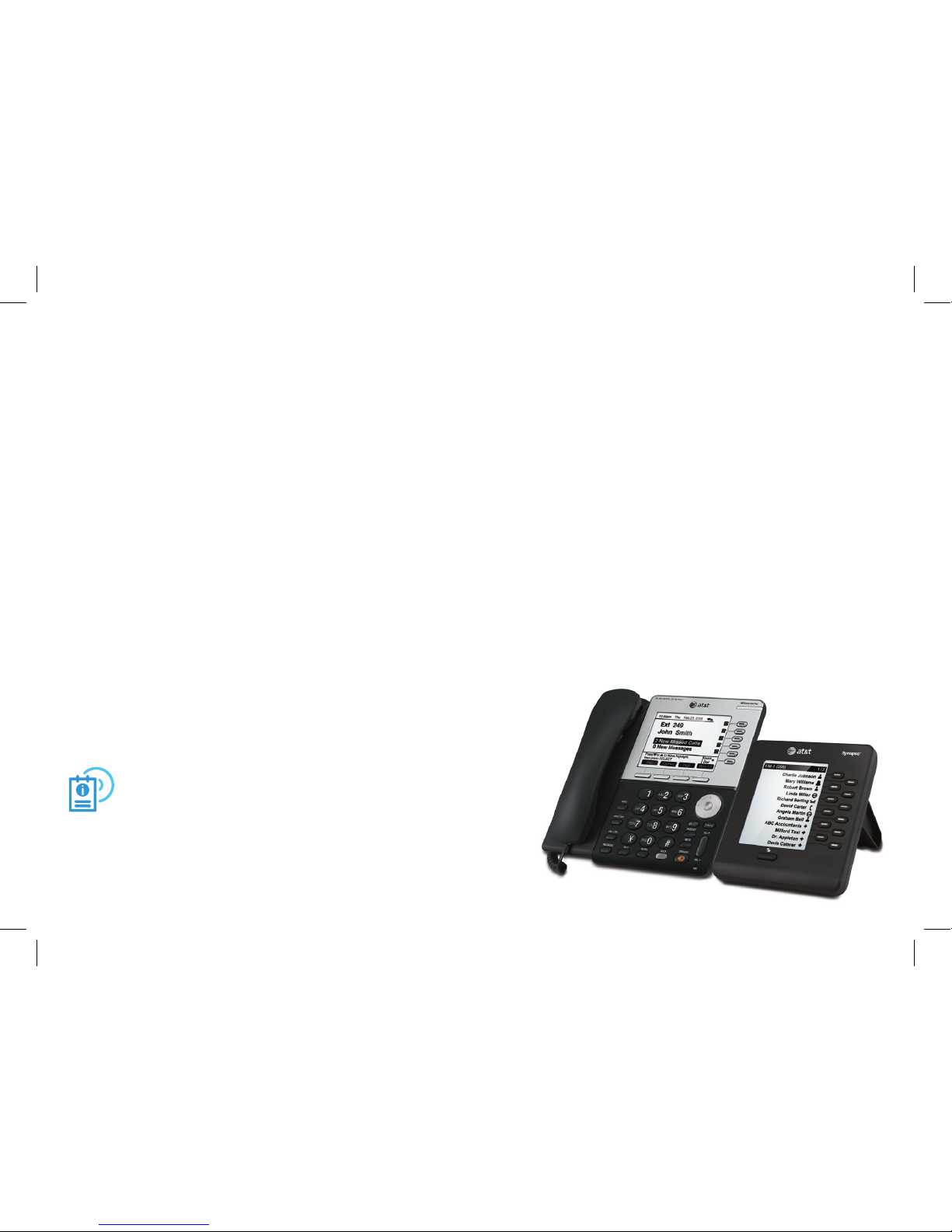
The Synapse SB67080 Expansion Module adds to the functionality of your Synapse Deskset, enabling you
to monitor activity at other extensions and providing additional quick-dial keys. Depending on how your
Expansion Module is configured, you can monitor up to 24 extensions or access up to 24 additional
quick-dial entries.
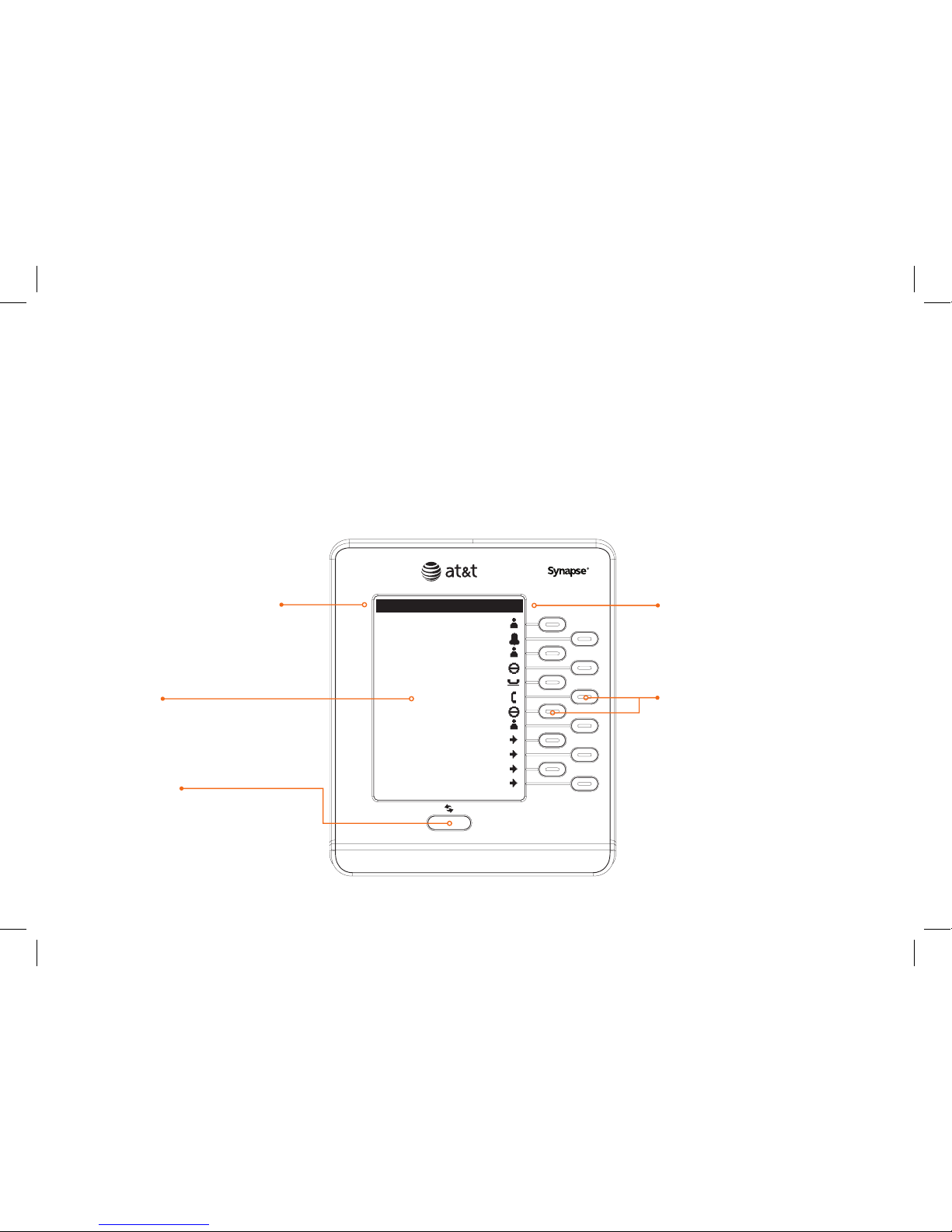
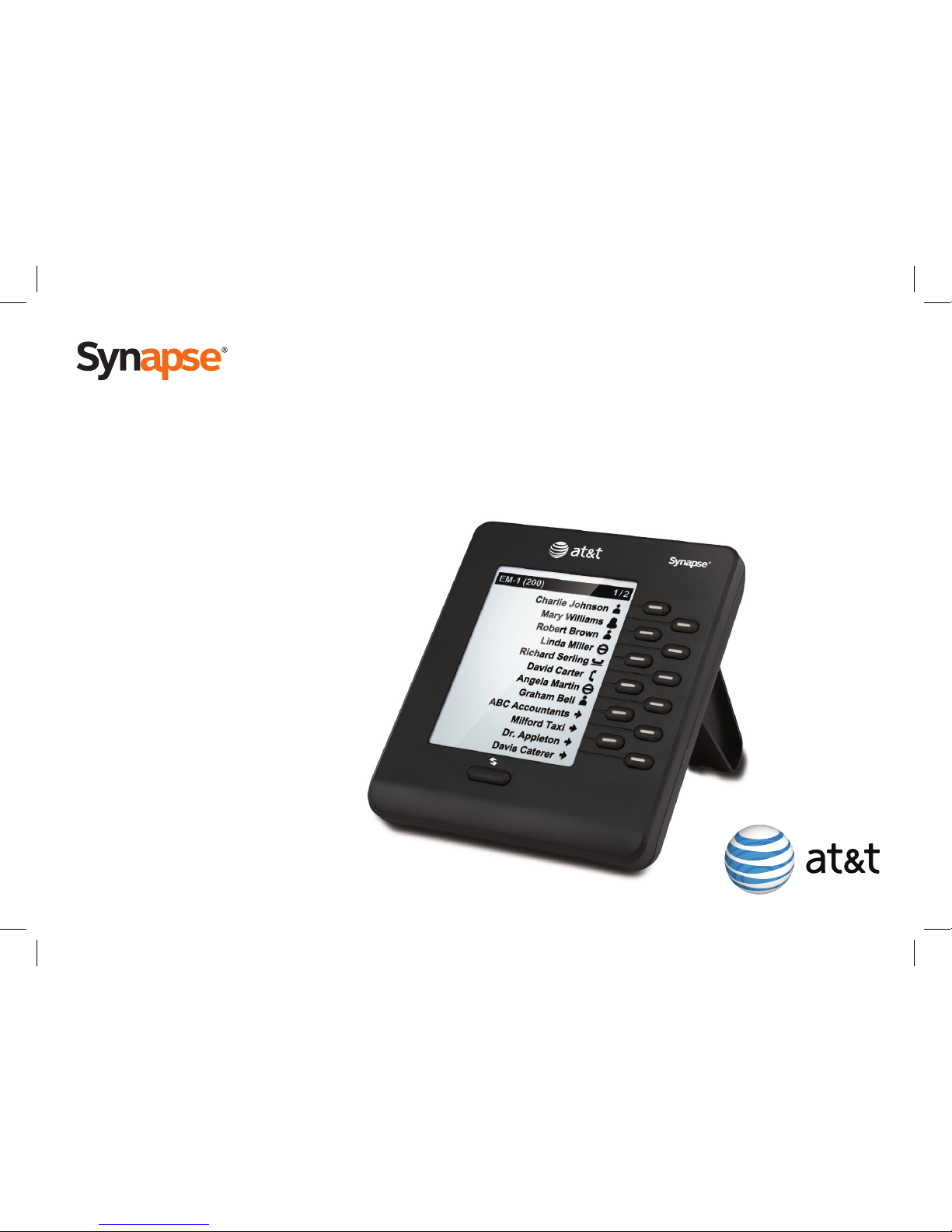
The front panel and screen of the Expansion Module are shown and described below.
Screen
Displays extension names,
call status, quick-dial entries,
and Expansion Module settings.
Module number (paired
Deskset extension number)
The Expansion Module dials
and answers calls through the
paired Deskset.
Shift Key
• Press to display the next page.
Each page shows 12 extensions
and/or quick-dial entries.
• Press and hold to access the
Settings menu.
Page Indicator
The screen shows 12
extensions and/or quick-dial
entries per page.
Feature Keys and LEDs
• Dial extensions and
external numbers.
• Answer incoming calls
to other extensions.
• Select Expansion Module
settings.
• LEDs indicate call status.
&KDUOLH-RKQVRQ
(0
0DU\:LOOLDPV
5REHUW%URZQ
/LQGD0LOOHU
$%&$FFRXQWDQWV
0LOIRUG7D[L
'DYLV&DWHUHU
5LFKDUG6HUOLQJ
'DYLG&DUWHU
$QJHOD0DUWLQ
*UDKDP%HOO
'U$SSOHWRQ

5
5
Monitoring Call Status
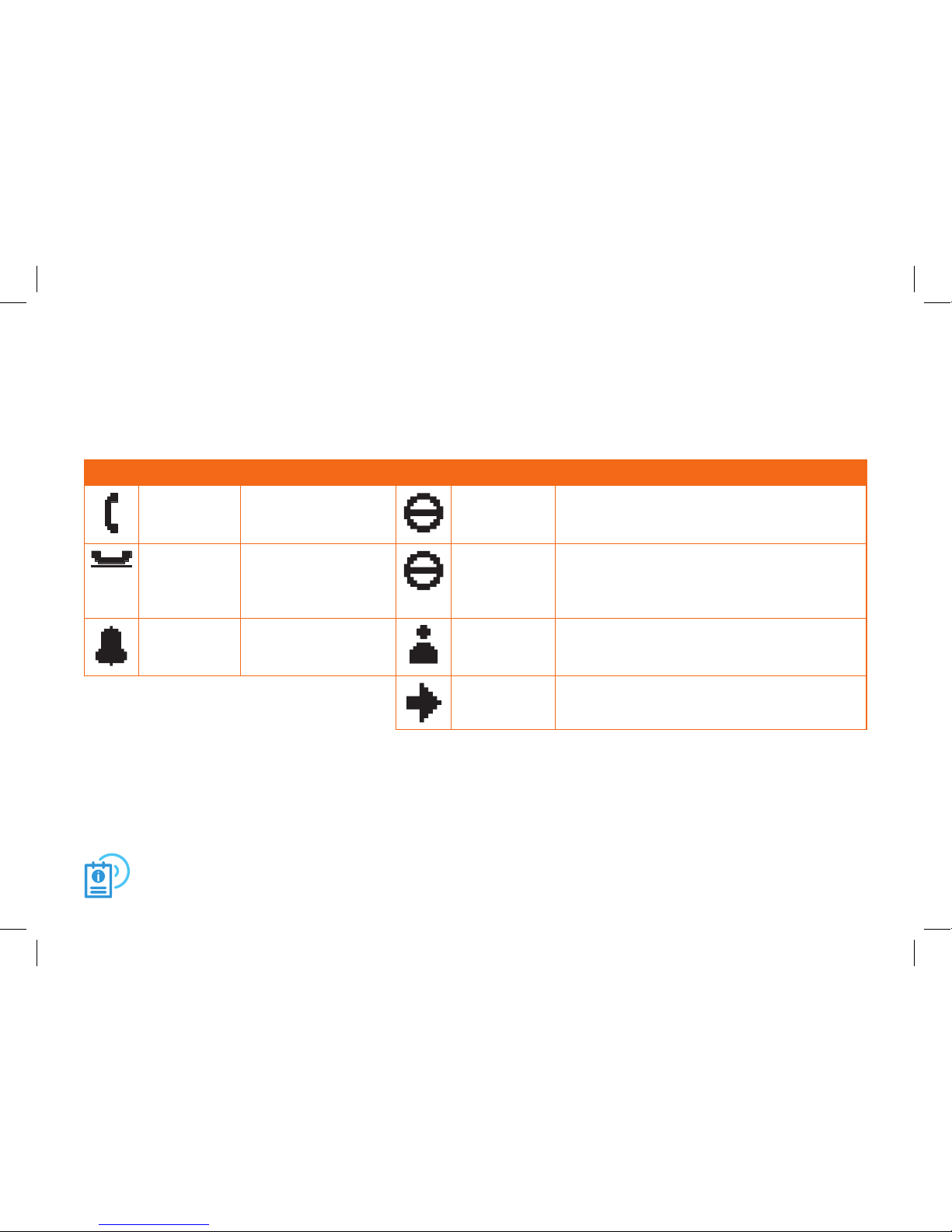
The Expansion Module enables you to monitor call activity at other extensions. Screen icons and Feature Key
LEDs indicate the current call status, as described below.
Icon LED Status Icon LED Status
Solid Green Dialing, on a phone
call, or paging
Solid
Orange
Deskset user has turned Do Not Disturb (DND)
on. You can still call the extension, but ringing
at the far end will be silenced.
Slow Green
Flash
On Hold Fast Orange
Flash
Incoming call while DND is on. You can answer
the call remotely (see page 8). You cannot
monitor any other call activity while the
extension has DND on.
Fast Green
Flash
Incoming Call.* You
can answer the call
remotely (see page 8).
None Idle—no activity on the phone, and DND is off.
None Indicates a quick-dial entry.
* If your Synapse system has been configured for Line Appearance mode, the Expansion Module does not
indicate a new incoming call on an external line. In Line Appearance mode, a Feature Key LED flashes green
for an incoming call when:
• the call is on the Intercom line
• the external call is forwarded to an extension through a Call Forward-No Answer setting
• the external call is transferred to an extension.
For more information about Line Appearance mode, see your Deskset User Guide, available at
www.telephones.att.com/synapseguides.

6
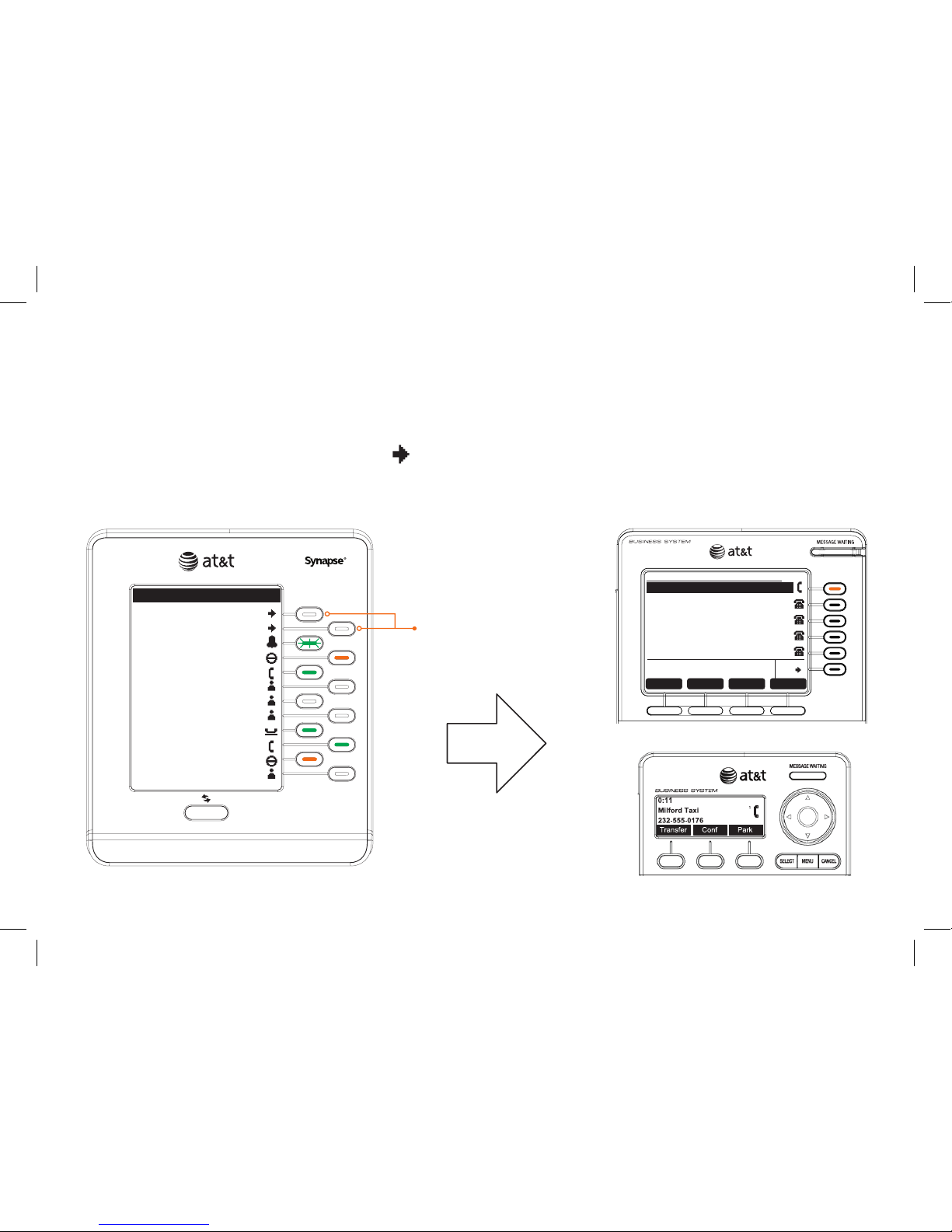
Dialing Using Quick Dial
You can call external phone numbers using the Expansion Module quick-dial keys. Your system administrator
can program quick-dial entries for you. The icon indicates a quick-dial key.
After pressing a quick-dial key on the Expansion Module, your Synapse Deskset dials the number on the first
available line.
Press a quick-dial key
to dial the number on
the Deskset.
&KDUOLH-RKQVRQ
(0
0DU\:LOOLDPV
5REHUW%URZQ
/LQGD0LOOHU
$%&$FFRXQWDQWV
0LOIRUG7D[L
([W
$P\/HH
5LFKDUG6HUOLQJ
'DYLG&DUWHU
$QJHOD0DUWLQ
*UDKDP%HOO
307XH)HE
0LOIRUG7D[L
7UDQVIHU&RQI
4XLFN
'LDO
3DUN 0RUH
SB6703x Series Deskset
SB6702x Series Deskset

7
To dial other extensions using the Expansion Module, press the Feature Key next to the extension number that
you want to call.
Transfer
When you want to transfer a call to another extension, you can use the Expansion Module to dial the other
extension number.
To transfer a call:
1. From an active call, press the
Transfer
soft key on the Deskset. The call is put on hold.
2. Press a Feature Key on the Expansion Module to call the transfer destination.
3. After establishing the second call, press
Xfer?
[SB6703x] or
Transfer
[SB6702x] on the Deskset to
complete the transfer.
Call Appearance mode only—You can transfer a call directly to another extension’s voicemail using the
Expansion Module. After pressing
Transfer
for the first call, press the
Vmail
soft key on the Deskset, then
press a Feature Key on the Expansion Module to transfer the waiting call directly to an extension’s voicemail.
Conference
When you have an active call and want to create a conference call, you can use the Expansion Module to dial
another extension number before joining all calls in a conference.
To create a conference call:
1. From an active call, press the
Conf
soft key on the Deskset.
2. Press a Feature Key on the Expansion Module to dial another extension number.
3. After establishing the second call, press the
Join?
soft key on the Deskset to start the conference. 7
Dialing Other Extensions

8
Answering Remote Incoming Calls
The Expansion Module enables you to answer a call that is ringing at any monitored extension.
To answer a remote call with the Expansion Module, press the flashing Feature Key for the ringing extension.
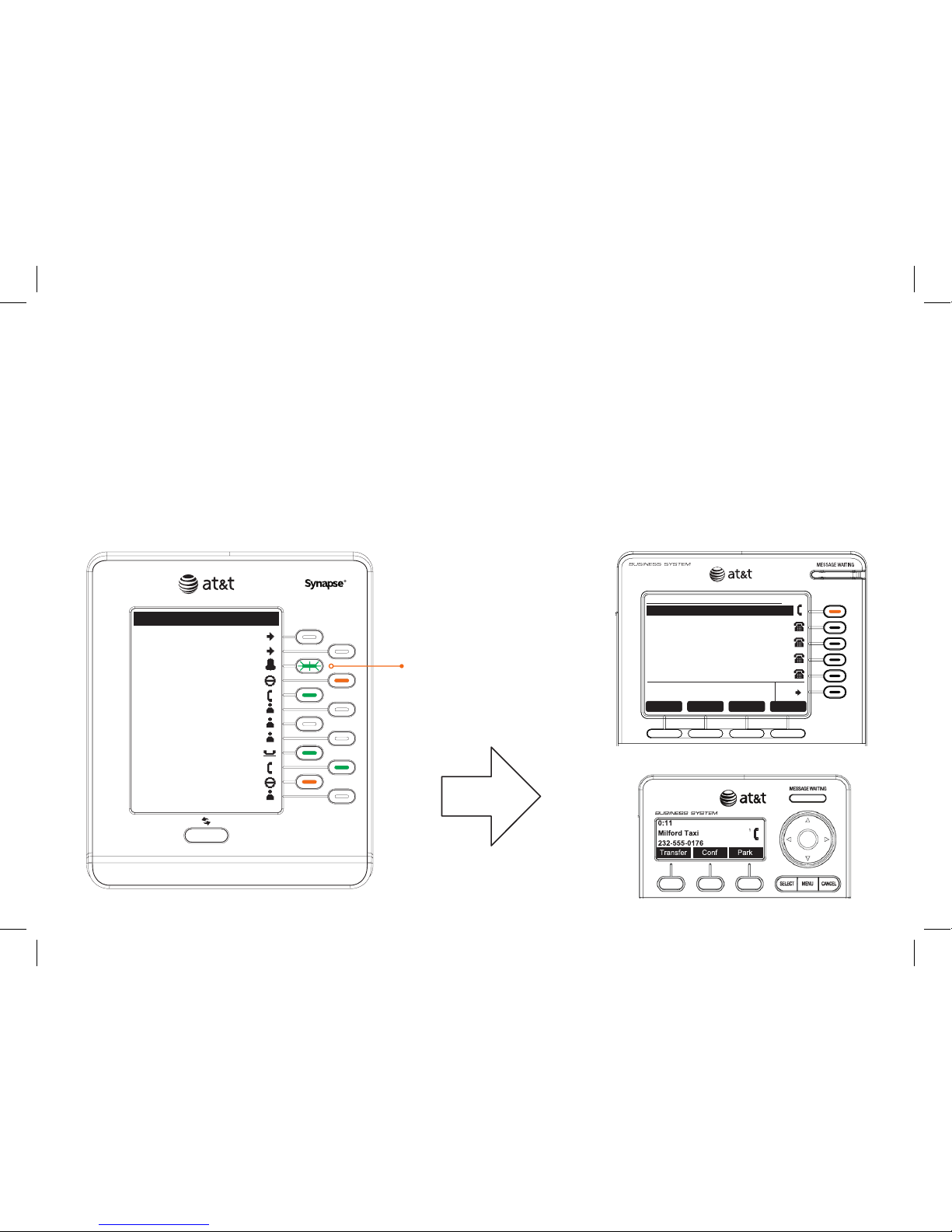
The Deskset paired with the Expansion Module will answer the call. The illustration below shows the Expansion
Module being used to answer a call from Milford Taxi to Charlie Johnson’s extension.
Note: The Deskset answers the call in its Preferred Audio Mode (Speaker or Headset). After the Deskset
answers the remote call, pick up the handset to speak to the caller through the handset.
Press the key for
the ringing extension.
The call is answered
on the Deskset.
&KDUOLH-RKQVRQ
(0
0DU\:LOOLDPV
5REHUW%URZQ
/LQGD0LOOHU
$%&$FFRXQWDQWV
'U$SSOHWRQ
([W
$P\/HH
5LFKDUG6HUOLQJ
'DYLG&DUWHU
$QJHOD0DUWLQ
*UDKDP%HOO
307XH)HE
0LOIRUG7D[L
7UDQVIHU&RQI
4XLFN
'LDO
3DUN 0RUH
SB6703x Series Deskset
SB6702x Series Deskset

9
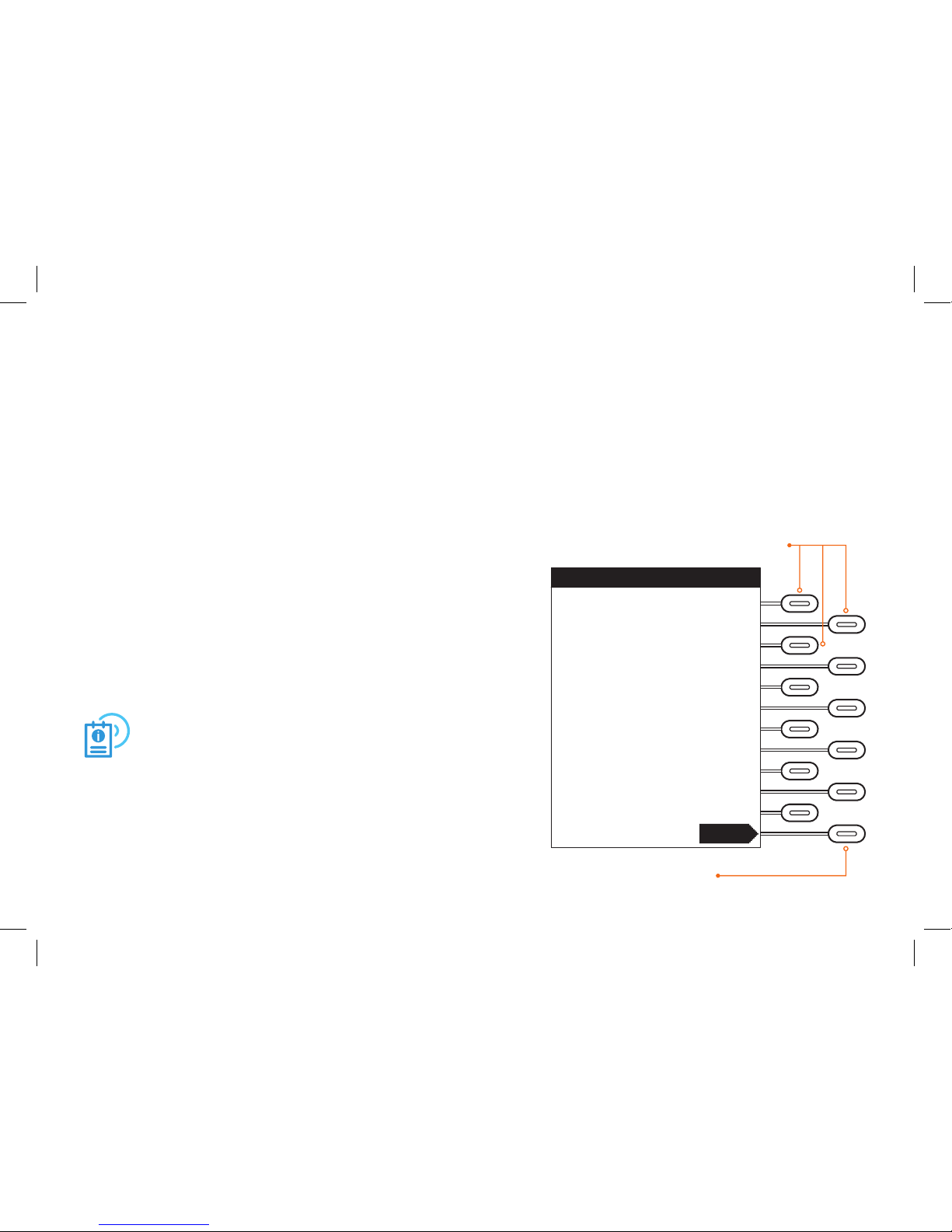
To view the Expansion Module settings, press and hold the Shift key for five seconds. The main menu appears,
as shown below.
To access the settings menus listed below, press an associated Feature Key from the main menu.
Display Settings
Adjust contrast and backlight for the screen. See page 10 for more information.
IP Settings
Adjust network connection settings.
Note: Do not modify these settings unless instructed by your
system administrator.
Device Information
View network status, serial number, firmware version, and other
device-specific information. This information is mainly of interest
to your system administrator.
For more information about the IP Settings and Device
Information screens, see the SB67080 Expansion Module
Installation and Configuration Guide, available from
www.telephones.att.com/synapseguides.

Expansion Module Settings
'LVSOD\6HWWLQJV±
0(18
,36HWWLQJV±
'HYLFH,QIRUPDWLRQ±
&DQFHO
Press a key to view each menu.
To return to the main
screen, press Cancel.

10
You can adjust the Expansion Module display on the Display Settings menu.
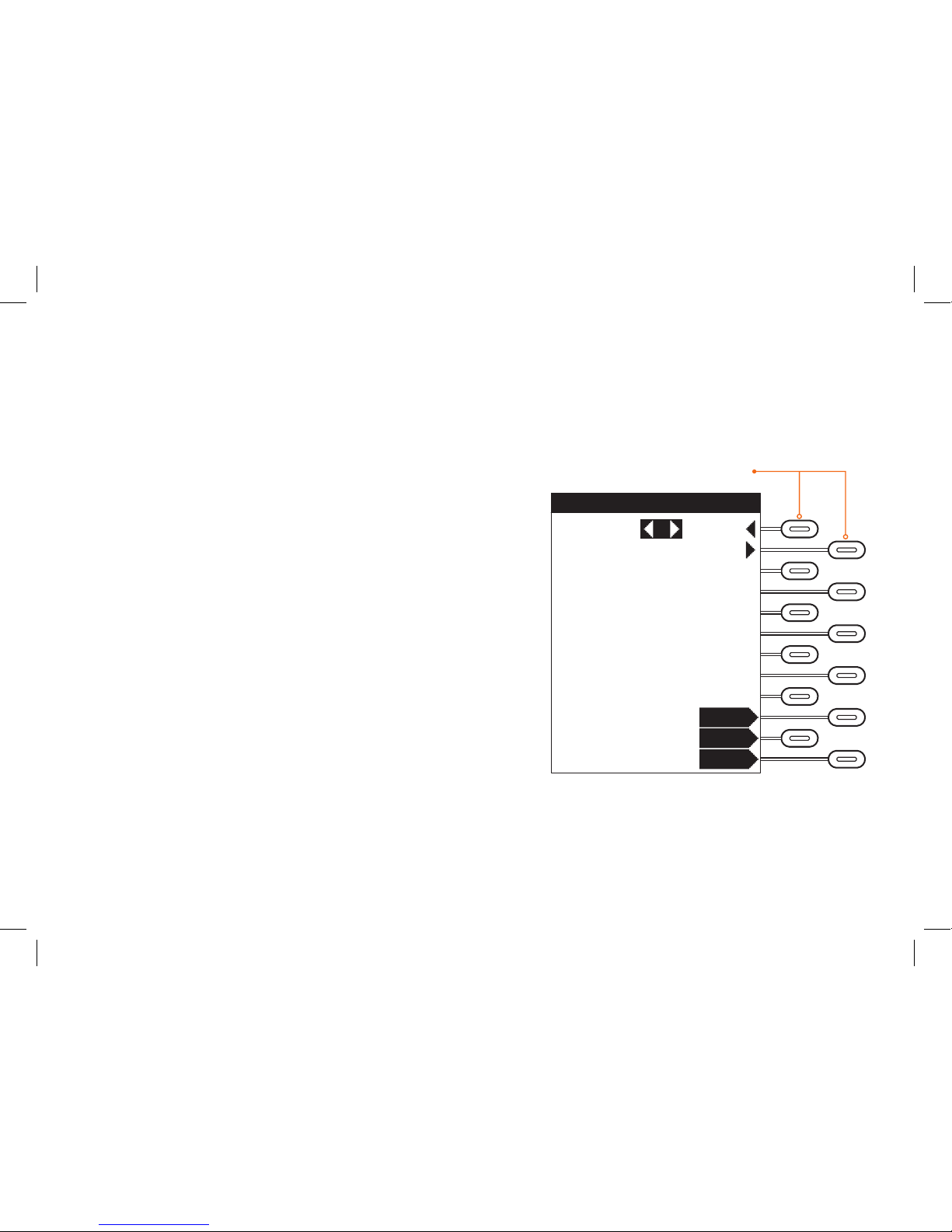
To adjust the Display Settings:
• Press the tor ukeys to change the highlighted value.
• To move to the next setting on the screen, press Next.
• To save the settings and return to the main menu, press
Save.
• To return to the previous menu without saving any changes,
press Cancel.
10
Using the Display Settings Menu
&RQWUDVW
',63/$<6(77,1*6
%DFNOLJKW>+LJK@
&DQFHO
6DYH
1H[W
Press to change the value.
Table des matières