
Symbol VRC 8900 Manuel utilisateur

VRC 8900
Radio Terminal

VRC 8900
Radio Terminal
©2002-2005 SYMBOL TECHNOLOGIES, INC. All rights reserved.
Symbol reserves the right to make changes to any product to improve reliability,
function, or design.
Symbol does not assume any product liability arising out of, or in connection with, the
application or use of any product, circuit, or application described herein.
No license is granted, either expressly or by implication,estoppel, or otherwise under
any patent right or patent, covering or relating to any combination, system,
apparatus, machine, material, method, or process in which Symbol products might
be used. An implied license exists only for equipment, circuits, and subsystems
contained in Symbol products.
Symbol and the Symbol logo are registered trademarks of Symbol Technologies, Inc.
Other product names mentioned in this manual may be trademarks or registered
trademarks of their respective companies and are hereby acknowledged.
Symbol Technologies, Inc.
One Symbol Plaza
Holtsville, N.Y. 11742-1300
http://www.symbol.com
Patents
This product may be covered by one or more U.S. and foreign patents. For patent
information go to: http://www.symbol.com/patents.
Warranty
Subject to the terms of Symbol's hardware warranty statement, the VRC8900 Radio
Terminal is warranted against defects in workmanship and materials for a period of
one year from the data of shipment. For the complete Symbol hardware product
warranty statement, go to: http://www.symbol.com/warranty.

1
Quick Reference
Introduction
The VRC 8900 Radio Terminal is a vehicle or fixed-mount data
terminal with a direct radio link to ahost computer.You can enterdata
using the touchscreen, the optional QWERTY keyboard, an optional
bar code scanner, or a combination of the three. The data is
transmitted wireless to a host computer. The terminal features:
• Ergonomic design with color LCD touchscreen
• Internal wide-range powersupply(11-60VDC)toaccommodate
propane, gasoline, and electric-powered forklifts
• Interfaces with scanners, printers, automation controls and
other peripherals
• Continuous operation at -30°C (-22°F) (cold storage terminals)
• Full terminal emulation capabilities.
About This Guide
This guide provides instructions for the following:
•Parts of the VRC 8900 on page 2
•Required Accessories on page 3
•Optional Accessories on page 3
•Charging the Internal Battery on page 4
•Connecting Power to the Terminal on page 5
•Calibrating the Touch Screen on page 6
•Resetting the Terminal on page 7
•Programmable Keys on page 7
•The Optional Keyboard on page 9
•Connecting Accessories on page 12
•Maintaining the Terminal on page 13
•Troubleshooting on page 14.
For more information including installation instructions, refer to the
VRC 8900 Radio Terminal Product Reference Guide,
p/n 72-55775-xx available at http://www.symbol.com/manuals.

2
VRC 8900
Radio Terminal
Parts of the VRC 8900
Display
Keyboard
(optional)
Angle Adjusting
Knob
Mounting Bracket
Power Port
COM2 Port
(ActiveSync)
COM1 Port
(scanner)
Speaker
Membrane
Switch Panel
F
ron
t
Vi
ew
Membrane Switch Panel
Bottom View
Keyboard Port
USB Port
Keyboard Locking
Knob (optional) Keyboard
Adjustment
Levers
(optional)
Antenna
Brightness
Control
Programmable Keys
Suspend Button
Power Switch
Protective
Caps

3
Quick Reference
Required Accessories
The VRC 8900 comes with an installation kit which includes all
necessary connectors and cables. See the VRC 8900 Product
Reference Guide for a list of contents.
Optional Accessories
You can order these optional accessories from Symbol:
• External keyboard with bracket assembly:
Non-heated: KYBD8900-00
Heated: KYBD8900-01
• Scanners:
LS-3203ER-I200EI: 25-52923-01
P302FZY-I001: 25-52741-01
P304PRO-I000: 25-55774-01
P370ALR-I000
• Scanner cable (scanner specific)
• RS-232 ActiveSync cable: 25-51869-01
• USB cable:
ActiveSync: 25-56101-01
Host: 25-56102-01
• AC universal power supply:
Power supply: 50-14001-004
Output cable: 50-16002-024
Line cord: 23844-00-00
• Filter box (used on gasoline-powered trucks to shut off the
terminal when the forklift ignition is turned off, and to filter
noise on power cables): FB7900
• Installation Kit (see the VRC 8900 Product Reference Guide
for a list of contents).

4
VRC 8900
Radio Terminal
Note: Use only a Symbol-approved power supply, output rat-
ed 12V dc and minimum 9A (p/n 50-14001-004). The
power supply is certified to EN60950 with SELV out-
puts.
Benutzen Sie nur eine Symbol Technologies geneh-
migt Stromversorgung in den Ausgabe: 12V dc und
minimum 9A (p/n 50-14001-004). Die Stromversor-
gung ist bescheinigt nach EN60950 mit SELV Ausga-
ben.
Note: The terminal and bracket must be firmly secured to a
surface that can support the terminal’s weight.
WARNING
The VRC 8900 is intended for use on vehicles primarily op-
erating indoors, or for fixed indoor installation. the VRC 8900
should not be installed in fixed outdoor locations, or on a ve-
hicle primarily operating outdoors, unless additional environ-
mental protection is provided.
Charging the Internal Battery
When you receive your terminal, the internal battery is fully
discharged. Leave the terminal powered on for 24 hours to fully
charge the internal battery. Note that the terminal can charge the
battery while in Suspend mode, but not if power is removed.
Theinternalbattery maintainstheRAM memoryfor72hourswhen
fully charged. The data in the Flash memory or Flash file system
is not affected by the state of charge.
Note: If the VRC8900 is being stored, it is important to re-
charge the internal battery every three to four months.
Battery degradation or failure may result.

5
Quick Reference
Connecting Power to the Terminal
Powering the Terminal On/Off
1. Turn on the Power Switch on the back of the terminal.
2. Press the Suspend Button on the membrane panel to power
on the terminal.
To suspend the terminal’s operation, press and hold the Suspend
Button until the “Release for Suspend”message appears.
PowerCable
Connector
Power Cable Port
DC Power
Cable
DC Power Cable
(connect other end to
power cable port)
UniversalPower
Supply
AC Power Cable
(connect other end to
wall outlet)
Connecting AC Power

6
VRC 8900
Radio Terminal
Calibrating the Touch Screen
The terminal prompts you to calibrate the touch screen when you
first power on the terminal and when using the default registry.
1. Carefully press and hold the stylus on the center of each
target. Repeat as the target moves around the screen.
2. Tap the screen to accept the settings when the calibration is
complete.
Controlling Screen Brightness
Press +on the Brightness Control button on the membrane panel
to brighten the screen, or - to darken it.
Carefully press and briefly hold stylus on the center of the target.
Repeat as the target moves around the screen.
Brightness Control

7
Quick Reference
Resetting the Terminal
If your terminal stops responding to input from buttons on the
screen, perform a warm boot or cold boot.
Performing a Warm Boot
Awarm boot restartsthe terminalandsavesallstoredrecordsand
entries. In the Windows CE environment, the working registry is
replaced by the latest saved copy of the registry.
Note: Files that remain open during a warm boot may not be
retained.
To perform a warm boot, press and hold down the Suspend Button
until the Release for Warm Boot message appears (6 seconds).
Performing a Cold Boot
A cold boot restarts the terminal. The working registry is replaced
by the latest saved copy of the registry. Unsaved information is
discarded.
There are two ways to perform a cold boot:
• Press and hold the Suspend Button until the Release for
Cold Boot message appears (15 seconds).
• Turn off the Power Switch on the back of the terminal, then
turn it on again, and then press the Suspend button.
Programmable Keys
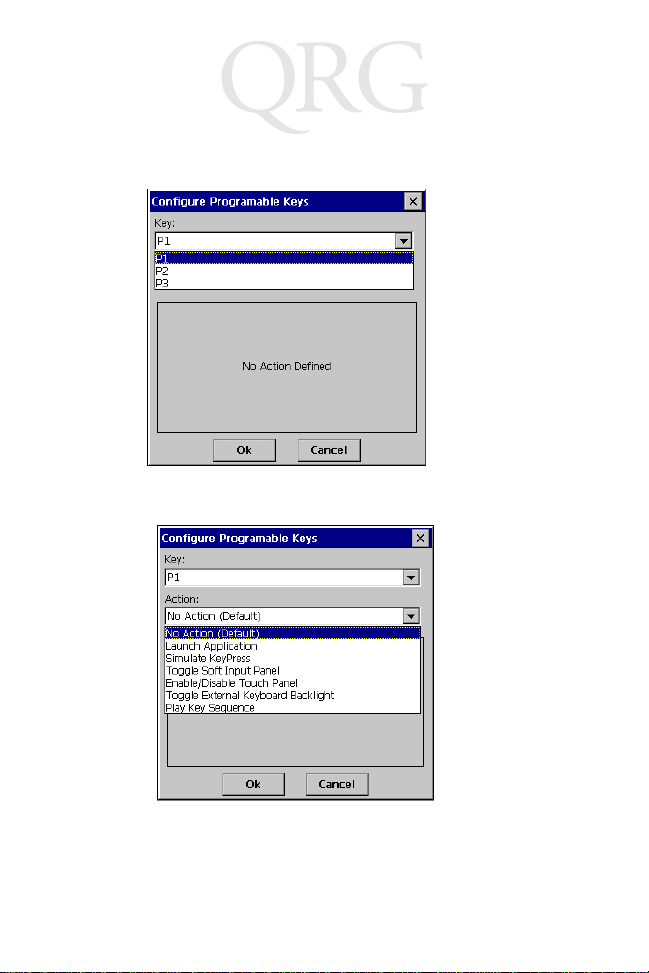
The programmable keys on the membrane panel (P1, P2, P3) can
be set to perform certain functions, such as printing, toggling the
virtual keyboard, or running a frequently used key sequence.
To set a programmable key:
1. From the Start menu, select Settings, Control Panel.
2. Select the Programmable Keys icon.
8
VRC 8900
Radio Terminal
3. Select the P key you’d like to program from the Key: drop-
down menu.
4. Select the function you’d like the P key to perform from the
Action drop-down menu.
5. Tap OK.
Autres manuels pour VRC 8900
1
Table des matières
Autres manuels Symbol Radio


