
Symbol SPT 1500 Manuel utilisateur

SPT 1500

SPT 1500
1998 SYMBOL TECHNOLOGIES, INC. All rights reserved.
Symbol reserves the right to make changes to any product to improve reliability
function, or design.
Symbol does not assume any product liability arising out of, or in connection with, the
application or use of any product, circuit, or application described herein.
No license is granted, either expressly or by implication, estoppel, or otherwise under
any patent right or patent, covering or relating to any combination, system, apparatus,
machine, material, method, or process in which Symbol products might be used. An
implied license only exists for equipment, circuits, and subsystems contained in Symbol
products.
Symbol is a registered trademark of SymbolTechnologies, Inc. Other product names
mentioned in this manual may be trademarks or registered trademarks of their
respective companies and are hereby acknowledged.
Symbol Technologies, Inc.
One Symbol Plaza
Holtsville, N.Y. 11742-1300
http://www.symbol.com
Patents
This product is covered by one or more of the following U.S. and foreign Patents:
U.S. Patent No.4,360,798; 4,369,361; 4,387,297; 4,460,120; 4,496,831; 4,593,186;
4,603,262; 4,607,156; 4,652,750; 4,673,805; 4,736,095; 4,758,717; 4,816,660;
4,845,350; 4,896,026; 4,897,532; 4,923,281; 4,933,538; 4,992,717; 5,015,833;
5,017,765; 5,021,641; 5,029,183; 5,047,617; 5,103,461; 5,113,445; 5,130,520
5,140,144; 5,142,550; 5,149,950; 5,157,687; 5,168,148; 5,168,149; 5,180,904;
5,229,591; 5,230,088; 5,235,167; 5,243,655; 5,247,162; 5,250,791; 5,250,792;
5,262,627; 5,262,628; 5,266,787; 5,278,398; 5,280,162; 5,280,163; 5,280,164;
5,280,498; 5,304,786; 5,304,788; 5,306,900; 5,321,246; 5,324,924; 5,337,361;
5,367,151; 5,373,148; 5,378,882; 5,396,053; 5,396,055; 5,399,846; 5,408,081;
5,410,139; 5,410,140; 5,412,198; 5,418,812; 5,420,411; 5,436,440; 5,444,231;
5,449,891; 5,449,893; 5,468,949; 5,471,042; 5,478,998; 5,479,000; 5,479,002;
5,479,441; 5,504,322; 5,519,577; 5,528,621; 5,532,469; 5,543,610; 5,545,889;
5,552,592; 5,578,810; 5,581,070; 5,589,679; 5,589,680; 5,608,202; 5,612,531;
5,619,028; 5,664,229; 5,668,803; 5,675,139; 5,693,929; 5,698,835; 5,705,800;
5,714,746; 5,723,851; 5,734,152; 5,734,153; 5,745,794; 5,754,587; 5,658,383;
D305,885; D341,584; D344,501; D359,483; D362,453; D362,435; D363,700;
D363,918; D370,478; D383,124; D391,250.
Invention No. 55,358; 62,539; 69,060; 69,187 (Taiwan); No. 1,601,796; 1,907,875;
1,955,269 (Japan).
European Patent 367,299; 414,281; 367,300; 367,298; UK 2,072,832; France 81/
03938; Italy 1,138,713.
rev. 7/98
Licensed under one or more of the following Palm Computing, Inc. (a subsidiary of
3Com Corporation) patents: U.S. Pat. Nos. 5,125,039, 5,550,715, 5,727,202 and
other Patents Pending.

1
Quick Reference
Introduction
Congratulations on your purchase of Symbol Technologies’ SP
1500Terminal! The unique combination of pocket size, Personal
Information Management software, printing support and scanning
capability make this product superior for use in a wide range of
different applications.
This guide covers the procedures for the basic set up and use of the
terminal. The SPT 1500 Product Reference Guide (part number 70-
33757-xx) provides more in-depth detail about the applications
available on the SPT 1500. See your Reseller or call Symbol
Technologies to receive this document.
Getting Started with the SPT 1500
Before you can use your SPT 1500, you will need to perform some
basic set up procedures. First, familiarize yourself with the many
parts of the SPT 1500 by reviewing the following illustration.

2
SPT 1500
Parts of the SPT 1500
The following illustration indicates each part of the SPT 1500
Terminal.
Stylus
Right Scan Trigger
SPT 1500 Touchscreen Display
Graffiti Writing Area
Left Scan Trigger
Scan Decode LED
Power/
Backlight
Control
Scroll Button
Reset Button
Contrast
Control
Battery Door
Serial Port
Battery
Door Latch
Scan Window/IR Port
Memo List Application Button
To Do List Application Button
D
aily Calendar
A
pplication Button
Address/Phone List
Application Button

3
Quick Reference
Installing Batteries
Before using your SPT 1500, you must install two AAA alkaline
batteries. The batteries fit behind the battery dooron the back of the
SPT 1500.
Note: Battery life may change with different manufacturers.
Symbol Technologies recommends the use of Duracell
“Ultra” brand batteries for best battery life perfor-
mance.
To install the batteries in your SPT 1500:
1. Press the latch on the battery door and lift the battery door
away from the SPT 1500 .
2. Install the two AAA alkaline batteries into the battery com-
partment.
Note: A diagram in the interior of the battery compartment
shows the orientation of the + and - ends of the
batteries. When correctly installed, the clips in the
battery compartment secure the batteries in place.
Battery Door
Press here to
open

4
SPT 1500
3. Replace the battery door so that it is flush with the back of the
SPT 1500 and “clicks” into position.
Note: Do not force the battery door. When the batteries are
correctly installed, the battery door clips smoothly into
place. If you feel resistance when replacing the battery
door, make sure the door is aligned with the slots on the
back of your SPT 1500, and that the batteries are firmly
seated in the battery compartment.
WARNING
While batteries are being replaced, data is retained for ap-
proximately one minute. We strongly suggest that you have
your replacement batteries ready for insertion before remov-
ing the old batteries from the unit.
Starting the SPT 1500
Calibrating the Screen
The first time you start your SPT 1500, the calibration screen
automatically appears. Follow the steps in this section to align the
internal circuitry of your SPT 1500 with its touch-sensitive screen.
Note: If your SPT 1500 unit came pre-loaded with another
software application, you may not need to calibrate
your screen, and you will not see the calibration screen.

5
Quick Reference
To calibrate your SPT 1500:
1. Press the green power button on the front panel of your SPT
1500 to display the calibration screen.
Note: If necessary, adjust the contrast control located on the
side of the SPT 1500 so the screen is clear and readable.
2. Remove the stylus from its storage slot on the back of the SPT
1500.
3. Tap the exact center of each target that appears on the screen
with the tip of the stylus.
Power Button
Contrast Control

6
SPT 1500
Using the SPT 1500
Using the Power/Backlight Control
The power button turns the SPT 1500 on and off. This button also
serves as your backlight control. With the unit on, press and hold
the power button for approximately 2 seconds to turn the backlight
on and off.
Writing with the Stylus
Your SPT 1500 includes Graffiti handwriting software as the
primary system for entering text and numbers. Graffiti is a system
where simple strokes you write with the stylus are instantly
recognized as letters or numbers. See the SPT 1500 Product
Reference Guide, part number 70-33757-xx for more detailed
information.
Using the Onscreen Keyboard
You can activate the on-screen keyboard any time you need to enter
text or numbers on your SPT 1500. Note that you cannot enter
Graffiti characters while using the on-screen keyboard.
To use the on-screen keyboard:
1. Open any SPT 1500 application.
2. Tap any record name, or tap the New button with the tip of
the stylus.
3. Tap the left target to open the Alpha keyboard, or tap the right
target to open the Numeric keyboard.

7
Quick Reference
Icon Descriptions
Applications Icon Tap to display a list of available ap-
plications for selection.
Calculator Icon Tap to display the calculator applica-
tion.
Menu Icon Tap from within an application t
display the appropriate menu of op-
tions for the selected application.
Find Icon Tap from within an application t
enter search criteria to find an entry.
Tap here for letters
keyboard
Tap here for numbers
keyboard

8
SPT 1500
Scanning with the SPT 1500
The SPT 1500 has an integrated scanner which, if your unit has
been configured to use scanning input, allows you to collect data by
scanning bar codes.
To scan bar codes with the SPT 1500:
1. Aim the scanner at the bar code.
2. Press either the right or left scan trigger. Make sure the red
scan beam covers the entire bar code. The green scan LED
lights and a beep sounds to indicate a successful decode.
Caution: Do not look directly into the laser.
Autres manuels pour SPT 1500
1
Table des matières
Autres manuels Symbol PDA

Symbol
Symbol PDT 6100 Series Manuel d'installation et d'exploitation

Symbol
Symbol MC9000-G Manuel d'installation et d'exploitation

Symbol
Symbol MC50 Manuel utilisateur

Symbol
Symbol PDT 8100 Series Document technique

Symbol
Symbol WT4090 Manuel utilisateur

Symbol
Symbol MC9000-K Manuel d'installation et d'exploitation
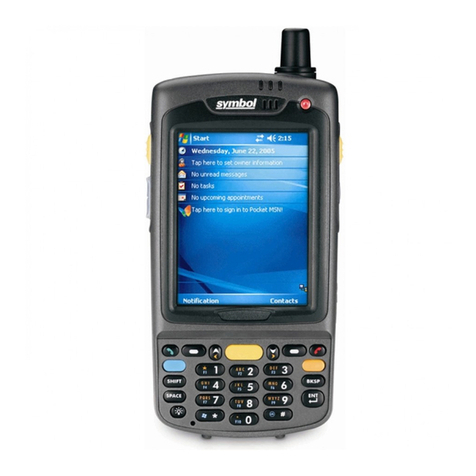
Symbol
Symbol MC70 Manuel utilisateur

Symbol
Symbol PPT 8800 Manuel d'installation et d'exploitation

Symbol
Symbol MC70 Manuel utilisateur


