Sygic DRIVE10 Manuel utilisateur

U
ser guide
v3
© 2010 Sygic, a.s. All rights reserverd.

ii User Guide
I. Getting Started ............................................................................................. 1
The Navigation Screen .......................................................................................... 1
Entering an Address ............................................................................................... 2
Turn by Turn Navigation .....................................................................................
Acquiring GPS Position ......................................................................................... 6
II. Planning the Route .................................................................................... 7
Navigating to a Point of Interest....................................................................... 7
Navigating Home ..................................................................................................... 9
Navigating to Recent Destinations .................................................................. 9
Navigating to Favorite Destinations ............................................................ 10
III. Altering the Route .................................................................................. 12
Route Menu ............................................................................................................. 12
Modifying the Route ............................................................................................ 14
Map Browsing Mode ........................................................................................... 14
Multi-stop route planning ................................................................................ 17
IV. Settings ....................................................................................................... 19
Advanced settings .................................................................................... 21

Sygic Drive 10 1
I. Getting Started
The Navigation Screen
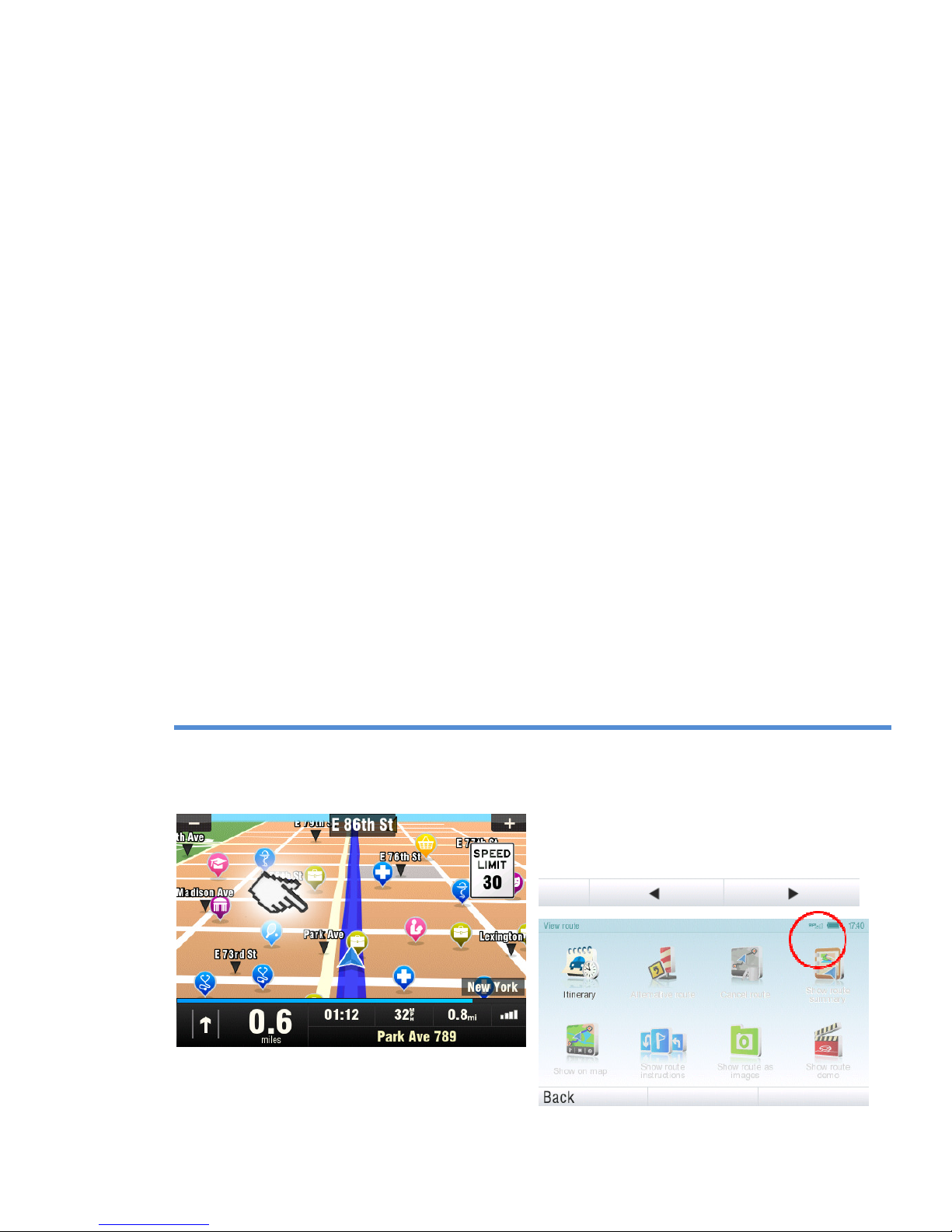
On startup, the application opens
with the Navigation Screen, showing
your position as a blue arrow. You
can zoom in and out of the map by
tapping the + and – buttons in the
top corners of the screen.
For further functions, enter the ain
menu by tapping the map area on
the Navigation Screen.
You can scroll between the menu
pages by tapping the arrow buttons
at the bottom of the screen or by
sliding a finger across the screen.

2 User Guide
Entering an Address
To set your destination by entering
its address select
ain menu >
Navigate to… >
Address or Zip code.
Next, you will be asked to select a
Country a City, Street and House
number or Street crossing. Enter
the required names and numbers.
Alternatively, just enter the first few
letters of the city/street name to see
a list of similar names.
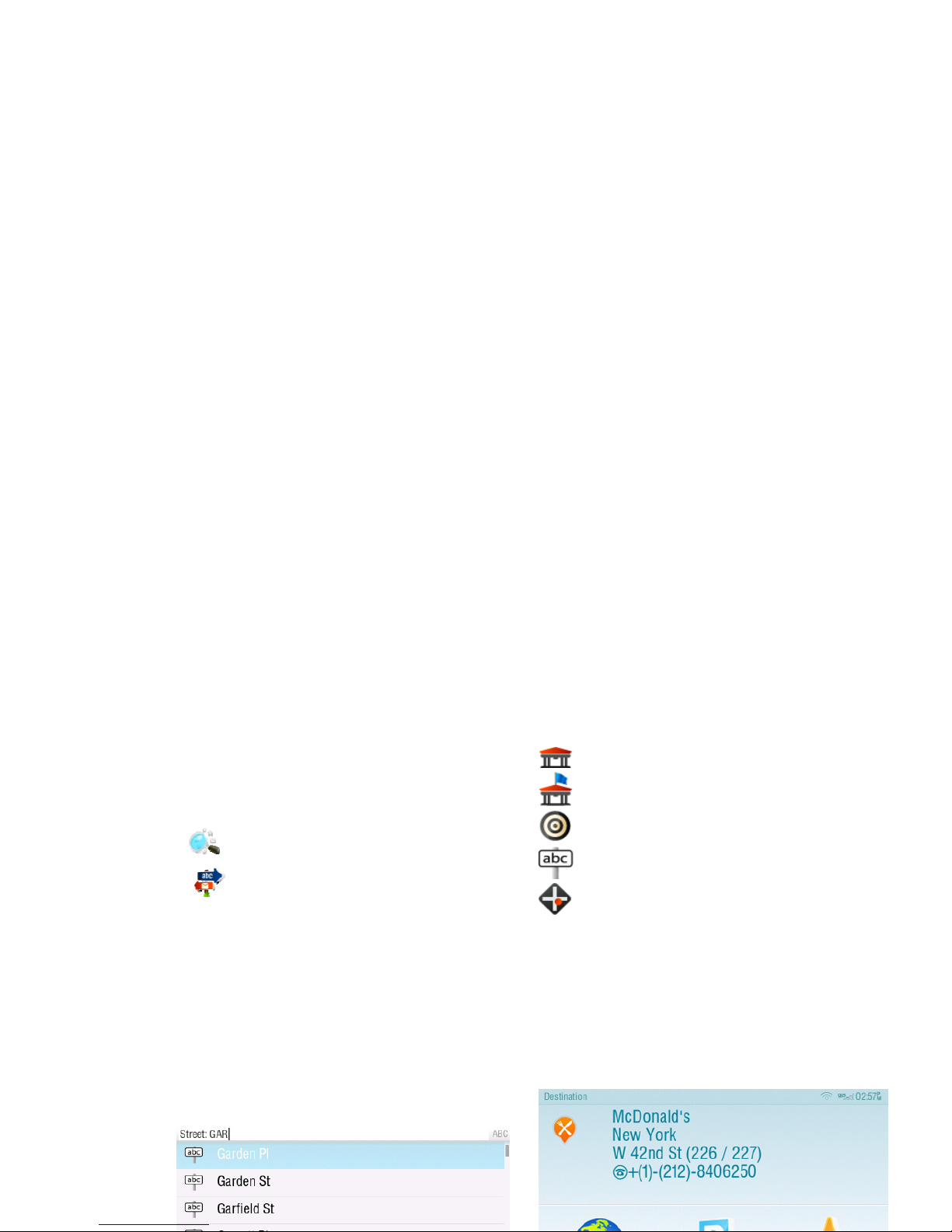
The list also features explanatory
icons left to the city/street name:
City
Capital city
City center
Street
Street crossing
Select the desired city/street from
the list.
When finished, a Confirmation
Screen pops up showing the address
entered.
Tap “On ap” to see the exact
location of the address, or tap “Add

Sygic Drive 10 3
to favorites” to store it among your
frequently used destinations
(seeNavigating to Favorite
Destinations” on page 10).
To set the address shown as your
destination, tap the “Route e!”
button at the bottom of the screen.
If you would rather be directed to a
parking lot nearby, tap “Parking”
and select from the list shown.
To select a different address
altogether, tap the “Back” button.
If your device
can determine
your
current position, your route will be
calculated immediately from that
positon. If your current position
cannot be determined, you will be
offered the following options:
Wait for valid signal
(Recommended)
Your route will be calculated
from your current position as
soon as a valid GPS signal is
available (see “Acquiring GPS
PositionAcquiring GPS
Position
”
on page
)
.
Last valid position
Your route will be calculated
from your last known position
(i.e. where you were just
before the device lost GPS
signal).
Select from map
Allows you to select any
starting point for the route
calculation.
When route calculation is complete,
the entire route is displayed on the
map (in blue) with total distance,
estimated time of arrival (ETA), time
left to destination and route
calculation method (Fastest,
Economic, Shortest, Pedestrian,
Bicycle) shown below the map.

4 User Guide
To accept the route and start turn by
turn navigation, tap “Done”.
For further information on the route,
tap “Details”.
NOTE: By default, the method of route calculation
is set to “Fastest”.
Turn by Turn
Navigation
The Navigation Screen will show the
map of your surrounding area with
the calculated route highlighted in
blue.
As you approach a junction, further
directions are displayed to indicate
which road to take.

Sygic Drive 10
In addition to turn by turn directions,
the Navigation Screen also provides
a range of further useful information:
1
Next
maneuver
2
Distance to next change of
direction
3
Current
road/
street
4
Distance to destination
5
GPS signal strength
6
Current
speed
7
Estimated time of arrival at
destination
8
Current ci
ty
9
Lane Assistant
10
Heading
to destination
11
Next
road/
street to take
12
Map zoom
in/out
13
Speed camera warning
14
Current s
peed limit
Acquiring GPS Position
If there is no GPS signal, the screen
becomes grey. This can happen
under any of the following
conditions:
■
T
he device is in a
tunnel or at a
location where signals from the
GPS satellites are obstructed by
buildings, trees, electric cables or
other objects.
■
Device system settings or
Product Settings are set
incorrectly.

6 User Guide
The information below is not available
on iPhone, Android and Maemo devices.
The signal strength bars at the
bottom of the screen provide
additional information:
If the colour of the bars or the GPS
port name/number turns red, re-
check the GPS settings.
If the bars are grey, move the device
to an outdoor location with good
visibility of the sky until the signal is
regained and the bars become green.
Tap the signal bars or select
ain menu >
GPS
to see more detailed GPS
information.
Once GPS signal is regained turn by
turn navigation resumes
automatically.

Sygic Drive 10 7
II. Planning the Route
Navigating to a Point
of Interest
In addition to the road network, the
map also stores the details of
thousands of Points of Interest
(POIs) such as gas stations,
restaurants, hotels, tourist
attractions and other facilities.
To set a POI as your destination,
first select
ain menu >
Navigate to… >
Point of Interest
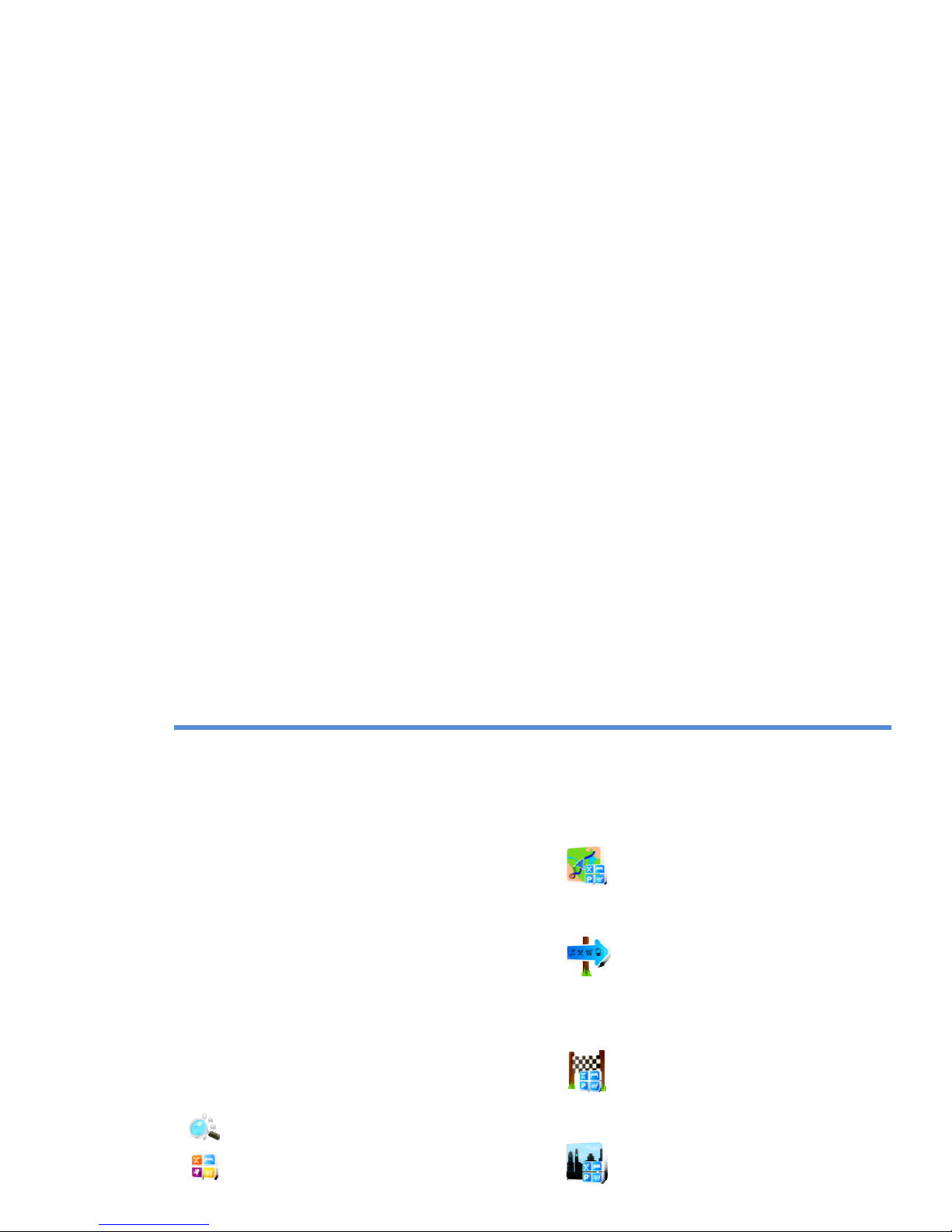
Next, define the area where you
want to search for a POI. Select
Near my position
to search POIs around your
current position;
Near address…
to search POIs near a
particular address (to be
entered in the next step);
Near destination
to search POIs near the
current destination (if set);
In City…
to search POIs in a particular
city (to be entered in the
next step);

8 User Guide
Searching POIs
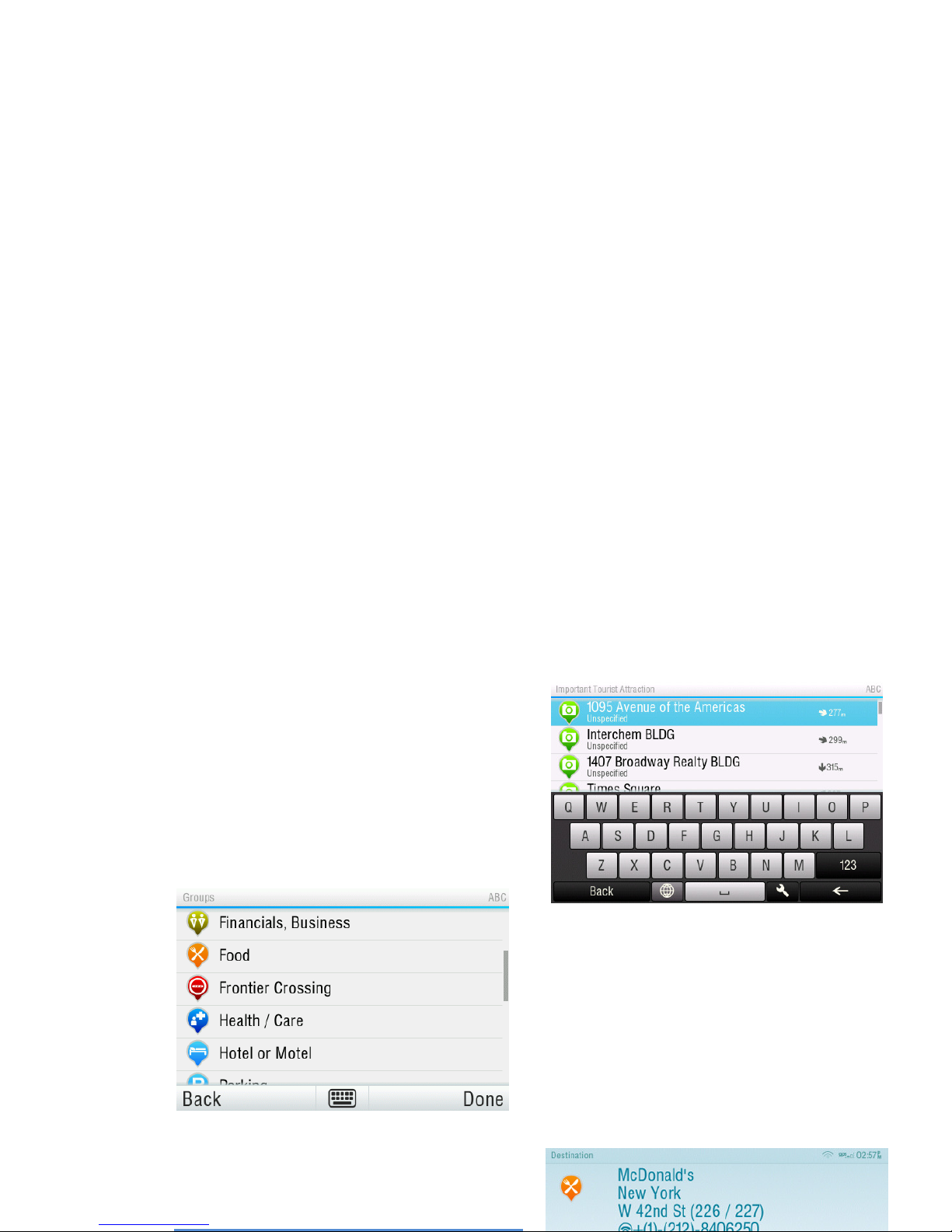
POIs are arranged in groups (such
as Food, Hotel or Motel etc.) to help
find a facility even when you do not
know its name or address.
Once the search area is selected, a
list of the POI groups is displayed.
Tap on the POI group and you will
see the list of all POIs that are
nearby.
NOTE: The distances shown in the list are relative
to the search location.
Scroll down the list and select your
POI by tapping its name.
To refine your search results, tap
the keyboard icon at the bottom of
the screen and type the name of the
POI you are looking for. You can also
enter partial names.
When finished, a Confirmation
Screen pops up showing the POI
selected.
Table des matières
Langues :
Autres manuels Sygic GPS