
Swisscom Comfort VS3 Guide d'installation

Quick-Manual
Comfort VS3

Content
1. Inserting the SIM card 3
2. Charging the battery 4
3. So what do all these buttons
do? 5
4. How do I add people to my
phone book? 9
5. Making and receiving calls 10
6. Sending and receiving
text messages 12
7. How your COMBOX® works 14
8. How do I set reminders? 15
9. Other settings 16
If you have any questions or
need assistance with your new
mobile phone, contact us on
the Comfortline 0800 203 203
or visit any Swisscom Shop.
1. Inserting the SIM card
3
You wanted a mobile phone that’s sophisticated yet easy to use.
Before you start using it, you need to insert the SIM card.
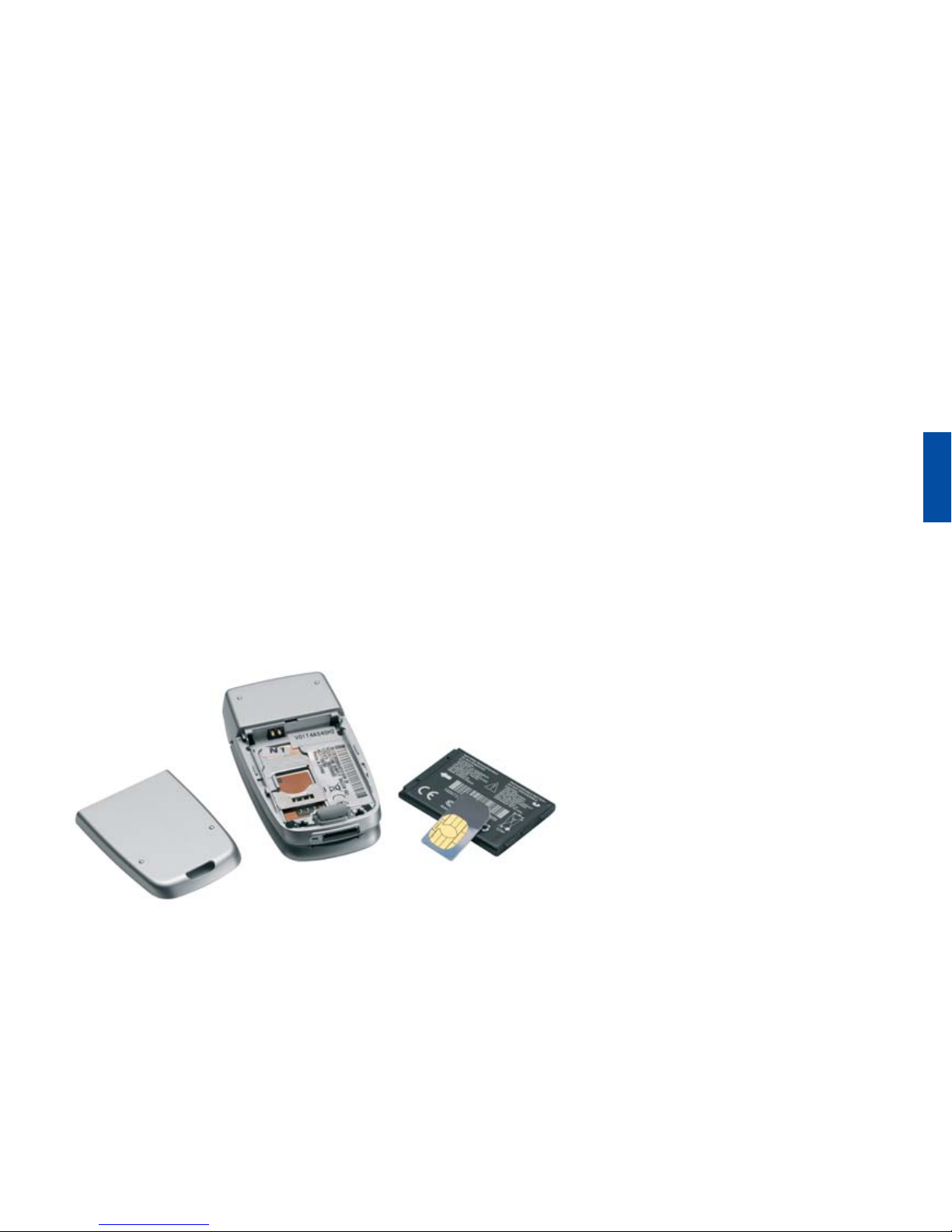
The SIM card lives under the battery. Here’s how to insert it:
• Ensure that the phone is switched off and the charger is disconnected
from the bottom of the phone.
• Turn the phone over and push the button in.
• Remove the back cover by sliding it downwards.
• If the battery is already inside remove it.
• Slide your SIM card into its holder. Make sure that the gold contacts of
the SIM are facing down, and the cut-off edge is correctly aligned.
• Replace the battery first.
• Replace the back cover, placing it over the battery and sliding it up-
wards until it clicks into place.
english

4
Your mobile phone is powered by a rechargeable battery. This needs to
be charged for at least 4 hours before you can make your first call.
Charging the battery
• Plug the charger into the mains and the mobile phone.
• The phone is now charging. The battery icon moves from left to right.
• When the icon stops moving and the percentage of charge on the
“Home” screen shows 100% the battery is fully charged. The external
screen will show 4 bars, to show it is fully charged.
Charging cradle
You can always check the battery icon to see how much power you have
left. When it’s red (on the “Home” screen) you know it’s time to re-
charge. You will also see a message on the screen when you need to
recharge it.
When you are at home, just sit the mobile phone in the charging cradle
and plug it into the mains. That way your phone will always be charged
when you need it and you will always be able to find it.
Please ensure that the oval symbol on the plug is uppermost when you
insert the cable into the charging cradle.
2. Charging the battery

5
3. So what do all these
buttons do?
In the centre of the keypad you’ll see three special keys, each of which
has a dedicated function. Basically this means less searching through
menus.
Functions of the keys
1
Home – Returns you to the “Home” screen, the original screen that
you see when you switch on the mobile phone.
2 Contacts – Opens your phone book where you keep the details of
your family and friends.
3 Log – Just press this key and you can access your voice messages
from your Mailbox (your answering machine, which Swisscom Mobile
calls the COMBOX®), text messages, missed calls, and reminders.
On the left side of the mobile phone you’ll see the side key,
which performs different functions
4
Ringer Setting – Easily set the ringer to loud, normal, vibrate or
silent.
4Volume – You can use the same key while you are in a call to adjust
the volume.
2
1
3
4
english

6
Below the screen you’ll find the main function keys
1 Start – Answer incoming calls with this key.
2 On/off and Stop – Turns the phone on and off, just press and hold
down the key. This is also used to hang up. When not in a call this
key may be pressed to return to previous screen. You can also hang up
by closing the flap.
3 Up/Down – To navigate through menus and phone book entries.
4 Menu – Press these keys to select the command written above them
on the screen.
What does everything on my “Home” screen mean?
5 Clock – Displays the time.
6 Ringer Setting – Loud, normal, vibrate or silent as set by the key
on the side of the phone.
7 Battery Indicator – Shows the amount of power left.
8 Network Signal – Shows the strength of your connection to the
mobile phone network.
9 Your Number – Handy when someone asks you for your phone
number and you go: “It’s… oh, wait a minute, what is it again?”
You can display or remove your number on the “Home” screen. From
the “Home” screen, press “Settings” and then “Privacy”. Press
“Display My No.” then select “On” to display your number or “Off”
to remove it.
3
1
2
44
78
56
9

7
What does everything on my external screen mean?
Your phone has an external screen, in addition to the main screen.
When your phone is closed this will provide you with important
information.
10 Ringer Setting – Loud, normal, vibrate or silent as set by the key
on the side of the phone.
11 Battery Indicator – Shows the amount of power left.
12 Network Signal – Shows the strength of your connection to the
mobile phone network.
11
10 12
english

8
What notifications can I receive on the external screen?
When you receive a notification, such as an incoming call, this will be
displayed on the external screen. This can be useful if you want to know
who is calling. The screen will also indicate when you’re making out-
going calls.
Incoming calls – When you receive an incoming call, you will receive
a notification on the screen and a green light will flash. If the caller
ID is unknown, the number will be displayed. If the caller’s number is
stored in the phone book, their name will be displayed.
New event – When you receive a text message, a voice message or
missed call, an icon will be displayed on the screen and the light will
flash blue. The external screen will also display alarm notifications and
even special events such as birthdays.

9
There are some phone numbers you’ll want to call again and again so it
makes sense to add these to your phone book. Then you can access
them easily.
To do this
• Press the “Contacts” key (1).
• Select “Add new contact” (2).
• Enter a name using the number keys and press “OK” to confirm it.
• Enter the corresponding phone number.
• Choose “Save”.
You can also save a number right after you’ve made or received
a phone call, or a text message from someone who is not yet in your
phone book.
• A prompt will come up asking if you want to save that number in
your “Phone book”. Simply click on “Yes” and enter a name to go
with the number.
• To delete someone from your phone book first select the name then
choose “Delete Contact”.
1
4. How do I add people
to my phone book?
2
english

10
The most basic way to make a call is to key in the number and press the
green “Start” key. One advantage of a mobile phone is that you can
also store people’s names and numbers in your mobile phone book and
call them more easily.
To call someone
• With the “Contacts” key (it’s the one with people on it) you can ac-
cess your phone book. Use the “Up/Down” key to find the name
of the person you want to call. You can also type in the first letter of
the name of the person you want to call.
• Now simply press the green “Start” key.
• End the call by pressing the red “Stop” key or by closing the flap.
• Make sure you are in an area with sufficient coverage to make calls.
The strength of the network is indicated on the “Home” screen.
5. Making and receiving
calls
Table des matières
Autres manuels Swisscom Téléphone portable


