
Stephen SVW909 Manuel utilisateur

SVW909 Sip Wifi phone Quick Start Guide
www.stephen-tele.com
SVW909 1.8” Display Sip Wifi Phone
Quick Start Guide
STEP EN TEC NOLOGIES CO.,LIMITED
ALL RIG TS RESERVED

SVW909 Sip Wifi phone Quick Start Guide
www.stephen-tele.com
Packa e Contents
Wifi phone x1
Battery x1
USB line x1
Adapter x1
Quick guide x1
Certificate of approval x1
Phone Specification
Dimension 100* 45* 18 mm
Weight 100g
Battery Rechargeable battery, 3.7V, 850mAh
Adapter Input AC 100-220V / output DC 5V 1A
Protocol SIP v2,RFC3261/STUN、RTP
LCD Color LCD 1.8”, 128*160
NOTE:
The SVW909’s standby time depends on the network conditions, phone usage and surrounding area. The phone
consumes more power under the following conditions:
1. Working in areas with poor wifi signals; Working outside the service coverage area;
working under high or low temperature environment;
2. When the phone frequently searches for network signal due to location changes
3. When users talk on the phone for long periods of time (+ - 3hrs)
4. The Alarm, Backlight or Vibration function is active
5. Ring or listening volume is set to maximum value
SVW909 Sip Wifi phone Quick Start Guide
www.stephen-tele.com
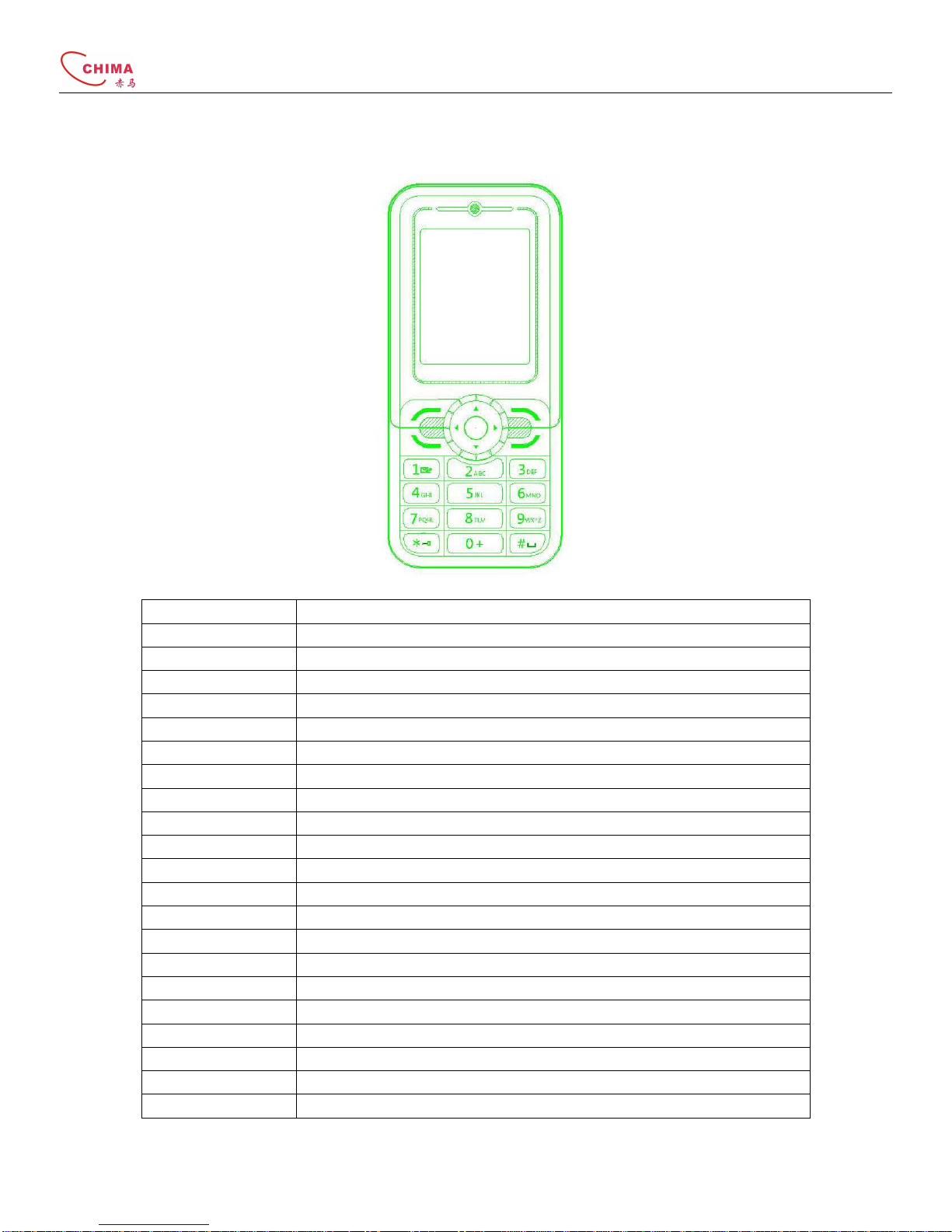
Handset Description
Key function
Left soft key Select/done
Right soft key Back/clear/exit
Answer key Answer/dial
End key Reject/end/back/power on/power off
Up Up/increase
Down Down/decrease
Left Before/decrease
Right Next/increase
OK Same to the left soft key
Number key 1 Number 1 and symbols in common use“.”“-”“?”“@”“1”
Number key 2 Number 2 and characters ABC
Number key 3 Number 3 and characters DEF
Number key 4 Number 4 and characters G I
Number key 5 Number 5 and characters JKL
Number key 6 Number 6 and characters MNO
Number key 7 Number 7 and characters PQRS
Number key 8 Number 8 and characters TUV
Number key 9 Number 9 and characters WXYZ
Number key 0 Number 0/+-*% and for blank
Symbol * Symbol * / symbols
Symbol # Symbol # /shift input

SVW909 Sip Wifi phone Quick Start Guide
www.stephen-tele.com
Write Text
The number keys are not labeled with all the letters they can input. You may need to refer to the selected language
to check the letters that can be input with a key. The SVW909 Sip Wifi phone support English and Simplified Chinese
INPUT.
En lish:
Press the number keys 1 to 9 continuously until the right character appear.
Press the key that character is labeled, once for the first character, twice for the second, so on and so forth.
If the letter you want is at the same key with the former letter, you can press the left or right key ,then enter the
new letter.
Press the key of number 1, you can input some interpunctions you frequently use.
Select “clear” to delete the character before the cursor appears.
WLAN and VOIP Settin
This product support IEEE802.11b/g and SIP protocol, the default setting is without SIP information. In order to
configure the phone, you should obtain Sip account information from your ITSP beforehand.
Example 1 --- Wifi Network Confi uration:
SSID: WIFIAP
Security type: WEP-open
Password/Text: WIFI ( or ex key: 1016A386E)
Example 2 --- Sip Account Confi uration:
SIP server(domain): 51.108.26.31 (or maybe in the form of : sip.stephen-tele.com)
User name (SIP phone number):123456
SIP phone number: 123456 (phone number could be the same to user name, depends on your server. )
Password: 1234
A: Search Available WLAN
1 At standby mode, press the right soft key or OK key to enter the main menu.
2 Select 4 settin >2 WLAN settin >2 WLAN search, press right soft key or OK key to start WLAN searching.
3 After searching, there will be a list to show you the available APs, with security type and signal strength. Select the
one with highest Signal strength (if this AP is permitted to use), press right soft key or OK key to setting.
Note: The security type of the selected AP is shown on the AP list. You may use WEP-OPEN type or any others by
following the indication

SVW909 Sip Wifi phone Quick Start Guide
www.stephen-tele.com
B: Connect WLAN
1. Set the SSID name first, (the default name is the one you have just selected,the name is consistent to AP
currently), press right soft key or OK key to enter chan e menu.
2. Select 2 security type>2 WEP-OPEN〉
〉〉
〉1 WEP Key index〉
〉〉
〉1 WEP Key 1,press right soft key or OK key and enter the
WEP-OPEN menu again. If the security type is “Open”, go to Step 4 directly.
3. Select 2 key / pass〉
〉〉
〉1 passphrase/2 hex Key, press right soft key or OK key enter the enter key(
((
(hex)
))
)mode, key of
the SSID is the one of the AP you have just selected., then press the right soft key or OK key enter chan e menu
again.
or
4. Select 3 IP settin >1 use DHCP (If the WLAN you selected support D CP server), press right soft key or OK key to
enter chan e menu again. You can also select static IP, follow the indications, enter the IP address, net mask、
gateway, DNS address in turn. And back to chan e menu after the setup.
5. Select 4 save and use, press right soft key or OK key to enter the save and use menu.
6. Select 1 do not use, press right soft key or OK key enter WLAN Settin menu again, finish
WLAN setting.
C: SIP Server Re istration
1. Wifi phone number setting
You should obtain Sip account information from your ITSP before you configure the phone.
Select 3 VOIP settin > chan e> VOIP identify> SIP number, press right soft key or OK key , input SIP phone number,
press right soft key or OK key and enter the VOIP chan e menu again.
2 SIP domain setting
Select 3 VOIP settin > chan e> VOIP identify> SIP domain, press right soft key or OK key ,input SIP server address,
press right soft key or OK key and enter the VOIP chan e menu again.
or
3 SIP server authentification
Select VOIP authentification>SIP user name/ password, then press right soft key or OK key and enter the VOIP
chan e menu.

SVW909 Sip Wifi phone Quick Start Guide
www.stephen-tele.com
and
4 SIP Server Setting
Select VOIP server> SIP server address/SIP proxy address, press right soft key or OK key and enter the VOIP chan e
menu.
or
Note:
1. Regularly your Sip Server will support STUN, and you don’t need to set stun in your handset to register to a Sip
server. But if your server doesn’t support STUN, you can find some open STUN resource through the internet,
and configure it to the handset.
2. The default port of the SVW909 is 5060, If you want to change it, you can add a”: “ after your sip server address,
and add the port number after the “:”
NOTE: Voice mail is NOT available with this edition
Basic Trouble Shootin
Question Solution
Why can’t I switch on? 1. check if the battery is insert correctly.
2. check if the battery is full of power. Connect the
handset to PC or the Battery charger
Why there is no signal? 1. check if you have any available AP to use.
2. check if you have the permission to use the AP.
3. check if your AP settings is correct.
Why nothing is displayed on the LCD screen?
1 check if battery is running out of power
Why can’t I make a call? 1 Make sure you have registered the SIP server correctly
2 Make sure you have setup the WLAN correctly
3 Make sure the number you dialed is available.
Stephen Technolo ies Co.,Limited
Email Support: support@stephen-tele.com
stephentechnologies.s[email protected]om
MSN Support: stephentechnologies.support@live.cn
Phone Support: +8675589963673
Autres manuels pour SVW909
1
Table des matières


