Houston
Basic Mixing 1 – 7
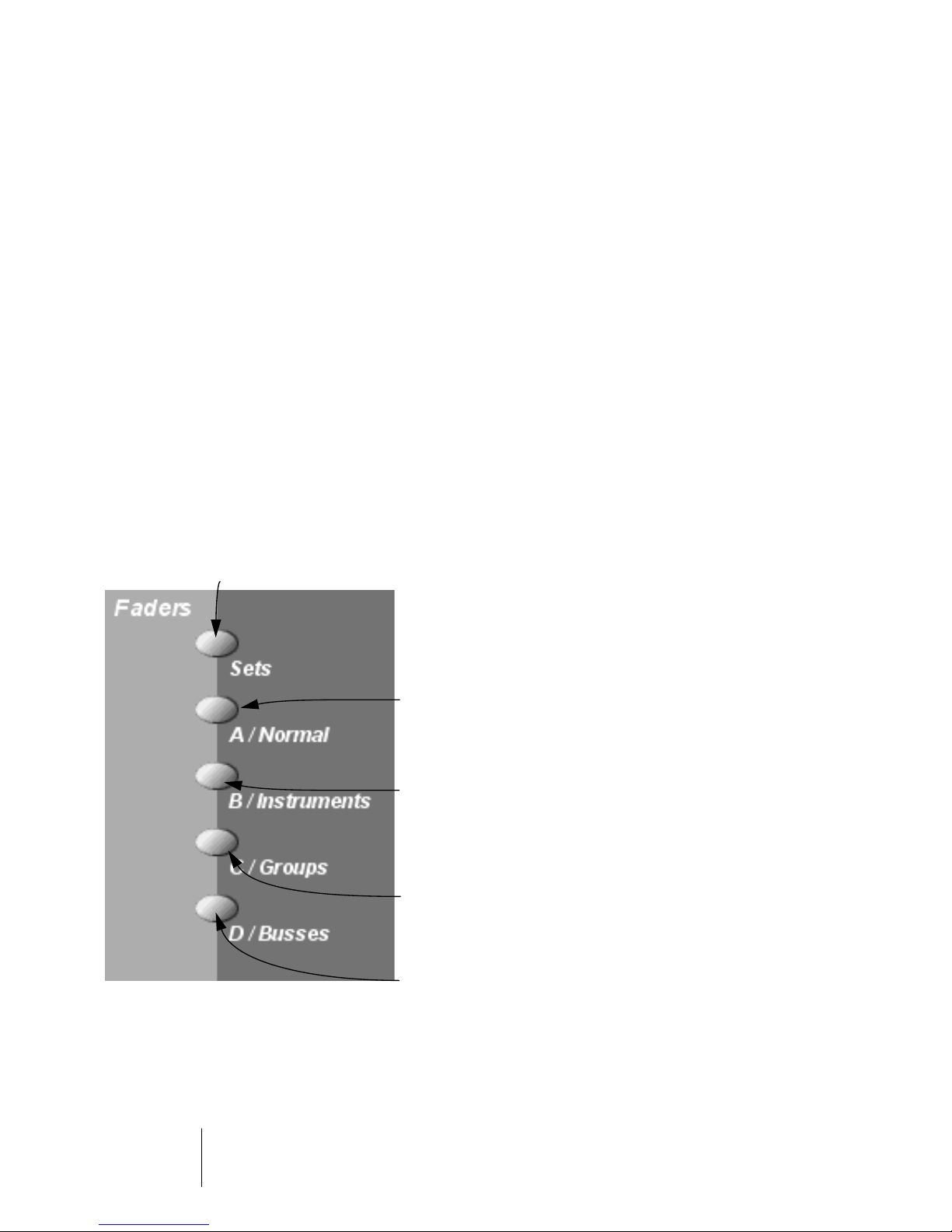
After pressing one of the buttons above, the faders are assigned to
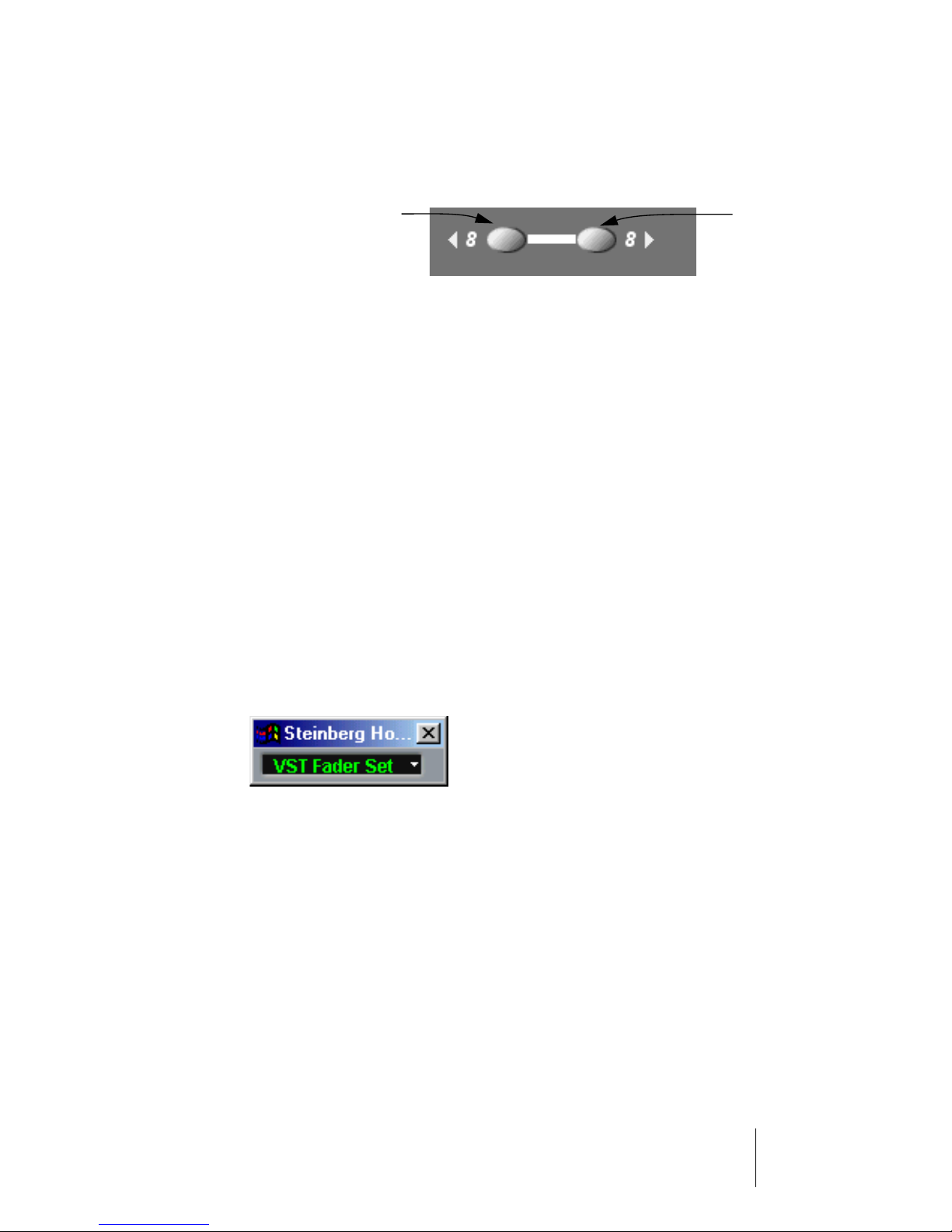
the first eight channels of the selected set or channel type. To switch
to the next eight channels, press the 8
button.
For example, if the faders currently control audio channels 1-8, press-
ing the 8
button will assign them to audio channels 9-16. To go
back to the previous eight channels, press the
8 button.
•
If you hold down Shift and press the
8
buttons, the fader assign-
ment will shift in steps of one channel instead.
Let’s say the faders currently control audio channels 9-16. If you hold Shift and press
8, the faders will shift one step to the left and control audio channels 8-15.
Controlling the MIDI Track Mixer in Cubase VST
Houston can also be used for mixing MIDI Tracks, i.e. remote control-
ling the MIDI Track Mixer. However, this mode is entered from with the
program:
1.
Locate the Houston Remote Status window in Cubase VST.
This is the small floating window that appeared when you first selected Houston as
your remote device.
2.
Pull down the pop-up menu and select the “CTM” option.
Houston will now control the faders (level), pan, mute and solo in the MIDI Track Mixer.
•
You use the
8
buttons to switch between sets of eight MIDI
Tracks to control, in the usual manner.
3.
To go back to another mode (e.g. Sets or audio channels), either use
the pop-up menu in the Houston Remote Status window or use the
buttons next to the Master fader as usual.
Selects the previous
eight channels.
Selects the next
eight channels.