Teamline 5140 Installation Guide Page 9
Connecting Teamline 5140 to peripherals
Note: The speed and duplex settings at either end of the connection must be
identical. Using non-matching settings causes severe packet loss.
Connecting the touchscreen to the Teamline system
Before you can use the StarLeaf Touch for your meetings, you must pair it with
the Teamline system. To do this:
1. Connect the touchscreen to a Power over Ethernet (PoE) enabled port.
2. On the touchscreen, double-tap to display the settings page.
3. Tap the networking tab and use the toggle to turn off auto-discovery. The
configuration server field is displayed.
4. In the configuration server field, enter the MAC address printed on the
bottom of the Teamline system.
The touchscreen will attempt to establish a connection to the Teamline system
using IPv6 before the system will establish a connection to the LAN (IPv4). Both
the touchscreen and the Teamline system must be on the same VLAN. In most
cases, the VLAN and subnet are the same. If the touchscreen cannot
establish an IPv6 connection to the codec, a failure message is displayed.
The IPv6 addresses are derived using the MAC address of each device. These
addresses are used to establish a local connection between the touchscreen
and the Teamline system. This is called an IPv6 link local address.
You can pair the touchscreen and Teamline system across different physical
switches as long as they are both on the same VLAN.
Once the touchscreen and Teamline system have successfully paired, the
touchscreen sends the network settings (DHCP or static) to the Teamline
system. The Teamline system establishes an IPv4 address and connection to
the corporate LAN. If the Teamline system cannot establish a connection to
the corporate LAN, a failure message is displayed. In this case, the
touchscreen and Teamline system are still paired.
Connecting the camera and microphone
To connect the camera and microphone:
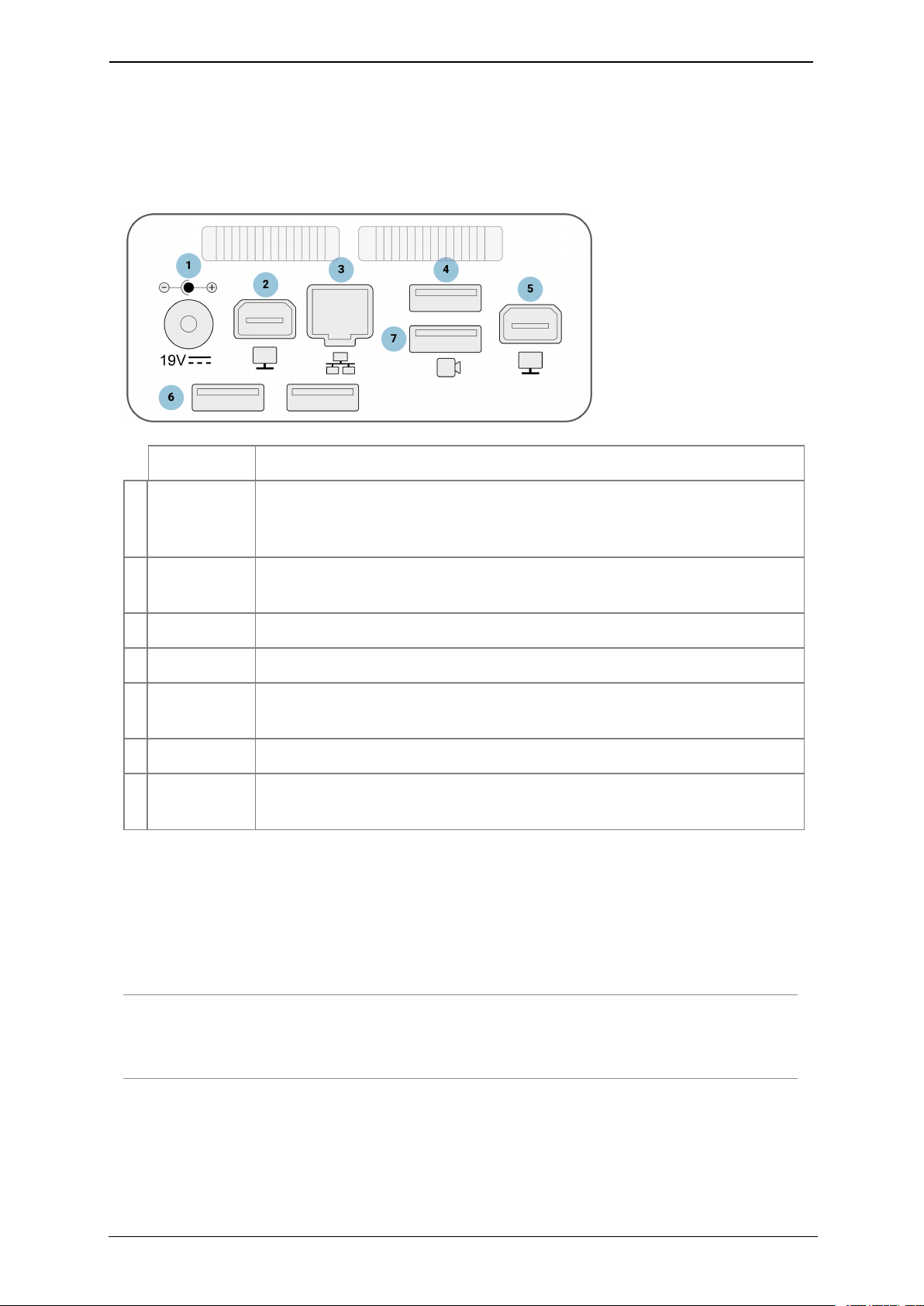
1. Connect the camera to the Teamline system with the USB cable:
lIf you have a PTZ USB camera, connect it to the Camera USB connector.
This is a blue USB 3.0 connector
lIf you are using a static USB camera (such as the Logitech BRIO),
connect it to one of the pair of USB 2.0 connectors at the bottom of the
rear panel
2. Connect one or two StarLeaf microphones to the Microphone USB
connector.