1. Follow the pairing instructions as described in section 4.2 for device A
2. When desired, turn on device B by removing the contact tab. Wipe the tip of the device A to silence it
3. Go to the menu Parameters of the DSG Connect App Connectivity and click on the Device B to pair. User can use the information
displayed in the menu and etched on the device to check the ID of the device (lot and serial number)
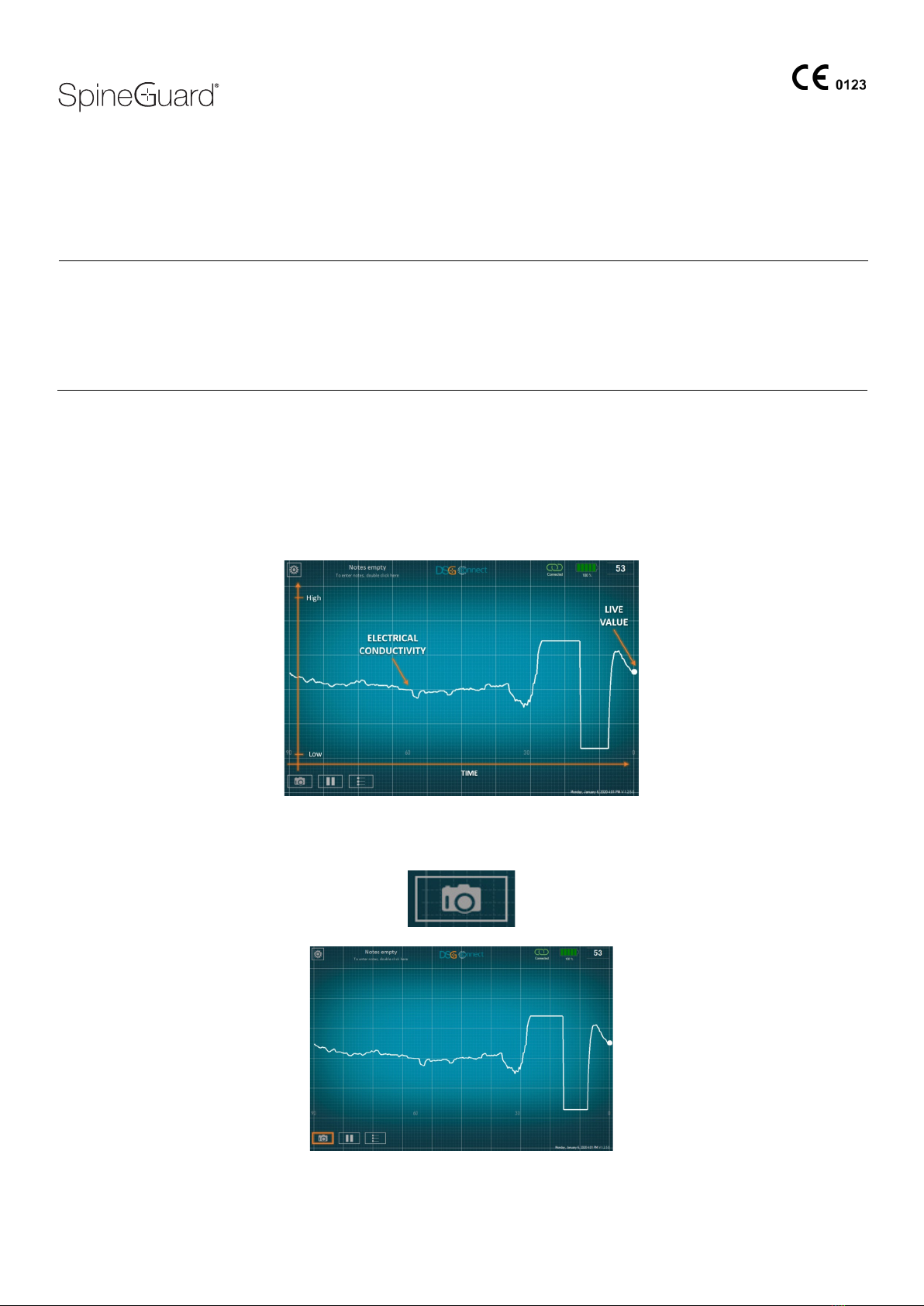
4. To conrm the proper connection, perform the preliminary check of the device B in a saline solution following the device IFU. The displayed
signal should coincide with the LED and audio outputs of the DSG Connect PediGuard® device.
5. AFTER USE
Once the surgery is completed, turn o the tablet.
The tablet is reusable, do not throw it away.
Screenshots and DSG signal data sets recorded during surgery can be accessed after the surgery directly on the tablet via the operating software
explorer. All data are stored in a folder named “DSG Connect App data”.
6. IMPORTANT MEDICAL INFORMATION
6.1 Warnings
• The LED and audio outputs of the DSG Connect PediGuard® device should remain the feedback to assist the surgeon in the decision-
making process during surgery.
• If the DSG Connect App slows down or freezes, do not use the App and check the system.
• Do not use the DSG Connect App if no signal is visualized when the DSG Connect PediGuard® device is dipped in a saline solution or if
the signal is not matching the DSG Connect PediGuard® audio feedback.
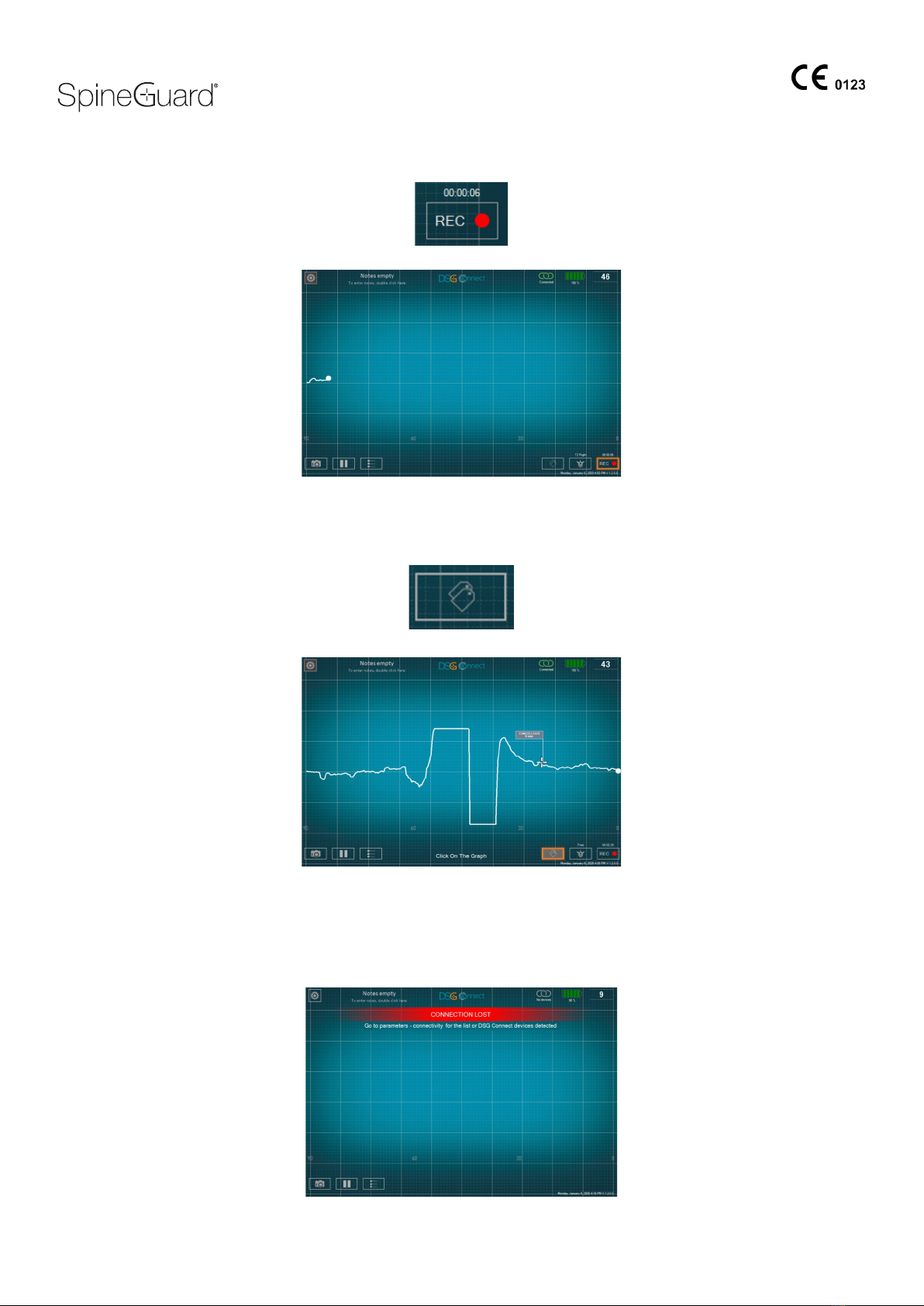
• If the DSG Connect App is exited while a recording is in progress or if the connection with the DSG Connect PediGuard® is lost, data are
no longer recorded.
• If the distance between the DSG Connect device and the tablet increases to more than ve meters, the connection may be lost.
• The DSG Connect devices are not intended to be connected to any external device and may only connect to approved SpineGuard DSG
Connect App and tablet device.
• The DSG Connect App is not intended to be connected to any external device and may only connect to approved SpineGuard DSG Connect
PediGuard® Device.
• Only use components provided by SpineGuard. Using components from another manufacturer may cause malfunction of the device and
be harmful to the patient.
• No modication of this equipment is allowed.
• Do not sterilize the tablet.
• Use of this equipment adjacent to or stacked with other equipment should be avoided because it could result in improper operation. If such
use is necessary, this equipment and the other equipment should be observed to verify that they are operating normally.
• Portable RF communications equipment (including peripherals such as antenna cables and external antennas) should be used no closer
than 30 cm (12 inches) to any part of the DSG Connect App. Otherwise degradation of the performance of this equipment could result.
6.2 Precautions
• As with any instrument, the tablet should be carefully inspected before use.
• The condentiality of the data stored on the tablet is the user responsibility.
• The tablet is not sterile, take the necessary precautions for use in the operating room.
• For tablet maintenance instructions, follow the tablet User manual.
• For tablet cleaning instructions, follow the tablet User manual.
7. CYBERSECURITY USER INSTRUCTIONS
7.1 Cybersecurity considerations
The company uses industry-standard instructions to protect the device, including its hardware, system development servers, and the data on those
servers by using access enforced rewalls, and SSH secure communications.
The device has been secured using an anti-malware and strong log-in password complexity for conguration access (administrator only).
The device uses radio frequency (RF) communication to receive data. It also has a USB-C port and a proprietary tablet port but these are not intended
to receive data. No network communication could be performed with the device (no ethernet port and Wi-Fi disabled).
All recorded data are stored on the tablet memory in the “DSG Connect App Data” directory. All les and folder have a time stamp corresponding to
the date of creation.
Only SpineGuard can provide new software version or updates through its distributors or local representatives. User must not attempt to download
device update.
If device cybersecurity has been compromised, or is suspected to be, do not use the DSG Connect App.A signal discrepancy between the PediGuard®
device and the DSG Connect App could announce anomalous conditions and could allow detection of a potential cybersecurity issue. In any case, the
LED and audio outputs from the DSG Connect PediGuard® device are the primary output and should remain the basis for clinical decision-making.
THE DSG CONNECT APP IS NOT INTENDED FOR MEDICAL DECISION MAKING.
USER MANUAL (EN)
Manufactured by:
8