
SPARKFOX Atlas Manuel utilisateur

Atlas PC / Android
Cross-PlatformTripleModeSmart
Wireless Controller
USER MANUAL
For manuals in French, German, Spanish and Italian, please visit:
https://sparkfox.cn/en/store/product/atlas-bluetooth-controller

Dpad HOME Right Analog Stick
Left Analog Stick BACK MODE LED START ABXY
Package Content:
• Controller x 1
• 2.4G USB Wireless Dongle x 1
• AA Battery x 2
• 3M USB Cable x 1
• USB OTG Cable x 1
• User Manual x 1
2.4G USB Wireless Dongle
USB OTG Cable
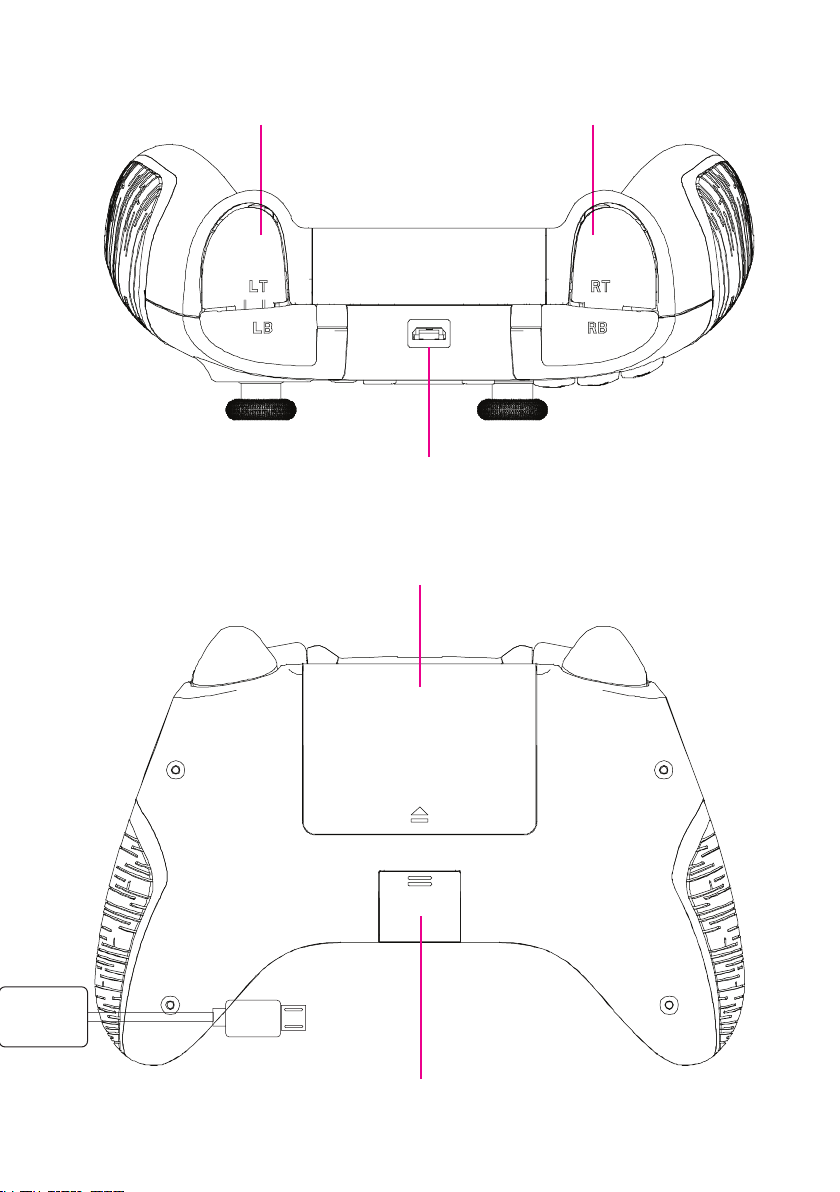
LT / LB RT / RB
Micro-USB Data Port
Battery Cover
Wireless Dongle Cover

Product Feature:
• Bluetooth & 2.4G wireless connection for PC or AndroidTM de-
vice
• Wired & wireless dual mode with super low latency
• Supports Xinput, Dinput modes
• Compatible with PC WindowsTM 7 / Vista / 8 / 10
• Compatible with AndroidTM 4.0 +
• Compatible with SteamTM OS
• Compatible with Xbox OneTM streaming to Windows 10
• Smart Firmware upgrade
• Vibration feedback & enhanced trigger button for precise control
• Accurate analog sticks, large responsive D-pad
• Comfort grip for longer play time
2.4G Wireless Instruction:
1. Remove the battery cover on the back of the controller, fol -
low the battery contact indication to install two AA batteries
2. Replace the battery cover
USB CABLE

3. Take out the USB Wireless Dongle under the Wireless Dongle
dock cover at the back of the controller
4. Insert the USB wireless dongle into the USB port of the
device you would like to use (PC, Phone, Tablet, Smart box,
Smart TV)
* If the device does not include the standard USB port,
please insert the USB dongle into the OTG cable, then insert
the Micro-USB head of the OTG cable into the device
Micro-USB port
5. Press the HOME button, the controller will start searching (the
then auto connect to the 2.4g wireless dongle. The LED will
remain on when successfully connected to the USB dongle

6. The controller will enter sleep mode when not in use for more
than 5 mins. Press the HOME button once to restart.
Bluetooth Pairing Instruction:
1. Remove the battery cover at the back of the controller,
follow the battery contact indication to install 2x AA batteries
2. Replace the battery cover.
3. Remove USB Wireless Dongle from the PC or Android De-
vice
4. Make sure your device has Bluetooth connection switched
ON. Press & hold the HOME button for 3 seconds, the con-
troller will begin to search (the Bluetooth LED
flashing rapidly whilst in the Bluetooth pairing mode). Once
paired the lights will stay on. Now follow the instructions for
your PC/Android device. The LED lights will remain on
when connected to PC/Android devices. You may need to
allow pairing on your device, please check your devices
settings.
will start
Bluetooth Connection Instruction:
1. Make sure your USB Wireless Dongle is not plugged in to
your PC or Android Device
2. Press the HOME button once, the controller will start sear-
ching for the 2.4G dongle for 6 seconds. After that it will start
to connect to previously paired devices, the Bluetooth LED
will start to flash intermittently, the LED will stay on when con-
nected to the PC/ Android device
*BLUETOOTH connection only supports DINPUT mode, it does not support XINPUT mode.

Wired Instruction:
1. Connect the Micro-USB head of the 3m USB cable into the
Micro-USB port on the top of the controller
2. Insert the USB cable into the USB port of the device you
would like to use (PC, Phone, Tablet, Smart box, Smart TV)
* If device does not include the standard USB port, please
insert the USB head of USB cable into the OTG cable, then
insert the Micro-USB head of the OTG cable into the device
Micro-USB port
3. The Wireless LED and Bluetooth LED will not light when
connected in Wired mode
LED Indication:
Controller includes FOUR LED icons
Wireless Mode Bluetooth Mode XINPUT DINPUT

Wireless Mode The controller is in 2.4G Wireless connection Mode
Bluetooth Mode The controller is in Bluetooth Wireless connection Mode
XINPUT Controller works as Xinput: supports PC & 360 Games, Steam™
OS, Xbox One™ Streaming to Windows™ 10 and some Android
Games
DINPUT Controller works as Dinput, supports most Android Games
and some PC Games
Device Mode Selection:
Controller Support with Xinput, Dinput Modes, use HOME
button to switch between modes
1. XINPUT: supports PC & 360 Games, Steam™ OS, Xbox
One™ Streaming to Windows™ 10 and many Android Games
2.4G Wireless Mode + XINPUT
Wired Mode + XINPUT
2. Press & hold the HOME button for 2 sec, the controller will
switch to DINPUT mode from XINPUT mode: supports most
Android Games and many PC Games
2.4G Wireless Mode + DINPUT

Bluetooth Wireless Mode + DINPUT
Wired Mode + DINPUT
* BLUETOOTH connection only supports DINPUT mode, does not support
with XINPUT mode.
3. Press & hold the HOME button for 2 sec, the controller will
switch to XINPUT mode from DINPUT mode
PC (WindowsTM 7 / Vista / 8 / 10) Instruction:
1. WIRED: Insert the USB head of USB cable into the USB
port of PC: default mode is XINPUT, the LED will remain ON
when successfully connected
2. 2.4G WIRELESS: Insert the USB dongle into the USB port
of PC, default mode is XINPUT, the LED will remain ON
when successfully connected
3. To test the controller go to “Game Controllers” in your
computers Control Panel

Ce manuel convient aux modèles suivants
1
Table des matières
Langues :


