SMART GRID ENERGY
4
©
2013
Copyright
CACHELAN
cachelan.com
[email protected] All
rights
reserved
SolarVu
®Installation
Guide
for
AE
500NX
Inverter
Network Setup
On power up, the K135 looks for a DHCP server to provide it a dynamic IP
address. If a PC connected to the network can automatically connect to the
internet through a browser then the network is already congured to accept
the K135. Otherwise consult the IT systems administrator for assistance. If a
dedicated IP address, subnet mask and DNS server address are required, this
needs to be entered into the K135 before shipment. Once the K135 receives
its IP address it acts as a client. It will automatically try to connect to the
SolarVuTM server and begin transferring data from the inverter to the server.
Internet Connection
Power on the K135 and allow at least 2 minutes for communication to be estab-
lished. From any internet connected computer, open the browser and type in
the site address assigned for your account. This will be found on the account
label shipped with the K135 and on the front panel of the K135 after the URL.
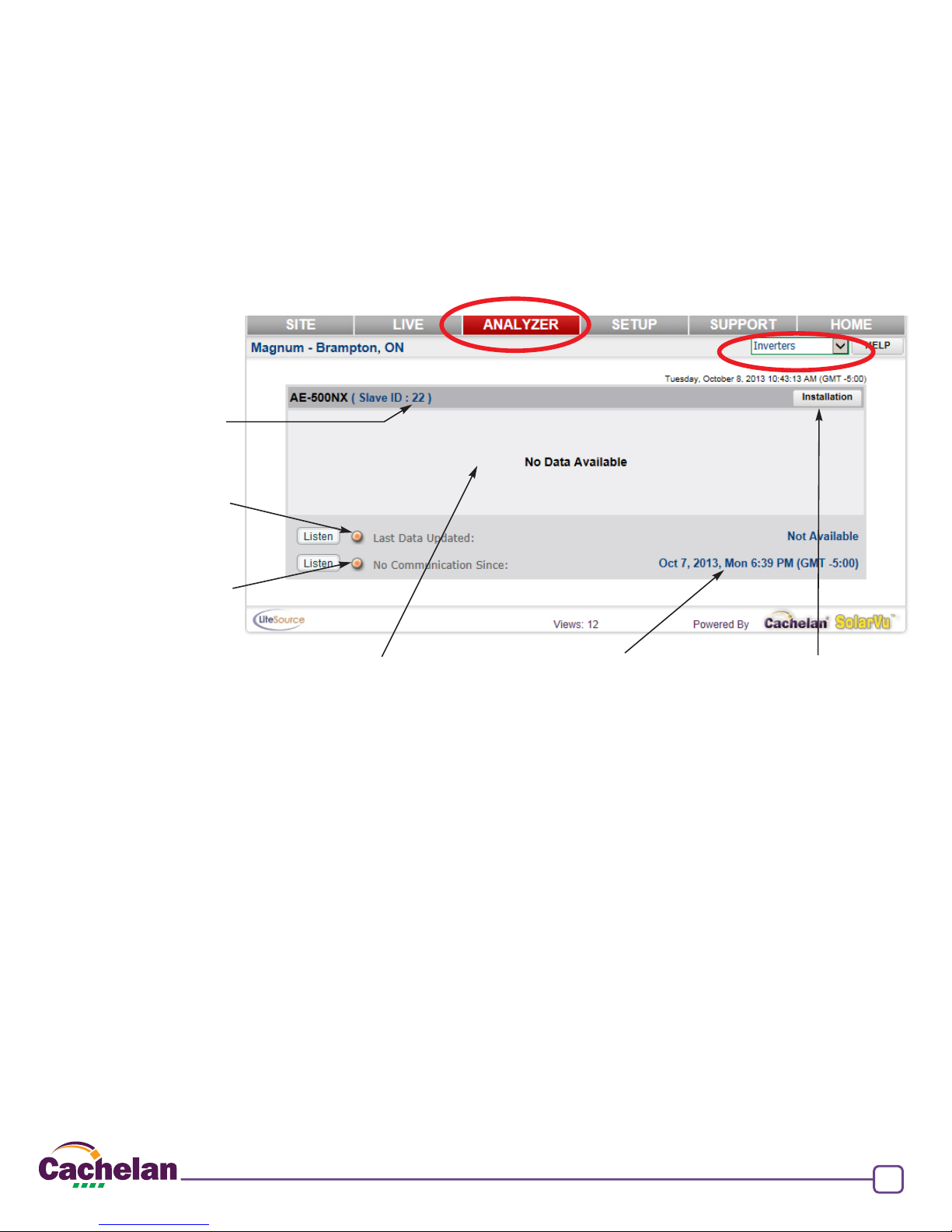
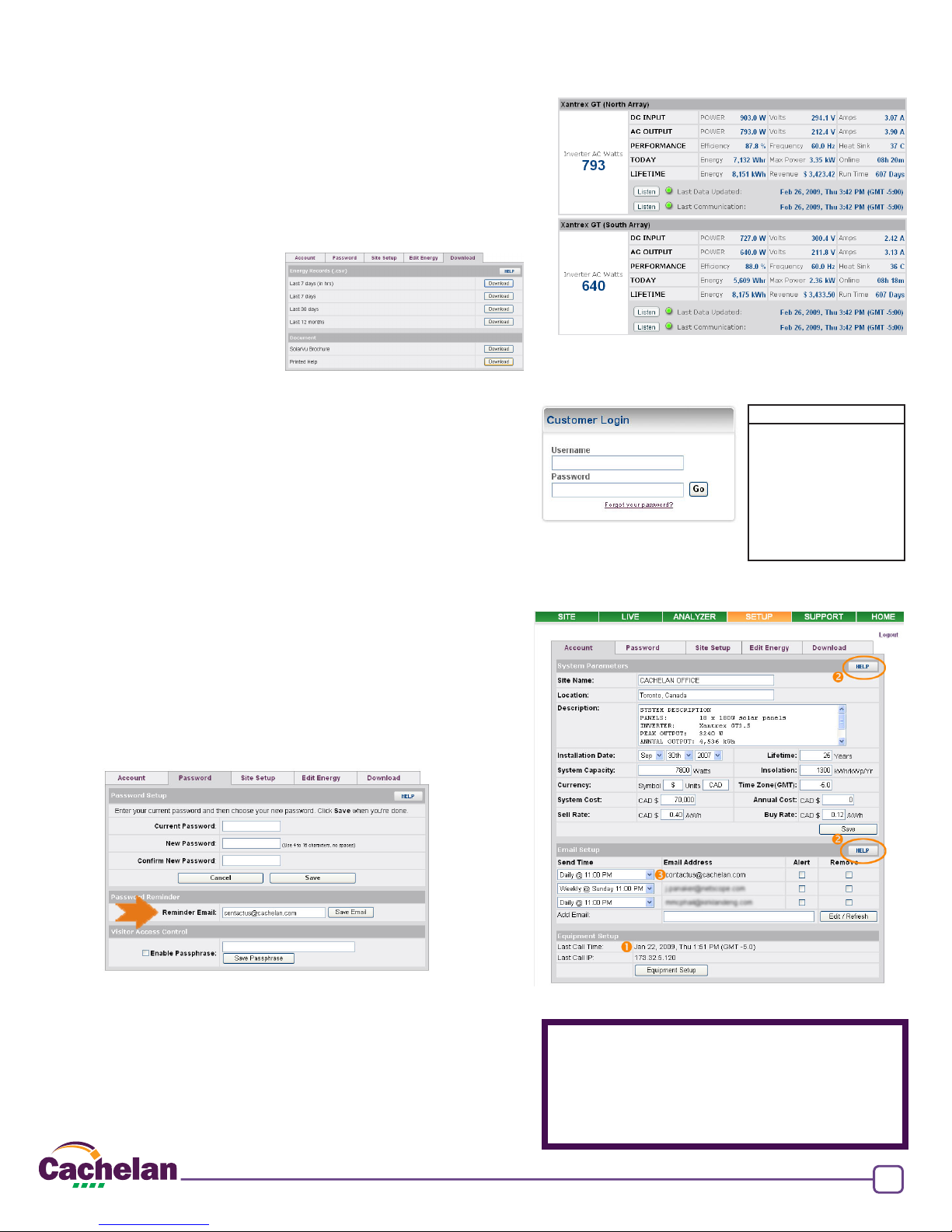
Once the website is reached, the opening screen is the SITE view. Click
ANALYZER > INVERTER STATUS. If there is a connection from the site, the
Last Communication light will be green. The K135 gateway does not need to
be connected to the inverter for this light to be green. If this indicator is red, it
indicates no internet connection has been established. Check internet connec-
tions at the site by trying to browse the internet at the site with a PC connected
to the network.
If the K135 gateway is successfully collecting data from the inverter, the Last
Data Updated indicator will be green and inverter data will appear. If this
indicator is red but the Last Communication indicator is green, check the serial
connection to the inverter and that it is operating. When both lights are green
the gages on the SITE screen will display live data and graphs will begin record-
ing site energy output.
Act
Power
Ready
Serial Rx/Tx
100Base
Link
Act
Factory Reset 10/100 Base-T 5.0V
Serial Port Data/Console
RS232
SERIAL PORT
COMMUNICATION
MODE SWITCH
RJ45
ETHERNET
5Vdc
POWER
Data mode - left
Connect to
inverter
Connect to RJ45 LAN
(see IP settings)
Connect to 120VAC
power supply
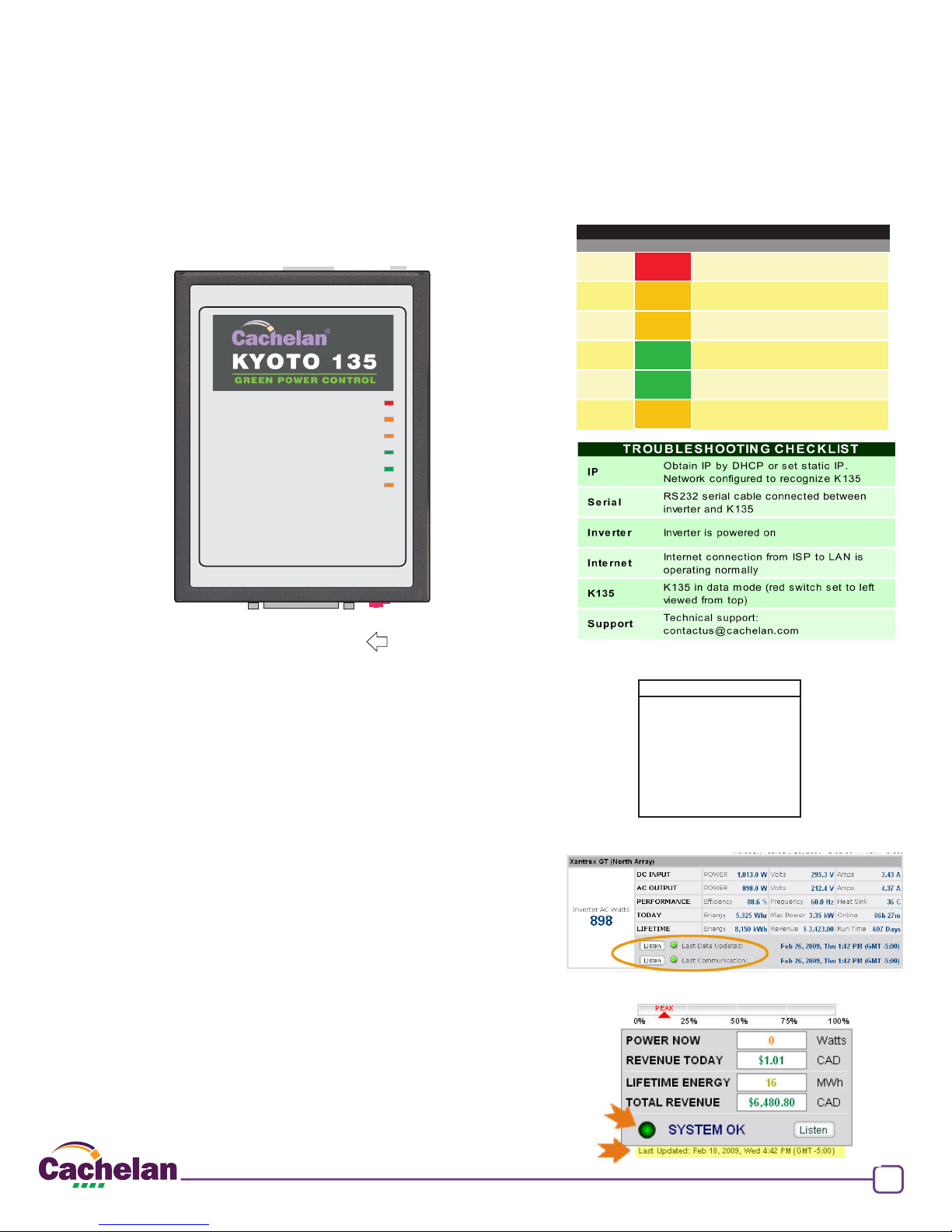
INDICATOR STATUS
LED NORMAL STATUS
POWER ON OFF- no power ON-power OK
READY ON OFF No DHCP or static IP address. Check
IP settings, ethernet connection
SERIAL FLASHING OFF Check RS232 to inverter connection.
Inverter may be off.
100Base ON ON- 100Base, OFF- 10Base or no ethernet
connection
Link ON OFF No ethernet connection
Activity FLASHING FLASH - data traffic activity
K135 Status Indicator Interpretation
Check ANALYSER > INVERTER STATUS for communication
Screen shots may vary by inverter type
LIVE - for valid data, green status light and time received
Testing
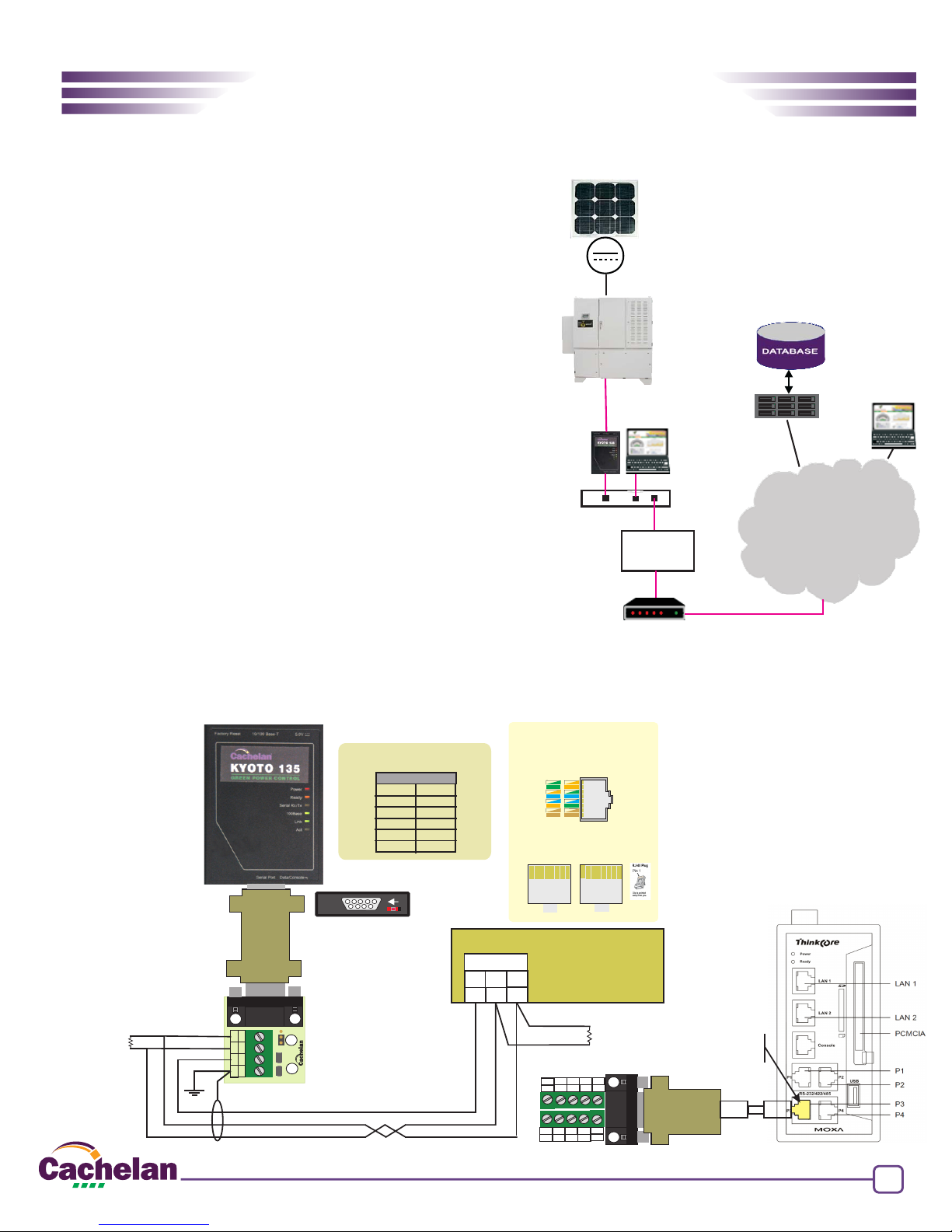
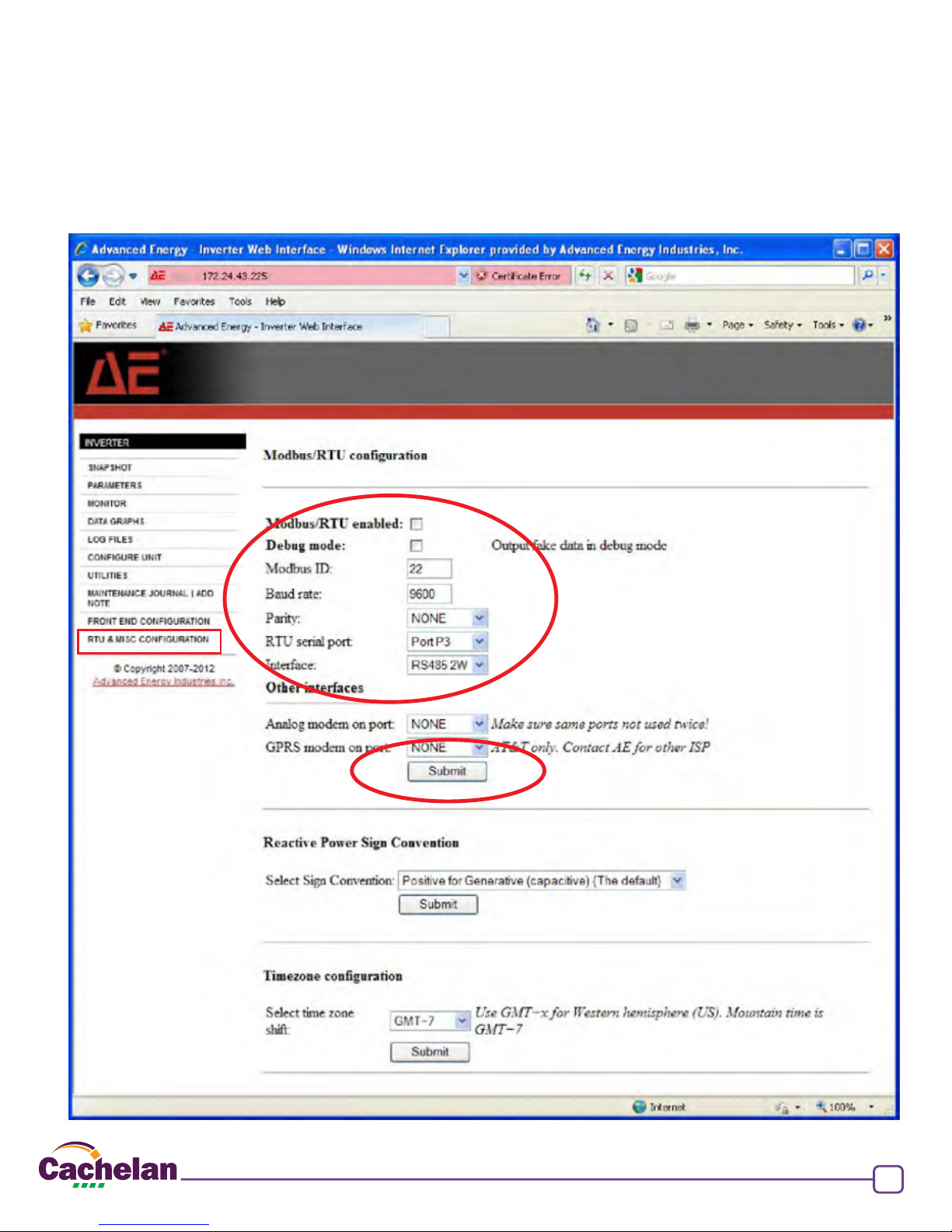
Ensure the inverters and K135 are powered on, the ethernet cable is plugged
into a network jack and the RS485 cable is connected between the K135 and the
inverter. The Power and Ready lights should be on if the power supply is plugged
in. The Link light on indicates the ethernet connection is working. 100Base
will only be on for high speed connections; for 10Base it is off. The Act light will
periodically ash showing network activity. The Serial Rx/Tx ashes when the
inverter is polled by the K135 but most of the time the light is off.
URL: mysite.solarvu.net
USER: myusername
PASSWORD: mypassword
IP: DHCP
MAC: 00-01-95-06-E8-33
ID: SS100 070300075 v1.4.1
TYPE: Xantrex GT
K135 GATEWAY
K135 indicators and connections
K135 front panel label with web address and login