VPN Client Software Installations
1. Installation of the VPN client
The following open source client programs are recommended for establishing the VPN connection.
(Administrator rights required)
On Windows 10:
Download the OpenVPN software. (https://openvpn.net/index.php/open-source/downloads.html)
To start the installation, double-click the installation file and follow the requirements.
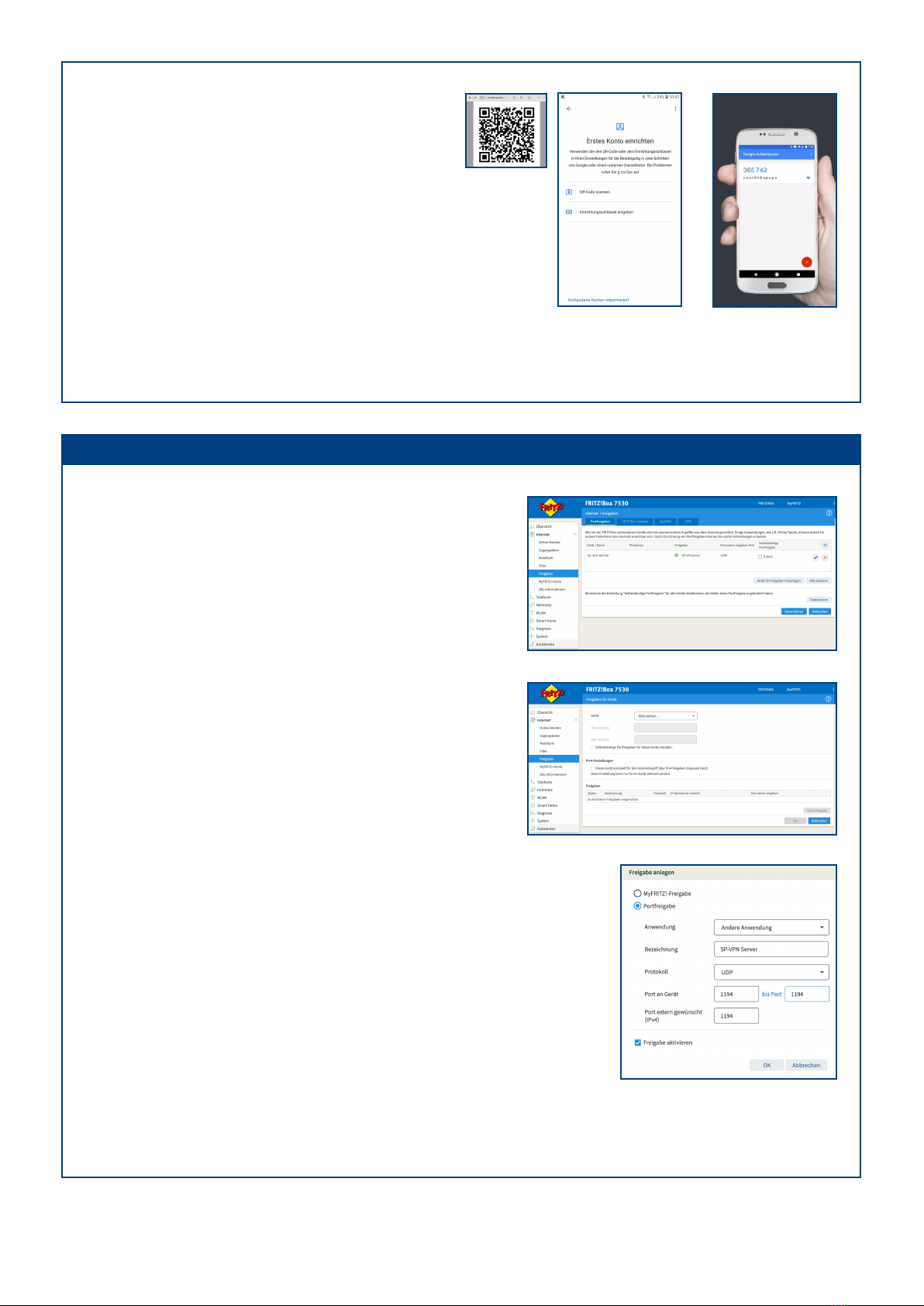
2. Installation of an OATH Authenticator (twostep authentication) (Not for SPVPN 1700 Light Server).
Using Google Authenticator APP as an example.
For two-step authentication, we recommend using a mobile device. Google Authentificator is available for free for
Android in the Google Play Store and for Apple in the App Store.
Install the Google Authenticator on your mobile device.
Launch the app.
On macOS:
Download the Tunnelblick software (https://tunnelblick.net/downloads.html).
To start the installation, double-click the installation file and follow the requirements.
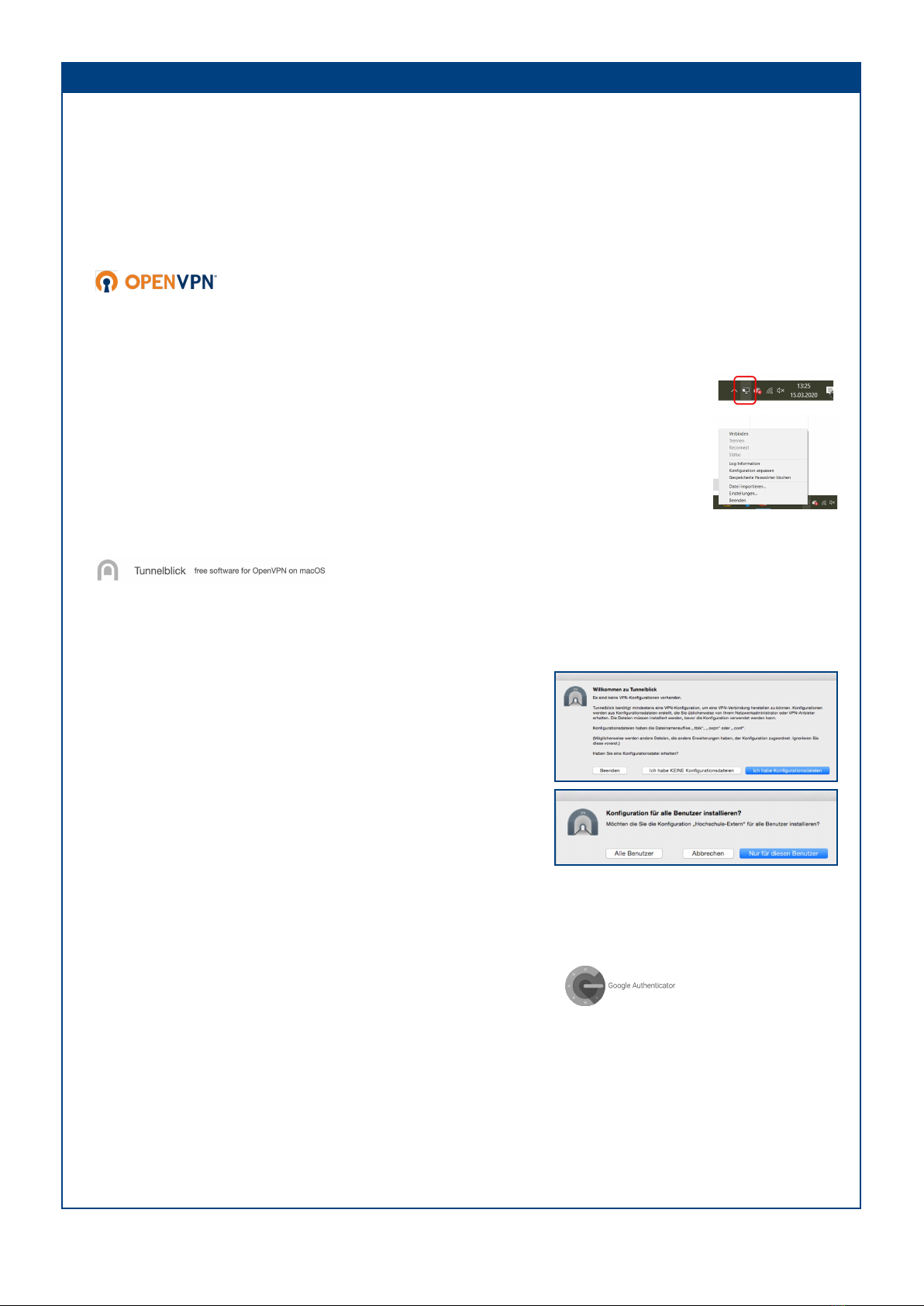
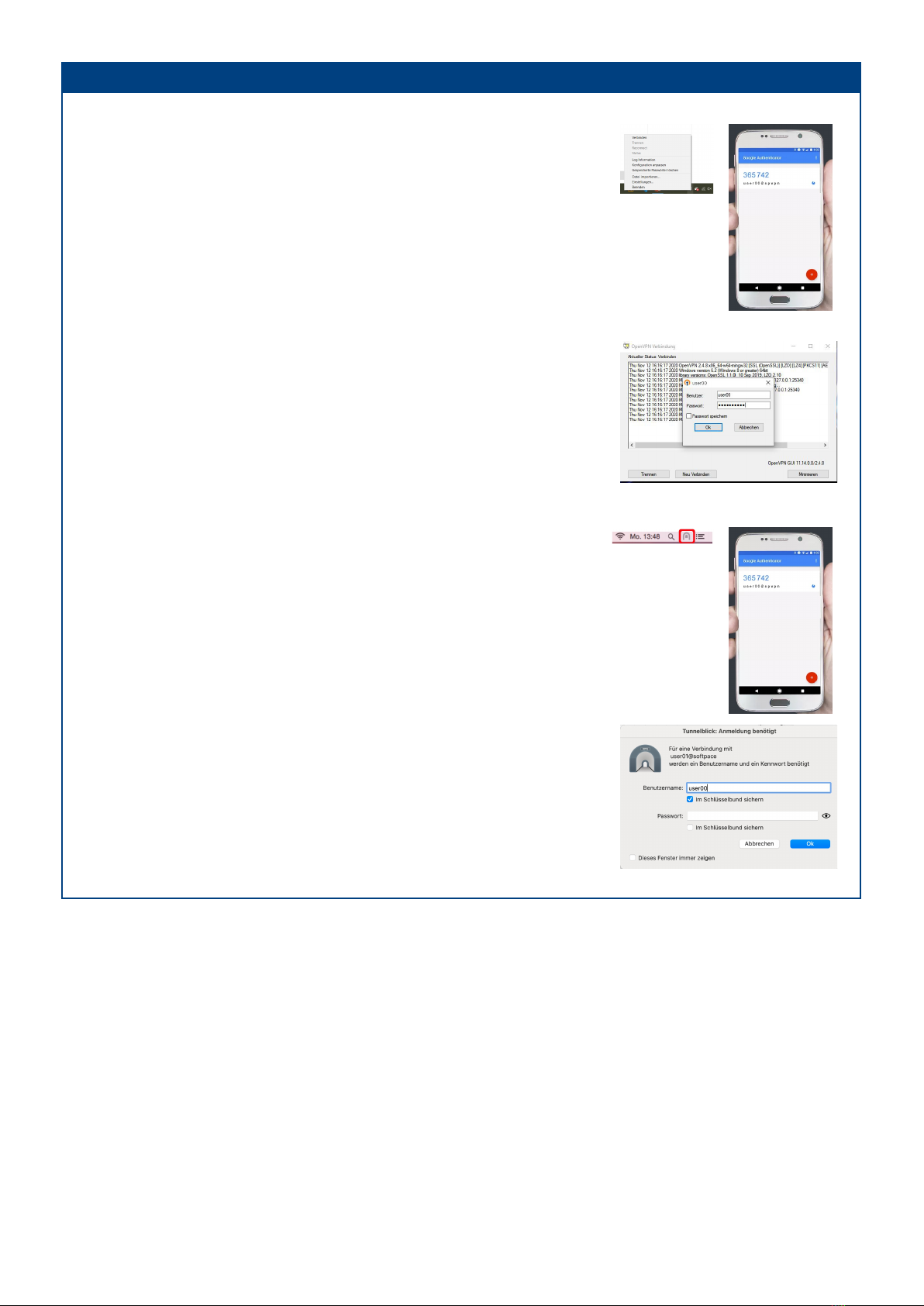
Import OpenVPN file:
Start OpenVPN on your PC and import (by right-clicking on the icon) the file downloaded
under "Openvpn file" (user00.ovpn).
Proceed accordingly for further VPN users.
Import of the OpenVPN file:
During the installation, in response to the question "Did you receive a
configuration file?", select "I have configuratioins files" and then
confirm with Ok.
Double-click the file downloaded under "Openvpn
file" (user00.ovpn) and select "Only for this user" in the following
dialog.
Proceed accordingly for other VPN users.
SP-VPN 1700 Server Configure and Operate
Seite 5/8