SmartQ TEN3 Manuel utilisateur

TEN3 Manual
Attention:
This handbook contains important security measures and the correct use of the product
information, in order to avoid accidents. Pls make sure to reading the manual carefully
before use the device.
zPlease don’t be in high temperature, moisture or very dust place
zPlease don’t be in high temperature, Especially in summer don't put the device in the
car when Windows closed.
zAvoid fall or Violent collision of the device, don’t make the TFT display screen were
violent tremor, This could cause TFT display screen abnormal or damage.
zPlease choose the appropriate volume, Use headphones shoulds not be too big
volume, If feel tinnitus, Lower the volume or stop using it
zplease charge In the following condition,
A、The battery power ICONS shows have no power
B、The system automatically shut off, startup after power off soon
C、Operation buttons no response
zWhen the device in the format or ongoing upload and download file, please do
n't suddenly disconnect, This could cause application error.
zFor those who because of damage to the product, repair, or other causes of erased
the memory, The company shall not be liable for any responsibility, please follow the
user manual for the standardized operation to use the device.
zDon’t disassemble the product, don’t use alcohol、Thinner or benzene to scrubbing
products
zDon't use the device one of the place of prohibit to use electronic equipment in
regional (such as the plane)
zPlease don't using the Tablet PC when you in driving or walking down the street,
USB be used for data transmission and charging
The company reserves the right to improve product, products specification and desi
gn have any change, The information is subject to changes without prior notice.
(This tablet is no waterproof function)
【Remark】All pictures in this manual is just for your reference. products specificati
on and design have any change, The information is subject to changes without pri
or notice.


TEN3 Manual
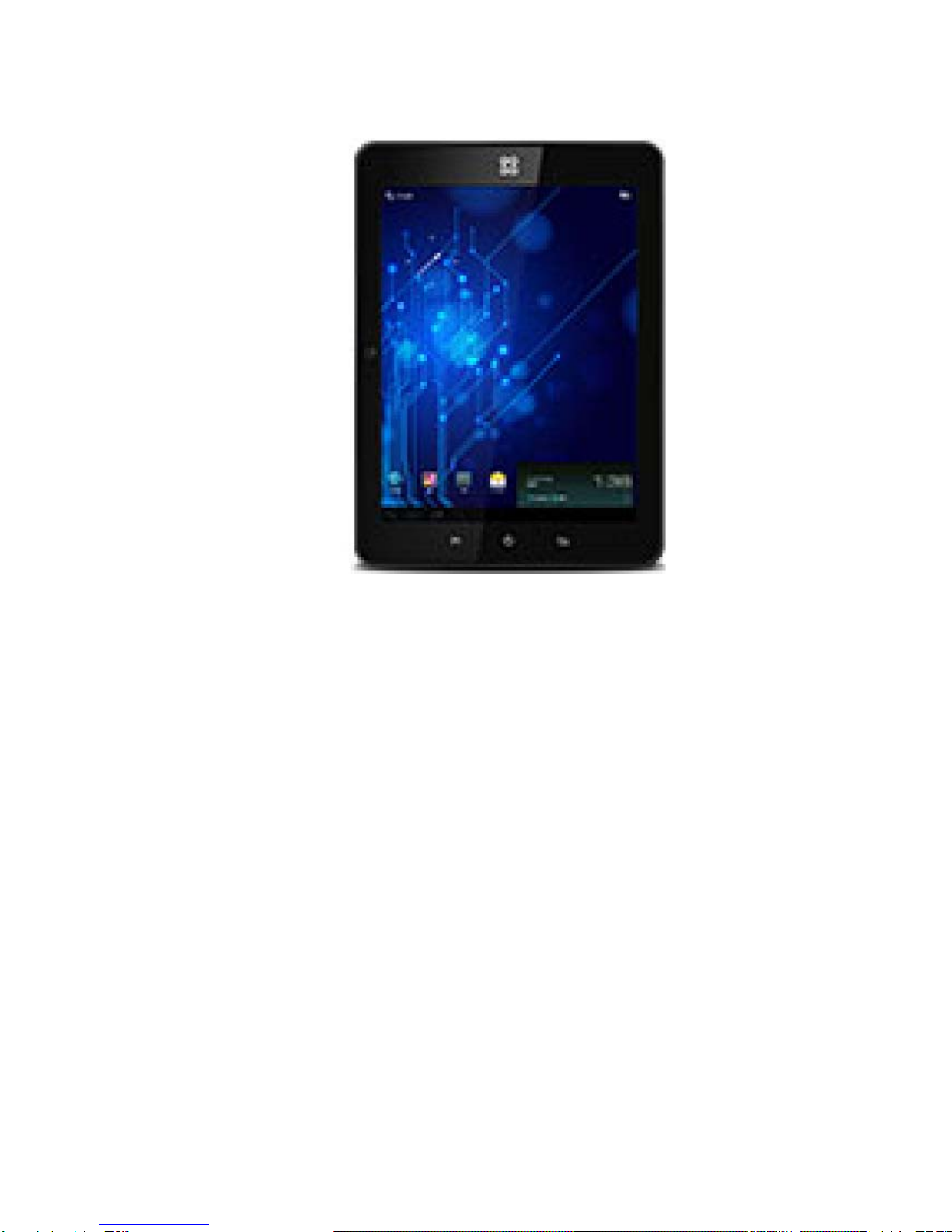
1. appearance
2. First use
2.1 Battery management and charge
Before first use, please set the device's battery is fully charged
Just need to connect the USB interface, then you can charge
The first two times charging please keep about 6 hours, after that you just need 4
hours to charge.
【Remark】: This tablet using Built-in type polymer battery, Charge must be to choose
standard adaptor (Input: AC110~240V 50/60Hz Max:180MA.. Output: DC5.0~5.5V/2A),
USB interface can charge, Choose USB interface to charger
During the charging, the battery icon will scroll
When finished charging, battery icon will become green and stop rolling
In order to prolong the service life of the machine, suggest use out battery power before
charge it
【Remark】: 1. If you long time don’t to use this Tablet, ,in order to avoid power
consumption caused damage,pls charge/play the battery once a month.
2、After low battery shut down,connect USB,device will remind low
battery,charging,need to wait some time until the battery is enough power to enter into
main menu.
3. Device charging should be in standby status for reach normal charging time.
Because with device and screen consumption,it may cause longer charging time.

TEN3 Manual
2.2 Connection with PC
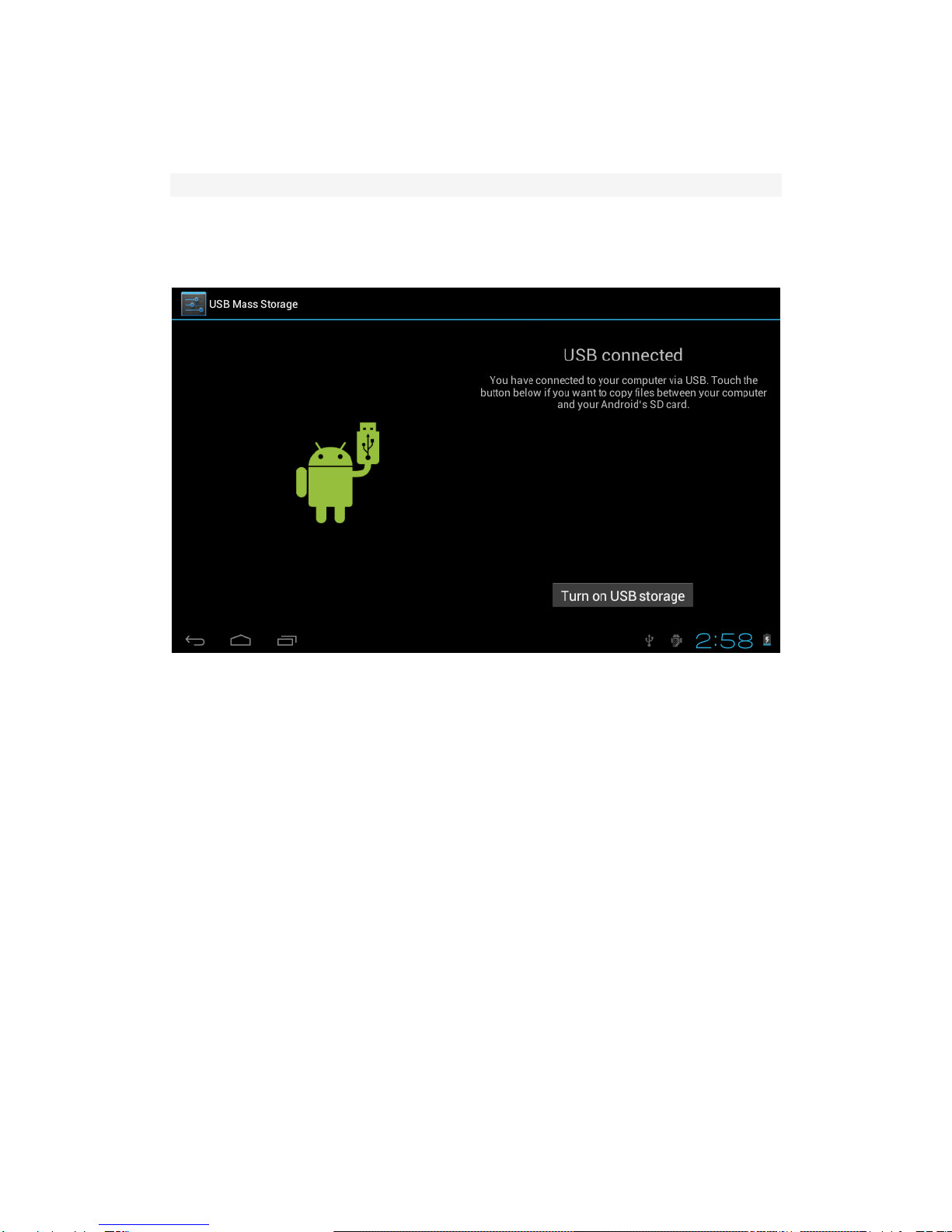
Use USB cable to connect device to PC,device will pop up the USB connection
window,click Turn on USB storage to connect to PC
Into the load mode, you can copy, delete the file on thedevice and the file on the memory
card.
3. Equipment operation interface
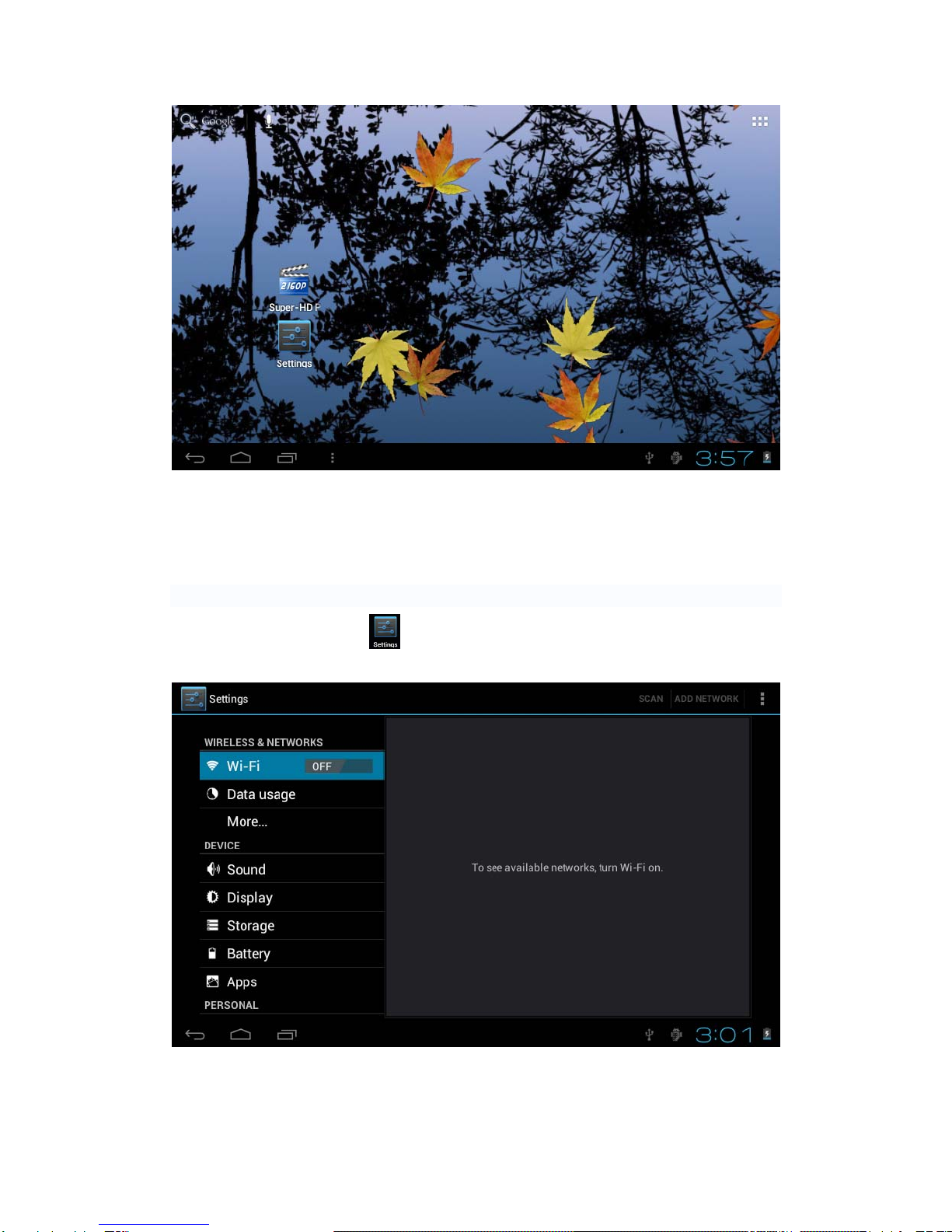
3.1 Main interface describe
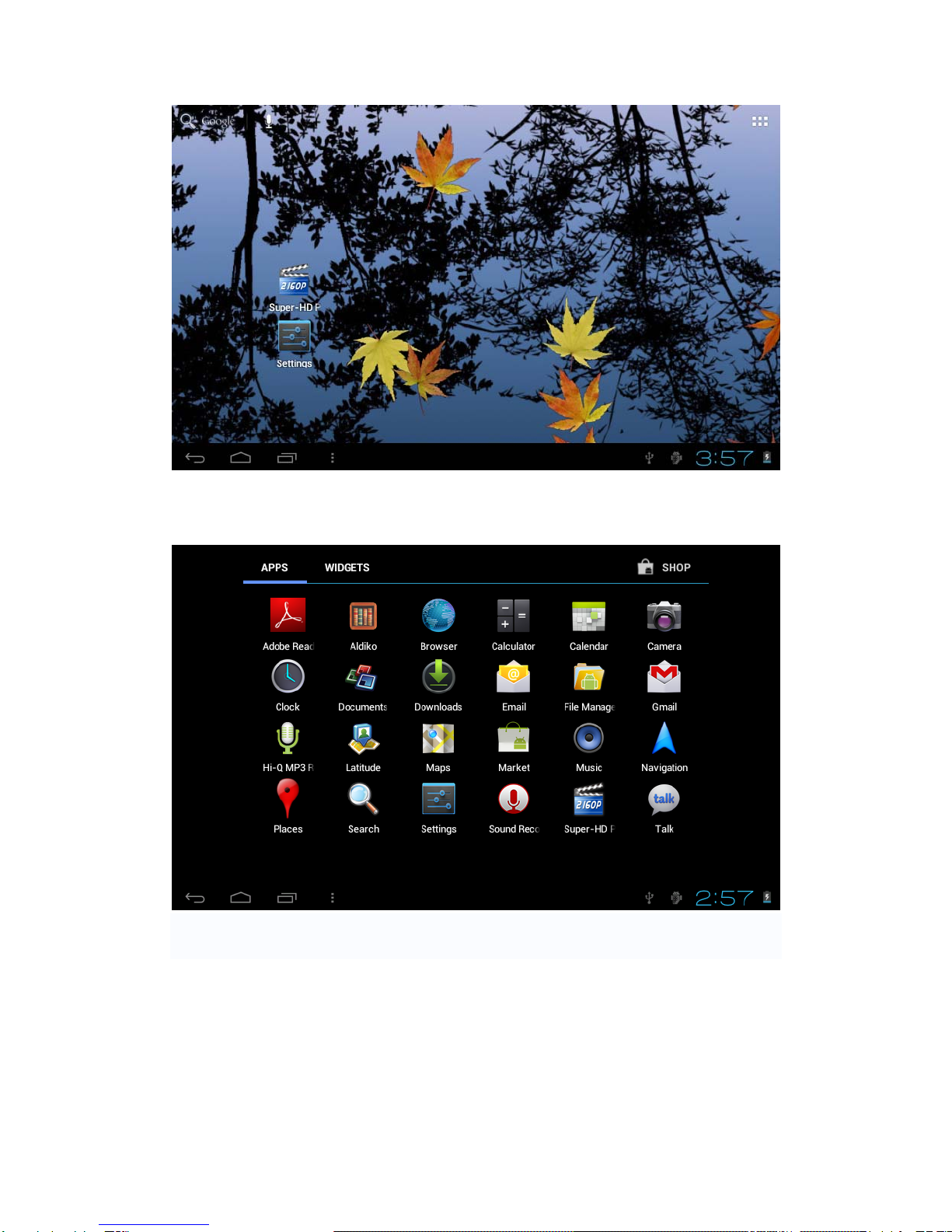
After startup will enter the main interface

TEN3 Manual
In the main interface, you can :
Management main interface software ICONS: long press the icons 3 second, after t
he icons will bigger, then you can drag anywhere in the interface.
Delete icons: long press the icons 3 second, drag the icons to the Recycle Bin ico
n, once it become red, Loosen your hand, after that you can delete icon
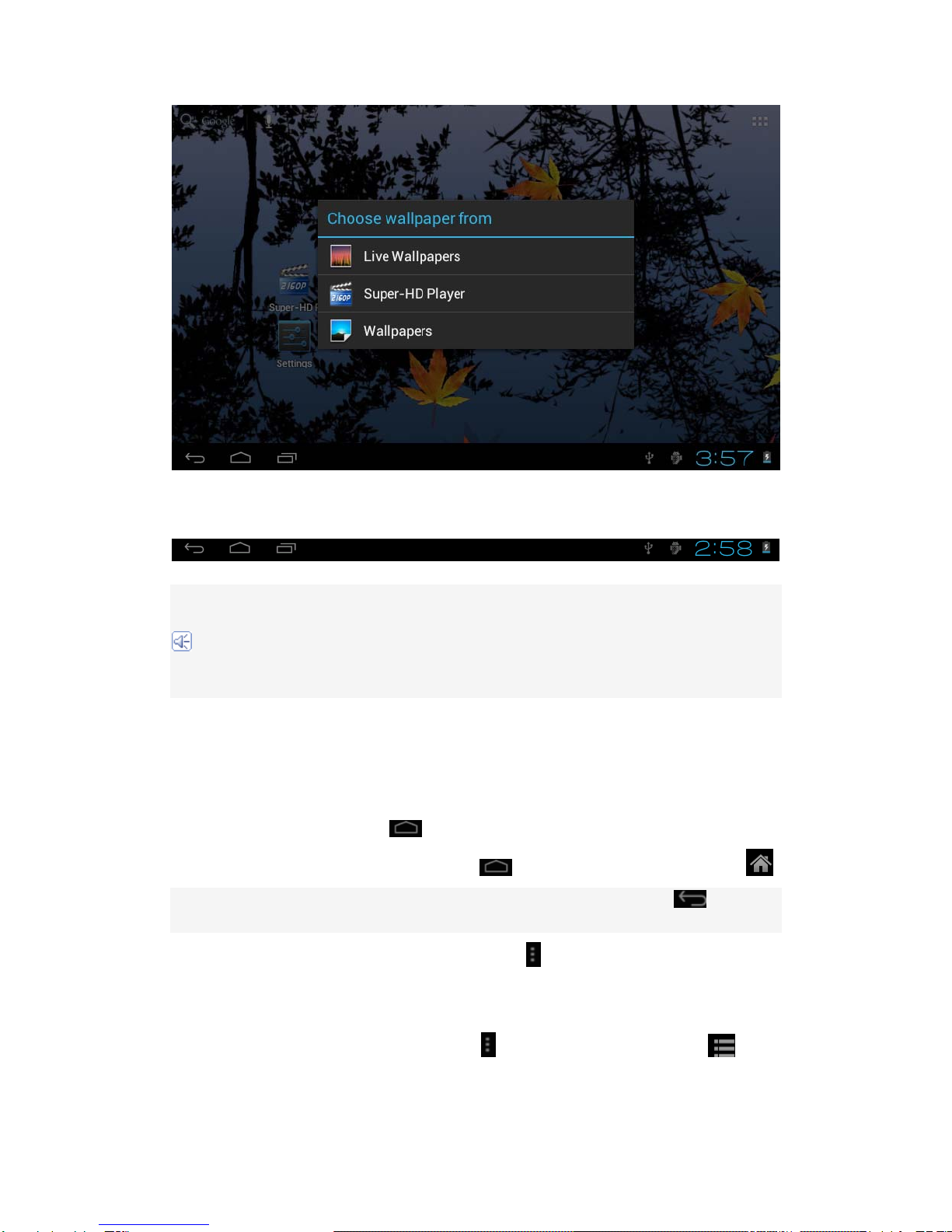
You touch the screen keep a time, appear the dialog box”Add you Home screen” as
shown below:

TEN3 Manual
3.2 status bar describe
zThe status bar above of the screen
The lower left corner is the return key, a key to return to the soft keys, menu
key keyboard
The lower right corner display the battery, battery charge icons, current time, T-Flash
card, USB connection status and WIFI WIFI signal icon .
3.3 Use touch panel
Device equipped with a 7 “ touch screen. Following the main touch screen area is
described, and describes some of the tips for how to use the touch screen.
No matter which interface you are on the screen, can go back to main screen
through pressing the soft key .
【Attention】The main screen soft key functions as the machine back key
In different applications, by tapping the back soft key , you can
Return to the previous menu interface.
In different applications, by tapping the menu key on the upper right corner of touch
screen, the screen will appear the operation setting interface as follows,
【Remark】: The main screen soft key functions as the machine manu

TEN3 Manual
In the main interface, you can touch the icon to open theAPPs
In different browser(file, music, video, pictures), You shift and drag the scroll bar,
so that the file list can up or down to roll.
4. Equipment basic set
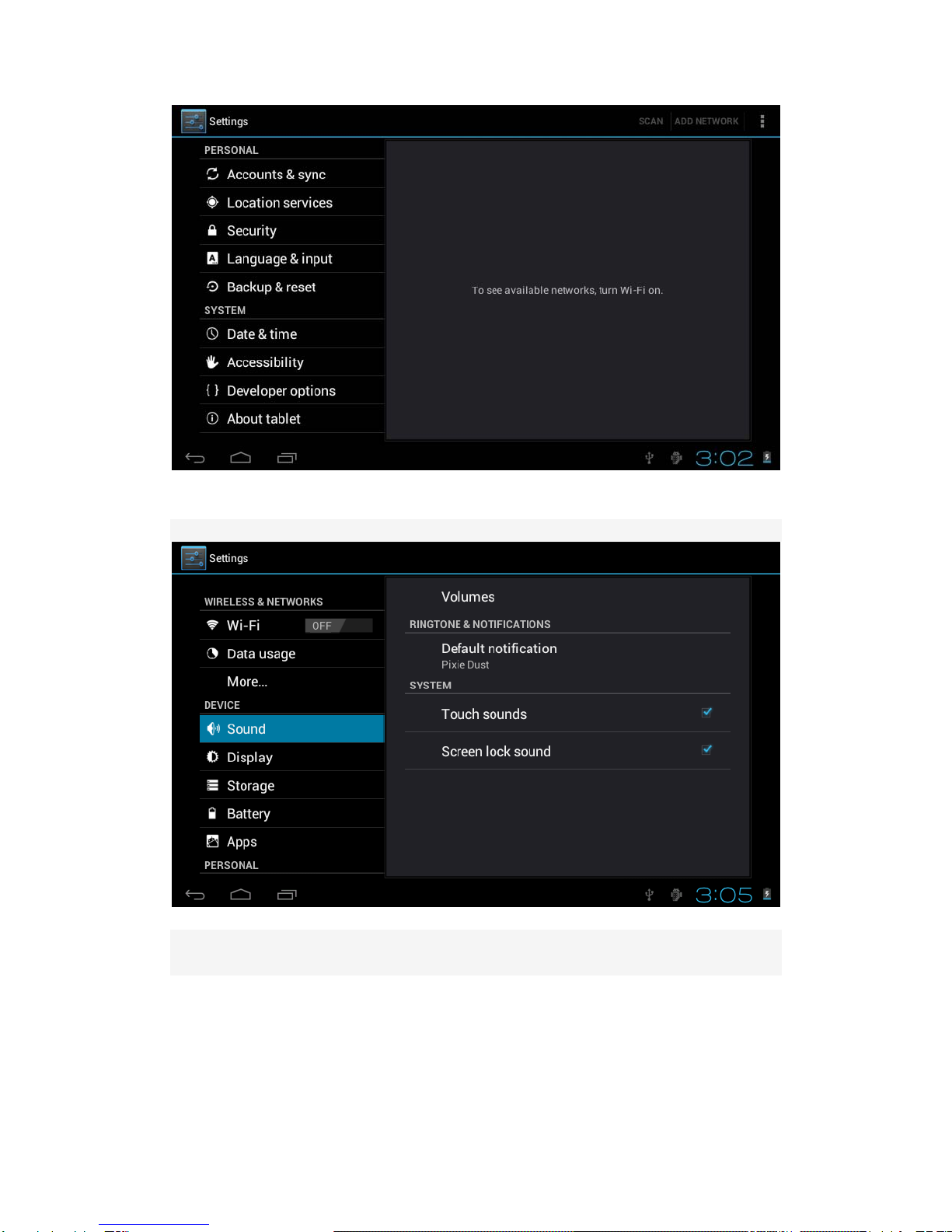
Setting: Click setting icons , enter setting interface

TEN3 Manual
4.1 Silent mode,Volume, Touch tone,Audible selection,Screen lock sounds,
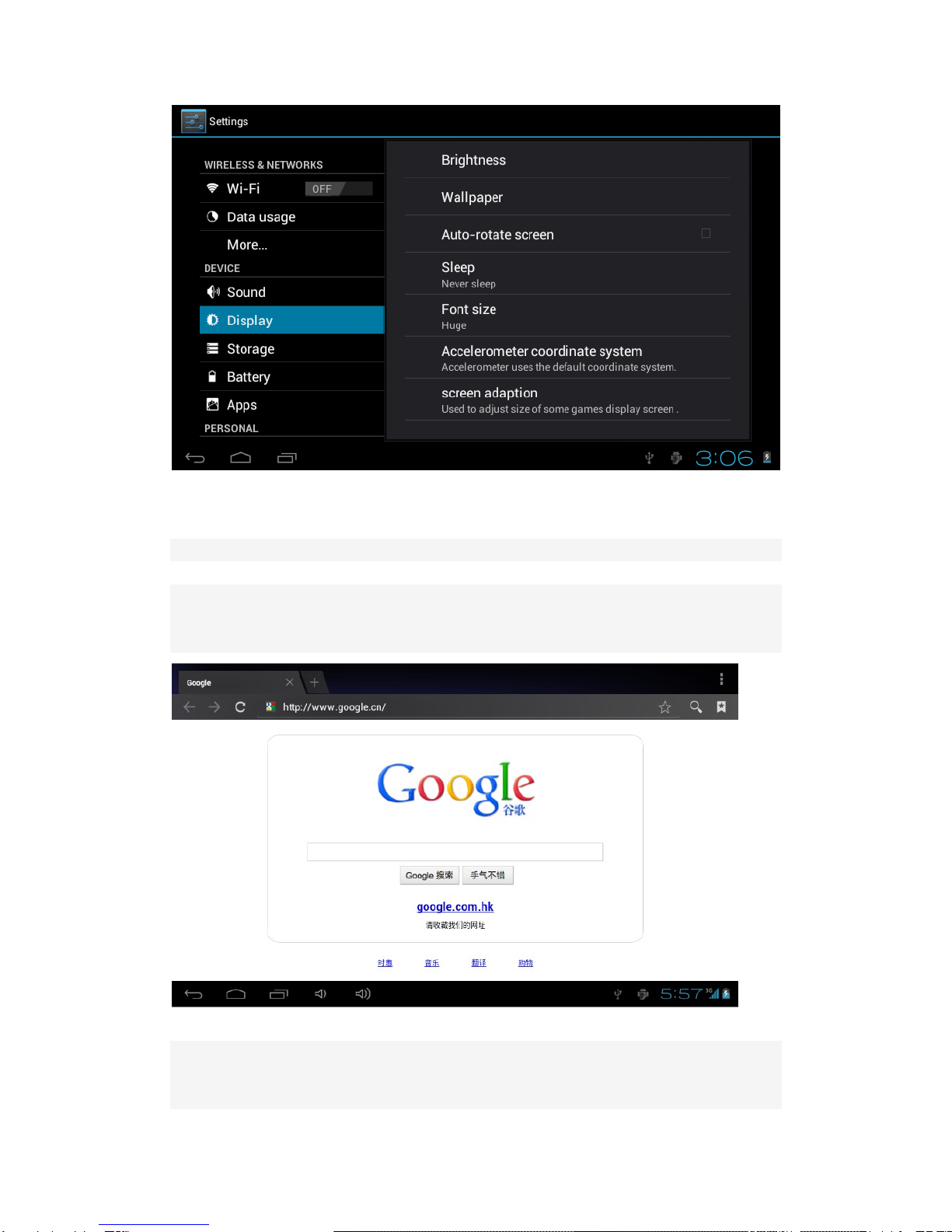
4.2 Display
Display settings you can set brightness, wallpaper, automatically rotate the
screen, font size.

TEN3 Manual
4.3 3G USB Dongle
Your Device can connect to 3G networks. To connect
1. First turn off the WiFi
2.Touch settings, touch wireless &more&Mobile netwworks
3.To Data enabled and Data roaming checked.。
4. SIM card into the 3G dongle, then use OTG cable to the USB interface of the MID
5. Such as the lower-right corner of the 3G icon you can use the 3G internet
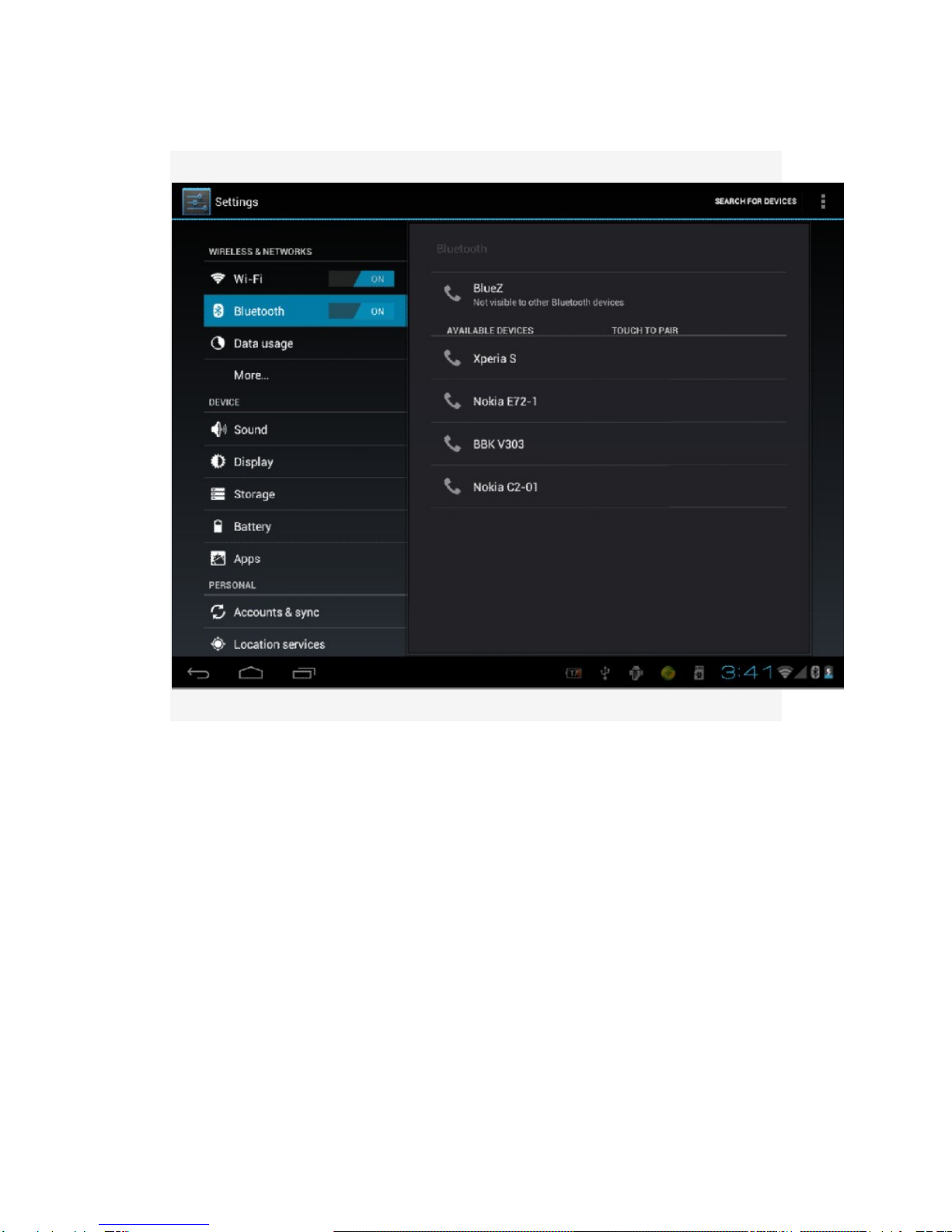
4.4Bluetooth
Bluetooth is a short distance (typically 10m) wireless communication technology to
support data exchange between Bluetooth devices. The device has Bluetooth, you can
communicate with other Bluetooth headsets and Bluetooth-enabled devices.

TEN3 Manual
1. Touch settings, touch Bluetooth to on.
2. The system will automatically scan for available Bluetooth devices.
3. Select the paired Bluetooth device, enter the pairing PIN code, click Finish and confirm.

TEN3 Manual
4. Enter the same PIN code in the paired devices, click OK.
5After a successful connection need to be transmitted in the file manager, select the file,
press and pop-up menu, click share, select the paired device name, click to receive the
matching device, may be relative to send files.
4.5Application
Manage applications
Table des matières
Autres manuels SmartQ Comprimé