
SmartOne CDL-200L Manuel utilisateur


SMART COMMUNITY USER MANUAL2
The skyline is
getting smarter
Scan the following QR Code for the
digital PDF version of this User Manual,
plus additional onboarding tools:

SMART COMMUNITY USER MANUAL3
Contents
Some of the features listed below may not be
available in your community at this time
1.0 Overview 04
1.1 Wall pad 04
1.2 Wall pad home screen 05
2.0 Visitor Access 06
3.0 Visitor Log 07
3.1 Viewing recorded images 07
3.2 Deleting recorded images from main visitor log screen 07
4.0 Concierge (if available in your community) 08
4.1 Calling the concierge 08
4.2 Receiving a call from the concierge 08
4.3 Call switching function 08
5.0 Suite Security and Alarm 09
5.1 Suite emergency alarm 09
5.2 ‘Away Mode’ security setting 10
5.3 ‘Stay Mode’ security setting 12
5.4 Setting and viewing alarm settings on the ONE! app 13
5.5 Dismissing the alarm 14
6.0 Notices 15
7.0 Cameras 16
7.1 Reviewing photos 17
8.0 Apps 18
8.1 Manuals 18
8.2 Registering your smartphone 19
8.3 Settings 20
8.7 Thermostat (if equipped) 23
8.8 Security password 24
9.0 Amenity Booking 25
10.0 Digital Door Lock 28
11.0 Troubleshooting 41
8.4 Reset User Data 20
8.5 Change Language Settings 20
8.6 Security -> Away-Stay Setting 22
8.9 Settings -> Commax -> touch pad sensitivity 24
SMART COMMUNITY USER MANUAL4
Overview
1.0
LCD Touch Screen
Speaker
Power Switch
1
3
2
1.1 Wall pad

THE SKYLINE IS GETTING SMARTER 5
CONCIERGE
Call the Concierge
APPS
Installed apps
STAY
Set the ‘Stay Mode’ security setting
CAMERAS
View Security Cameras within your community
VISITOR LOG
View and manage the
captured images of visitors
NOTICE
View and manage posted notices
AWAY
Set the ‘Away Mode’ security setting
EMERGENCY
Activate suite alarm
THERMOSTAT
Set and program thermostat(s)
Wall Pad Home Screen.
1.2 Wall pad home screen
SCENE
Program or activate desired “Scene”
SMART COMMUNITY USER MANUAL6
Visitor Access
2.0
Call Status
Display of person calling
Volume setting
Answer call
Refuse call or hang up
Open door
Capture the image
of the visitor
1
5
3
7
2
6
4
The SmartONE solution is a video phone system, which allows video phone calling from select entrances throughout
the community. When a visitor calls your suite from the main lobby or one of the select entrances, the wall pad will
display the visitor and the control options shown below.
Image of person calling from entrance.
When a visitor calls your home from one of the select lobby entrances, the wall pad will change to the
video call screen shown above:
• The caption on the top left displays the location of the call
• The main screen shows the image of the person at the lobby entrance
• The volume of the call can be adjusted by pressing the speaker symbol
• To answer the call, press the green phone symbol
• To end the call, press the red phone symbol
• To open the door, press the green door symbol .
• To capture a picture of the visitor, press the camera symbol on the bottom right
Captured pictures can be viewed on the visitor log screen, which is accessed from the home screen. The system will
store up to 128 images per wall pad and when image capacity is full, the oldest image will automatically delete.
Visitor cameras on the lobby phone can also be viewed on your ONE! app.You can unlock the front door, but will be
required to enter your suite security PIN to grant access from your mobile device for security purposes.
When your suite is in the ‘Away Mode’ security setting, a visitor picture is automatically captured if the ‘capture visitor
picture’ setting is ON in the alarm settings screen. Details on how to review alarm settings is shown in section 8.5 of this
manual. The automatically captured pictures of visitors will show up as a ‘missed call’ within Visitor Log screen.
1
2
73 4 5 6
1
2
THE SKYLINE IS GETTING SMARTER 7
3.1 Viewing recorded images
There will be a timestamp shown for images that are saved on the current day, and the date and timestamp will be
shown for images that were saved on previous days. To view older images, scroll down on the image viewing screen to
older pictures. Touching the screen to select an image will enlarge it to the full size of the screen and the left and right
arrow buttons can be used to scroll through the stored images. Delete unwanted images using the trash can icon .
Stored Visitor Log images can also be viewed from the ONE! app. Images can only be deleted
from the wall pad in the suite.
3.2 Deleting recorded images from the main visitor log screen
1) Touch the trash can icon
2) Select individual images or all images by selecting the ‘Select all’ box
3) Images may be unselected by tapping them again
4) Touch the ‘Delete’ button to delete the selected images
The system will hold a maximum of 128 images per suite.The oldest images will be automatically deleted
once the maximum number is reached.
Visitor Log
3.0
View and manage the saved images of visitors.
Pressing the Visitor Log icon on the home screen will allow you to view
and manage the recorded images of visitors.
SMART COMMUNITY USER MANUAL8
Concierge (if available in your community)
4.0
4.2 Receiving a call from the concierge
When a call is received from the concierge, the wall pad rings and displays a message ‘Concierge Calling’
on the top left of the screen.
• To answer the call, touch the (Call) button
• To reject a call, touch the ‘Cancel’ button
• To hang up a call, touch the ‘End call’ button
The Concierge cannot see you during a Concierge call but you are able to see the Concierge.
When a call is received from the concierge, not only will it be displayed on your wall pad, but also through your
ONE! app. To answer/reject such calls please use your smartphone’s native method of accepting/declining calls.
4.3 Call switching function
If someone from the lobby calls you during a concierge call, you will receive a message on the top
left of the screen that the Lobby is calling.
Touch the (Switch call) button to answer the call. The previous call will be disconnected once
you transfer to the new call.
4.1 Calling the concierge
If your community has a designated concierge desk, touch the ‘Concierge’ icon on the main
screen, or press the ‘Concierge’ icon at bottom of the wall pad to call them.

THE SKYLINE IS GETTING SMARTER 9
5.1 Suite emergency alarm
Suite Security and Alarm
5.0
Confirmation Screen to Sound the Suite Alarm
You can activate the suite emergency alarm by pressing the Emergency Alarm icon. When this alarm
is activated, the suite will go into alarm mode and all paired smart phones will be notified of the
emergency along with the concierge.
EMERGENCY ALARM
Activates an emergency alarm in the suite.
STAY MODE
Activates the ‘Stay Mode’ security setting.
AWAY MODE
Activates the ‘Away Mode’ security setting.
Please note that 911 should be called during any life-threatening emergencies.
When the suite Emergency Alarm icon is pressed, the confirmation screen shown below will be displayed, allowing you
to proceed with the alarm by pressing the ‘Yes’ button or to Cancel by selecting the back button.
SMART COMMUNITY USER MANUAL10
5.2 ‘Away Mode’ security setting
Security Set to Away Mode
The ‘Away Mode’ icon is selected when you leave your suite and would like the security alarm activated.
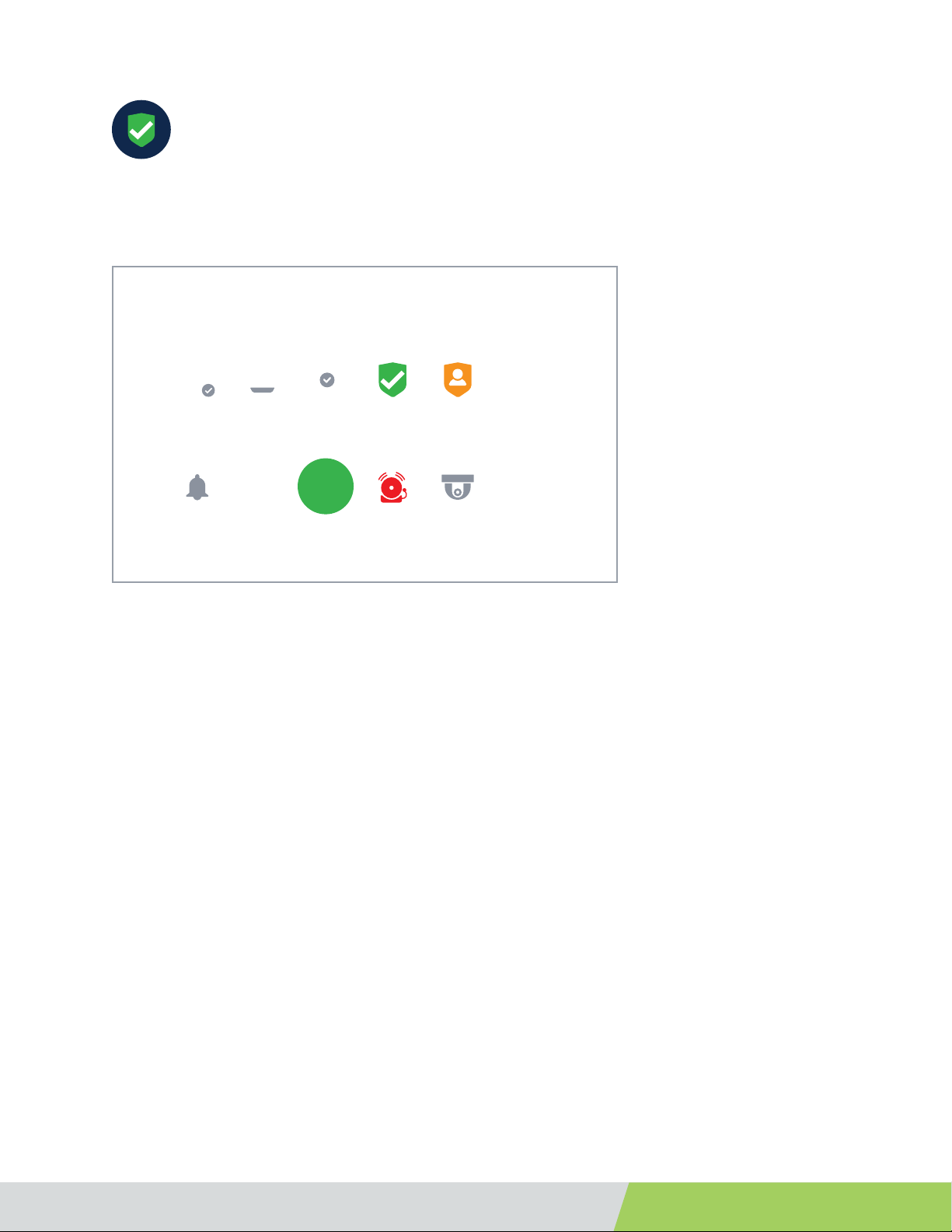
When the suite is in ‘Away Mode’, the home screen appears as shown below. Please note the green
indicator circle at the bottom of the screen shows that the suite is in “Away Mode’.
You can set ‘Away Mode’ from your ONE! app by pressing the ‘Away Mode’ icon.
What happens when you are in ‘Away Mode’?
When ‘Away Mode’ is set, the thermostat(s) in the suite will automatically be set to the ‘Away Mode’ temperature for
that thermostat. (For instructions on setting the ‘Away Mode’ settings on the thermostat, please see section 8.6). ‘Away
Mode’ will also trigger the automatic photo capture of visitors at the selected entrance areas. You can adjust the alarm
settings to set the amount of time for the alarm to activate when you leave the suite and the amount of time allowed
to deactivate the alarm when you return in the alarm settings screen shown in section 8.5 of this manual.
Away
Ce manuel convient aux modèles suivants
1
Table des matières


