
SmartLock Q20 Manuel utilisateur

Smart Lock User Manual
Model:Q20
Special Attention:
1. Mechanical keys please keep outdoor, just in case keys lock in doors.
2. Please charge for the battery when low wattage alarm.
3. Reading this manual carefully before installation, and keep it for future reference.
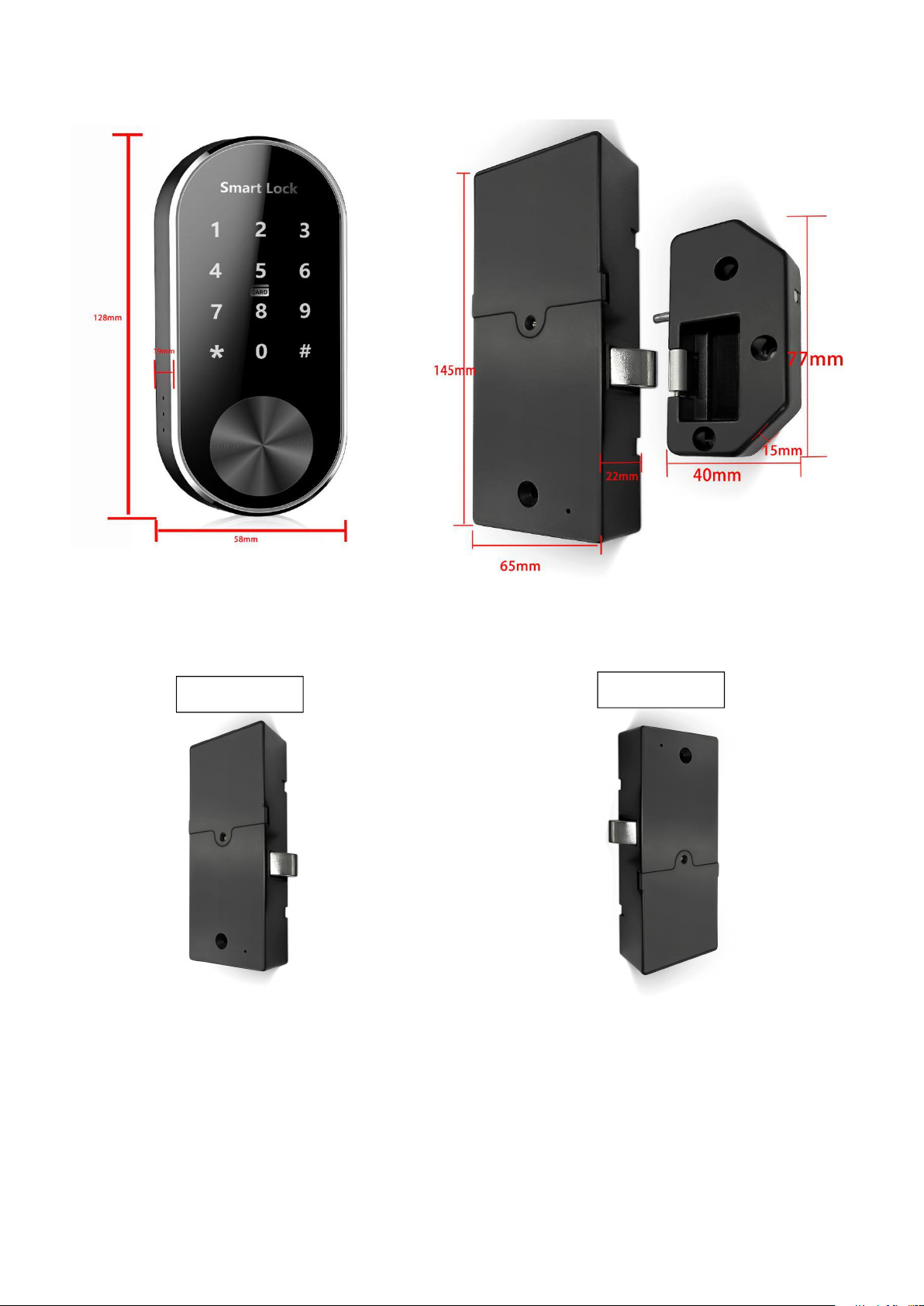
1.Lock Structure
2.Door frame direction
Open left
Open right
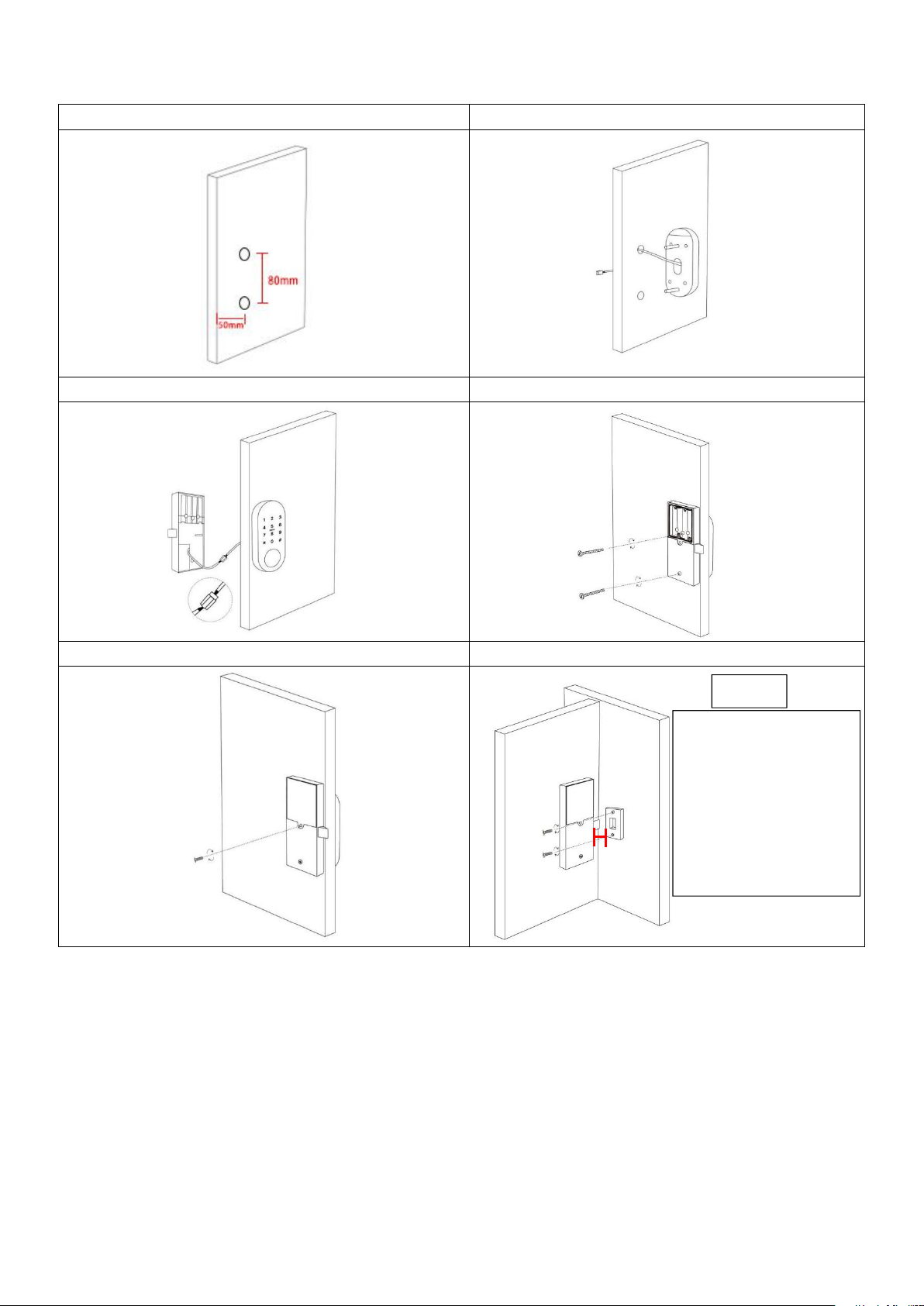
3.Installation Diagram
Step 1 Hole Size
Step 2 Install Sliding Screw Casing
Step 3 Connect Front and Back Panels
Step 4 Install Back Panel
Step 5 Install the Battery
Step6 Install gusset
1. The distance should be
controlled at about 2.5mm.
2. If the distance is large,
the lock tongue will not
buckle the box
3. If the spacing is small,
the back panel will be stuck
Note:

4.Specifications
Suitable for Models
Q20
Materials
Zinc Alloy
Front Panel Lock Size
125*58*19mm
Base:58mm
Back Panel Lock Size
145*65*22 mm
Base:22mm
Lock Weight
2.5KG
Unlocking Way
Bluetooth
Password
Card
Gateway(option)
Color
Black
Doors Applicable
Aluminum door
Wooden door
Working Voltage
6V/4x AA Batteries
Door Thickness to Fit
10-25MM
Data Capacity
150 pcs passcode
200 pcs Card
200 pcs fingerprint
Working Temperature
-25℃-60℃
Working Humidity
20%-90%
Low Wattage Alarm
Less than 4.5V
System Initialization
Open the cover plate of the front
panel ,long press the "Reset" button on the
back panel for 5s, press “000#”,and the
initialization is complete
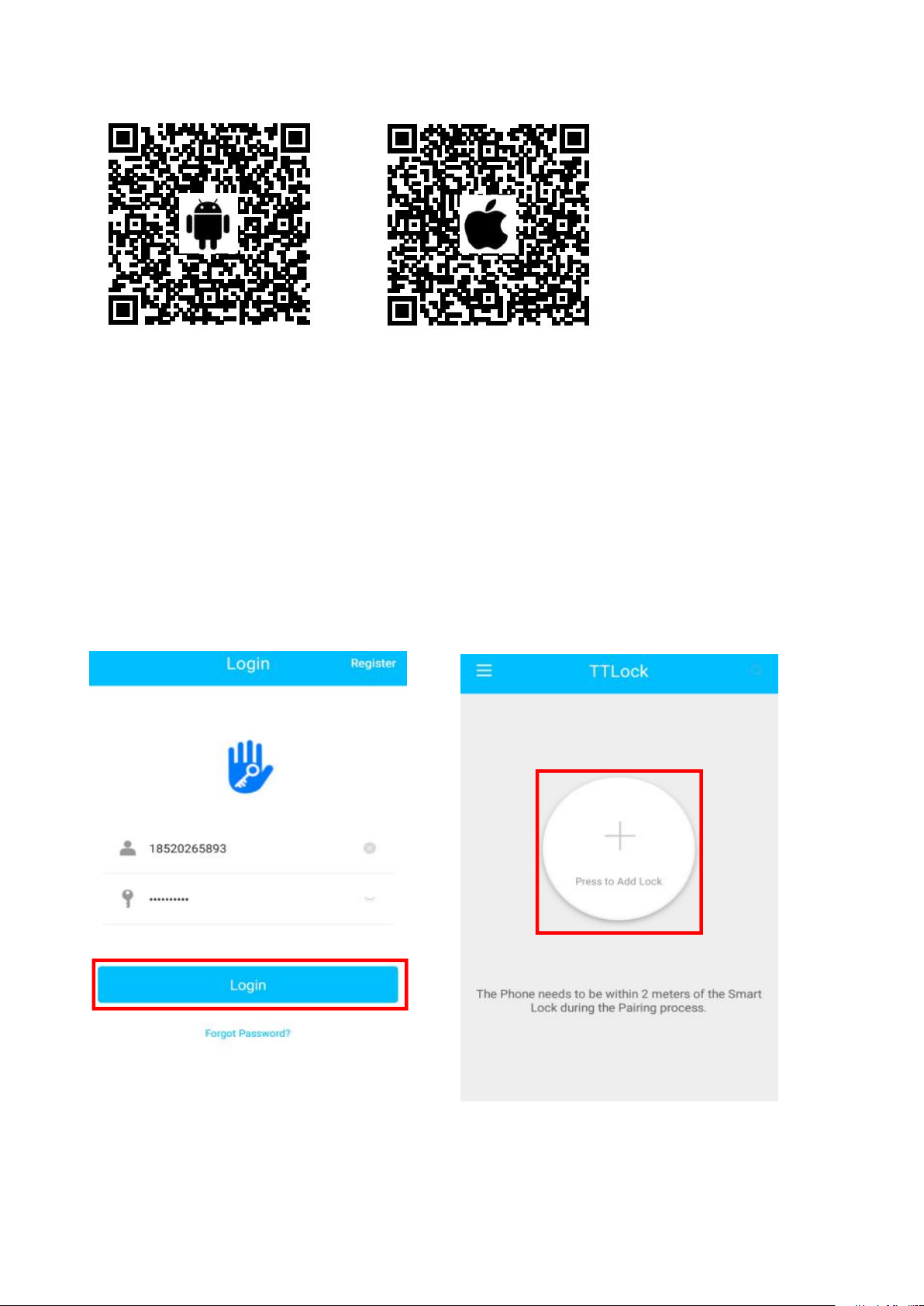
5.Registration
5.1 Connect lock to the phone
1) Android mobile phone, please scan the left QR code as above
2) Apple mobile phone, please scan the right QR code as above
3) Register a new account (phone number or email) or login with an existing account.
4) Touch the lock screen to light, and click "+” Add Lock
5) The lock nearby will appear on the phone screen, Click "+"
6) Re-name the lock
7) The lock added successfully
1-1
1-2

5.2 User Management
5.2.1 Bluetooth management
After mobile phone and door lock connected, Click " " as show as figure2- 1 to unlock.(the phone is
within 5meters from the door lock)
5.2.2 Remote control management(Option)
After confirming that your phone and door lock are connected to the gateway,Click " " as show as
figure 2-1 to unlock.You can unlock it anywhere you have a network.(How to set up the gateway to
connect to your phone refer to step 5.3)
5.2.3 e-Key management
Click on the " " as shown in figure 2-1,you can send the eKey to other users of TTlock to
authorize the unlock
(the receiver must be download the APP and resiter an account)
→Enter recipient's
account of TTlock,set the name and effective time of the eKey as shown in figure 2-2 →Send →The
recipient's account has bluetooth unlock permission
5.2.4 The Admin password management
Click " "as shown in figure 2-1→See Admin Passcode as shown in finger2-3→input Passcode on
the keypad of lock →“#”to unlock.
5.2.5 Dynamic password management
Click " "as shown in finger 2-1→finger 2-4 You can set the effective time and effective number of
passwords→Generate password→Input password to unlock.
5.2.6 Unlock records
Click " "as shown in finger 2-1→you can query your unlock record as shown in finger 2-5
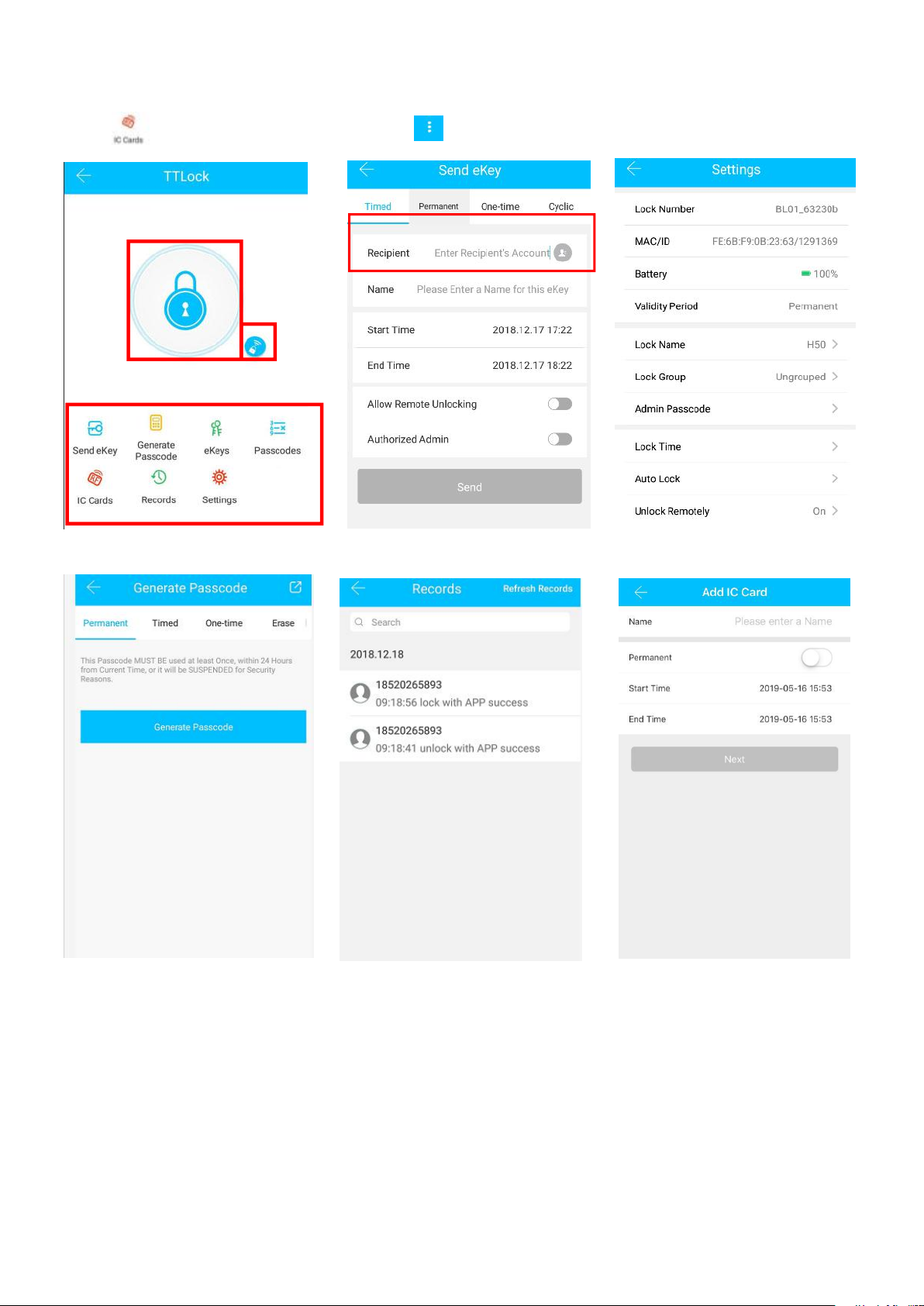
5.2.7 IC Cards management
Click " " as shown in finger 2-1→Click " "→Add IC Cards as finger 2-6
Q20
Enter Recipient account of TTlock
2-1
2-2
2-3
2-4
2-5
2-6

Packing List
Picture
Name
Front Pane
Back Panel
Strike Box
Card
Quantity
1
1
1
3
Picture
Name
M4*12mm Screw*1
M4*20mm Screw*1
M4*30mm Screw*1
M4*40mm Screw*1
Quantity
1
1
1
1
Picture
Name
M4*40mm Screw*1
User Manual
Mortise Screws:25*4mm
Quantity
1
1
4
40MM
20MM
30MM
12MM
50MM

Guarantee
Customer name:
Customer calls :
Purchase date :
Product name :
Product model :
Note:
1) please keep this card so that you can use it when you need warranty service.
2) we provide you with a one-year warranty from the date of purchase.
3) this warranty service is valid for customers in any country in the world.
Table des matières
Autres manuels SmartLock Verrouillage

SmartLock
SmartLock S31 Manuel utilisateur

SmartLock
SmartLock W-0309 Manuel utilisateur

SmartLock
SmartLock LOCK-ONE Manuel utilisateur

SmartLock
SmartLock VISION Manuel utilisateur

SmartLock
SmartLock VISION Manuel utilisateur

SmartLock
SmartLock 301 Manuel utilisateur

SmartLock
SmartLock PREMIER - 10 USERS Manuel utilisateur

SmartLock
SmartLock UNRD Series Manuel utilisateur

SmartLock
SmartLock Y797 Manuel utilisateur
SmartLock
SmartLock PREMIER Manuel utilisateur


