
Smartlock Digital LG Master Manuel utilisateur

1. TO POWER UP
........................................................................................................
2
2. TO OPEN............................................................................................................................... 2
3. TO OPEN (DUAL COMBO) ......................................................................................... 3
4. CHANGING COMBO - Users and Manager (only digit)......................... 4
5. CHANGING COMBO - Users and Manager (with dallas key)............ 5
6. CHANGING COMBO - Master (always only digit)..................................... 6
7. MANAGER MENU............................................................................................................. 7
7.1 Users Administration ................................................................................................... 7
7.1.1 User enabled ............................................................................................................ 8
7.1.2 User disabled............................................................................................................ 8
7.1.3 User deleted............................................................................................................. 9
7.1.4 User blocked.............................................................................................................. 9
7.2 Time Delay..................................................................................................................... 10
7.3 Audit Download ........................................................................................................... 11
8. TIME MENU ...................................................................................................................... 12
8.1 Immediate Time Lock ............................................................................................... 12
8.2 Temporary Time Lock............................................................................................... 13
8.3 Open Extension TimeLock..................................................................................... 14
9. MASTER MENU............................................................................................................... 15
9.1 Time / Date ................................................................................................................... 15
9.2 Time Lock - Standard Week................................................................................... 16
9.2.1 ADD / MODIFY Standard Week....................................................................... 16
9.2.2 VERIFY opening period ....................................................................................... 17
9.3 2nd Time Lock – Standard Week........................................................................... 18
9.3.1 ADD / MODIFY Standard Week (2nd TL)......................................................... 18
9.3.2 VERIFY opening period (2nd TL)........................................................................ 19
9.4 Time Lock - Special Events..................................................................................... 20
4.1 ADD /MODIFY Special events ............................................................................... 20
9.4.2 VERIFY Special events ....................................................................................... 21
9.5 PC Link............................................................................................................................. 22
9.6 System Setup ............................................................................................................... 23
9.6.1 Install Lock.............................................................................................................. 23
9.6.2 Remove Lock.......................................................................................................... 24
9.6.3 Assign lock.............................................................................................................. 24
9.6.4 Info ........................................................................................................................... 25
9.7 Manager delete............................................................................................................ 26
Contents
V1.0_9111 | Division of Davcor Group Pty Ltd | www.smartlock.com.au | www.smartlock.co.nz | Page 1
LG Master
User’s Manual
1. TO POWER UP
Press any button till display shows ”ENTER COMBO” (or ”SELECT LOCK” when
two, or more, locks are installed): display will power-off after 30 seconds if no
operation.
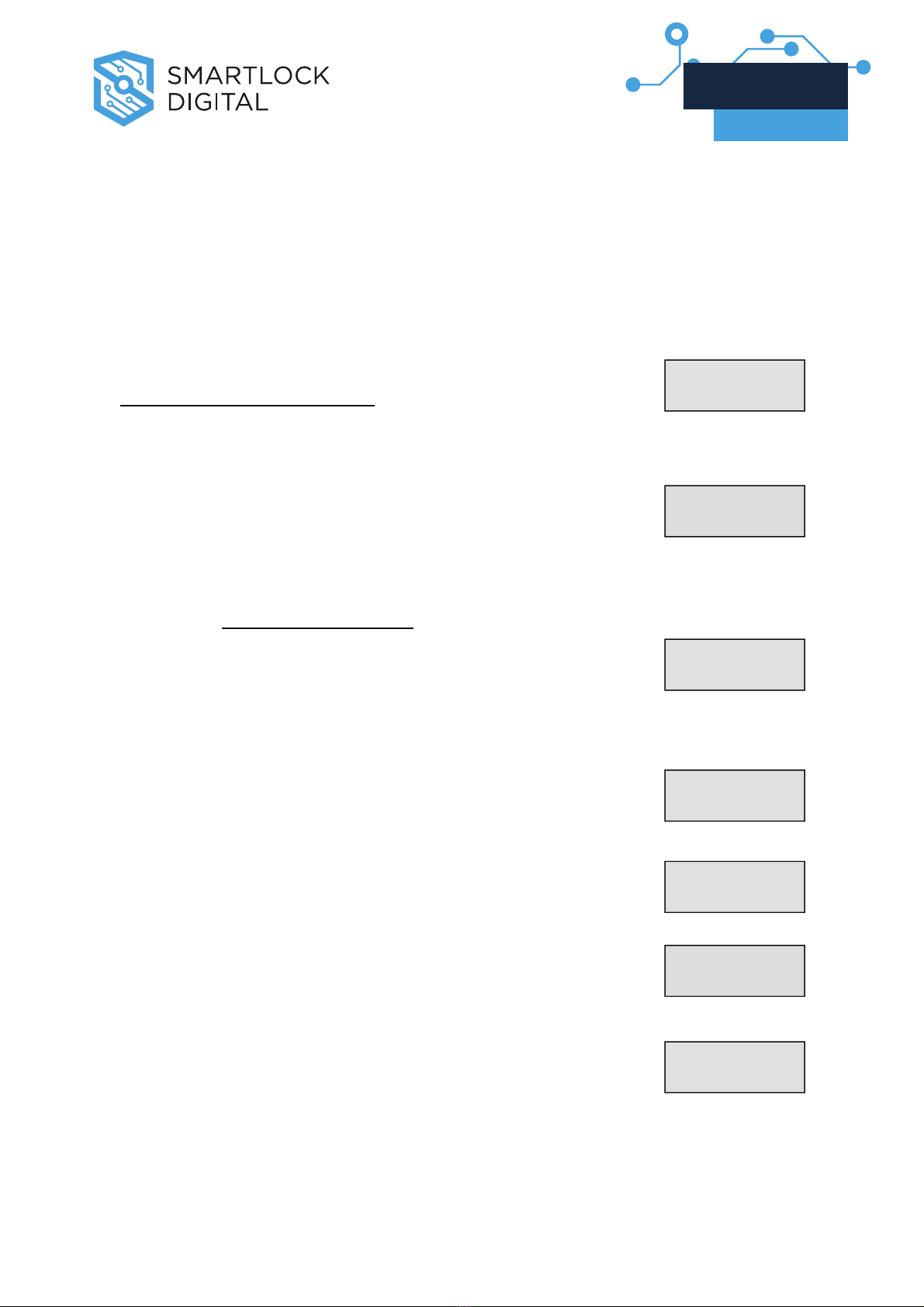
2. TO OPEN ENTER COMBO
XX-XXXXXX
Select door if Multi-Lock mode.
OPEN!
1. Enter your user ID and combo (and insert the dallas key)*
If combo is valid, LCD shows ”OPEN”:
Open the Door within 3 seconds. Before power-off,
LCD shows current date and time.
Otherwise, in case of Time Delay
2. LCD shows:
Counting is updated every second. Counting mode is
a selectable feature (count-up, count-down or invisible).
TIME DELAY
14:31
3. After Time Delay has elapsed, display shows ”mm:ss”
(open window counting).
03:51
XX-XXXXXX
4. Enter again your user ID and combo (and insert a
dallas key)* to open.
OPEN!
N.B.: If the combo is wrong, display shows: NOT VALID
USER!
It’s possible to abort time delay counting in every moment by
pressing ”0”. Display shows:
DELAY ABORTED!
*: only in dallas key Mode
V1.0_9111 | Division of Davcor Group Pty Ltd | www.smartlock.com.au | www.smartlock.co.nz | Page 2
LG Master
User’s Manual

3. TO OPEN (DUAL COMBO) ENTER COMBO
XX-XXXXXX
Select door if Multi-Lock mode.
TIME DELAY
14:31
03:51
XX-XXXXXX
OPEN!
DELAY ABORTED!
NOT VALID
USER!
1. Type user ID and combo (and insert dallas key)*
If combo is valid, you must type a different user ID and
combo (and insert dallas Key). If valid combo, LCD
shows ”OPEN”:
Open the door within 3 seconds. Before power-off,
LCD shows current date and time.
2nd COMBO
XX-XXXXXX
OPEN!
Otherwise, in case of Time Delay
2. LCD shows:
Counting is updated every second. Counting mode is
a selectable feature(count-up, count-down or invisible).
3. After Time Delay has elapsed, display shows ”mm:ss”
(open window counting).
2nd COMBO
XX-XXXXXX
4. Enter a valid combo (and insert a dallas key)*
and then the second combo (and insert a dallas
key)* to open.
N.B.: If combo is wrong, display shows:
It’s possible to abort time delay counting in every moment
by pressing ”0”. Display shows:
If Override user (#49) is installed with Dual combo, first You have to
enter User #49 combo (and dallas Key).*
*: only in dallas key Mode
V1.0_9111 | Division of Davcor Group Pty Ltd | www.smartlock.com.au | www.smartlock.co.nz | Page 3
LG Master
User’s Manual
4. CHANGING COMBO - Users and Manager (only digit)
Press any button to power up,select door if Multi-Lock
mode; display shows:
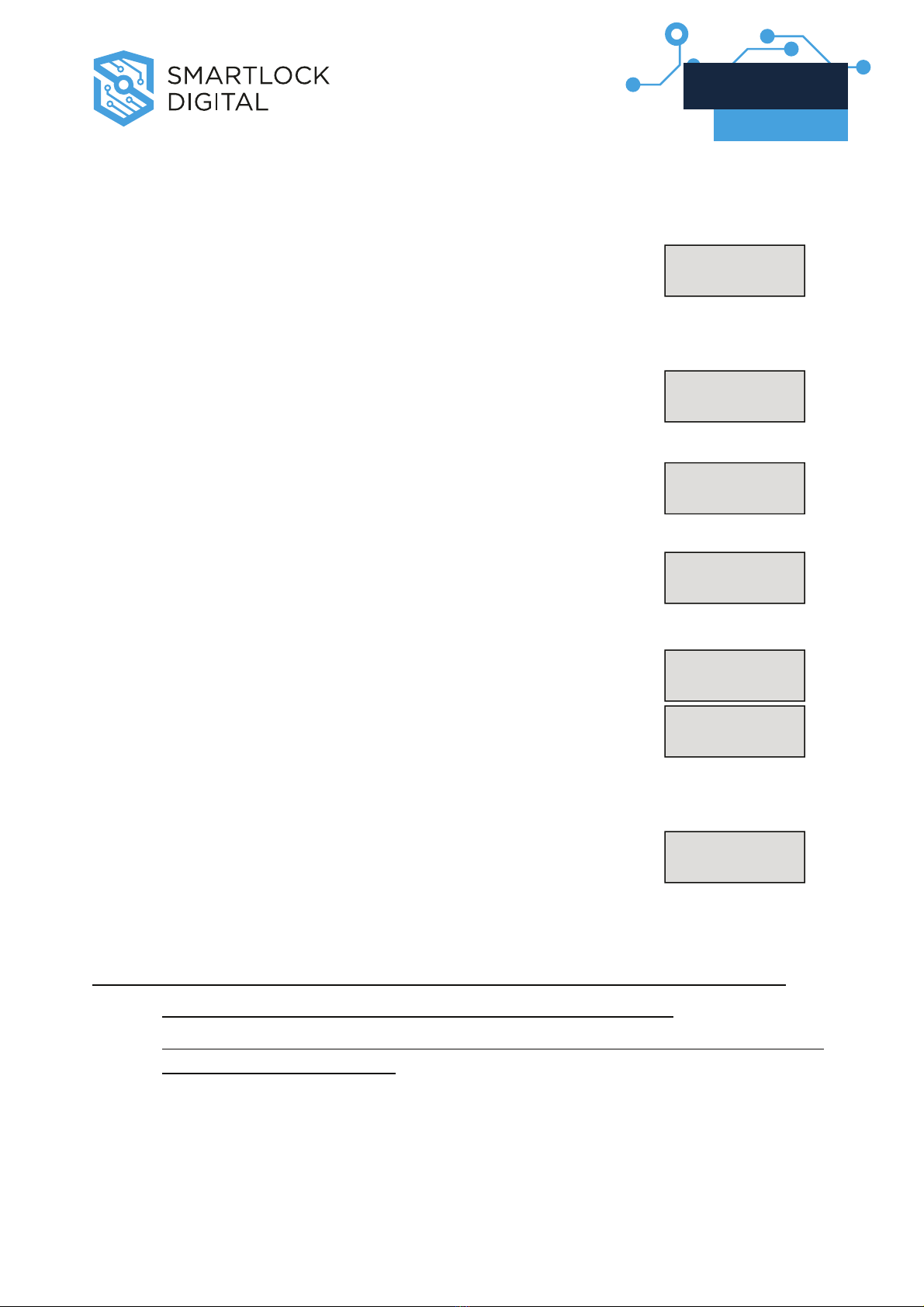
ENTER COMBO
XX-XXXXXX
1. Enter user ID and enter ” 0” six times. LCD shows: OLD CODE
04-XXXXXX
NEW CODE
04-XXXXXX
2. Enter an OLD valid combo. LCD shows:
CONFIRM NEW
04-XXXXXX
3. Enter a NEW valid combo, LCD shows:
MANAGER CODE
UPDATED!
4. Enter the NEW combo again, LCD shows:
In case of mistake, the display shows:
USER CODE
UPDATED!
ERROR!
Note: ALWAYS PERFORM THIS OPERATION WITH THE DOOR OPEN.
Test lock operation several times before closing the door.
In case of mistake, the old combo keeps in memory. Wait thirty seconds
and repeat the procedure.
V1.0_9111 | Division of Davcor Group Pty Ltd | www.smartlock.com.au | www.smartlock.co.nz | Page 4
LG Master
User’s Manual
5. CHANGING COMBO - Users and Manager (with dallas key)
Press any button to power up , select door if Multi-Lock
mode; display shows:
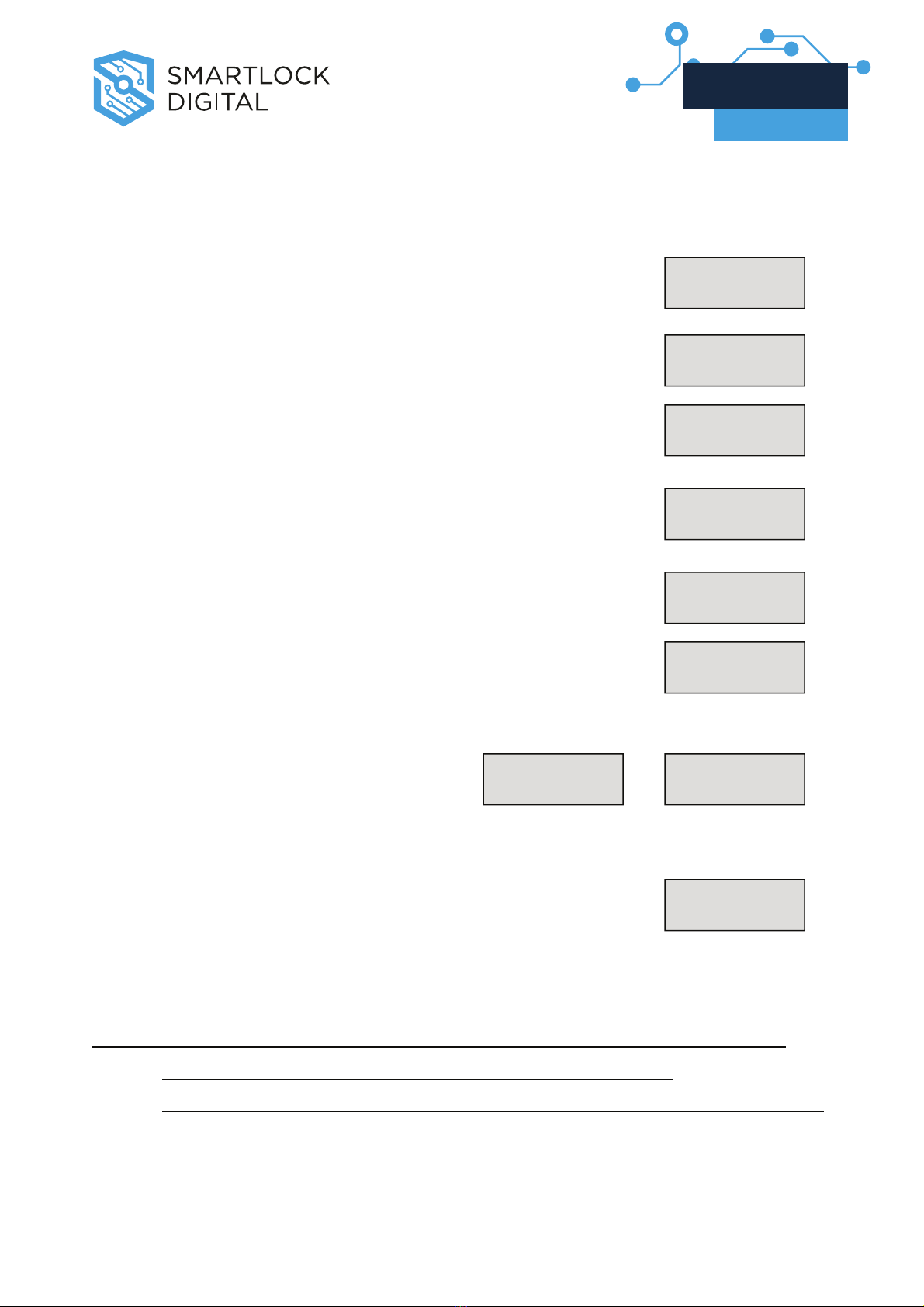
ENTER COMBO
XX-XXXXXX
OLD CODE
04-XXXXXX
1. Enter user ID and ” 0” six times, LCD shows:
INSERT
DALLAS KEY
2. Enter an OLD valid combo and insert dallas key. LCD
shows: NEW CODE
04-XXXXXX
3. Enter a NEW valid combo, LCD shows: CONFIRM NEW
04-XXXXXX
INSERT
DALLAS KEY
4. Enter a NEW combo again and insert dallas key,
LCD shows:
MANAGER
UPDATED
USER CODE
UPDATED
ERROR!
In case of mistake, display shows:
Note: ALWAYS PERFORM THIS OPERATION WITH THE DOOR OPEN.
Test lock operation several times before closing the door.
In case of mistake,the old combo keeps in memory. Wait thirty seconds
and repeat the procedure
V1.0_9111 | Division of Davcor Group Pty Ltd | www.smartlock.com.au | www.smartlock.co.nz | Page 5
LG Master
User’s Manual
6. CHANGING COMBO - Master (always only digit)
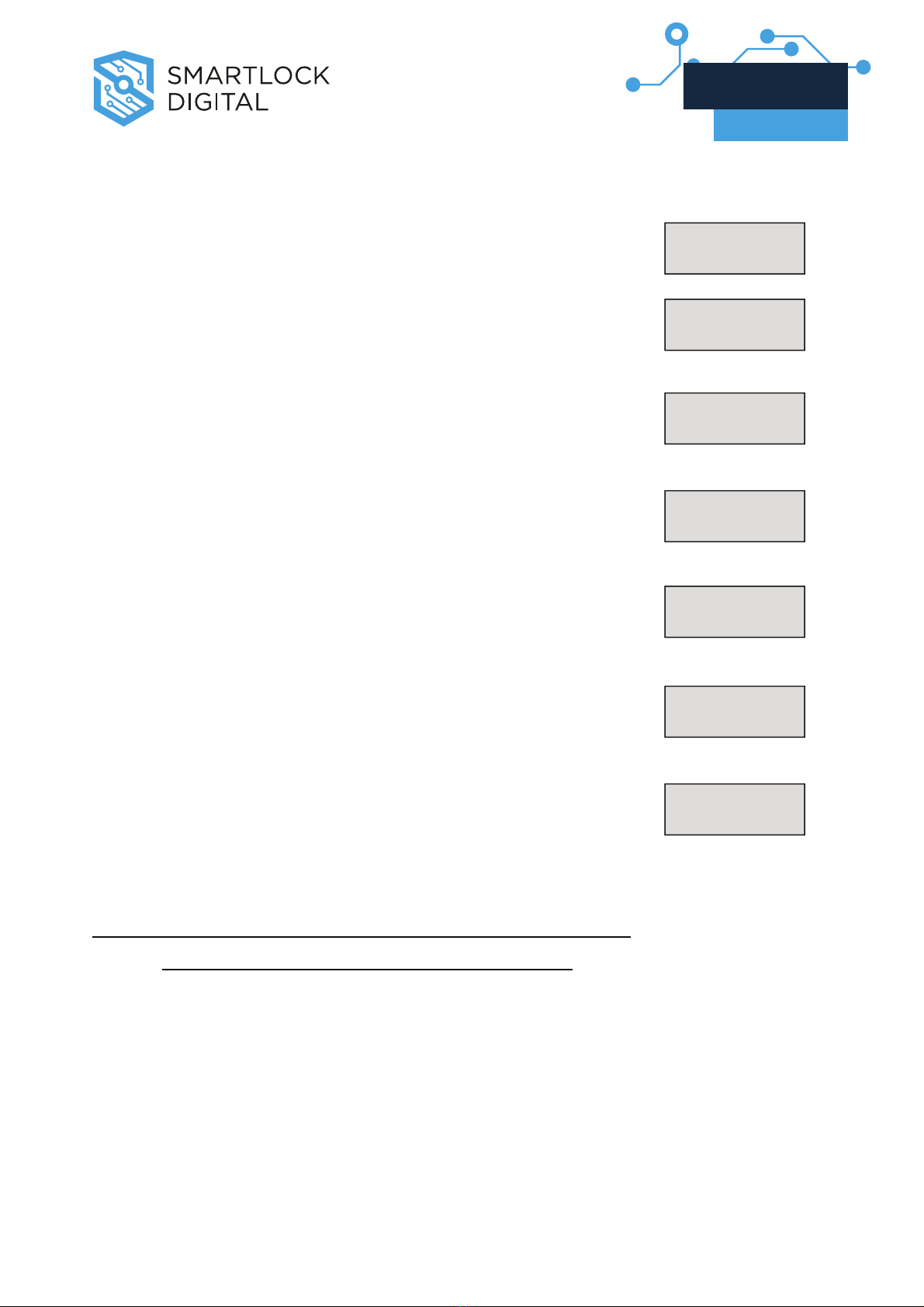
Press any button to power up; display sh ows: ENTER COMBO
XX-XXXXXX
1. Hold down ”0” until display shows: MASTER
XXXXXXXX
OLD CODE
XXXXXXXX
2. Enter ”0” eight times.LCD shows:
NEW CODE
XXXXXXXX
3. Enter the valid Master combo. LCD shows:
CONFIRM NEW
XXXXXXXX
4. Enter a valid NEW Master combo. LCD shows:
5. Enter the NEW Master combo again. LCD shows:
In case of mistake, display shows:
MASTER CODE
UPDATED!
ERROR!
Note: In case of mistake, the old combo keeps in memory.
Wait thirty seconds and repeat the procedure.
V1.0_9111 | Division of Davcor Group Pty Ltd | www.smartlock.com.au | www.smartlock.co.nz | Page 6
LG Master
User’s Manual
7. MANAGER MENU
Manager Menu allows to access to following functions:
oUsers Administration (install, delete, disable/enable)
oSetup Time Delay
oAudit List
Access Manager Menu
Press any button to power up ; select door if Multi-Lock
mode; display shows:
ENTER COMBO
XX-XXXXXX
Hold down O
OK
Kuntil display shows: MANAGER
XXXXXX
Enter Manager combo. (default: 1-1-1-1-1-1)
If Dallas key Mode is active, insert Manager’s Key.
7.1 Users Administration
This function allows to manage all users in each lock.
Access Manager Menu (see Manager Menu page 7).
If valid Manager code is entered, LCD shows: USERS ON/OFF
Press O
OK
Kto access users administration function. LCD
shows: SELECT
USER ID = XX
Enter user ID (ex: 05 for user 5). Four conditions are possible:
V1.0_9111 | Division of Davcor Group Pty Ltd | www.smartlock.com.au | www.smartlock.co.nz | Page 7
LG Master
User’s Manual

7.1.1 User enabled
Display shows: 05 ENABLED!
DISABLE?
If You want to disable user:
Press O
OK
K
LCD shows USER ID = 05
DISABLED!
Otherwise,
Press P
Pand LCD shows:05 ENABLED!
DELETE?
If you want to delete user:
Press O
OK
K
LCD shows USER ID = 05
DELETED!
Otherwise,
Press P
Pand LCD shows:SELECT
USER ID = XX
7.1.2 User disabled
Display shows: 05 DISABLED!
ENABLE?
If You want to enable user:
Press O
OK
K
USER ID = 05
ENABLED!
LCD shows
Otherwise,
Press P
Pand LCD shows:05 DISABLED!
DELETE?
If you want to delete user:
V1.0_9111 | Division of Davcor Group Pty Ltd | www.smartlock.com.au | www.smartlock.co.nz | Page 8
LG Master
User’s Manual
Press O
OK
K
LCD shows USER ID = 05
DELETED!
Otherwise,
Press P
Pand LCD shows:SELECT
USER ID = XX
7.1.3 User deleted
Display shows: 05 DELETED!
INSTALL?
If You want to install user:
Press O
OK
K
NEW CODE
05-XXXXXX
LCD shows
Enter user code,
Press O
OK
Kand LCD shows: CONFIRM NEW
05-XXXXXX
Enter user code again:
Press O
OK
K(and insert dallas key)*
LCD shows USER ID = 05
ENABLED!
Otherwise,
Press P
Pand LCD shows:SELECT
USER ID = XX
7.1.4 User blocked
Display shows: USER ID = 05
NOT VALID!
*: only in dallas key Mode
V1.0_9111 | Division of Davcor Group Pty Ltd | www.smartlock.com.au | www.smartlock.co.nz | Page 9
LG Master
User’s Manual
7.2 Time Delay
This function allows to change Time delay values in each lock.
Access Manager Menu (see Manager Menu page 7).
If valid Manager code is entered, LCD shows: USERS ON/OFF
Press P
Pto select Time Delay Menu. LCD shows:
TIME DELAY
Press O
OK
Kto access Time Delay Menu. LCD shows the current
values: DELAY XX
OPEN XX
Press O
OK
Kagain to setup the new values:
DELAY 08
OPEN 02
Digit the new values ( insert two digits :ex. 08 – 02).
Press O
OK
Kto confirm new values.
LCD shows: OK, UPDATED
VALUES!
If You select a lower Time Delay value and You confirm with OK button, old
Time Delay counting starts automatically; when Time delay counting is elapsed
and open window period starts, LG Master has updated TD values. You have to
wait that open period is finished.
Press P
Pto select the next programming window.
V1.0_9111 | Division of Davcor Group Pty Ltd | www.smartlock.com.au | www.smartlock.co.nz | Page 10
LG Master
User’s Manual
Table des matières
Autres manuels Smartlock Digital Verrouillage


