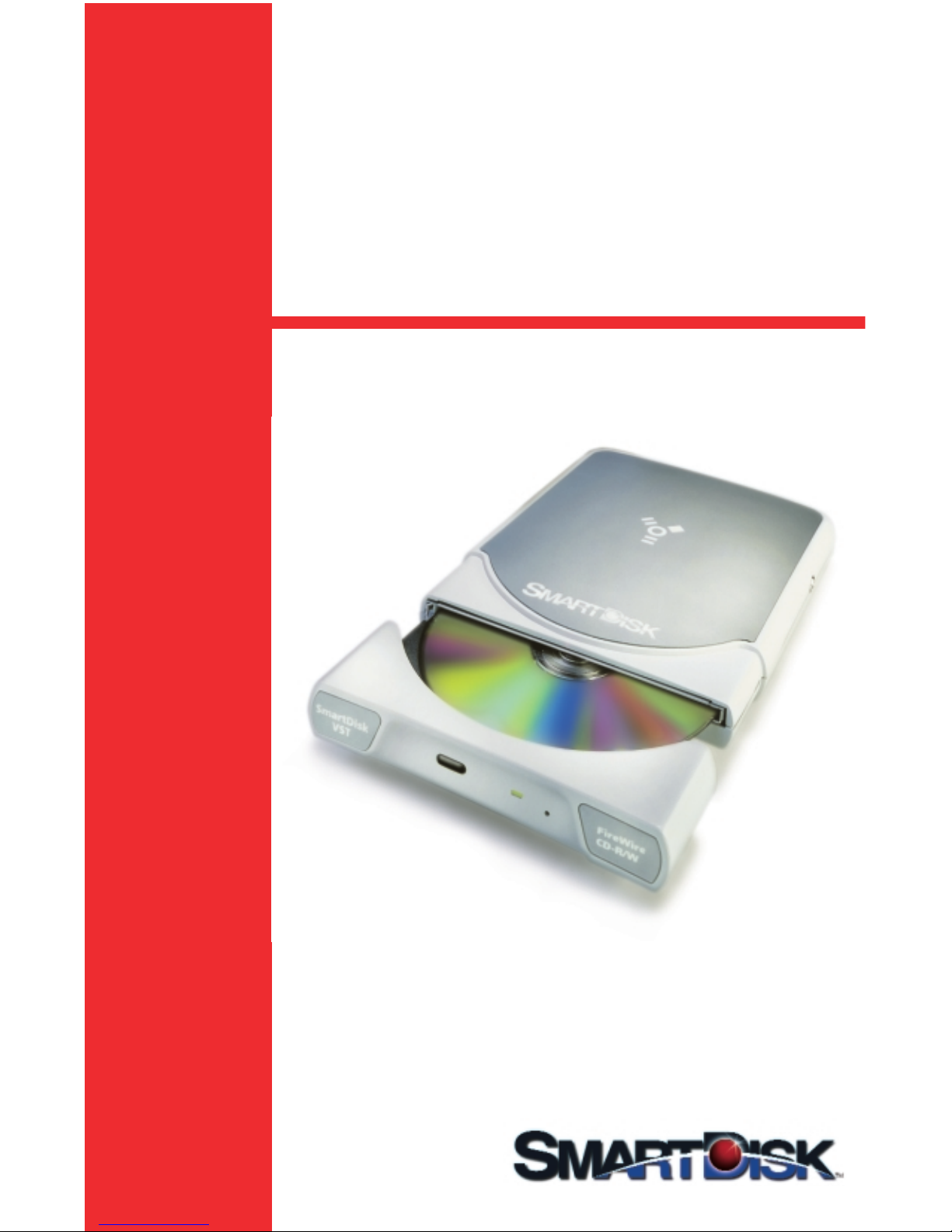
SmartDisk VST FireWireTM Portable CD-R/W Drive Manuel utilisateur

User’s Guide
SmartDisk VST
FireWire™ Portable
CD-R/W Drive
Simplifying the Digital Lifestyle™
Macintosh
& Windows
Compliant

© 2001 SmartDisk Corporation
All other Trademarks are property of their respective holders.
What’s Inside The Box:
SmartDisk VST FireWire
Portable CD-R/W Drive
Installation
Software CD
FireWire Cable (2’/0.7M)
QuickStart Guide
Optional Accessories
Available at www.smartdisk.com
• AC Adapter ACFWS
• CardBus Card FWCBC
• FireWire PCI Card PCIUSBFW
• FireWire Cable (2’/.7M) FWCBL2
• FireWire Cable (5’/1.5M) FWCBL5
• FireWire Cable (12’/3.7M) FWCBL12

SmartDisk VST CD-R/W User’s Guide Contents
Congratulations . . . . . . . . . . . . . . . . . . . . . . . . . . . . 4
Important Notes . . . . . . . . . . . . . . . . . . . . . . . . . . . . 5
Getting Started . . . . . . . . . . . . . . . . . . . . . . . . . . . . . 5
QuickStart Instructions . . . . . . . . . . . . . . . . . . . . . . . 6
Installing your CD-R/W Drive . . . . . . . . . . . . . . . . . . 7
Installing your CD Recording Software . . . . . . . . . . 8
Preparing to write a CD . . . . . . . . . . . . . . . . . . . . . . 9
Methods for writing CDs . . . . . . . . . . . . . . . . . . . . 10
Operating your CD-R/W Drive . . . . . . . . . . . . . . . . 11
Precautions . . . . . . . . . . . . . . . . . . . . . . . . . . . . . . . 12
Troubleshooting . . . . . . . . . . . . . . . . . . . . . . . . . . . 12
Technical Support . . . . . . . . . . . . . . . . . . . . . . . . . . 13
Electronic Compliance . . . . . . . . . . . . . . . . . . . . . . . 14
Limited Warranty . . . . . . . . . . . . . . . . . . . . . . . . . . 15

Congratulations!
4
You are the new owner of a SmartDisk VST FireWire Portable CD–R/W
Drive! Designed for versatility and portability, your SmartDisk VST FireWire
Portable CD–R/W Drive will give you outstanding performance for years to
come.
The super–thin design of the SmartDisk VST FireWire Portable CD–R/W Drive
makes it ideal for portable use, and no external power source is necessary
when the drive is connected to a 6-pin FireWire port. An AC adapter is
required if using the SmartDisk VST FireWire Portable CD-R/W Drive with
a FireWire CardBus Card. Order AC adapter model ACFWS from
www.smartdisk.com.
FireWire is an exciting new technology for connecting high speed serial
devices to CPU’s. FireWire is easy to use - it is hot-pluggable, allowing you
to plug a device into the CPU and not have to reboot the machine. The
device drivers are loaded automatically, and there are no bulky cables,
terminators, or SCSI ID switches to set. You can move your FireWire devices
from one machine to another and just plug in.
We thank you for your purchase of the SmartDisk VST FireWire Portable
CD-R/W Drive, and we promise you the highest quality world class user
experience we can deliver.

Getting Started
5
Important Notes
Using CD-R/W media with your new CD-R/W:
High-speed CD-RW media is needed to use 8x speed with your CD-RW drive.
Normal CD-RW media will only allow you to burn at a maximum of 4x speed.
JustLink Buffer Underrun Prevention:
The SmartDisk VST FireWire Portable CD-R/W includes JustLink Buffer
Underrun Prevention for reliable CD recording, even while multi-tasking.
- Windows PC users automatically install JustLink during the Easy CD
Creator install process.
- Mac OS Users need to follow the instructions below to install JustLink.
1. Install Toast according to the instructions in this user guide.
2. Double click on the "JustLink Installer" and follow the instructions.
3. During the CD recording process, a "Record" dialog box appears with
record options. Check the "Buffer Underrun Prevention" checkbox and
click on either the "Write Session" or "Write Disc" options.
For proper operation, the SmartDisk VST FireWire CD-R/W Drive requires:
Mac OS Users
• A Macintosh computer with a FireWire port and at least 16 MB RAM
• Mac OS 8.6 or higher
• 40 MB free hard disk space
• Roxio Toast 5.01 or higher (included on the installation CD)
Windows PC Users
• A Pentium PC with a FireWire port or a FireWire CardBus Card and at
least 16 MB RAM
• Windows 98 SE, Windows 2000, or Windows ME
• 40 MB free hard disk space
• Roxio Easy CD Creator 5.01 or higher (included on the installation CD)

6
Connecting your SmartDisk VST FireWire Portable CD-R/W Drive
1. Turn off your computer and all other devices.
2. Connect one end of the FireWire cable to the SmartDisk VST FireWire
Portable CD-R/W Drive, and connect the opposite end to a FireWire port
on your computer or CardBus Card.
3. If using your SmartDisk VST FireWire Portable CD-R/W Drive with a
CardBus Card, you must also use an AC Adapter (Model ACFWS available
from SmartDisk).
Mac OS Users:
Roxio Toast CD Recording Software must be installed to use the device. See
instructions on page 8.
Windows ME and Windows 2000 Users:
You will see the SmartDisk CD-R/W icon in My Computer or Windows
Explorer. See instructions on page 8 for installing Roxio Easy CD Creator
CD Recording Software.
QuickStart Instructions

7
Installing your SmartDisk VST
FireWire Portable CD-R/W Drive
Important Installation Instructions for Windows 98SE users only:
It is critical that you determine if your Windows 98SE system includes
the 1394 FireWire storage supplement files. Connect your SmartDisk VST
FireWire PortableCD-R/W as described on page 6. If Windows recognizes
the SmartDisk VST FireWire Portable CD-R/W Drive, and it is visible in My
Computer and Windows Explorer, the installation is complete. If Windows
asks you to insert your Windows 98SE CD into your CD-ROM drive, you will
need to complete the following steps:
1. You DO NOT NEED your Windows 98SE Install disk.
2. At the Windows 98SE CD-ROM request, click OK. You DO NOT need to
insert the Windows 98SE CD.
3. When the Insert Disk dialog boxes appear, choose Skip File for each file
requested.
4. You will be asked one additional time to install the Windows 98SE CD.
Once again, do not insert the CD. Click OK to skip file.
5. Insert the SmartDisk VST FireWire Portable CD-R/W Drive installation
CD into your CD-ROM drive.
6. Select the folder called 1394 updates.
7. Double-click on the file called update1.exe and follow the directions.
8. When prompted to restart your computer, click NO to continue.
9. Double-click on the file called update2.exe and follow the directions.
10. When prompted to restart your computer, click YES to restart.
11. You will see the SmartDisk VST FireWire Portable CD-R/W Drive icon in My
Computer or Windows Explorer.

Installing your CD Recording Software
8
Instructions for Windows Users
Installing the Roxio Easy CD Creator CD Recording Software included with
your SmartDisk VST FireWire Portable CD-R/W Drive:
1. Insert the SmartDisk Installation CD into your CD-ROM drive.
2. Double click on the Easy CD Creator Installer and follow the
on-screen instructions.
Refer to the Roxio Easy CD Creator User Guide (included on your
Installation CD) for additional information.
Instructions for Macintosh Users
Installing the Roxio Toast CD Recording Software included with your
SmartDisk VST FireWire Portable CD-R/W Drive:
1. Insert the SmartDisk Installation CD into your CD-ROM drive.
2. Locate and open the appropriate language folder.
3. Double-click the Roxio Toast Installer icon and follow the
on-screen instructions.
4. After installation, you will be prompted to restart your Macintosh.
To eject the CD, drag the VST CD icon to the Trash, or select Eject
under Special in the task bar.
Refer to the Roxio Toast User Guide (included on your Installation CD) for
additional information.
Important: We recommend use of the Roxio software that is included on
your Installation CD. If you wish to use other software, please contact the
supplier to determine if the software supports the SmartDisk VST
FireWire Portable CD-R/W Drive.

9
Preparing to write a CD
The SmartDisk VST FireWire Portable CD-R/W Drive can:
• Read, write, and rewrite CD-R/RW disks
• Read and write information on CD-R disks
Recordable disks (CD-R) are compatible with the vast majority of CD-ROM
drives and CD audio players and will work in most DVD-ROM drives.
CD-R/RW disks are only read compatible with multi-read-capable CD-ROMs,
DVD-ROMs and CD-R/W drives.
The SmartDisk VST FireWire Portable CD-R/W Drive reads and writes accord-
ing to the following standards:
• MS-DOS data CDs (High Sierra, Mode 1 & Mode 2 complying with ISO 9660)
• Data CDs (Joliet) Note: Only readable under Windows 95/98 and
Windows NT 4.0
• CD ROM XA
• Mixed mode CDs
• Kodak Photo CDs (single and multi-session)
• UDF (Universal Disk Format)
• Audio CDs
Steps you can take to insure optimal use of your
SmartDisk VST FireWire Portable CD-R/W Drive:
• Deactivate automatic recognition of CDs (autostart)
• Deactivate the screen saver
• Shutdown your network connection
• Close all open windows
• Defragment your hard drive
CD-Rs are more sensitive than commercially available CDs. Use only a
solvent-free, non-abrasive marker when writing on a CD.
Do not apply any conventional labels on the CD-Rs because the adhesive
can degrade the CD. Special labels for CD-R media are available in retail
computer stores. Never remove a label from a CD-R disk because you can
damage the protective layer and make the CD-R unusable.

Methods for writing CD’s
10
There are two methods for writing CDs – Mastering and Packet Writing.
Mastering
Mastering is a process for writing audio and data CDs. During the mastering
process, the data is written to the CD according to various industry
standards. This allows, for example, audio CDs to be read by any CD player.
Special programs such as "Roxio Easy Creator" or "Roxio Toast"
(included on your Installation CD) are necessary to convert data into
these specified formats. These programs are necessary for writing data
CDs in ISO 9660 and Joliet formats and for writing audio CDs, Mixed
Mode CDs and Photo CDs.
Packet Writing
Packet Writing can be used to create a CD without a special mastering
program. This process allows you to use disks in combination with the
Universal Disk Format (UDF) as an additional hard disk or floppy disk.
This means that you simply copy files onto the disk. You can drag and
drop files to the CD or use "Save" from any application. The CD works
like a giant floppy disk. You can eject and reinsert it multiple times.
Important: Please note that the mastering and packet writing
procedures must be used separately. You can not mix the proce-
dures on one CD.
Audio CDs – special considerations
• Some older CD player models can not read CD-Rs.
• Each track on an audio CD-R needs to be written continuously. If
there is any interruption in the flow of data (a buffer under-run),
the rest of the track may be lost. For best results, don't run any
other programs on your computer while recording audio CDs.
• If you do not have enough hard disk space, you can try to write
single tracks at a time.
• Audio files must have the proper format (stereo, 16 bit, 44.1 KHz
sampling frequency) and must be supported by the writing software,
for example, *.wav. Some programs offer conversion functions.
Sound cards and the software that comes with them can also be used.
Ce manuel convient aux modèles suivants
1
Table des matières
Autres manuels SmartDisk Lecteur CD/CDR
Manuels Lecteur CD/CDR populaires d'autres marques

Axis
Axis CD-ROM SERVER Manuel utilisateur

LG
LG CRD-8322B Manuel utilisateur

Memorex
Memorex 32023234 - 52x32x52x External USB2.0 CD... Instructions d'installation

Yamaha
Yamaha CD Recordable/Rewritable Drive CRW3200 Manuel utilisateur

Sony
Sony CRX230AE Manuel utilisateur

Sony
Sony CRX - 160E Manuel utilisateur