3
Index
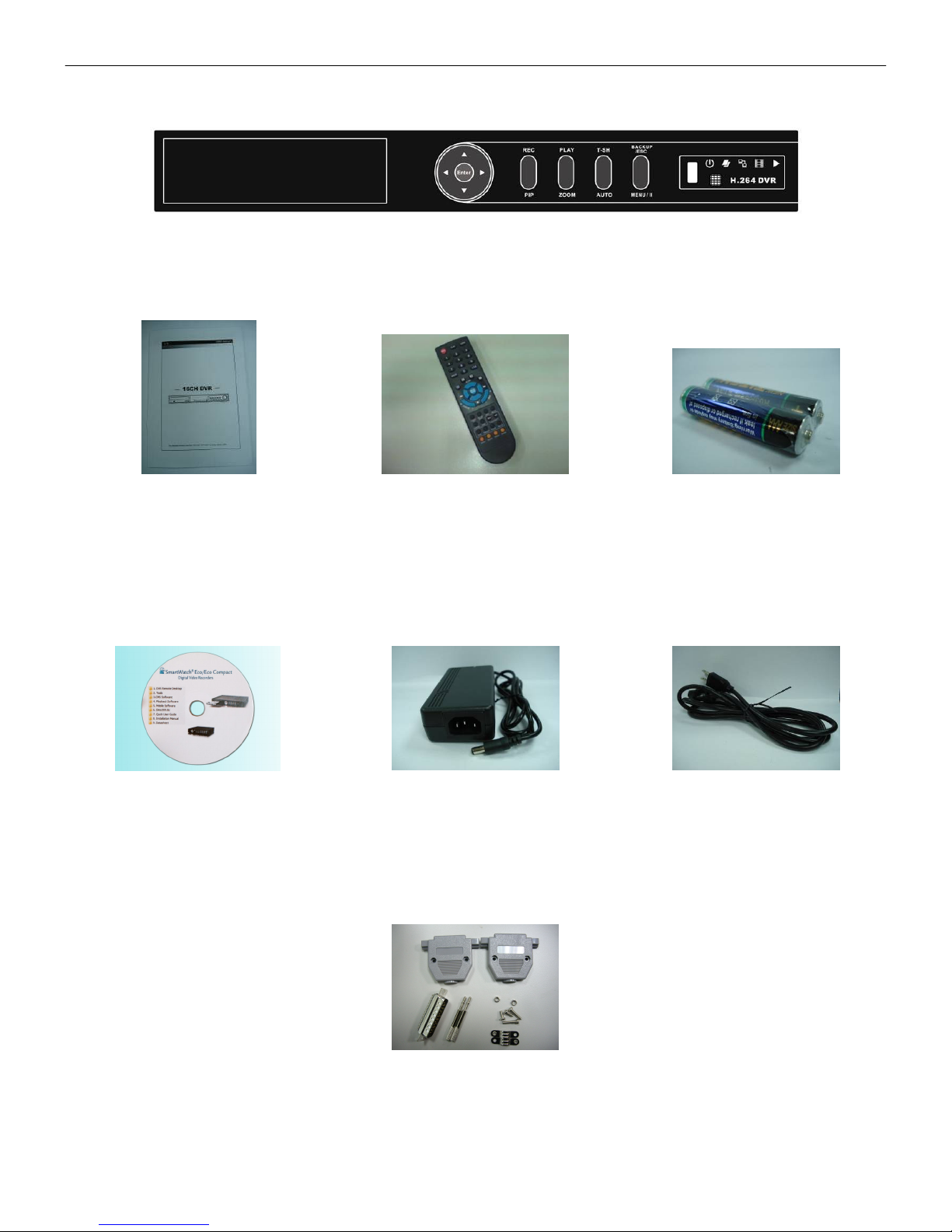
Box Contents.................................................................................................................................................................4
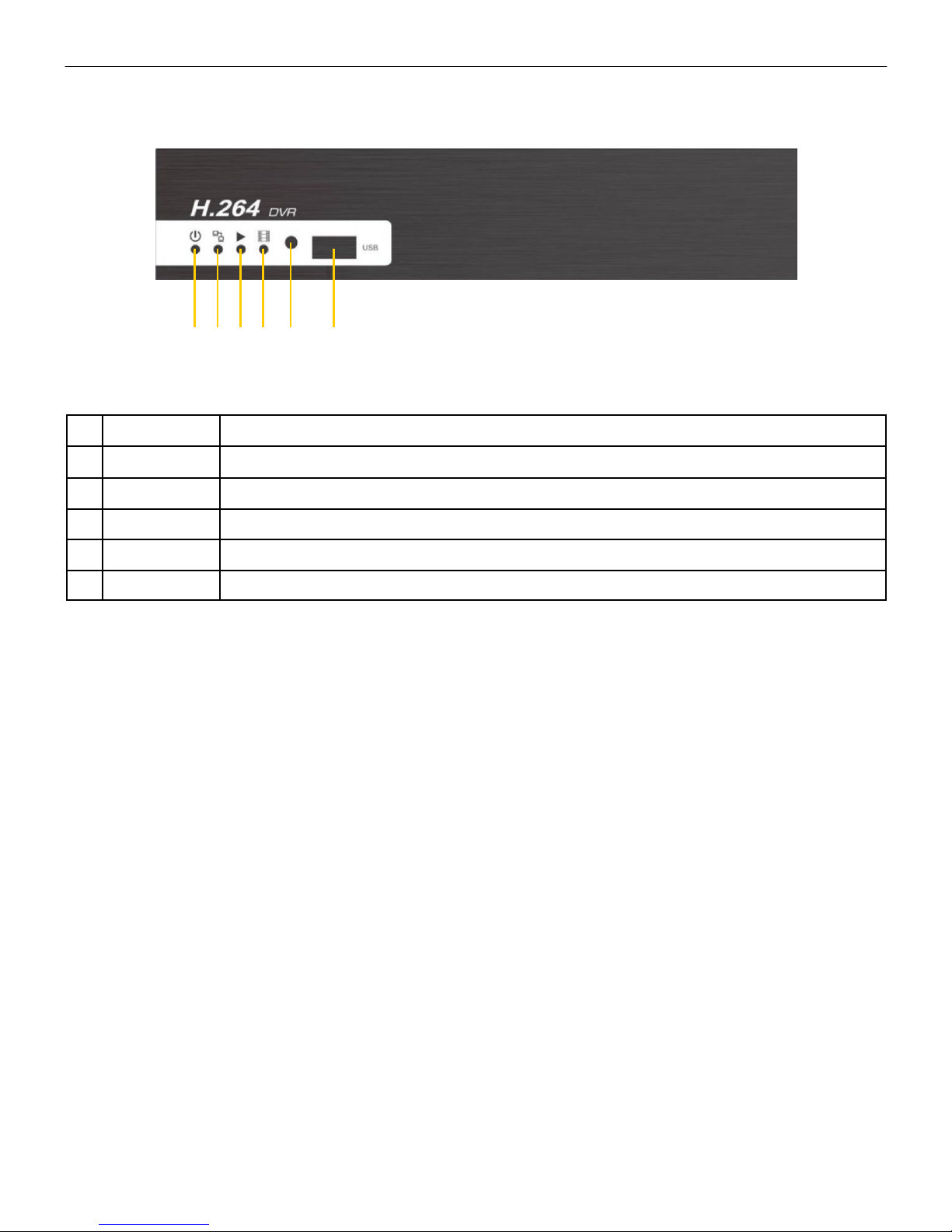
Front Panel Controls ...................................................................................................................................................5-6
SmartWatch Eco Compact..................................................................................................................................5
SmartWatch Eco................................................................................................................................................6
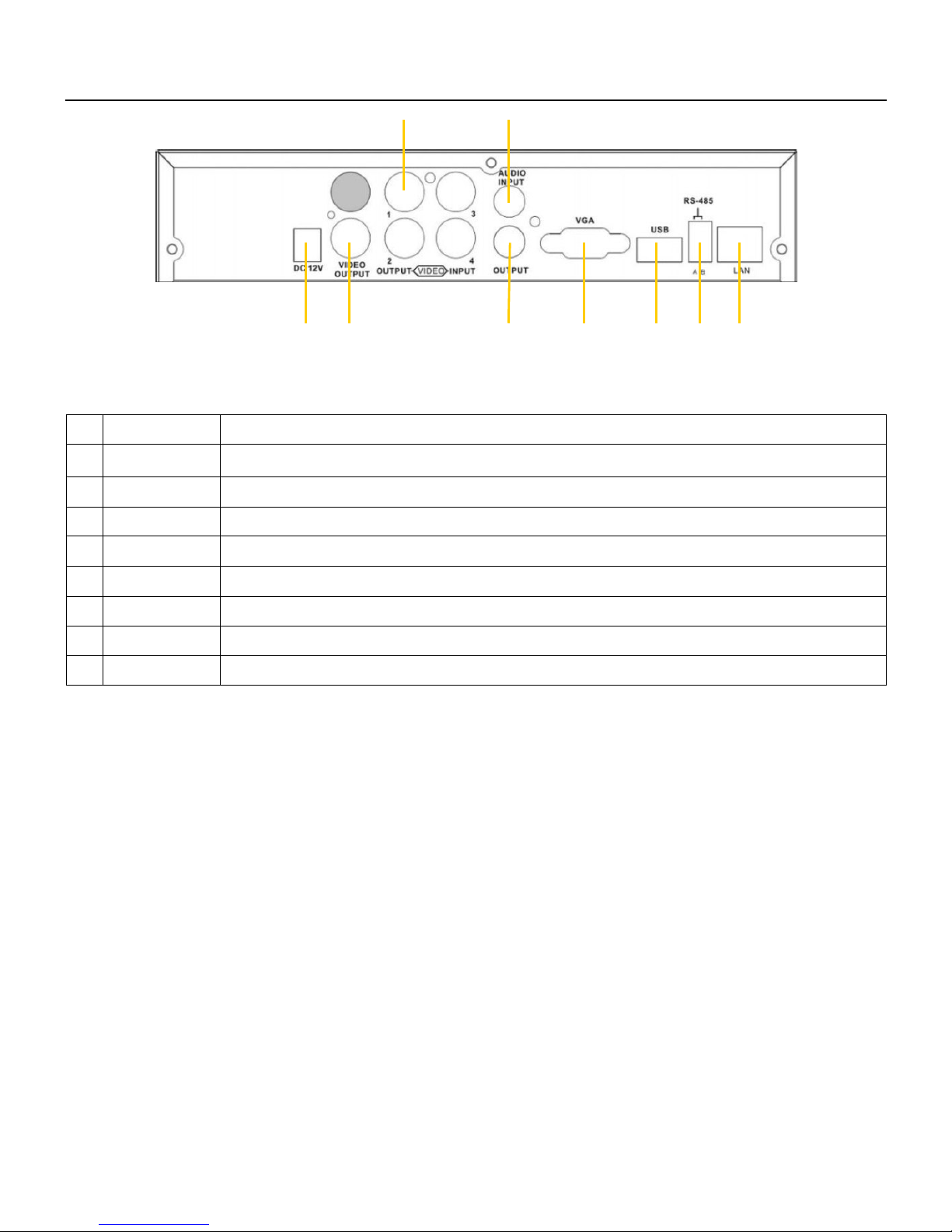
Rear Panel Connections..........................................................................................................................................7 - 11
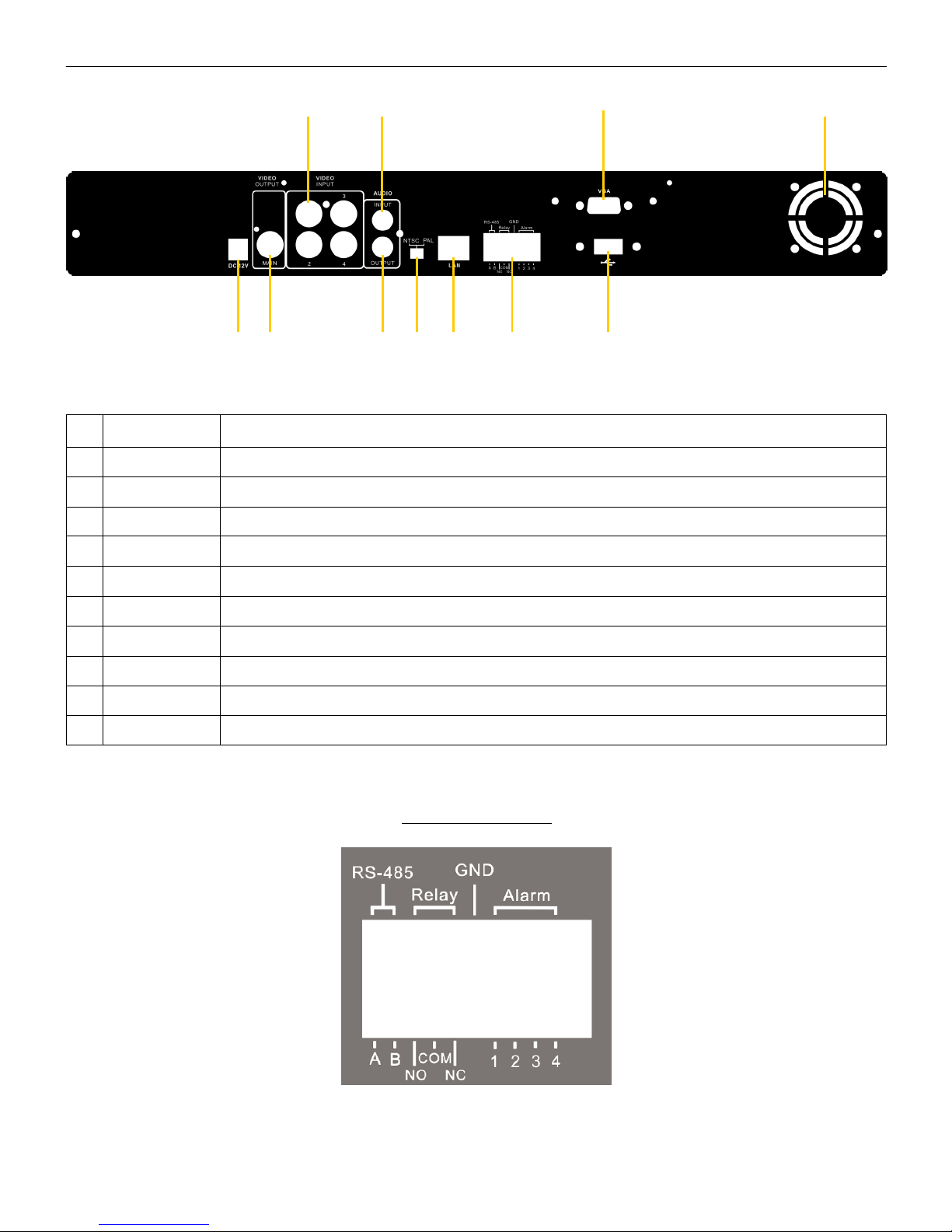
SmartWatch Eco Compact (4 channel) ................................................................................................................7
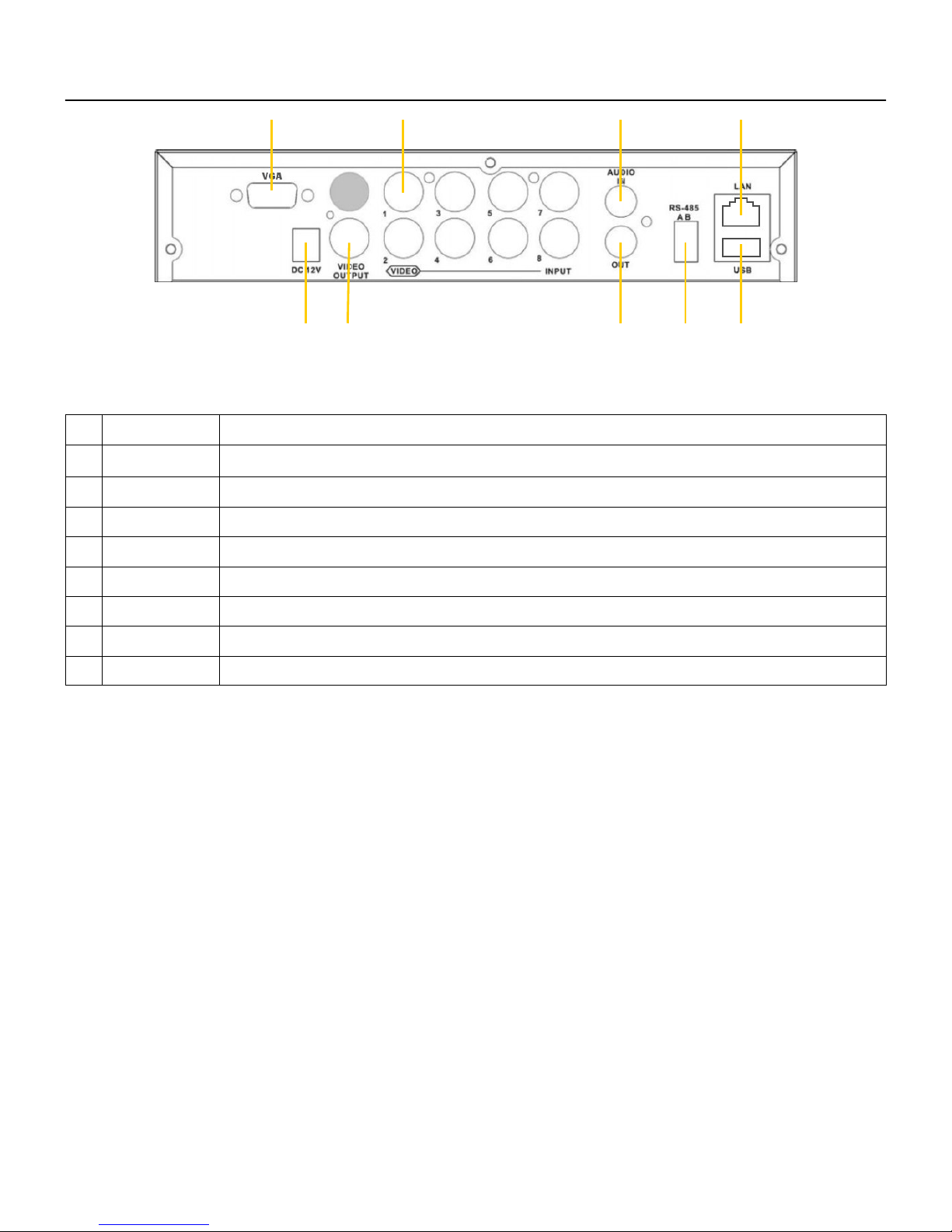
SmartWatch Eco Compact (8 channel) ................................................................................................................8
SmartWatch Eco (4 channel) ..............................................................................................................................9
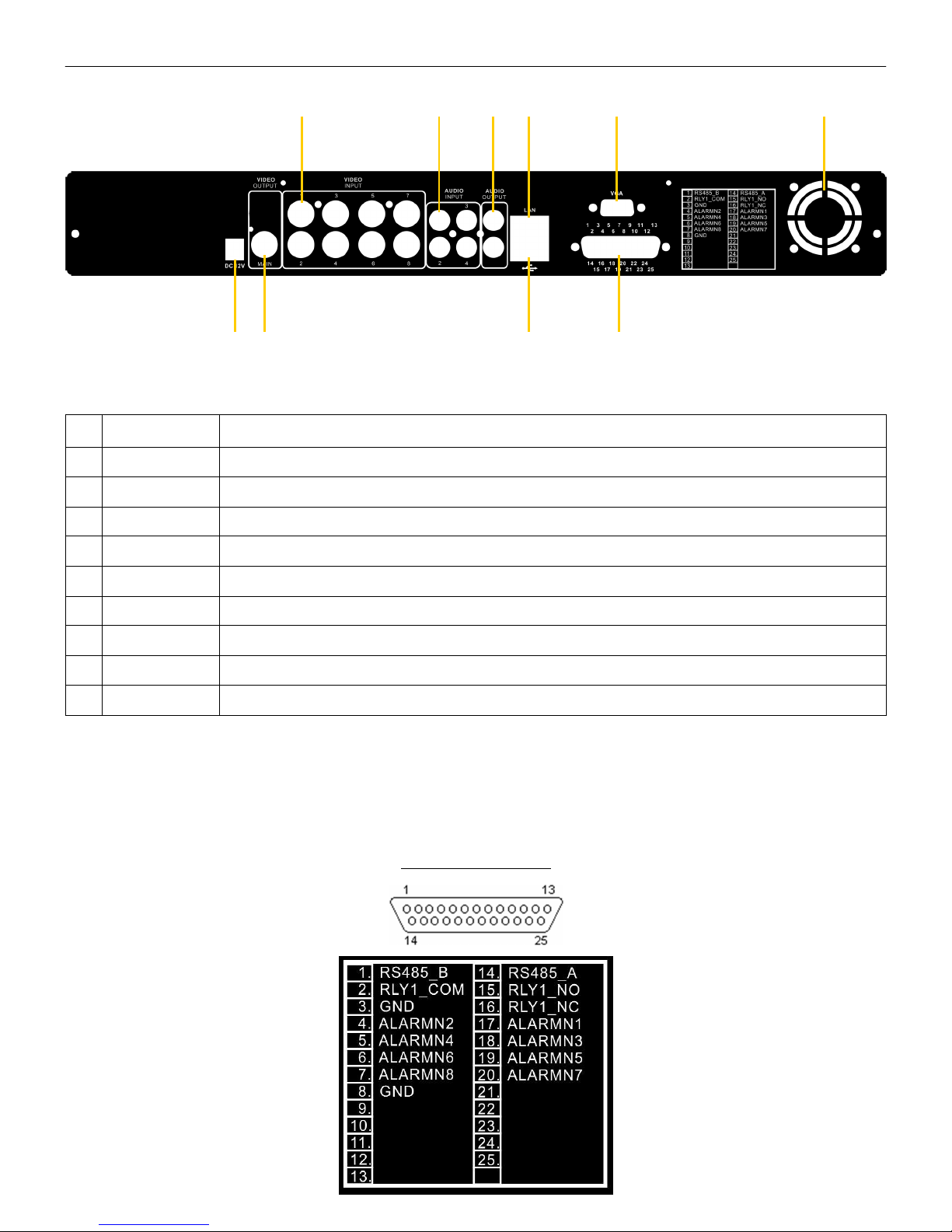
SmartWatch Eco (8 channel) ............................................................................................................................10
SmartWatch Eco (16 channel) ..........................................................................................................................11
Remote Control Functions In Live Mode ........................................................................................................................12
Mouse Functions In Live Mode......................................................................................................................................13
On-Screen Graphical Icons In Live Mode.......................................................................................................................14
On-Screen Graphical Icons In Live Mode When Connected Through ‘DVR Remote Desktop’ ...............................14
Playback Mode ............................................................................................................................................................15
Remote Control Functions In Playback Mode.....................................................................................................15
Mouse Functions In Playback Mode ..................................................................................................................15
PTZ Control.................................................................................................................................................................16
Remote Control Functions In PTZ Mode ............................................................................................................16
Mouse Functions in PTZ Mode..........................................................................................................................16
Main Menu Setup....................................................................................................................................................17-33
Record Setup...................................................................................................................................................18
Event Setup.....................................................................................................................................................19
Schedule Setup ...............................................................................................................................................21
Camera Setup .................................................................................................................................................22
Account Setup .................................................................................................................................................22
Networking Setup.............................................................................................................................................24
PTZ & RS485 Setup.........................................................................................................................................28
System Setup ..................................................................................................................................................29
Utility Setup .....................................................................................................................................................33
Diagnostic .......................................................................................................................................................33
Backup Mode...............................................................................................................................................................34
Search Mode ..........................................................................................................................................................35-36
Event Search...................................................................................................................................................35
Time Search ....................................................................................................................................................36
File Search ......................................................................................................................................................36
Remote Software Installation and Setup .................................................................................................................37 - 39
Software Installation.........................................................................................................................................37
How to Remotely Monitor, Playback, Backup and Configure via Internet Explorer.................................................38
System Requirements for DVR remote desktop .................................................................................................39
Specifications ..............................................................................................................................................................40
CMS Installation And Usage Guide ........................................................................................................................41 - 53
CMS Installation...............................................................................................................................................41
CMS Software .................................................................................................................................................42
DVRs, Groups & Events ...................................................................................................................................43
Local PC Information and Control......................................................................................................................44
Main Display ....................................................................................................................................................44
Operation Bar ..................................................................................................................................................47
Appendix 1: I-DVR.net Registration ........................................................................................................................54 - 55
Appendix 2: Remote Monitoring IE ActiveX Control Installation Instruction ................................................................56 - 59