
Smanos UFO Manuel utilisateur
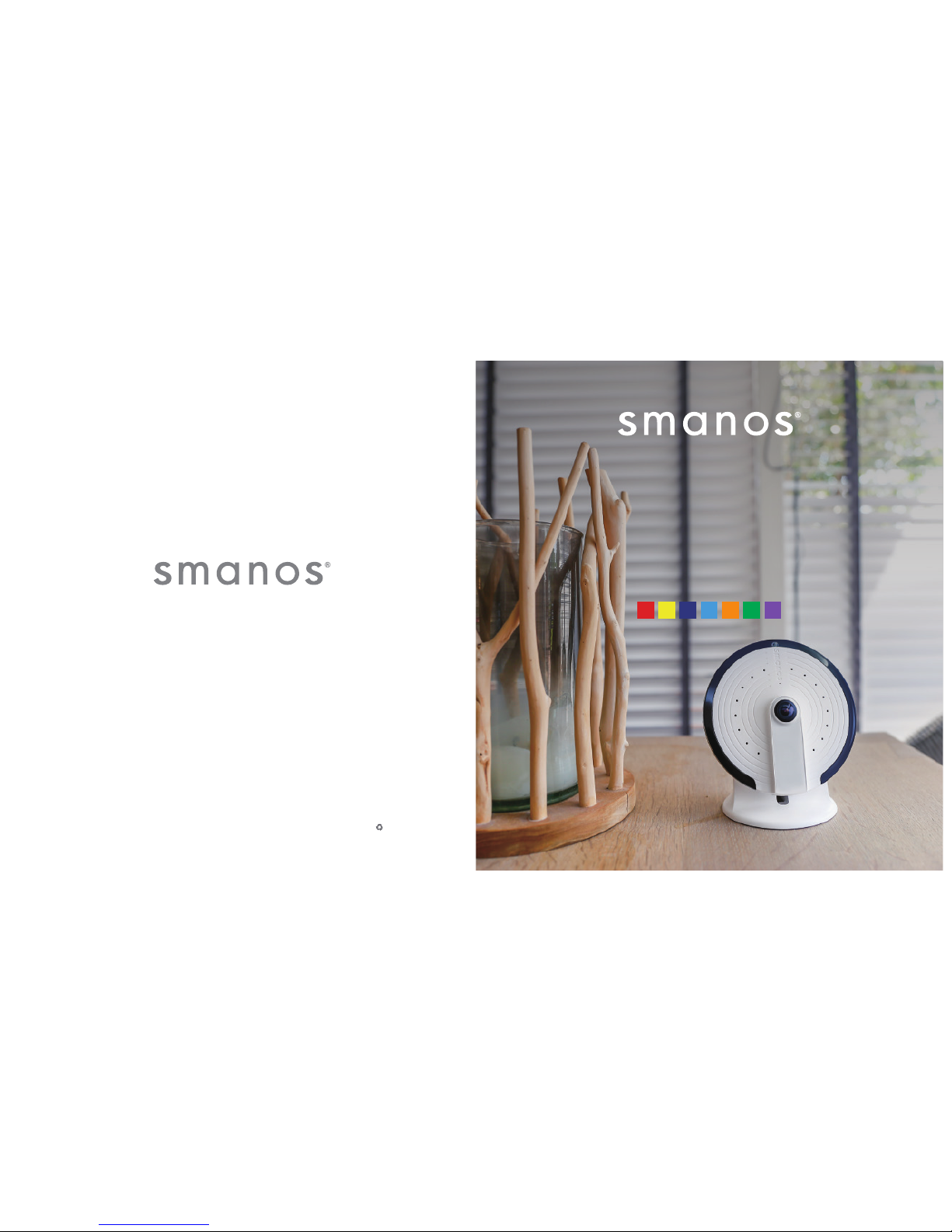
UFO
Panoramic WiFi HD Camera
QUICK GUIDE
EN DE FR NL ES PT IT
© 2017 SMANOS HOLDING LTD. All Rights Reserved
Printed in China
Ver: PT-180H-UM-ML-V1.0

ENEN
FCC STATEMENT
1. This device complies with Part 15 of the FCC Rules.
Operation is subject to the following two conditions:
(1) This device may not cause harmful interference, and
(2) This device must accept any interference received, including interference that may cause
undesired operation.
2. Changes or modications not expressly approved by the party responsible for compliance
could void the user’s authority to operate the equipment.
NOTE: This equipment has been tested and found to comply with the limits for a Class B
digital, pursuant to Part 15 or the FCC Rules. These limits are designed to provide reasonable
protection against harmful interference in a residential installation. This equipment generates,
uses and can radiate radio frequency energy and, if not installed and used in accordance with
the instructions, may casue harmful interference to radio communications, However, there is
no guarantee that interference will not occur in a particular installation. If the equipment does
cause harmful interference to radio or television reception, which can be determined by turning
the equipment off and on, the user is encouraged to try to correct the interference by one or
more of the following measures:
--- Reorient or relocate the receiving antenna.
--- Increase the separation between the equipment and receiver.
--- Connect the equipment into an outlet on a circuit different
from that to which the receiver is connected.
--- Consult the dealer or an experienced radio/ TV technician for help.
Industry Canada Notice
This device complies with Industry Canada licence-exempt RSS standard(s).
1. Operation is subject to the following two conditions:
(1) this device may not cause interference, and
(2) this device must accept any interference, including interferencethat may cause undesired
operation of the device."
2.Changes or modications not expressly approved by the party responsible for compliance
could void the user’s authority to operate the equipment.
ENEN
Specications
Model: PT-180H
Power: DC 5V 1A
Camera: Full HD 1080p
Field of view: Horizontal 180°, vertical 180°
Video compression: H.264/MJPEG
Video resolution: Birds Eye 1280x1280/ Panorama 1920x1080/ Quad View 1280x960/
Hemisphere 1920x1080/ Two Halves 1920x1080/ Triple View 1920x1080
Night vision: Yes, auto IR-cut lter
WiFi: 802.11b/g/n/ac with WEP/WPA/WPA2 encryption 2.4GHz+5GHz
On-site storage: microSD™ card up to 32GB
Operating conditions: 0-50°C, humidity < 95% RH (non-condensing)
Dimensions (L x W x H): 106 X 106 X 36mm
For more detailed Instruction Manual, please check Help in “smanos home” app.
Technical Support:
http://www.smanos.com/UFO
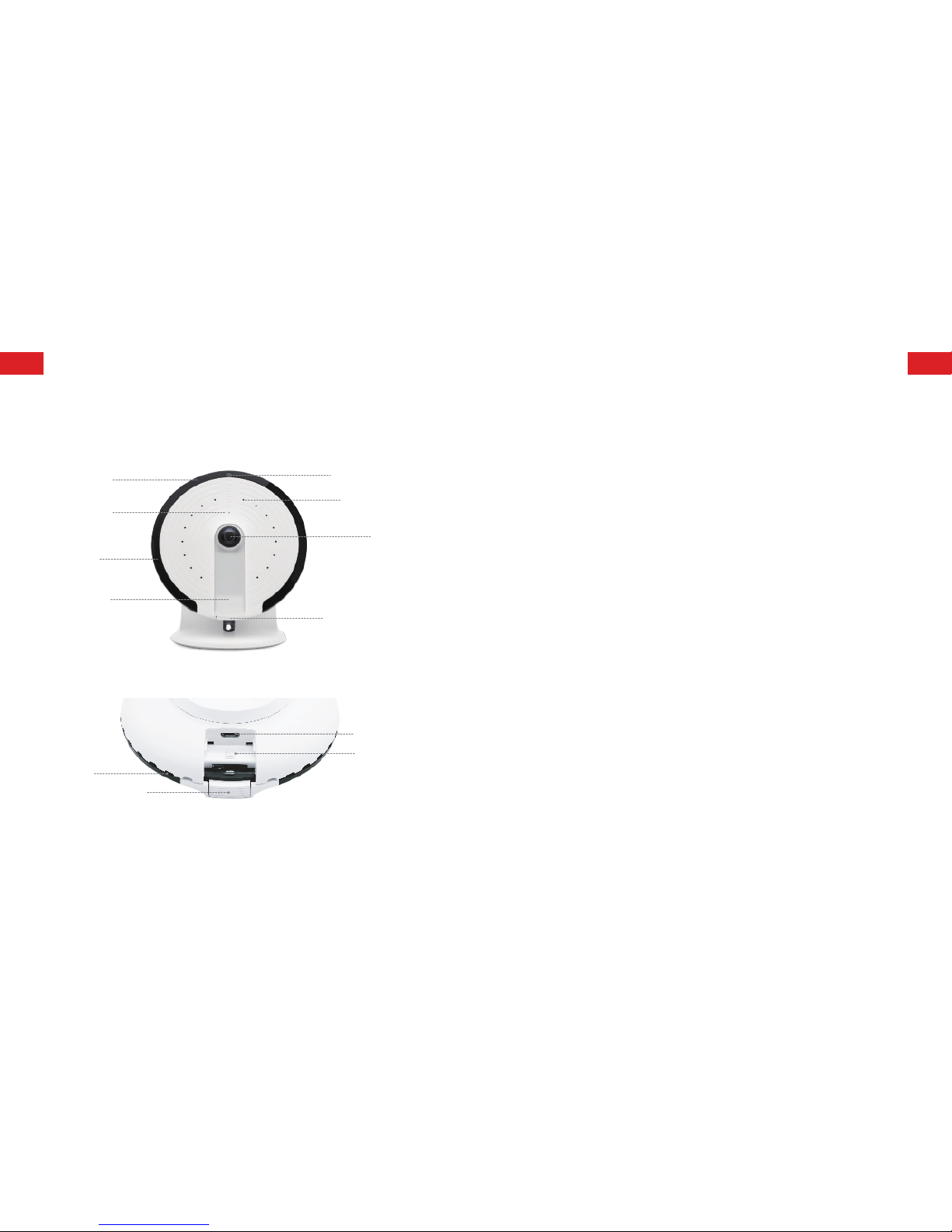
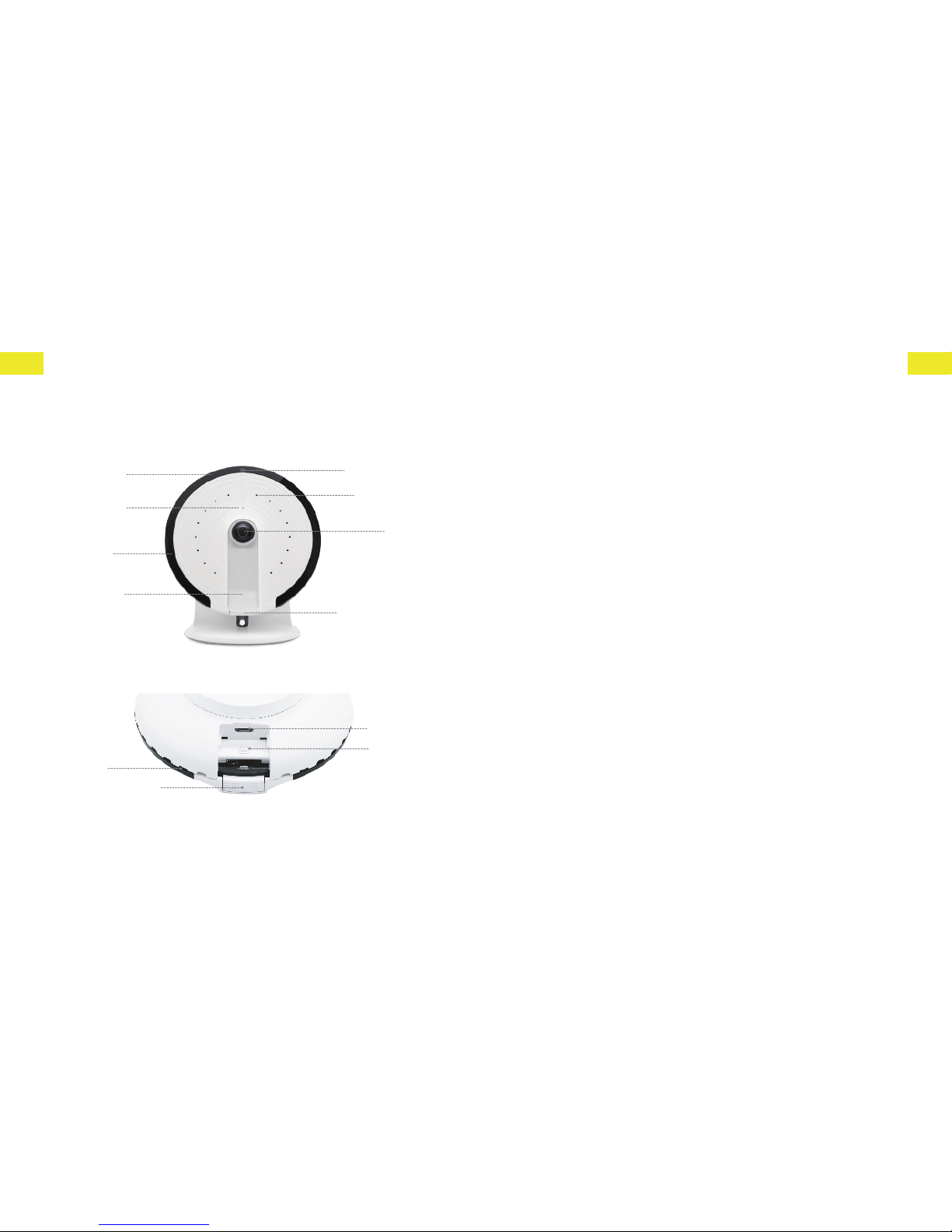
UFO Overview
Night vision IR
lights
Day/Night sensor
Microphone
Indicator lights
Speaker
Speaker
1080p
full HD
camera
Power port
PIR motion
sensor
Conguration button
microSD™ card slot
Power port
microSD™
card slot
ENEN
1. Download the “smanos home” app
Search for “smanos home” in App Store/
Google Play, or scan the QR code below.
Download on the
App Store
ANDROID APP ON
Play
2. Sign Up/In
If you have not registered an account with
smanos, please press “Sign up” just below
the “Sign in” icon on the App, and follow
the instructions to create your account rst.
* If you do not receive an account verication
code in your email inbox during the
registration process, please remember to
check your spam/junk folder and make
sure the notice has not been blocked by
your service provider.
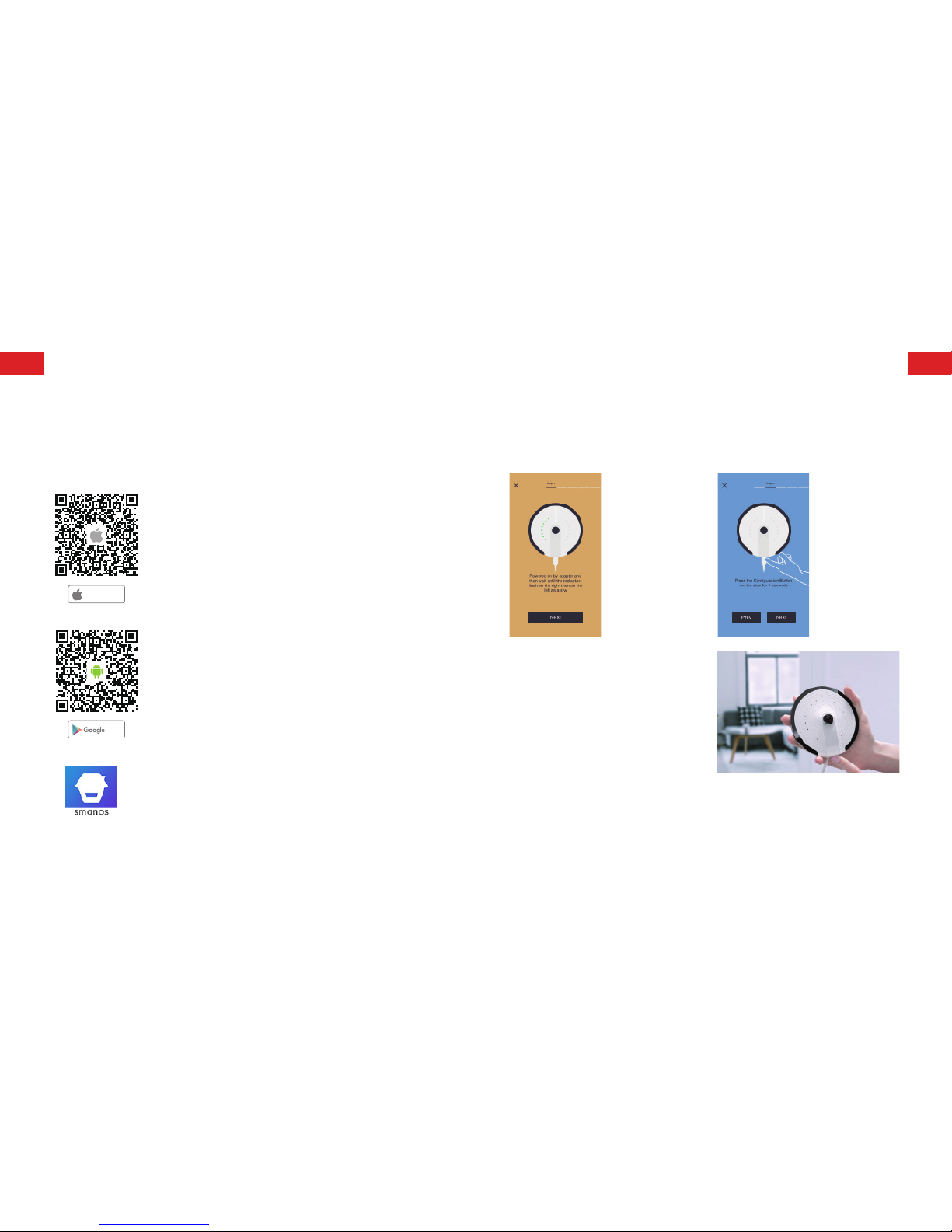
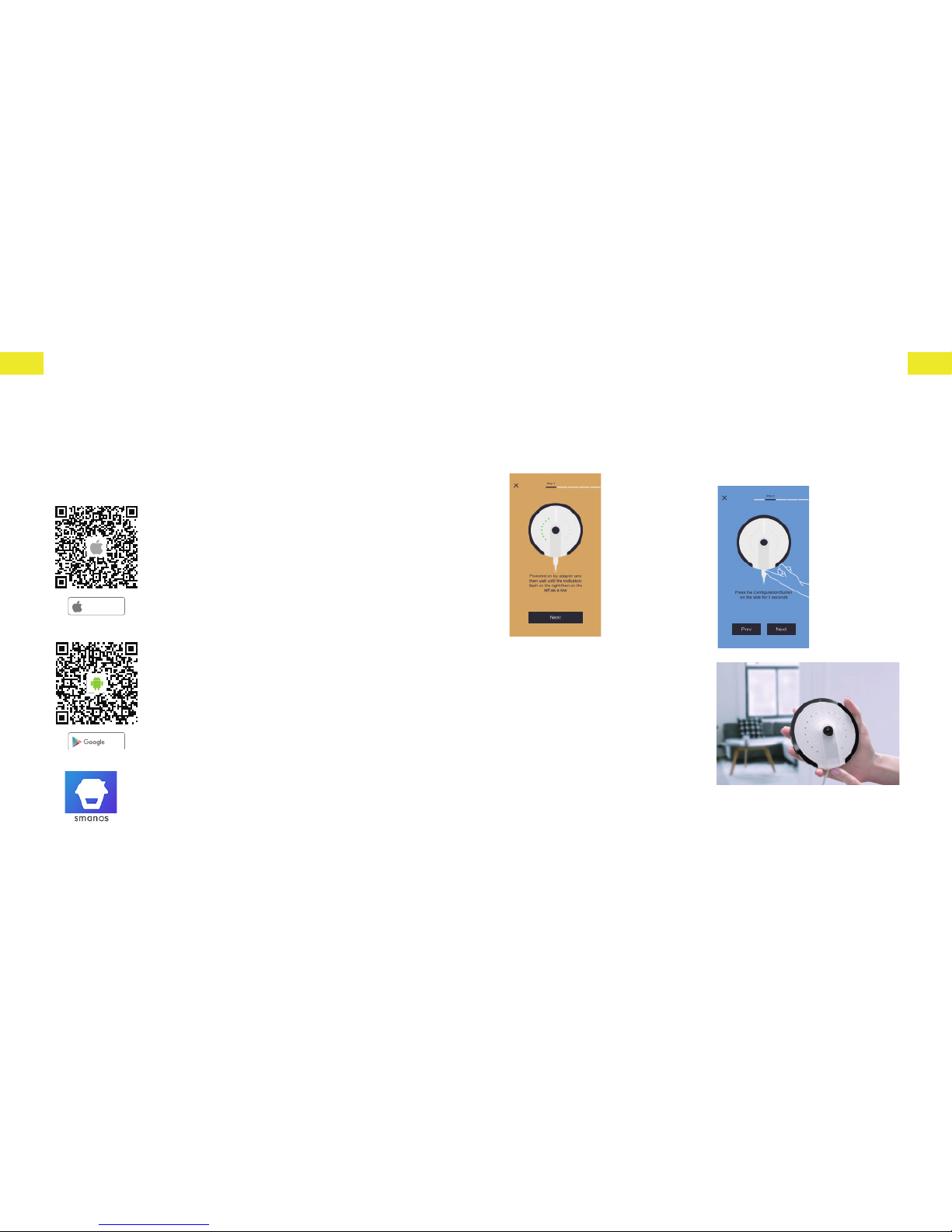
Step 1
Waiting for the UFO to boot up
Plug the power adapter into a wall socket
and the UFO camera will boot up in 25 to
40 seconds. During this time, you will see
indicators run in succession clockwise and
then counterclockwise.
Once the UFO is ready for launch, the
indicators will ash on the right then on the
left as a row, which means it is searching for
viable WiFi signals.
Step 2
Putting the UFO into WiFi conguration mode
Press and hold the Conguration Button
on the side for 5 seconds, and you will hear
a tone which indicates that the UFO has
switched to the WiFi conguration mode.
Getting Started
ENEN
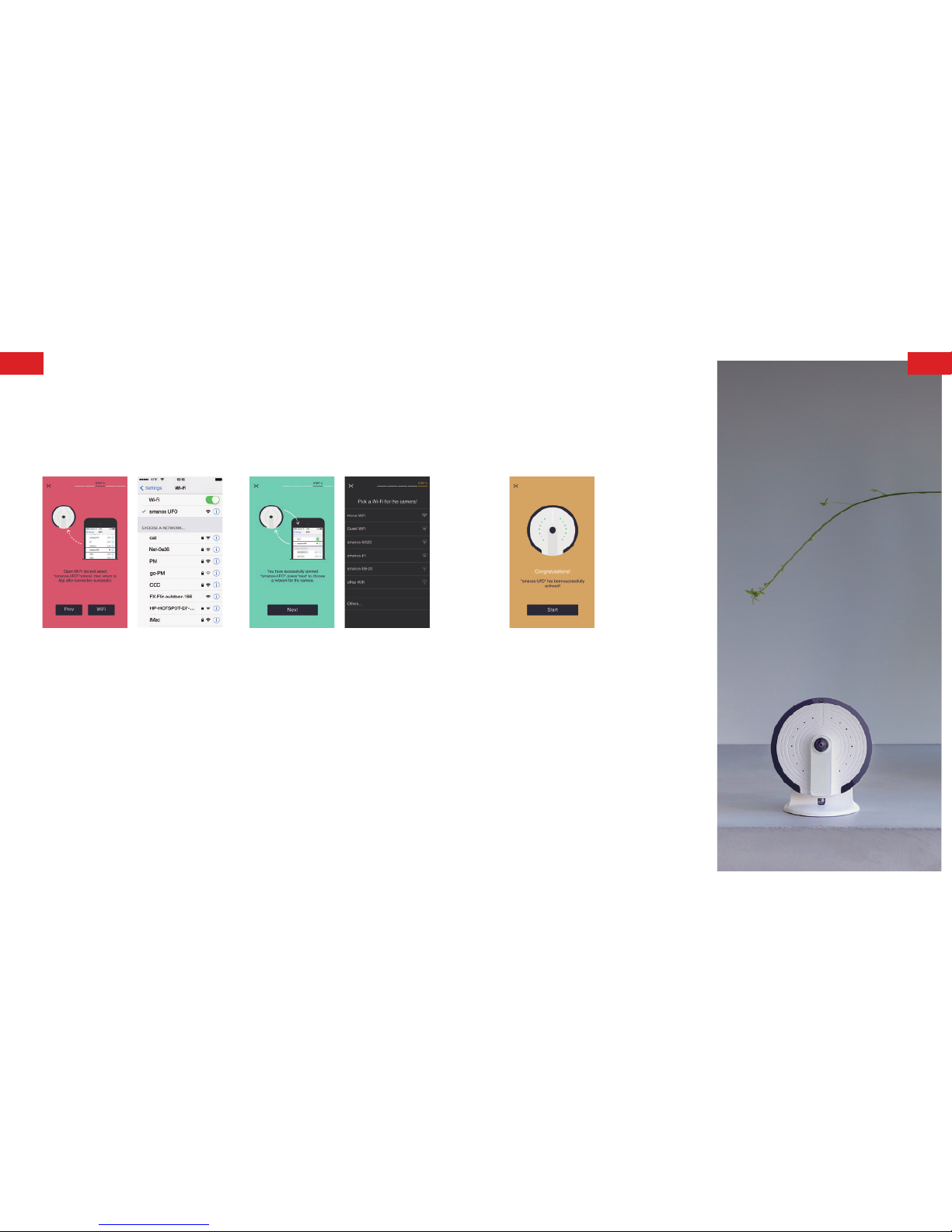
Step 5
Enjoying the UFO camera
When a successful connection is established,
the indicators will run in succession.
Now, your UFO is ready for a spin!
Step 3
Connecting the UFO to your smartphone
Go to your smartphone's WiFi list, and select
“smanos UFO” to connect to the camera. Now,
your smartphone is the control center of your
UFO.
Step 4
Entering WiFi details for your UFO camera
Pick the WiFi network from the display list for
your UFO camera and enter the WiFi network
password.
The UFO will connect to the selected WiFi
network.
The binding process should take about one
minute.
EN
ENEN
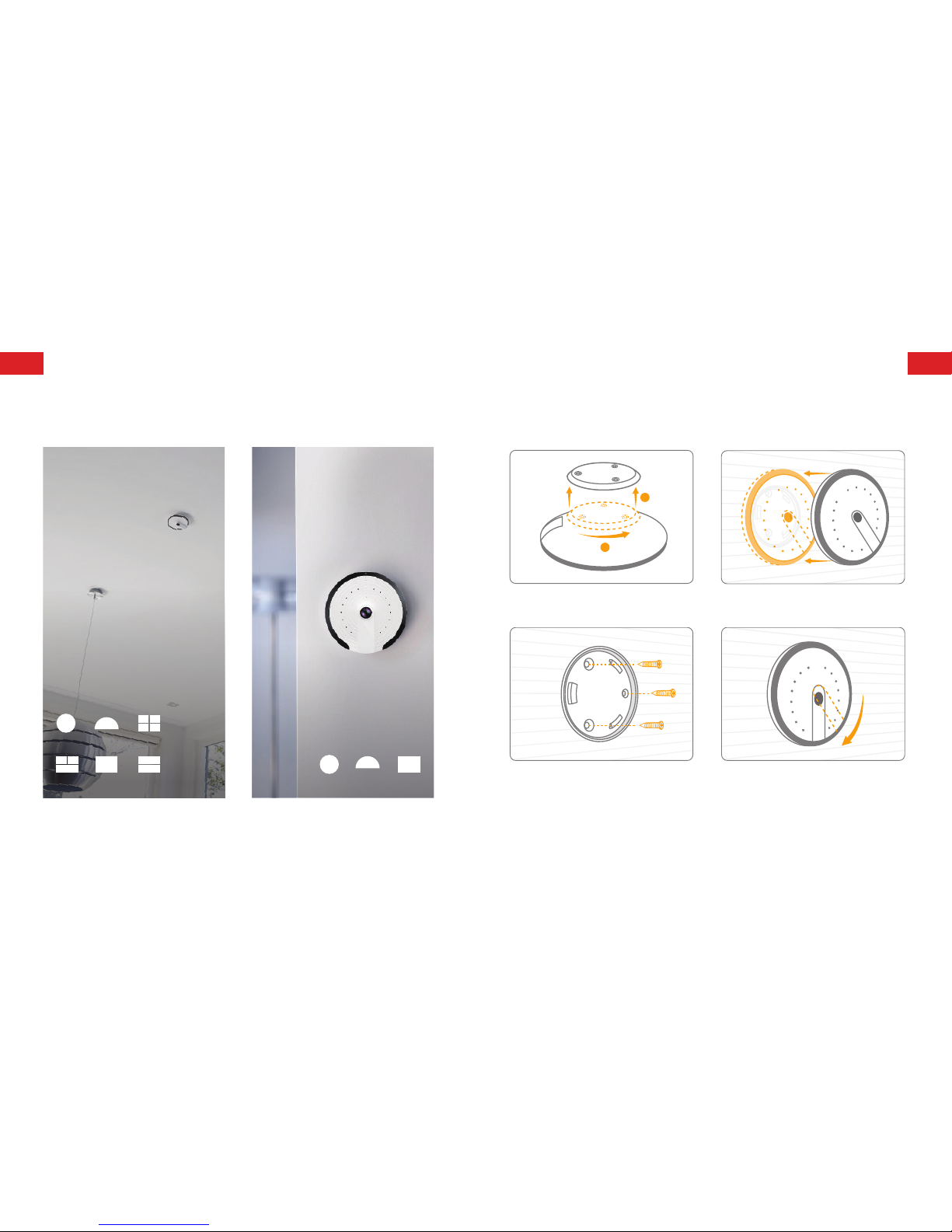
Installation
Installation Type —— Ceiling or Wall-Mounted
Ceiling-Mounted:
Wall-Mounted:
Birds Eye
Birds Eye
Triple View
Hemisphere
Hemisphere
Panorama
Quad View
Panorama
Two Halves
1
2
90°
UP ↑
1. Unlock the base from your camera. 3. Lock your camera into position onto the
base.
UP ↑
wall or
ceiling
2. Place the base on the wall, in the angle
and relative position shown above; use the
provided tool set to install it properly.
4. Make sure the PIR motion sensor is
pointing vertically to the ground (Wall-
mounted).
ENEN
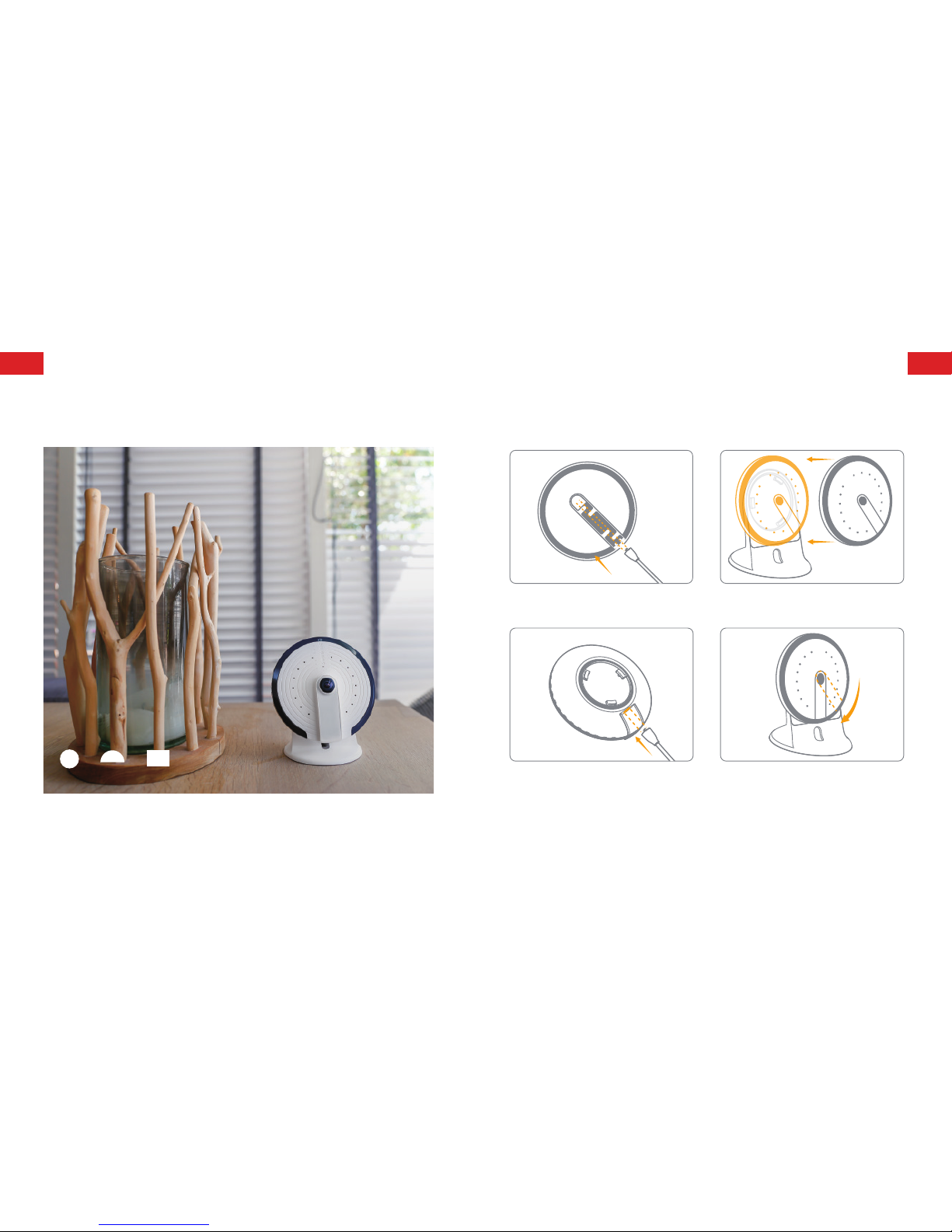
1. Put the power cable (USB) through the
bottom hole of your bracket.
3. Lock your camera onto the bracket.
2. Insert the USB into the power port. 4. Make sure the PIR motion sensor is
pointing vertically to the desk/ground.
Installation
Installation Type —— Desk or Any Flat Surface
Flat Surface:
Birds Eye Hemisphere Panorama
ENEN
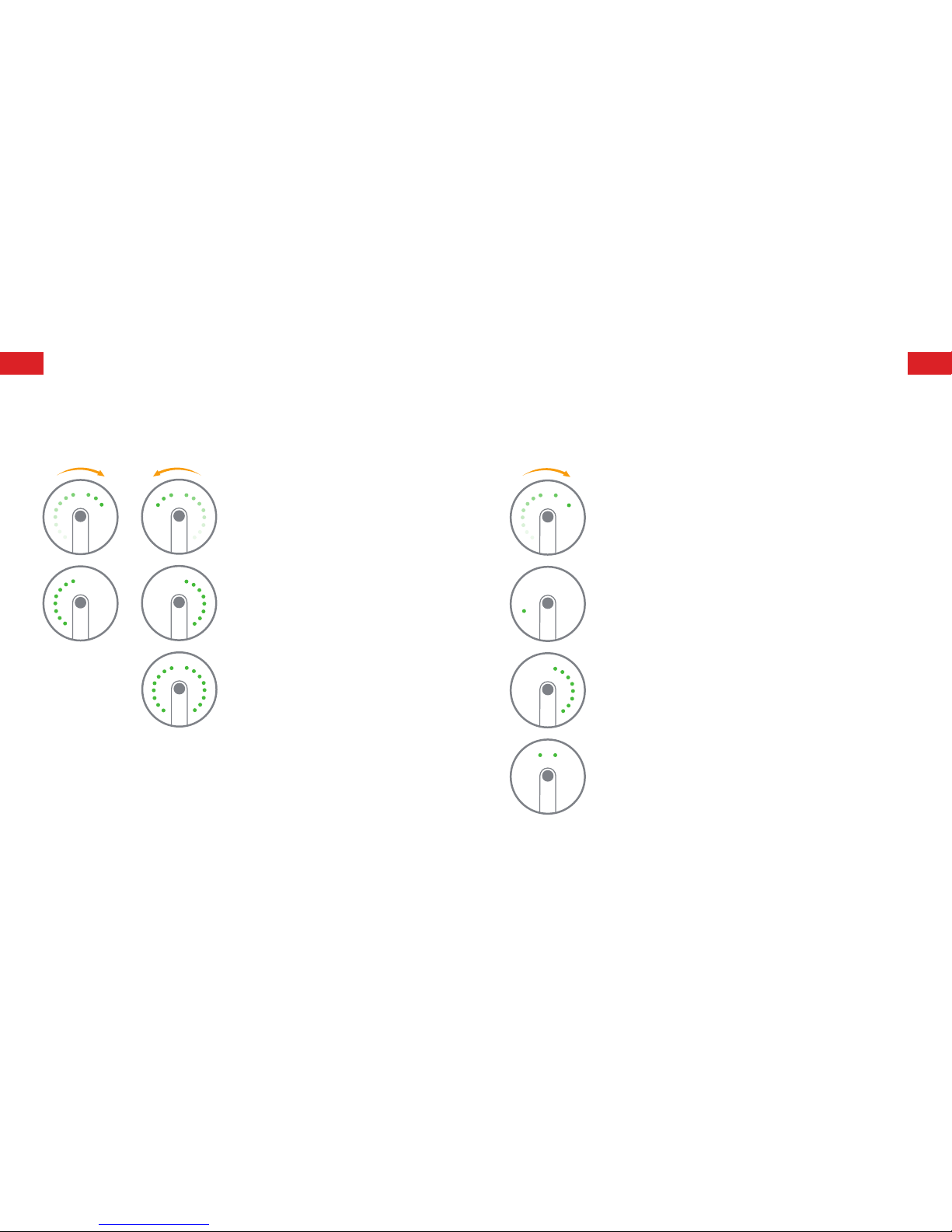
UFO established a successful WiFi connection
Indicators run in succession clockwise
An authorized smartphone is looking in on the video
A single indicator ashes constantly
Firmware updates
One side of the indicators ash slowly
Privacy mode
Top two indicators stay bright
Light Indicators
The indicators on the UFO give you an idea of the current device status. Here is a list of what
each pattern means, with the UFO positioned as shown:
UFO booting up
Indicators run in succession clockwise rst
and then counterclockwise, repeatedly for
25~40 seconds
Searching for WiFi signals
Left-row and right-row indicators ash
alternately
UFO conguration mode
All indicators ash simultaneously
DEDE
Technische Daten
Modell: PT-180H
Stromversorgung: DC 5 V, 1A
Kamera: Full-HD 1080p
Sichtfeld: Horizontal 180°, vertikal 180°
Video-Komprimierung: H.264/MJPEG
Videoauösung: Vogelperspektive 1280 x 1280/ Panorama 1920 x 1080/ Vierfachanzeige
1280 x 960/Hemisphäre 1920 x 1080/ Zwei Hälften 1920 x 1080/ Dreifachanzeige 1920 x 1080
Nachtsicht: Ja, Auto-IR-Filter
WLAN: 802.11b/g/n/ac mit WEP/WPA/WPA2-Verschlüsselung, 2,4 GHz+5GHz
Lokale Speicherung: microSD™ Karte bis zu 32 GB
Betriebsbedingungen: 0 - 50 °C, Luftfeuchtigkeit < 95% RH (nicht kondensierend)
Abmessungen (L x B x H): 106 x 106 x 36 mm
Für detaillierte Anleitungen siehe Hilfe in „smanos home“ App.
Technischer Support:
http://www.smanos.com/UFO
suppor[email protected] (Nordamerika)
Überblick über die UFO-Kamera
Nachtsicht-IR-
Leuchten
Tag-/Nachtsensor
Mikrofon
Kontrollleuchten
Lautsprecher
Lautsprecher
1080p-
Full-HD-
Kamera
Stromanschluss
IR-
Bewegungsmelder
Kongurationstaste
microSD™
Kartensteckplatz
Stromanschluss
microSD™
Kartensteckplatz
DEDE
1. „smanos home“ App herunterladen
Suchen Sie die „smanos home“ im App
Store oder bei Google Play oder scannen
Sie den nachstehenden QR-Code.
Download on the
App Store
ANDROID APP ON
Play
2. Registrieren/Anmelden
Wenn Sie noch kein Konto bei smanos
haben, drücken Sie in der App auf
„Registrieren“ gleich über dem „Anmelden“-
Symbol und befolgen Sie die Anleitungen
zum Erstellen eines Kontos.
* Wenn Sie während des
Registrierungsvorgangs keinen Konto-
Bestätigungscode in Ihrem Posteingang
erhalten, sehen Sie bitte in Ihrem Spam-
Ordner nach und stellen Sie sicher, dass
die Nachricht nicht von Ihrem Service-
Provider gesperrt wurde.
Schritt 1
Abwarten, bis die UFO hochgefahren ist
Stecken Sie das Netzteil in eine Steckdose.
Die UFO-Kamera fährt dann innerhalb von 25
bis 40 Sekunden hoch. Während dieser Zeit
leuchten die Kontrollleuchten im Uhrzeigersinn
und dann entgegen dem Uhrzeigersinn
nacheinander auf.
Wenn die UFO bereit ist, leuchten die
Kontrollleuchten zuerst der rechten und
dann die der linken Seite gleichzeitig auf.
Das bedeutet, dass die Kamera nach WLAN-
Signalen sucht.
Schritt 2
Mit UFO den WLAN-Kongurationsmodus
aufrufen
Halten Sie mindestens 5 Sekunden lang die
Kongurationstaste an der Seite der Kamera
gedrückt. Die UFO gibt dann einen Ton
aus, der bedeutet, dass sie in den WLAN-
Kongurationsmodus umgeschaltet hat.
Erste Schritte
Autres manuels pour UFO
2
Table des matières
Langues :
Autres manuels Smanos Caméra IP


