V-Machine – Quick Start Guide | 5
Basic Operation of the V-Machine
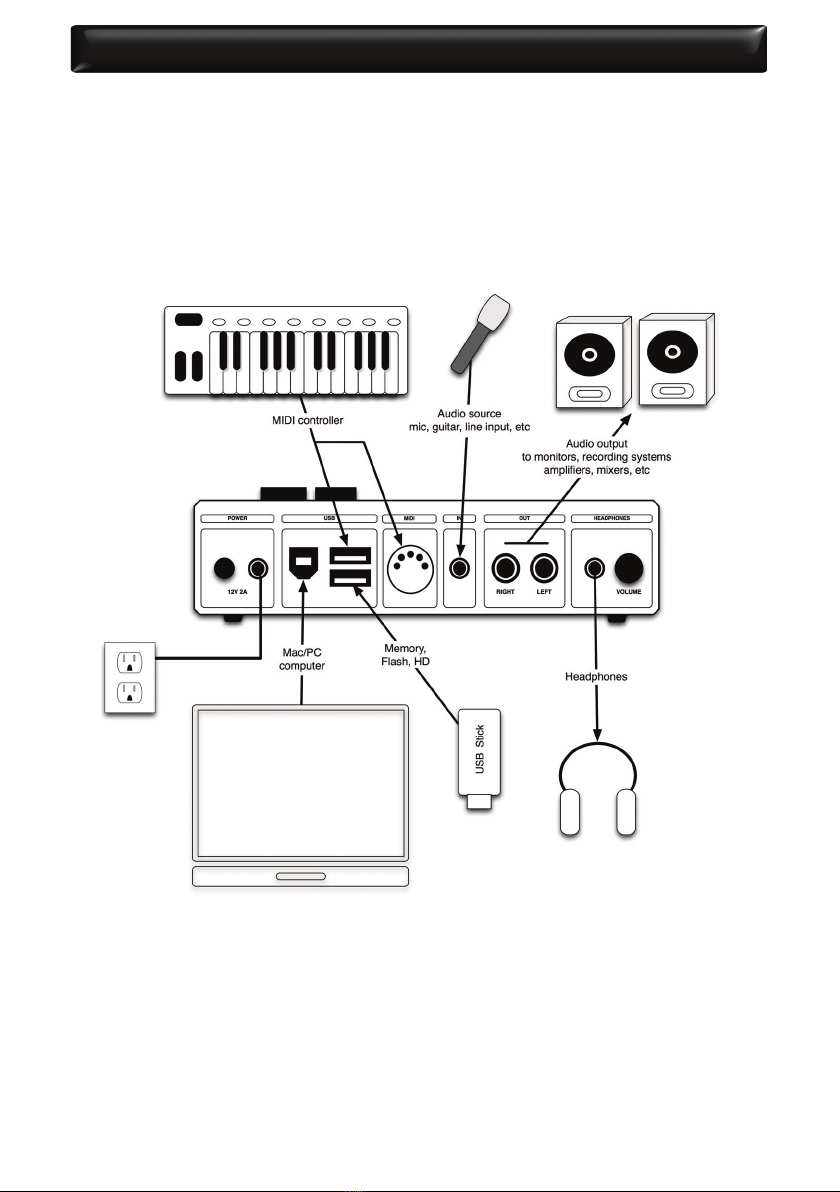
1. Connect the outputs on the rear panel of the V-Machine with your powered speakers, amplier,
or mixer. You can also use the headphone amplier provided.
2. Connect a MIDI controller to the MIDI in port or a USB port on the rear of the V-Machine.
3. Connect the included plugpack to the V-Machine and mains power.
4. Depress the power button on the rear panel and wait while the V-Machine initializes.
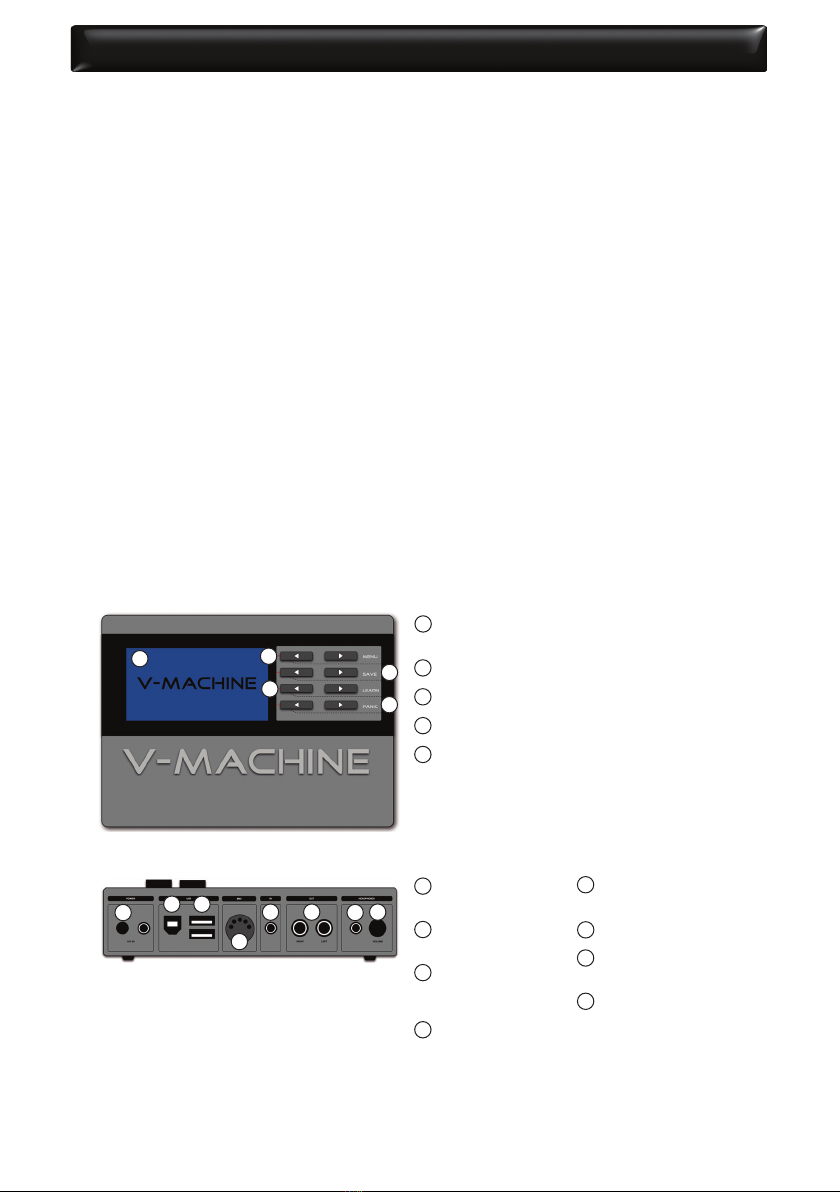
5.TheV-Machines front panel displays 4 lines of text: Selected Bank, Selected Preset within the selected
Bank, Selected plug-in parameter within the selected Preset, and the Selected parameter value.
6. Navigate the Banks and Presets using the keypad button interface while monitoring the LCD Panel.
7. Play your MIDI controller and enjoy playing your Presets!
8. Global System Settings and other functions are accessed by pressing two buttons simultaneously.
Refer to the operational manual for further details.
* Note: See “Connecting the V-Machine with the Computer“ to install plug-ins on the V-Machine.
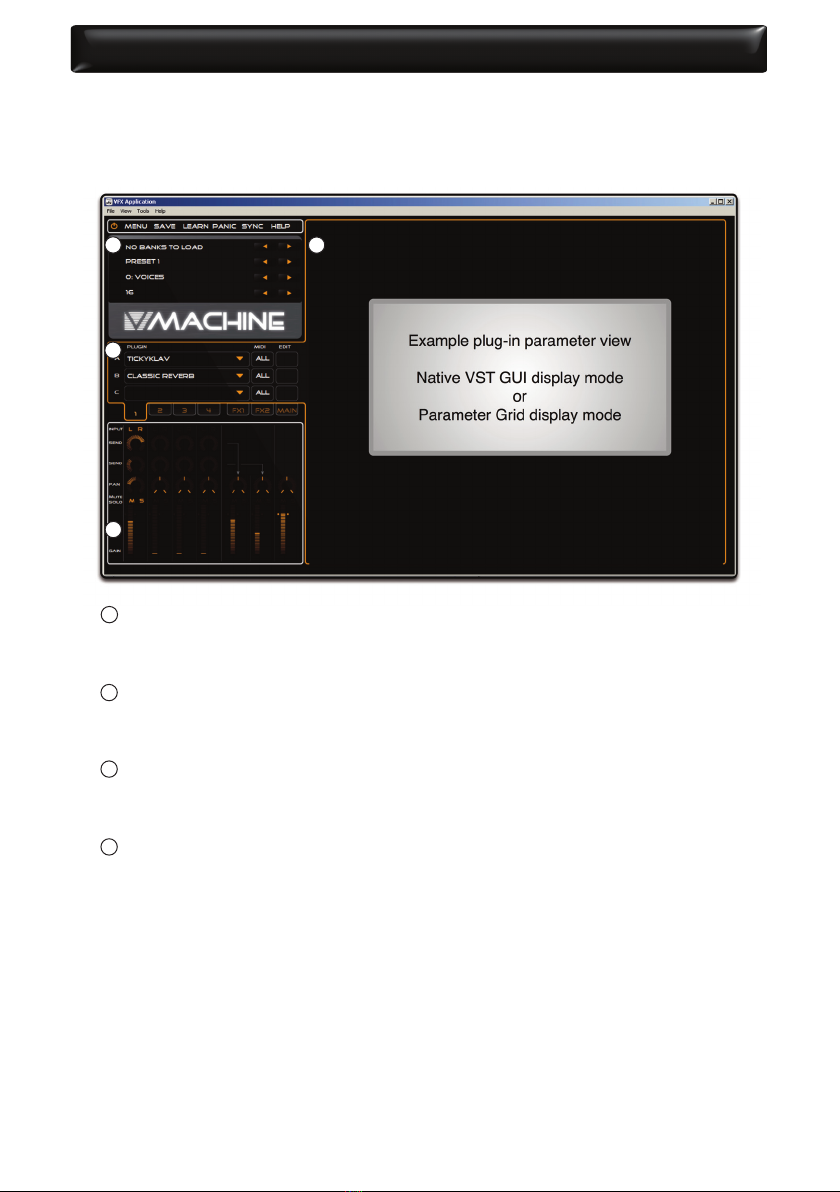
Installation of the VFX Application Software
The V‐Machine is a stand‐alone unit designed to operate without the requirement of PC/Mac com-
puter for performance. However, the full power of the unit is only realised when congured for
use by the VFX Application software.
Requirements:
Windows based PC
Minimal: Pentium 1 GHz / Athlon XP 1.33 GHz, 512 MB of RAM, Windows XP / Vista or later.
Suggested: Pentium 2.4 GHz / Athlon XP 2.4 GHz, 1 GB of RAM, Windows XP / Vista or later.
Intel based Mac
Minimal: Any Intel based Mac
Suggested: 1.66 GHz Intel Core Duo processor, 1 GB of RAM, Mac OS X 10.4.4 or later.
How to install:
Windows
• Insert the Getting Started CD into your computers CD drive
• Run the ‘VFXWebSetup.exe’download wizard
• The wizard automatically downloads the most up to date version of the VFX Application and
prompts for user for conrmation during the installation process on your computer
• After installation is complete the VFX Application is available for use from the Start Menu‐>All
Programs‐>VFX‐>VFX Application
Mac
• Insert the Getting Started CD into your computers CD drive
• Run the ‘Download VMACHINE for Mac’download wizard
• The wizard directs your web browser to the SM Pro Audio website where you can download the
most up to date version of the VFX Application
• The Mac VFX Application is downloaded in .dmg disk image le format
• Double click the .dmg le to mount the image and follow the installation instructions provided
* Note: It is also possible to simply download the latest version of the VFX Application from the SM Pro
Audio website at any time.