STEP 1: CONNECT AUDIO/VIDEO SOURCE CONNECT OUTPUT (OPTIONAL)
STEP 2: CONNECT THE REMOTE CONTROL IR CABLE
STEP 3: CONNECT TO YOUR NETWORK STEP 4: CONNECT POWER SOURCE
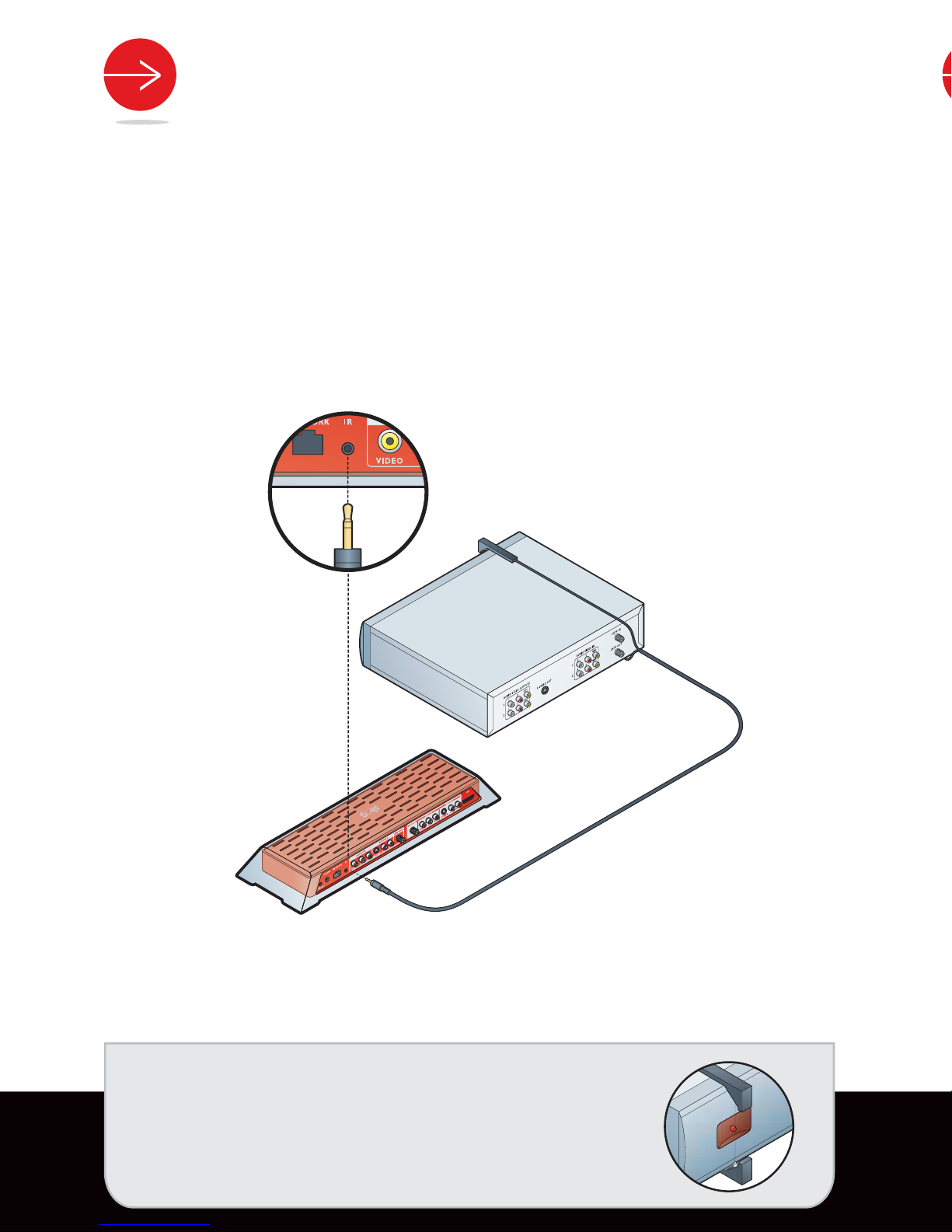
Remove the remote control IR cable from the A/V Pack (C). Connect the remote control
IR cable to the IR connector on the Slingbox.
Place the remote control IR cable heads on the top and bottom of your cable/satellite box
or DVR so they point at its IR sensor. Make sure they extend out far enough over the front
of the device to send a signal to your cable/satellite box or DVR. You may want to affix the
remote control IR cables using the adhesive pads after installing the Setup Wizard
software in Step 5.
The remote control IR cable allows the Slingbox to act as a universal remote, controlling
the device you connect to it. The cable allows you to use your device’s menus and guides.
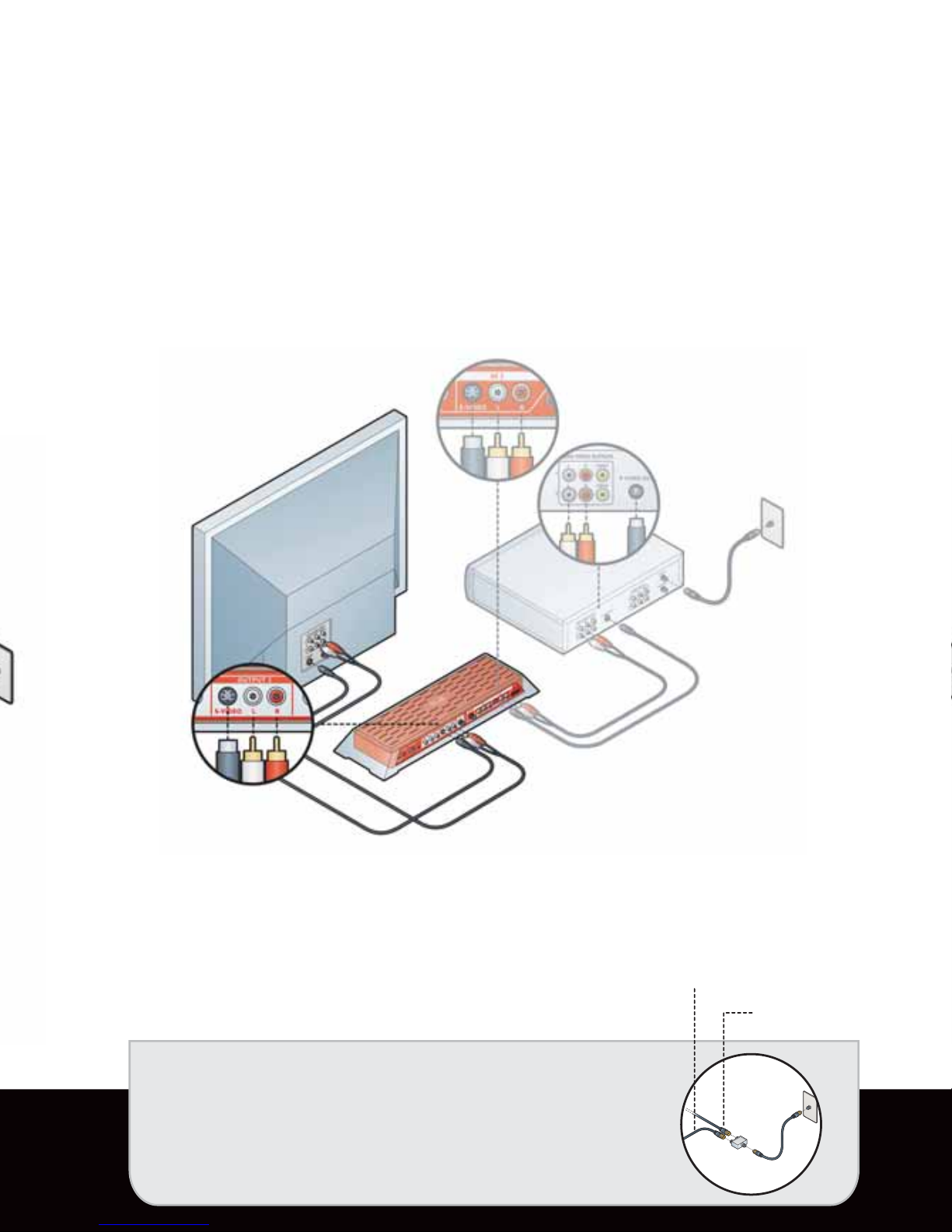
Complete this step if you have to remove the cable or cables currently connecting your
cable/satellite box or DVR to your TV. You may need to do this if your device has only one
set of outputs. This connection passes your television source through the Slingbox and back
to your television.
Make sure you connect the same cable type for the output back to your TV as you used
for the input to the Slingbox. For example, if you connected the S-Video along with the red
and white audio connectors to the Slingbox, make sure you use the S-Video connection to
your TV.
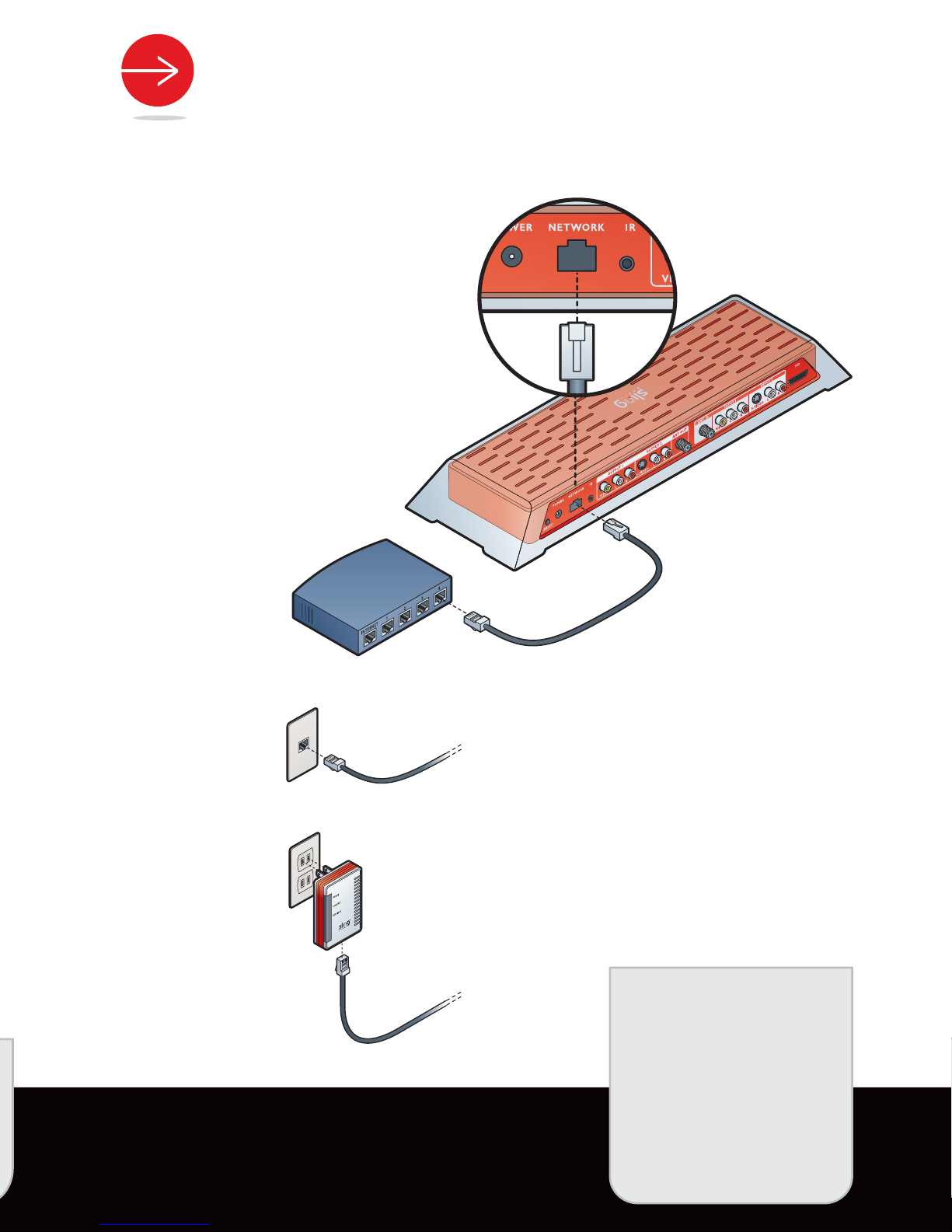
Open the Power/Network Pack (D) and remove the Ethernet cable. Plug one end of the
Ethernet cable into the Slingbox connection labeled NETWORK. Connect the other end to
your home network.
The Slingbox works with any high-speed
Internet connection or broadband home
network. You must have a router
to use the Slingbox.
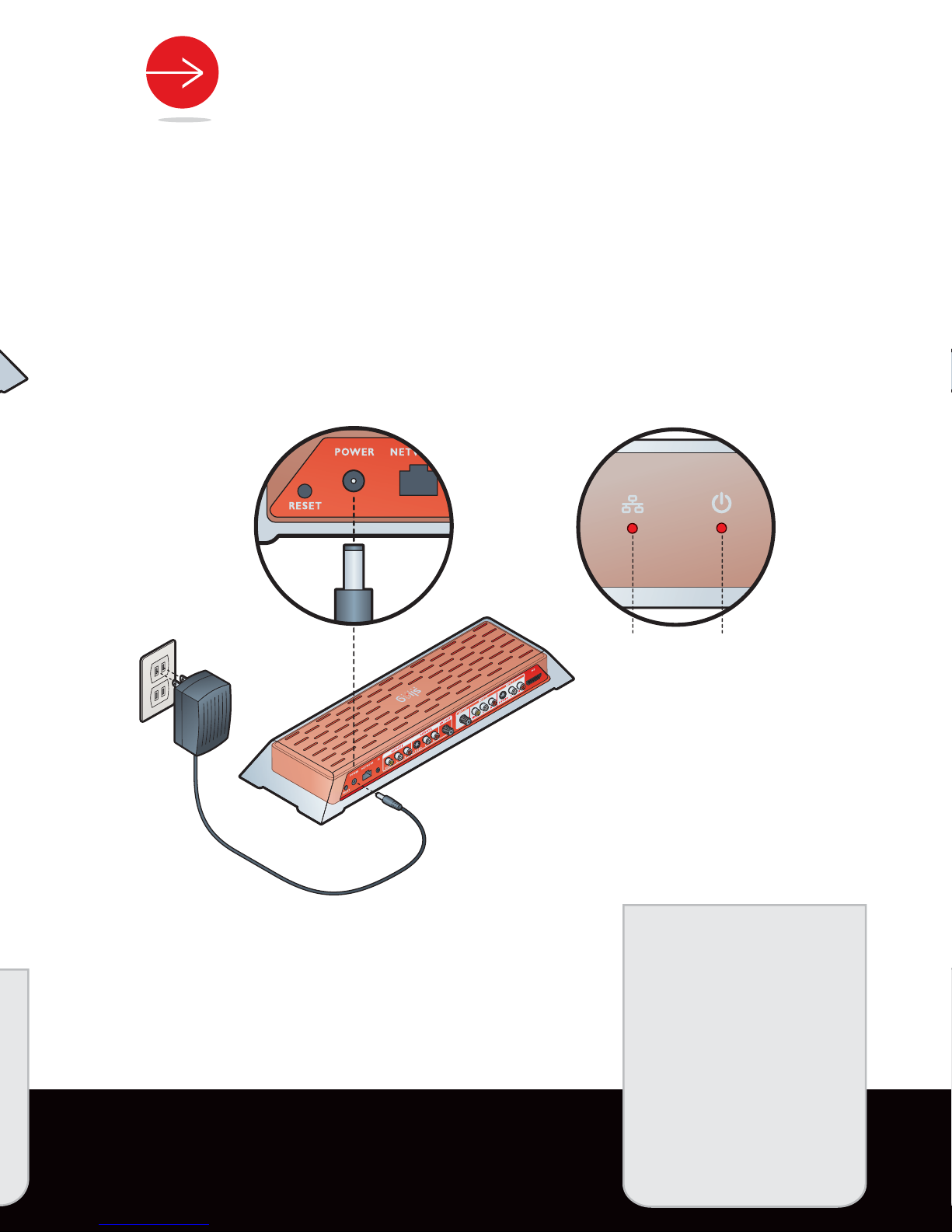
Remove the power adapter from the Power/Network Pack (D). Connect the power
adapter into the Slingbox connection labeled POWER. Plug the power adapter into
an electrical outlet.
When plugged in, the power light comes on, and the lights blink a few times as the
Slingbox starts up. The network light remains on if your Slingbox has been recognized
by your router as a new device on your network.
Both the power and network lights should be solid.
WELCOME!
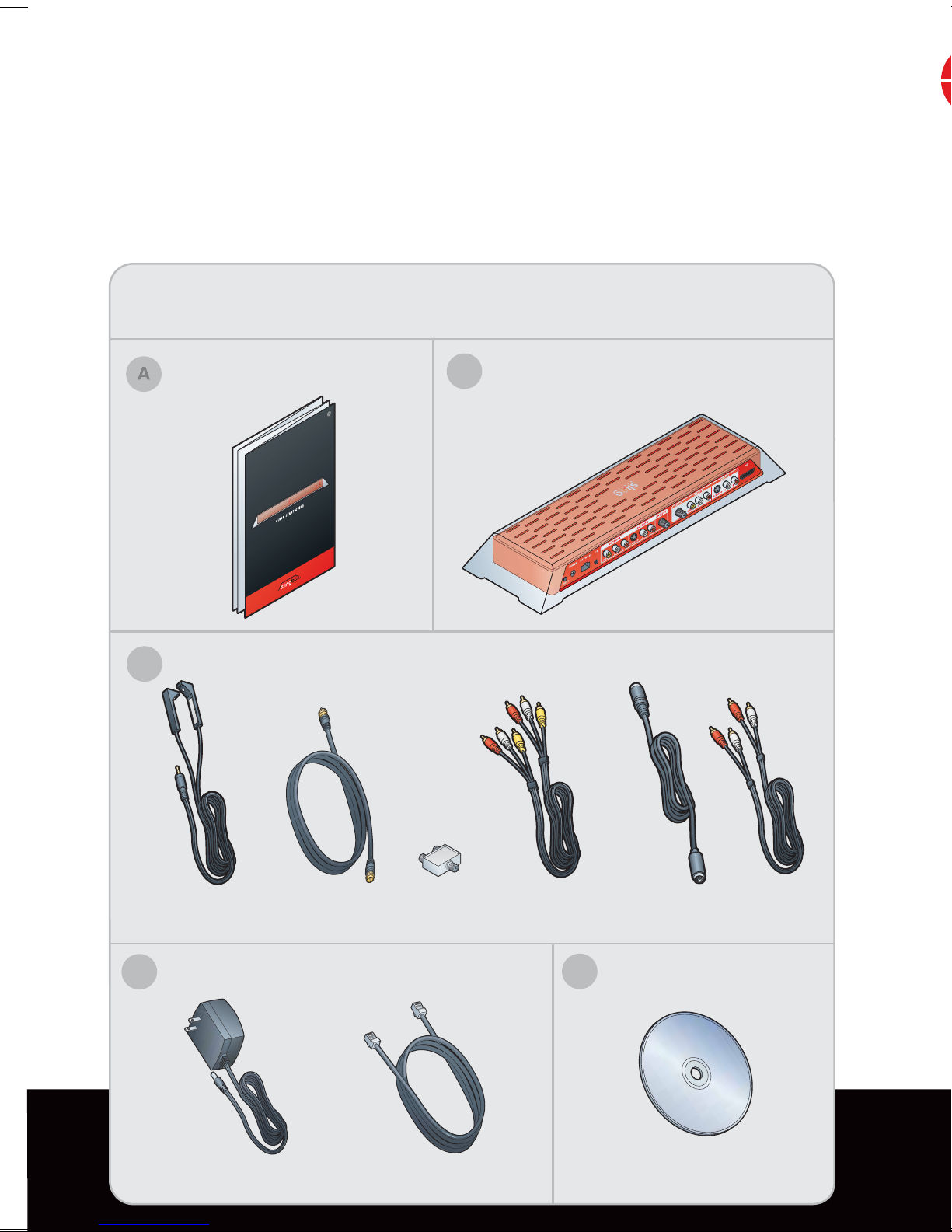
Remove the Slingbox (B) from the box and place near your audio/video sources. The
Slingbox PRO can be connected to up to four devices, such as a cable/satellite box or DVR.
(Please visit www.slingbox.com for a list of support devices).
The Slingbox PRO can receive and use an HD signal from your HD device. You will need
to purchase the Sling HD cable separately. PLEASE NOTE: This connection is made
specifically for the Sling HD cable. Do not try to plug in a standard HDMI cable, this could
damage your Slingbox unit.
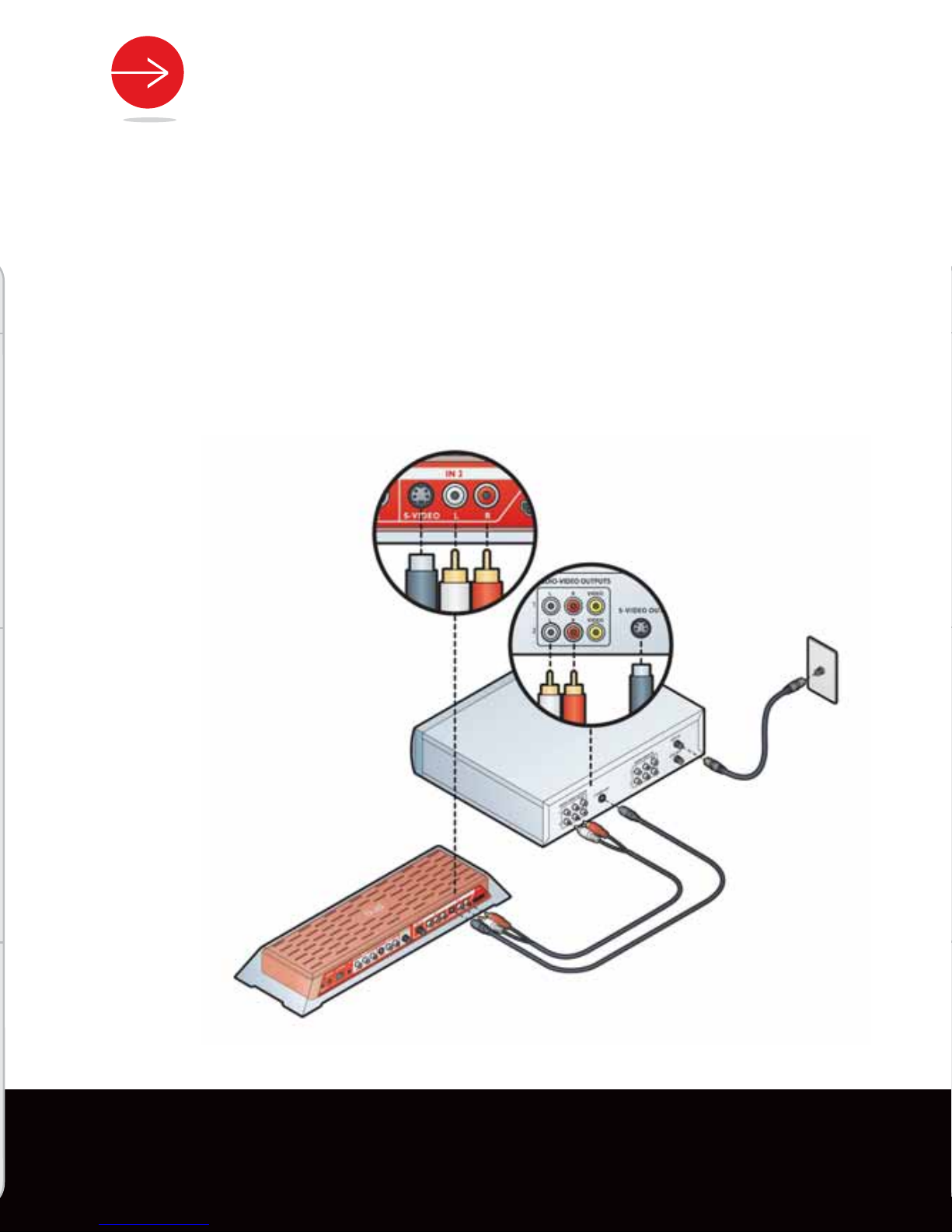
Open the A/V Pack (C) and remove the composite A/V cable. Use this cable to connect
your audio/video source to the Slingbox IN 1 connection.
If there is an S-Video output connection
available on your device, connect
using the S-Video cable and the
audio cable to the Slingbox
IN 2 connection. This will
provide better quality
video playback.
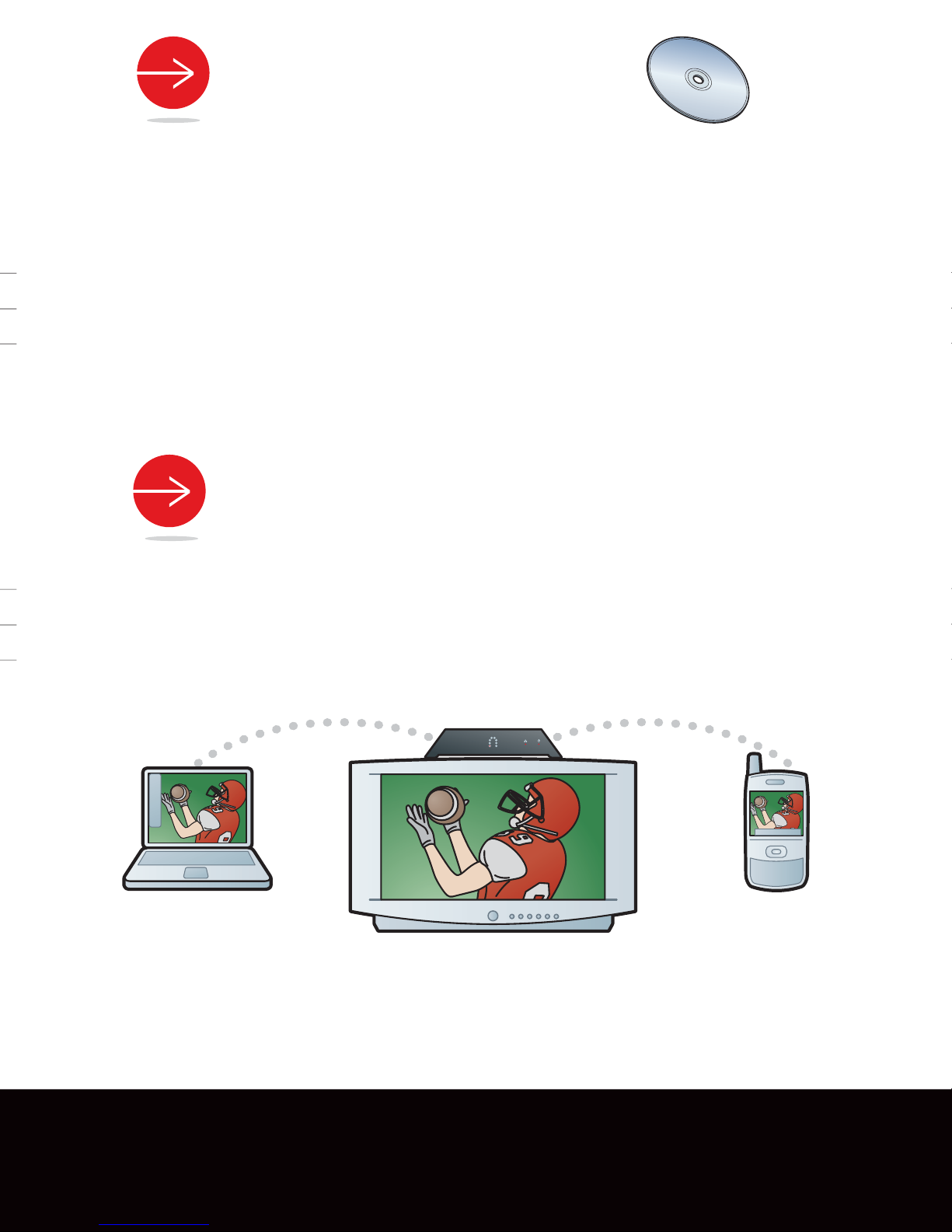
Thank you for buying the SlingboxTM PRO. Follow these instructions to connect your new
Slingbox and start watching your TV programs wherever you go.
Not a user-guide-type person? Then visit www.slingmedia.com/quickstart. There you will
find helpful videos that will guide you and get you on your way.
PRO_content
2 Coaxial
Cables
Remote Control
IR Cable
S-Video
Cable
Composite A/V
Cable
Audio
Cable
CD-ROM
Power
Adapter
Ethernet
Cable
B
C
D E
WHAT’S IN THE BOX:
TIP: The infrared (IR) sensor is on the front of your
cable/satellite box or DVR, usually behind a dark, sometimes
reddish plastic window. If you don’t see the sensor, shine a
flashlight through the window and look for a small bulb similar
to the one on the end of the remote control cable.
A/V Pack
Power/Network Pack CD-ROM
Quick Start Guide Slingbox PRO
—or—
ETHERNET JACK
(Connected to Router)
—or—
SLINGLINK*
(Connected to Router)
ROUTER
(Direct Connect)
* SlingLink sold separately.
TIP: If you have multiple
routers on your home
network, please go to
www.slingmedia.com/
support/multiple for
instructions on how to
set up the Slingbox on
your network.
NETWORK POWER
TIP: If the network light
does not come on within
30 seconds, make
sure that you correctly
connected the Slingbox
to your network/router.
See Troubleshooting on
reverse side for more
solutions, or go to: www.
slingmedia.com/support.
Coaxial Cable
Splitter
TIP: If you have a cable modem or digital cable set top box
already connected to your cable TV outlet, use the supplied
coaxial cable splitter to share the cable signal with the Slingbox.
Do NOT connect a cable modem or digital cable set top box
directly to the OUT connection of the Slingbox.
Cable modem
—or—
Digital cable set
top box
Slingbox