
SLIDE SW475 Manuel utilisateur
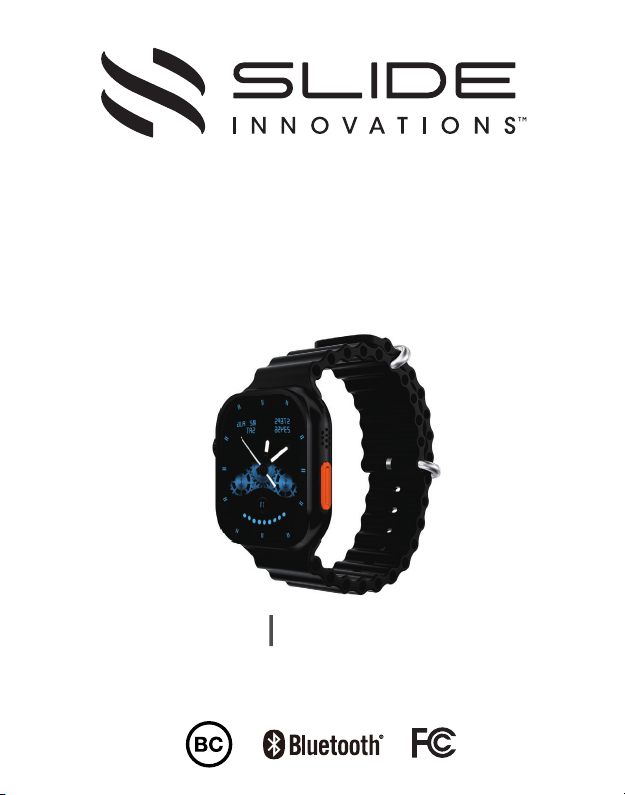
User Manual Manual de Usuario
High-Performance Smart Watch
Reloj inteligente de alto rendimiento
SW475

Table of Contents
Chapter 1 Basics............................................................3
Introduction..................................................................................................3
In the box.......................................................................................................3
Wearing your watch...................................................................................3
Buttons and Parts...................................................................................4
Touch screen...........................................................................................5
Touch gesture..........................................................................................5
Main menu..............................................................................................6
Home screen..........................................................................................6
Shortcut menu.......................................................................................6
Customize the Shortcut button...........................................................6
Charge your Smart Watch....................................................................7
Turn on/off...............................................................................................7
Lock and wake your
Smart Watch
screen........................................8
Adjust the screen brightness .............................................................8
Set the language ....................................................................................8
Chapter 2 Get started....................................................9
Install the FitPro App.............................................................................9
Set up account.......................................................................................10
Pair with your phone and FitPro App................................................11
Get in sync..............................................................................................12
Phone call and message notifications..............................................13
Chapter 3 Fitness and health.......................................15
Track your steps................................................................................... 15
Check your heart rate..........................................................................17
Check your blood pressure.................................................................17
Check your blood oxygen saturation................................................18
EN 1
English

Sleep tracking.......................................................................................18
Check your ECG....................................................................................19
Sports monitoring...............................................................................20
View fitness and health data in FitPro App....................................21
Chapter 4 Apps............................................................22
Bluetooth music...................................................................................22
Bluetooth Camera...............................................................................22
Weather..................................................................................................23
Stopwatch.............................................................................................23
Find my phone.......................................................................................23
Flashlight................................................................................................23
Chapter 5 Settings and Adjustment..........................24
Reminder Settings...............................................................................24
Change watch face on the Smart Watch........................................24
Device information..............................................................................24
Siri voice control...................................................................................25
Date and Time settings.......................................................................25
Set the time to back to watch face..................................................25
Reset your Smart Watch....................................................................25
Repace the strap...................................................................................25
Care and maintenance..................................................26
Specifications...............................................................26
Safety precaution.........................................................27
Product Limited Warranty...........................................28
EN 2

T-buckle Strap hole Strap
Prong
Wearing your watch
1. To ensure the accuracy of fitness and health measurements, wear the watch on your wrist with
direct contacts to your skin and the maximum comfortable fit. Avoid wearing it too loose or too
tight over your joints, and ensure that it is secure during your exercises.
2. Adjust the strap: Insert the strap into the T-buckle, adjust its length until it is comfortable on
your wrist, and then insert the T-buckle's prong into a strap hole to secure it.
1 X Smart Watch
1 X User Manual 1 x Quick Start Guide
1 x USB Charging Cable
Introduction
Package Contents
Chapter 1 Basics
The Slide SW475 is a high performance, lightweight and fashionable smartwatch designed to
control your phone remotely, help you learn more about your health, and provide professional
fitness guidance. It includes useful features such as heart rate monitoring, body temperature
tracking, workout monitoring and more.
The SW475 comes in a beautifully designed watch face, and there are four colors options for
you to choose what you like best.
To start using the watch, wear it on your wrist and pair it with your phone and FitPro app. You
will then be able to enable various features, such as answering an incoming call, making a call,
message alerts, professional workout, heart rate monitoring, blood pressure monitoring, sleep
tracking and so on.
EN 3

EN 4
Buttons and parts
Front View
Rear View
Display screen Shortcut button
Strap
Home button
Adjusting Knob
Heart rate sensor/Magnetic
Charging contacts
Microphone
Adjusting knob: This button has all the same control functions as the Home button. In addition,
For watch face screen, turn the knob to change watch face; For main menu screen (Menu style 1),
turn the knob to zoom in or out.
Home Button: In power off mode, press and hold for 2 seconds to power on.
Press to wake the screen, go to standby mode, or return to watch face screen.
For watch face screen, press and hold this button to display shutdown/reset menu. In Standby
mode, press and hold this button to turn the smart watch off.

Touch screen
Watch Face
Shortcut Menu
App Screen
Main Menu
Home Screen
EN 5
Swipe
left/right
Single tap Single tap to select and confirm.
Touch gestures
Swipe up on the watch face screen to display shortcut menu,
swipe right to hide the shortcut menu.
Swipe up to navigate through the items on watch screen.
Swipe down on the watch face screen to display message list,
swipe right to hide the message list.
Swipe down to navigate through the items on watch screen.
Swipe left on the watch face screen to navigate through apps.
Swipe right on the watch face screen to enter home screen.
Swipe right on the app screen to return to previous screen.
Swipe up
Swipe down

EN 5
Shortcut Menu
Main Menu Home Screen
Flight mode Menu style
StopwatchPhonebook
System language
QR code for
downloading
FitPro App
Connection status
Tap the icons on the shortcut menu to quickly configure the settings or use the app.
Power level indication
Flashlight
"Don't Disturb"
mode
Bluetooth Music
Bluetooth Call
Tap on the watch face screen to display the App main
menu. Swipe up and down to navigate through the menus,
tap on your desired app icon to open the app.
On the watch face screen,
swipe right to enter the home
screen, swipe up and down to
navigate through the apps on
the home screen.
EN 6
Customize the Shortcut button
To customize the shortcut button, select Settings from the
main menu, and tap Function Key Set to select your desired
app for customizing the Shortcut button. Then you can press
the Shortcut Button on the left of the smart watch to quickly
use the app.

EN 7
Turn on/o
Charging time
It takes about 2.5 hours to fully charge your Smart Watch. Remove your Smart Watch once it is
fully charged.
Turn your Smart Watch on
To turn on the Smart Watch, press and hold the Adjusting knob or Home button for 2 seconds
until the Slide logo appears. Once your device is turned on, it will automatically enter the watch
face screen.
Turn your Smart Watch off
On watch face screen, press the Adjusting knob or Home button once to go to standby mode,
then press and hold the Adjusting knob or Home button for 2 seconds until the Slide logo
appears.
Charge your Smart Watch
• Before charging, make sure the charging port is clean and dry.
• Using other companies chargers may result in slow charging and/or overheating.
Step 1: Place the charging contact of the smart watch onto the USB charging dock (Concave side).
Step 2: Connect the USB end of the charging cable into a USB power source. When connected
successfully, you will see the charging indication on the watch screen.
Charging dock
Magnetic
Charging
contact
Standby mode
12

Lock and wake your Smart Watch screen
Turn the screen off
By default, the Smart Watch screen will automatically sleep after 15 seconds.
Waking the screen
To wake the screen, press the Home Button or Adjusting Knob, and the screen will activate.
EN 8
Set language
Before using the Smart Watch, make sure you have the correct language and time zone.
After you have successfully gotten the Smart Watch paired with your phone and the FitPro
app (Refer to the "Get started" section"), then the Smart Watch will automatically sync the
language and time zone used in your phone.
There are also 2 methods that you can also set the language for the Smart Watch.
1. By the shortcut menu
Swipe up on the watch face screen to display the shortcut menu, Tap the Language icon to
enter the language settings.
2. By the system setting menu
Adjust screen brightness
On the main menu, tap Settings to enter the System Settings menu, and swipe up and down
to select Backlight Brightness, then tap + or - to adjust the screen brightness.
On the main menu, tap Settings to enter the System Settings menu, and swipe up and down
to select Set Language to enter the language settings.
When enabling the "Lift wrist to bright screen" feature, you can also raise your wrist to wake the
screen. To enable this feature, open the FitPro App, tap Settings > Lift wrist to bright screen, and
enable Wrist Sense.
To set display screen-on time, on the main menu, tap Settings to enter the System Settings
menu, and swipe up and down to select Backlight time.

Chapter 2 Get started
Install the App
FitPro is an application specially designed for SW475, which allows users to access to more
features.
When installation is complete, the FitPro App will appear on your phone' home screen.
Tap to launch FitPro, as shown below.
To download FitPro on your phone, scan the QR code shown below by using your phone camera
and tapping the pop up link. Alternatively, you can search for "FitPro" in the Google Play Store
or Apple App Store, and follow the onscreen instructions to install the FitPro App.
Note: you can also tap the APP icon on the home screen or main menu of the watch to get the QR code.)
System requirement: Mobile device running iOS® 9 or higher, Android™ 5 or higher
EN 9
8h25m
Deep26% Light67% Awake7%
Table des matières
Langues :
Autres manuels SLIDE Montre

SLIDE
SLIDE SW200 Manuel utilisateur

SLIDE
SLIDE SW375 Manuel utilisateur

SLIDE
SLIDE SW100 Manuel utilisateur

SLIDE
SLIDE SW400 Manuel utilisateur

SLIDE
SLIDE SW400 Manuel utilisateur

SLIDE
SLIDE SW200 Manuel utilisateur

SLIDE
SLIDE SW100 Manuel utilisateur

SLIDE
SLIDE SW300 Manuel utilisateur

SLIDE
SLIDE SW100 Manuel utilisateur


