
SkyGolf SkyCaddie SG2.5 Manuel utilisateur
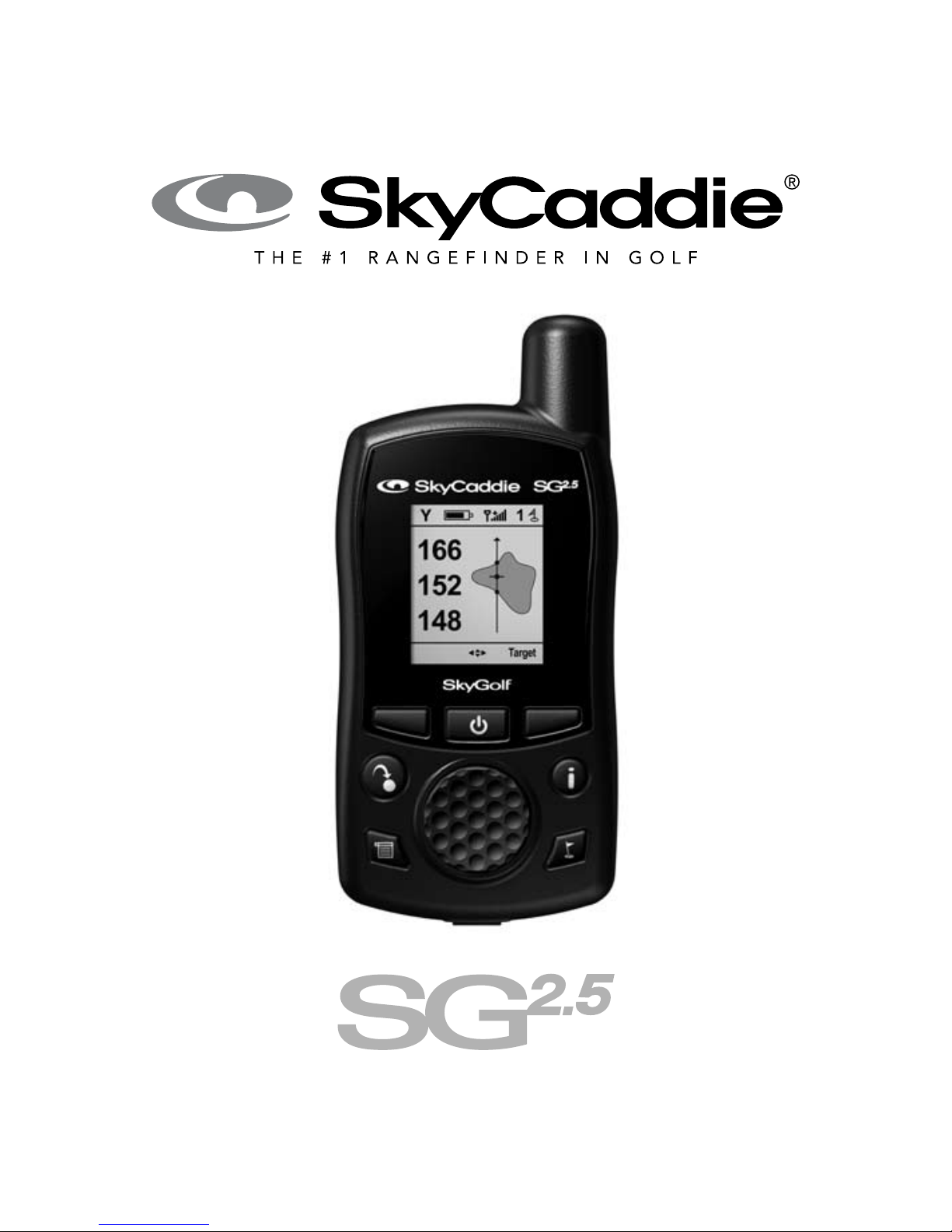
SkyCaddie®1
USER GUIDE

2 SkyGolf®
U.S. Patent No. 7,118,498
©2001-08 SkyHawke Technologies, LLC. All Rights Reserved.
SkyCaddie®User’s Guide. All content within is copyrighted by SkyHawke Tech-
nologies, LLC and may not be reprinted without permission.
The content of this guide is furnished for informational use only, is subject
to change without notice, and should not be construed as a commitment by
SkyHawke Technologies, LLC. SkyHawke assumes no responsibility or liability
for any errors or inaccuracies that may appear in the informational content
contained in this guide.
SkyGolf®, SkyCaddie®, SkyGolf GPS®, SkyCourse®, SkyPlayer®, and Intelli-
Green®are registered trademarks of SkyHawke Technologies, LLC.
SkyHawke Technologies, LLC, Ridgeland Technology Center, 274 Commerce
Park Drive, Suite M, Ridgeland, Mississippi 39157 USA.
Please register your SkyCaddie at www.skygolf.com within 30 days of
purchase to activate your Consumer Limited Warranty.
Visit us on the web at www.skygolf.com.
Version SG2-5.2.01072008

SkyCaddie®3
TABLE OF CONTENTS
Introduction / Company Pledge ......................................................................5
Chapter 1: Getting Started...............................................................................6
1.1 SkyCaddie Overview ..................................................................................6
1.1.1 Button Layout ..................................................................................6
1.1.2 Navigation Keys...............................................................................7
1.1.3 Button Descriptions .........................................................................7
1.1.4 On-screen Indicators .......................................................................8
1.2 System Requirements ................................................................................9
1.3 Charging ...................................................................................................10
1.4 Activating Your SkyCaddie........................................................................10
1.5 BenetsofSkyPlayerClubMembership ..................................................12
1.6 Downloading Courses to Your SkyCaddie ................................................14
Chapter 2: Playing Golf With Your SkyCaddie............................................. 15
2.1 Acquiring Signals ......................................................................................15
2.2 Selecting a Course to Play .......................................................................16
2.3 Viewing Targets During Play .....................................................................16
2.3.1 IntelliGreen®..................................................................................16
2.3.2 Target Views..................................................................................17
2.3.3 Center Only View ..........................................................................19
Chapter 3: Customizing Your SkyCaddie For Play...................................... 20
3.1 Preferences ..............................................................................................20
3.2 Determining Shot Distance .......................................................................21
3.3 Information................................................................................................22
3.4 Advanced Menu........................................................................................22

4 SkyGolf®
Chapter 4: Recording Your Own Course......................................................25
4.1 Naming Personal SkyCaddie Courses .....................................................25
4.2 Recording Green Targets..........................................................................26
4.3 Setting Par and Handicap.........................................................................26
4.4 Playing Personal SkyCaddie Courses ...................................................... 26
4.5 Re-Recording Personal SkyCaddie Courses............................................26
4.6 Renaming or Deleting Personal SkyCaddie Courses ............................... 27
4.7 Publishing Personal SkyCaddie Courses .................................................27
Chapter 5: SkyCaddie Menu Items................................................................28
Helpful Hints ...................................................................................................33
Appendices .....................................................................................................35
Appendix A: Target Icons and Target Descriptors.............................................35
AppendixB:SkyPlayerClubMembershipBenetComparison .......................38
Appendix C: Target Examples ..........................................................................40

SkyCaddie®5
INTRODUCTION
Company Pledge
Congratulations on your purchase of the SkyCaddie, the world’s simplest,
most powerful rangefinder created by golfers for golfers. Our goal is to help you
play better, play faster, and have more fun! The SkyCaddie gives you the same
information that a Tour Caddie gives a Pro, right in the palm of your hand. Once
you start using the SkyCaddie, you’ll find that you won’t want to play golf without
it again.
We can proudly say that thousands of hours have been spent perfecting the
SkyCaddieforyourgolngpleasure.Itisthemostadvanced,powerfulandeasiest
touserangenderavailabletogolferstomeasuredistancesonagolfcourse.
Welcome to the Next Generation Rangender!
Enjoy your new SkyCaddie and Play Well!
6 SkyGolf®
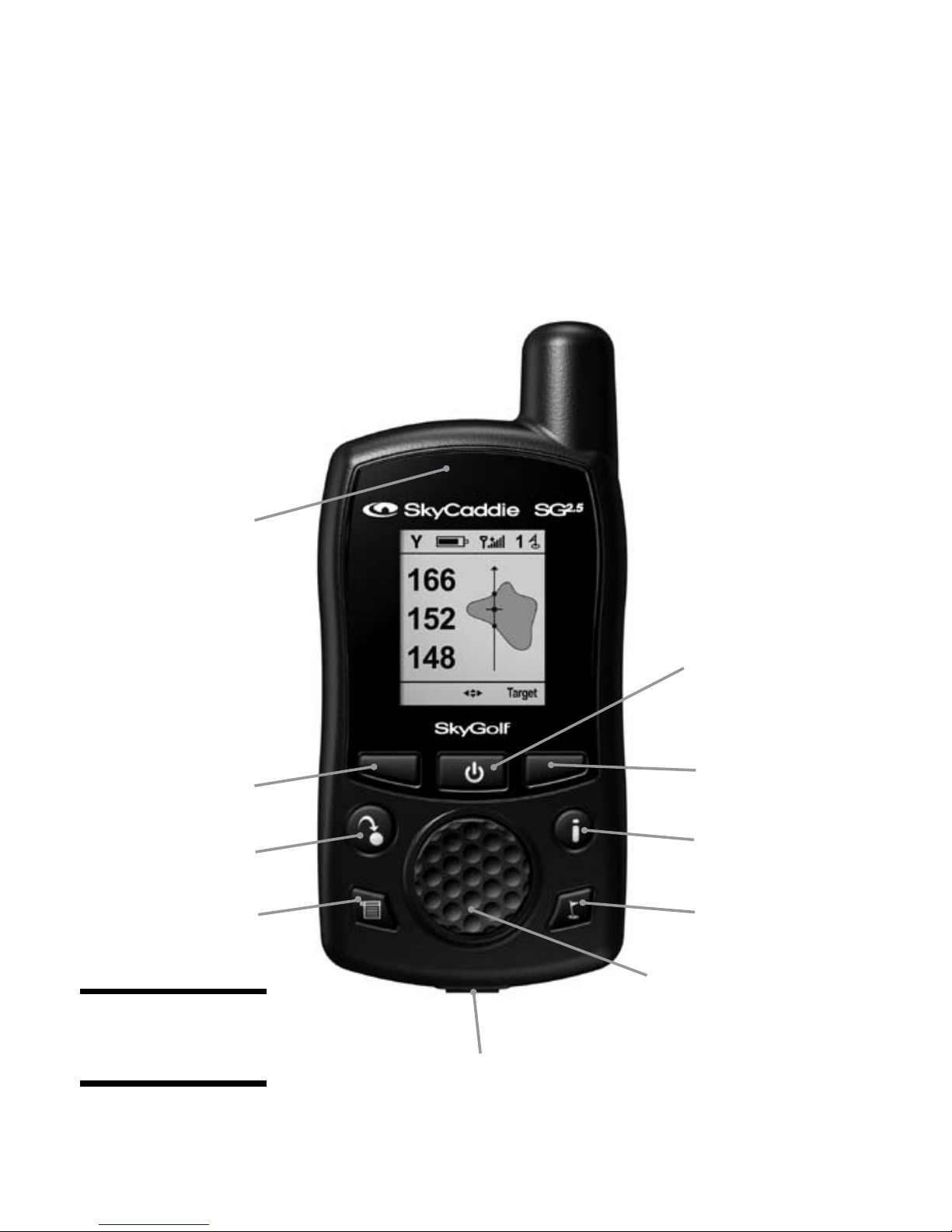
Red/Green
Charging
Indicator
Center Soft Key
(Power On/Off,
Keypad Lock,
Backlight)
Right Soft Key
Hole
Fig. 1
SkyCaddie layout
Mark Ball
Left Soft Key
Menu
4-Way Scroll Pad
(Up/Down/Left/Right)
Info
CHAPTER 1
Getting Started
1.1 SkyCaddie Overview
1.1.1 Button Layout
Mini-USB Cable and Charging Port

SkyCaddie®7
1.1.2 Navigation Keys
• Center Soft Key (Power On/Off, Keypad Lock, Backlight) — Press the Center
Soft Key button located beneath the SkyCaddie display to power on/off, lock
the keypad or to turn on the backlight. Pressing the Center Soft Key button
while the SkyCaddie is on, you are prompted to choose either:
– “Off” (Left Soft Key) to power off the device
– “Lock” (Right Soft Key) to lock the keypad. To unlock the keypad, select
‘Unlock” by pressing the Right Soft Key, then choose “Yes”.
– “Backlight” (Center Soft Key) to turn on the backlight. The backlight will
automatically turn off in 30 seconds.
• Scroll Pad — Navigate the SkyCaddie menus by pressing the Scroll Pad
up/down/left/right.
• Left and Right Soft Keys — The left and right soft keys correspond to functions
displayed at the bottom left and right of your SkyCaddie display. Press the
appropriate soft-key to select the desired function displayed.
1.1.3 Button Descriptions
• Info — To quickly view additional information relevant to your SkyCaddie
or hole in play, press the Info button (additional information may include
SkyCaddie Serial Number, Software Version, Course Name, Hole Number,
Par and Handicap). Pressing the Info button twice will display onscreen
instructions or information about the current screen being displayed.
Upon receiving satellite lock, the SkyCaddie can display the time. After
pressing the Info button while viewing the IntelliGreen or Target views, select
“Time” with the Right Soft Key. Adjust the hour, if needed, by selecting “Adj”.
8 SkyGolf®
• Menu — Press the Menu button to display the SkyCaddie Main Menu.
• Hole — Press the Hole button to display information about the next hole.
Press “Select” to advance to the next hole. To advance to a different hole,
press the Scroll Pad left / right or select “List” to view all holes. Scroll to the
appropriate hole and press “Select”.
• Mark — The Mark Ball feature is used to determine shot distance. Press
the Mark button, and then select “Mark” before taking your shot. Press the
Mark button again when you get to the location where your ball landed. The
shot distance will be displayed. For more information about the Mark Ball
feature, see Section 3.2.
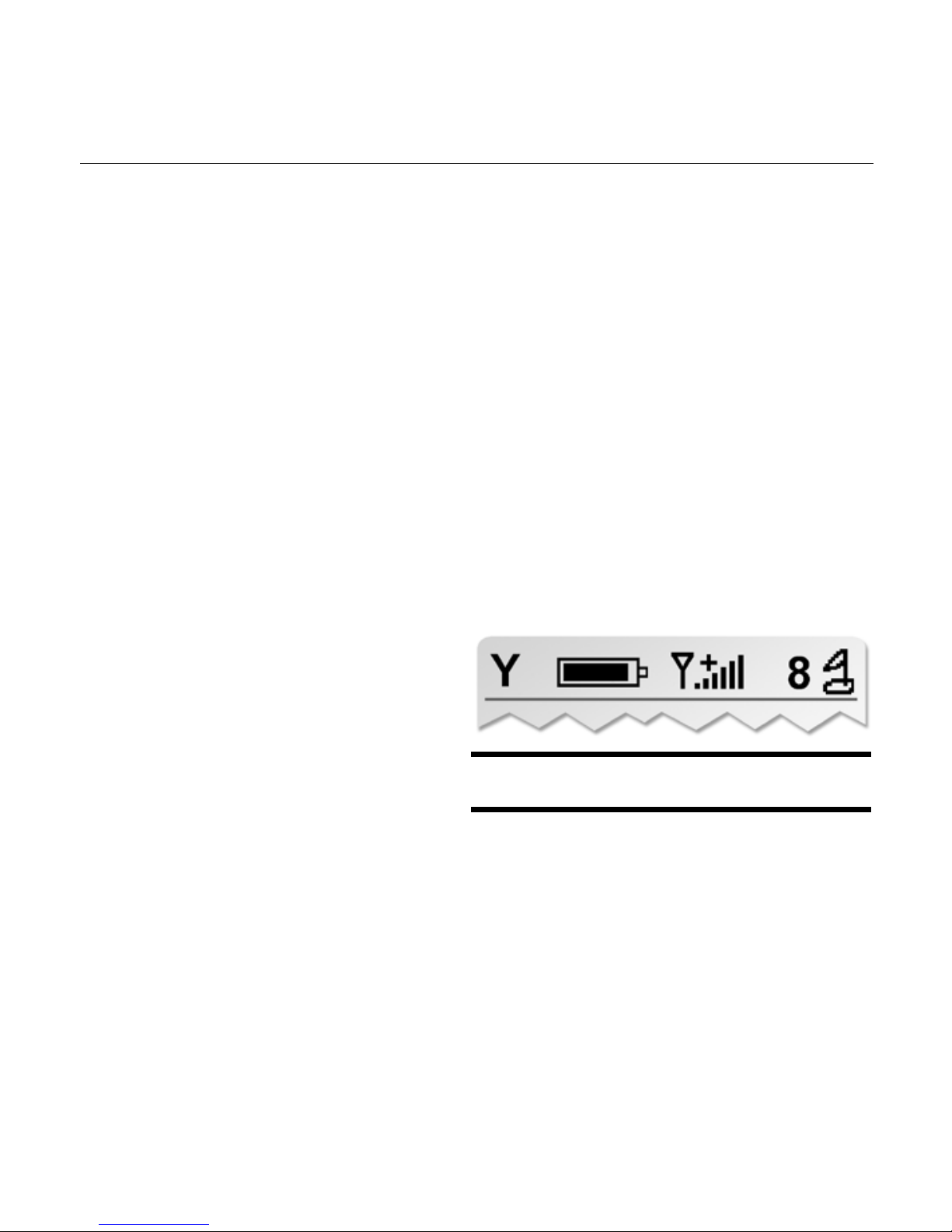
1.1.4 On-Screen Indicators
• Distance — Displays the selected
unit for distance as either “Y” =
Yards, “M” = Meters, “mi” = Miles,
or “K” = Kilometers.
• Battery Level — Quickly confirm
remaining battery level with the
on-screen battery gauge.
• Satellite Signal Level — Easily verify satellite signal strength with the
onscreen signal bars. The plus sign (+) above the signal bars indicates that
SBAS (Satellite-Based Augmentation System) has been acquired. This is
the preferred signal level for optimal performance.
• Hole Number — Displays the current hole number in play.
Fig. 2. On-screen indicators.

SkyCaddie®9
1.2 System Requirements
Before registering your SkyCaddie at www.skygolf.com,pleaseconrmyour
computer meets the minimum system requirements:
PC Requirements
• PC with Microsoft®Windows®2000/XP/Vista
• Microsoft®Internet Explorer®6.0 or higher
• 256 MB of RAM
• 4 MB of available hard disk space
• Internet access
• Available computer USB port
• 2X CD-ROM drive (optional)
Mac Requirements
• Macintosh®with Intel®or PowerPC processor
• Mac OS®10.3.9 or above
• 256 MB of RAM
• 4 MB of available hard disk space
• Internet access
• Available USB port (1.1 or 2.0)
10 SkyGolf®
1.3 Charging
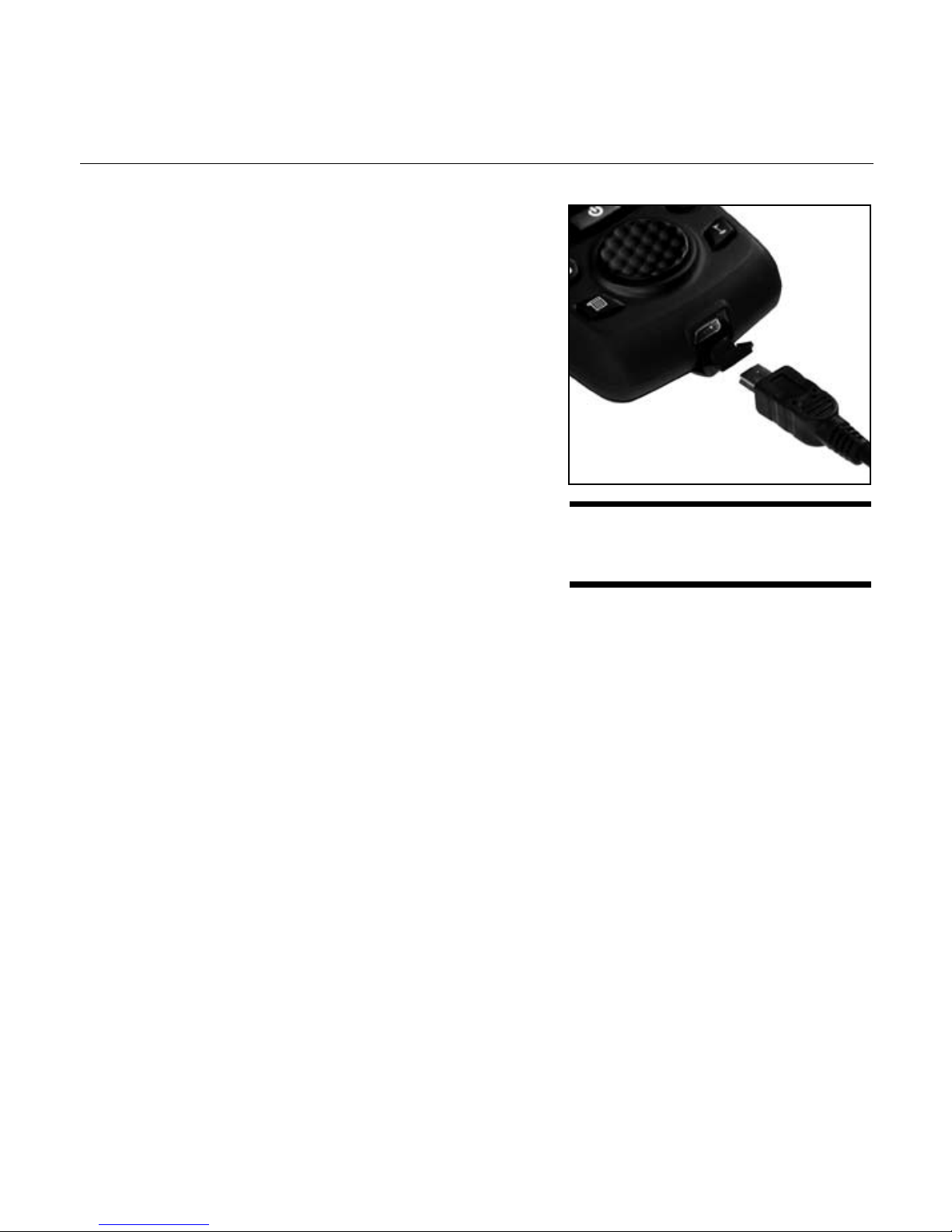
Prior to using your SkyCaddie be sure to fully
charge the battery. To charge the battery, please
follow these steps:
1. Gently pull back the rubber cover located
at the bottom of the SkyCaddie to gain
access to the mini-USB port. Insert the
mini-USB connector of the supplied wall
charger into the port as illustrated.
2. Plug the wall charger into a wall outlet.
While charging, the charging indicator
located above the SkyCaddie display will
show RED. The charging indicator will
switch to GREEN when fully charged.
A full battery charge may take 4 hours. Once fully charged, expect approximately
14 hours of continuous play.
1.4 Activating Your SkyCaddie
Within 30 days, please register and activate your SkyCaddie, create an online
account and select a Membership Plan by going to www.skygolf.com and clicking
the “Getting Started” link. Simply follow the website instructions to complete the
process.
During this process you will be asked to create a user name and password for
your online account referred to as “My SkyCaddie”. The “My SkyCaddie” online
account offers a full range of member services, easy access to download courses,
support and more. In addition to creating an account, you will be asked to select a
SkyPlayerClubMembershipPlanthatbesttsyourneeds (Benets of member-
ship are listed in Section 1.5).
Fig. 3 –Inserting the
mini-USB connector
Table des matières
Autres manuels SkyGolf GPS

SkyGolf
SkyGolf skycaddie sw2 Manuel utilisateur

SkyGolf
SkyGolf GameTracker GT2 Manuel d'installation et d'exploitation

SkyGolf
SkyGolf SkyCaddie LX5 Manuel utilisateur

SkyGolf
SkyGolf SkyCaddie SG3 Manuel utilisateur

SkyGolf
SkyGolf SkyCaddie SG1 Manuel utilisateur

SkyGolf
SkyGolf SkyCaddie SG5 Manuel utilisateur

SkyGolf
SkyGolf SkyCaddie SGXw Guide de l'administrateur

SkyGolf
SkyGolf SkyCaddie SG3.5 Manuel utilisateur

SkyGolf
SkyGolf SkyCaddie SG1 Manuel utilisateur

SkyGolf
SkyGolf SkyCaddie SG5 Manuel utilisateur


